Feature options
Last updated: November 4, 2026
Summary
As an admin, you can enable or disable certain functionalities for your institution. These settings will apply to all users within the institution. Examples of these 'Feature Options' are: external video providers, alumnus login and portfolio exports.
Applicable for | 🐼 |
Not applicable for | — |
How to enable or disable Feature Options?
Go to Admin → Feature options
Enable or disable feature options as desired. See below for available feature options.
Click the 'save' button to apply your settings. They will apply immediately.

Which feature options are available?
Available feature options
Alumnus login
Custom help button
Custom user policy
Personalised notification email address
Download warning
Portfolio exports
New user info box
Sub-goals in progress reviews
User Community
Ideas & Roadmap
Generated feedback summary
Require MFA with authenticator app for external users
Portflow mobile app
Open in new tab
Integrations
Video providers
What is the Alumnus login?
Without Alumnus login, learners would lose access to Portflow after losing access to the LMS. With Alumnus login, they have the option to link an authentication provider which they can use after graduation.
If you disable Alumnus login, all alumnus logins will be deactivated.
Learn more about alumnus login: 📄 Alumni Access to Portflow
Learn more about data processing with authentication providers: 📄 Integrations (Microsoft, Google, LinkedIn, GitHub)
What is the Custom help button?
In the top-right corner, there is a help button, which directs users to this knowledge base by default. If you wish to create your own documentation or an internal Portflow landing page, you can direct users to your own help page.
Note: You have the option to provide a link for all available languages. If you did not provide a link for a secondary language, the link for primary language is used.
What is the Custom user policy?
External invitees sign up using their email address. If you provide a user policy, Portflow will require external users to accept this policy before becoming an external Portflow user.
Learn more about external users: 📄 Portal for Externals and 📄 Manage External Users
What is the Personalised notification email address?
Portflow users can choose to receive notifications from Portflow directly in their mailbox. This feature option is not necessary to allow email notifications. This feature option is to determine whether users can set their own email address, or whether you only allow them to use their institution mail address.
Note:
Feature option off: Users can choose to receive email notifications on their institution mail address, or to turn off all notifications.
Feature option on: Users can choose to receive email notifications on any email address, or to turn off all notifications.
Learn more about notifications: 📄 Notifications
What is the Download warning?
By default, a user needs to accept the risks of downloading a file from the internet whenever they download an (Evidence) file from Portflow. These risks are mainly security-related since Portflow does not screen the contents of a file.
Disabling the feature option removes the download warning. It is encouraged to keep the download warning.
What is Portfolio exports?
In many cases, an Export of the Portfolio is not necessary: Learner access to Portflow is managed by the institution, except when Alumnus login is active. Access of stakeholders to their own live Portfolio are managed by the learner themselves. Access to the submitted Portfolio Snapshot is managed by the institution.
When an export is desired by the learner themselves or is deemed part of the archiving process, the Portfolio exports Feature option can be enabled. When enabled, learners can export a specific Snapshot or their entire Portfolio.
Learn more about Portfolio Exports: 📄 Export Portfolio
What is the New user info box?
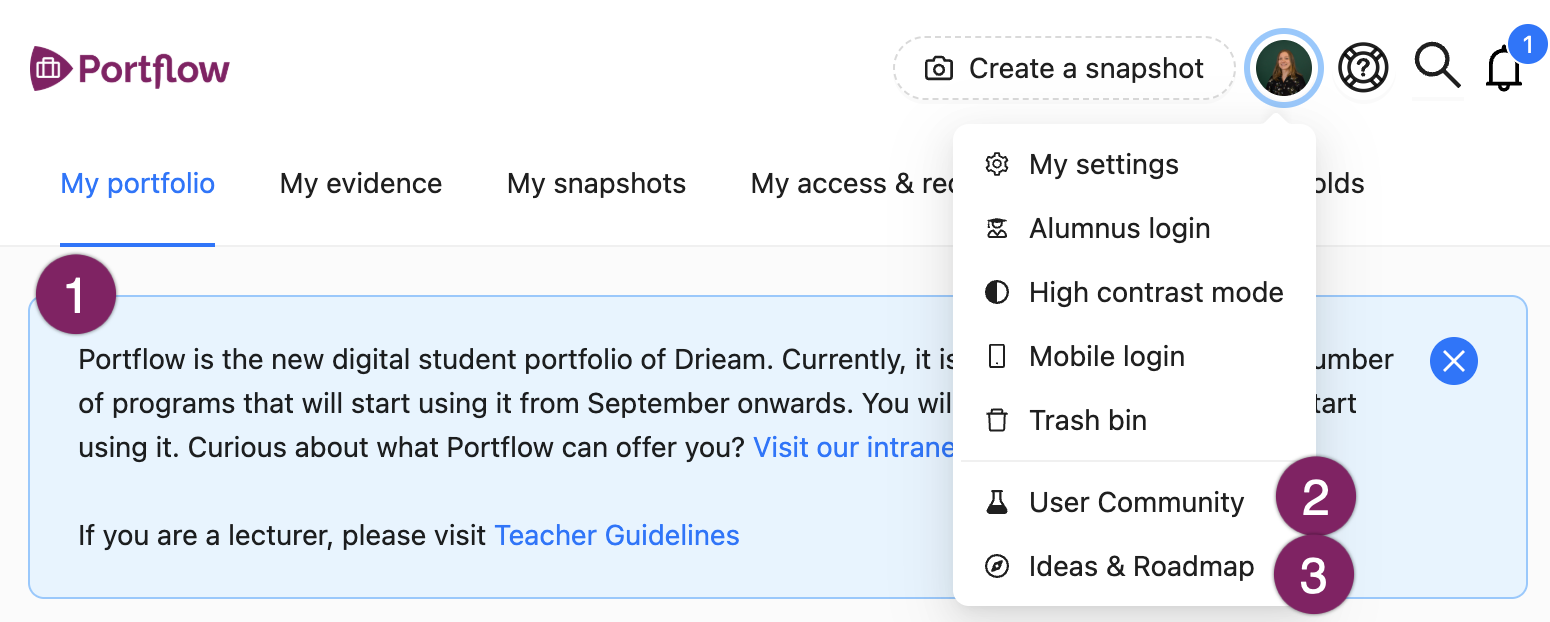
When a new user joins Portflow, you can welcome them with a message. See the image below for an example (1). Once the user has created or imported a Collection, this message will disappear for them.
When this Feature Option is enabled, you can write a message in your primary language and optionally for a secondary language(s).
Example of a New user info box message
Portflow is the new digital student portfolio of [institution]. Currently, it is being set up for a limited number of programmes that will start using it from September onwards. You will be notified when you can start using it. Curious about what Portflow can offer you? [Link]
If you are a lecturer, please visit [link]
What is Sub-goals in progress reviews?
Progress Reviews can be set up from scratch by a learner or scaffolded with a Preset. In the Progress Review, a learner selects Goals which serve as criteria for the Review. With this Feature Option enabled, Sub-Goals can be selected as criteria as well. With the Feature Option disabled, only Goals can be selected.
Learn more about Progress Reviews: 📄 Create a Progress Review Request and 📄 Review Presets
What is User Community?
Portflow Labs is our user community for users from all over the world. In this user community, you can share your insights and experiences with Portflow, connect with other users, and discuss ideas to improve Portflow. Admins, learning designers, teachers, and learners alike are invited to participate. Every Thursday, the Portflow team asks a question or shares an idea, an invitation for a webinar or event, or a preview for a feature that's coming up.
Note:
Enabling the User community feature option allows all users to easily find and participate in the user community on Teams. They can find this button through their avatar in the top right → User community (See image (2)).
Learn more about Portflow Labs.
What is Ideas & Roadmap?
Portflow is developed in co-creation with our user base. We like to understand what you need, so we can keep servicing a wide range of learning processes. We welcome insights from any user, and process every insight manually. Enabling this Feature Option allows users to contribute to the roadmap directly from within Portflow. They can find this button through their avatar in the top right → Ideas & Roadmap (See image (3)).
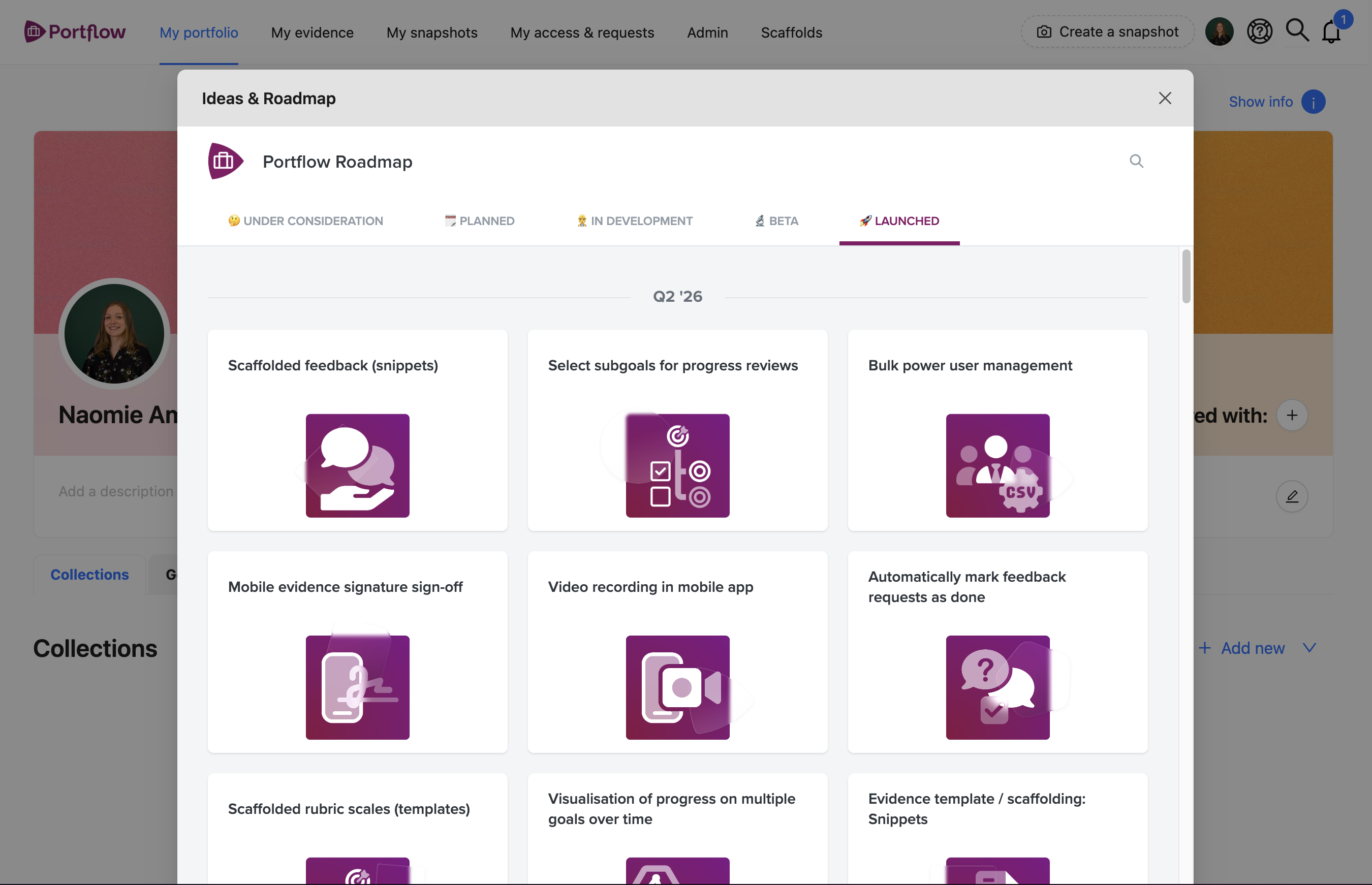
In this window, you can find what we are considering, what we are currently developing and what we have recently released. If you click on any topic card, you can provide your insights for this topic. You can also submit an entirely new idea using the + at the bottom. We are especially interested to understand the 'why' of your contribution or request, to make sure we build a solution that fits your problem. If you enter your email address, we will follow up with any updates!
What are the AI features?
The admin can choose whether the feature is on or off by default for learners. If the feature is disabled by default, learners can opt-in via their user settings. If the feature is enabled by default, learners can opt-out via their user settings. If the feature is off in its entirety, no one can enable nor use the feature.
Changing the availability and switching it back will reset to the default behaviour for everyone, regardless of their personal settings.
What is the Generated feedback summary?
Learners collect a large amount of Feedback items on their Goals during their learning process. The Portflow AI feedback summary helps learners, coaches, or assessors to quickly identify trends or outliers in student progress on this Goal.
Learn more about the AI feedback analysis: 📄 AI in Portflow: Feedback analysis (beta)
What is the Goal suggestions for Feedback? beta
Read more about it in 📄 AI in Portflow: Feedback analysis and Goal suggestions (beta)
What is Require MFA with authenticator app for external users?
External users by default log in to the external portal using a Magic link (📄 Portal for Externals). Additionally an external user can choose to use MFA with an authenticator app. If your policy demands it, you can require using a magic link and an authenticator app for all external users.
What is the Portflow mobile app?
Portflow has a mobile app for capturing Evidence or Feedback on-the-go. Enabling this Feature Option, allows users to log in to the mobile app on their mobile device. Learn more about the Portflow mobile app: 📄 Mobile Portflow App
Note:
Disabling the feature option will log out all mobile users for your institution. They might lose their unsaved work.
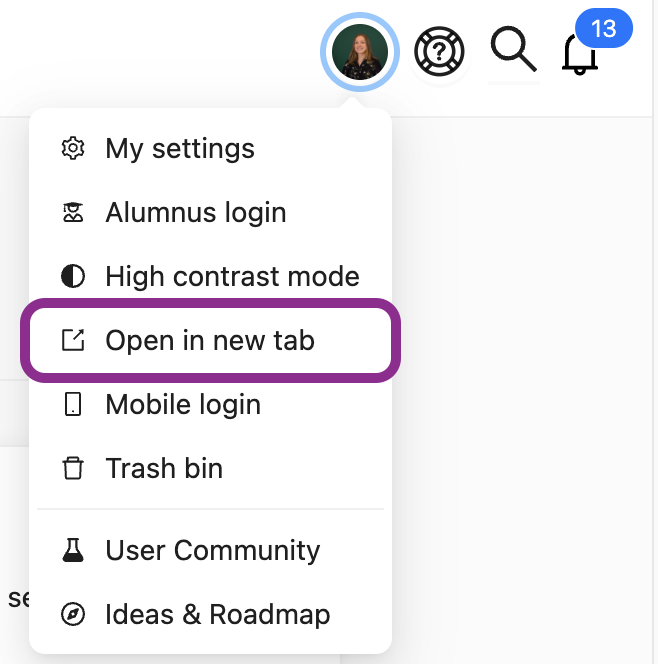
What is Open in new tab?
Normally Portflow is used within the LMS. Enabling this Feature Option will allow learners to open and use Portflow in a new tab once logged in through the LMS. Logging in and launching is still done through LMS for every session. After logging in, users can open Portflow in a new tab. You can close the tab, or use the 'Log out' option to finish the session and return to the LMS.
Benefits of opening Portflow in a new tab:
You can see Portflow in full screen
You are able to refresh and keep your position in the app
You are able to Ctrl+click / ⌘+click to open a link into a new tab
You can still use LMS functionalities such as inviting LMS users
What is Integrations?
Currently, the only available integration is Microsoft OneDrive. This integration allows learners to 'file pick' evidence from their OneDrive or SharePoint environment, to use as Evidence in Portflow.
Learn more about data processing regarding out integrations: 📄 Integrations (Microsoft, Google, LinkedIn, GitHub)
What is Video providers?
External video providers allow learners to embed videos from the selected platforms as Evidence in Portflow. You are required to enable at least one video provider.
Custom video provider
Generally available after 1 October
As addition to the default video providers, you can enable a custom video provider. You can provide a name (visible to learners) and a domain. This domain cannot contain a path (anything with a / ). Portflow only supports the https protocol.
Accepted: media.school.com
Not accepted: media.school.com/ or media.school.com/player
When the feature option is disabled or the domain is changed, all previous video embeds will break.
Videos will need to be publicly available to be used in Portflow. Furthermore the video will need to allow to be embedded. It is advised to communicate about the specific recommendations for your video platform to your end users.
Supported video hosting platforms
Portflow supports embedding videos from the following video hosting platforms:
Vimeo
YouTube
Canvas Studio
Kaltura
Panopto
Yuja
Custom video provider domains (e.g. Mediasite, Switch Tube)
A Portflow Admin can manage video platforms in 📄 Feature options
Learn more about video evidence: 📄 Add Video as Evidence
What is FeedbackFruits
FeedbackFruits can be used to facilitate all kinds of learning activities. Enable this feature option to allow learners to import their FeedbackFruits activities into Portflow. Read more: 📄 Set up FeedbackFruits activities for learners to import into Portflow.
Contact Drieam and FeedbackFruits to request/enable the integration.