Notifications
Last updated: August 6, 2026
Summary
Portflow sends notifications to users for all relevant activities, such as new shares and feedback requests. You can let Portflow send notifications to your email address. This article describes what notifications you get and how to manage your notifications.
Where are my Notifications in Portflow?
Portflow notifications appear in Portflow's Notification Centre (available when you click on the little bell icon at the top right) for known users, but are also forwarded to the Canvas inbox (Canvas) or email (Brightspace, Moodle, Blackboard). Read more on how to turn on email notifications below.
Note: Most topics from notifications requiring action now or later on, can also be found in the 'My Access and Requests' tab. These include Feedback Requests, Access Requests, and Progress Review Requests.
Tip: Click the avatar icons in the Notification Centre to quickly mark notifications as 'read'. Click on the icon with the ticks in the top right to mark all notifications as 'read'.
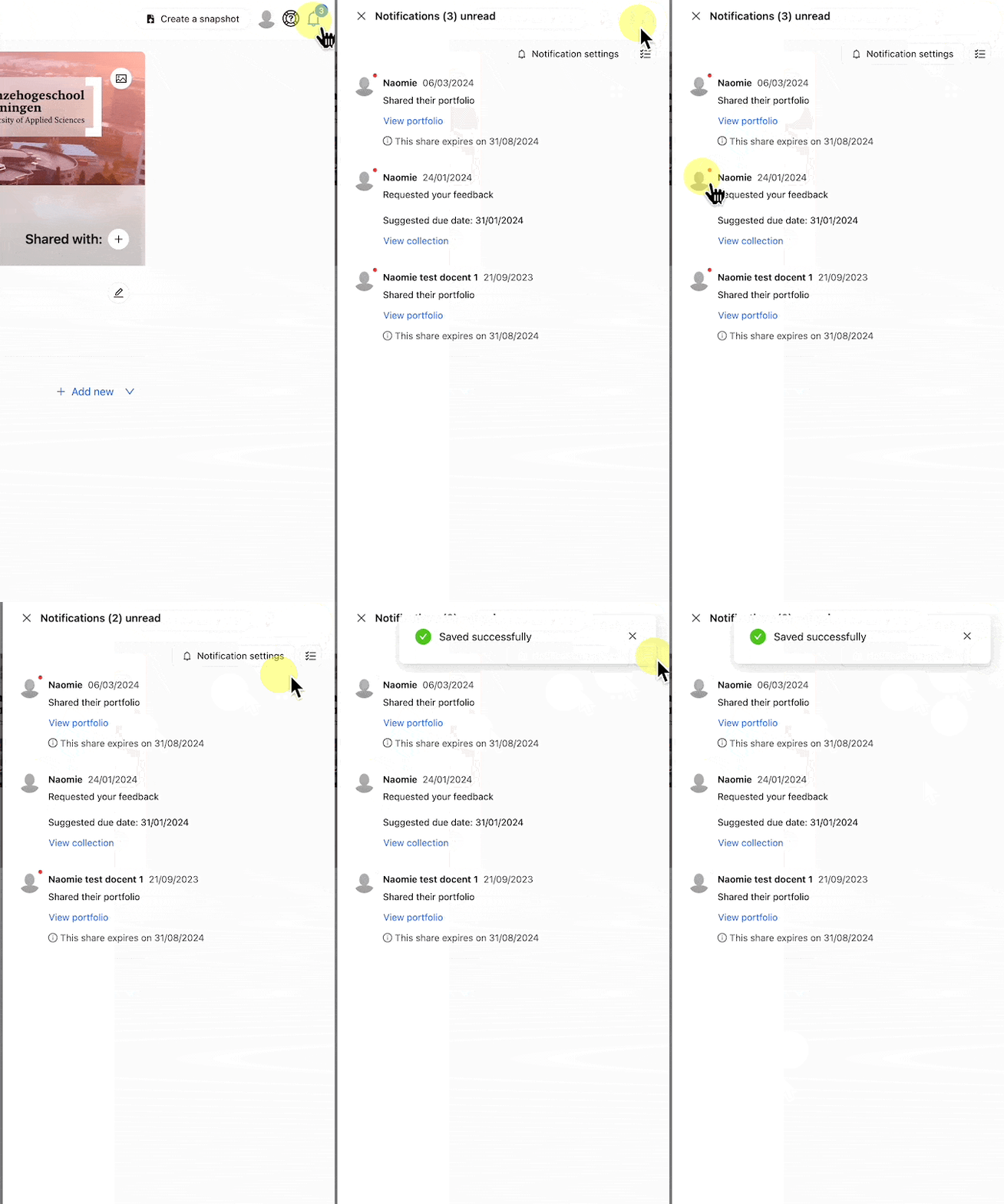
Canvas Inbox Notifications and Emails
Applicable for | 🐼 |
Not applicable for | 🫎 |
Where do I get notifications as a Canvas user?
In addition to notifications in the Portflow Notification Centre, Portflow will send notifications to the Canvas Inbox, which are typically automatically forwarded to your email.
You can also have Portflow send notifications immediately to your email (i.e., not through Canvas Inbox). This can be set up via My settings in the User Menu (see below) and is not enabled by default.
How to manage my Canvas Inbox notifications?
By default, Canvas Notifications are set to immediately send an email to the user when an Inbox message is received. This can be changed in Canvas by going to Account → Notifications. Under Conversations, you can set whether and when these messages are forwarded to your email. This can also be done periodically (daily/weekly), for example.
Note: This setting also affects notifications of regular Canvas Inbox messages.
E-mail Notifications
Applicable for | 🐼 |
Not applicable for | - |
How do I manage my e-mail notifications?
Users can manage their email notifications from My Settings, in the User Menu, or via the Notification settings in the Notification Centre.
Canvas Users
For Canvas users, Portflow will send notifications to the Canvas Inbox, which, in turn, can forward these to the user's email (see above). However, users can also choose to have Portflow send emails directly to their email (and choose which address).
Brightspace, Blackboard, or Moodle users
By default, for Brightspace, Blackboard and Moodle users, Portflow will send email notifications to the user's institution email address (e.g. name@institution.edu). However, users can choose to disable email notifications or pick on what email address they prefer to receive the notifications on.
Managing email notification preferences
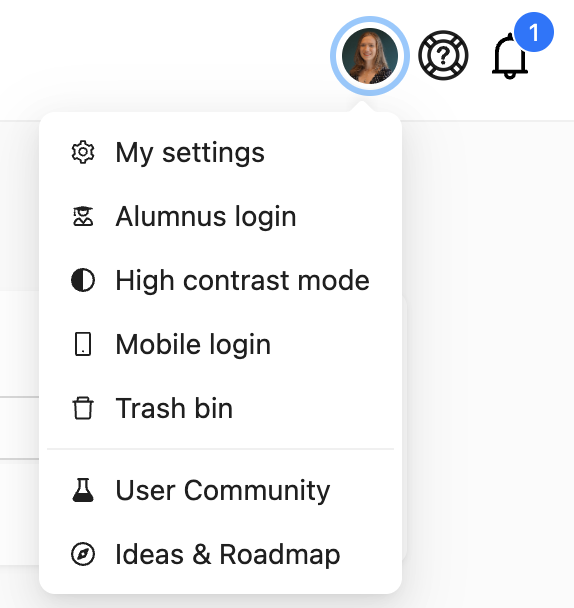
A: via the User Menu
Go to the User Menu
via the user avatar in the top-right corner.
Click My settings.
Select Notifications.
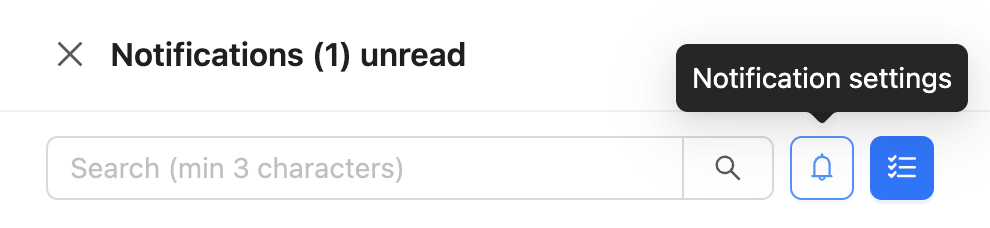
B: via the Notification Centre
Open the Notification Centre
click the bell icon in the top-right corner.
Click Notification settings
click the bell icon.
Manage your e-mail notification settings.
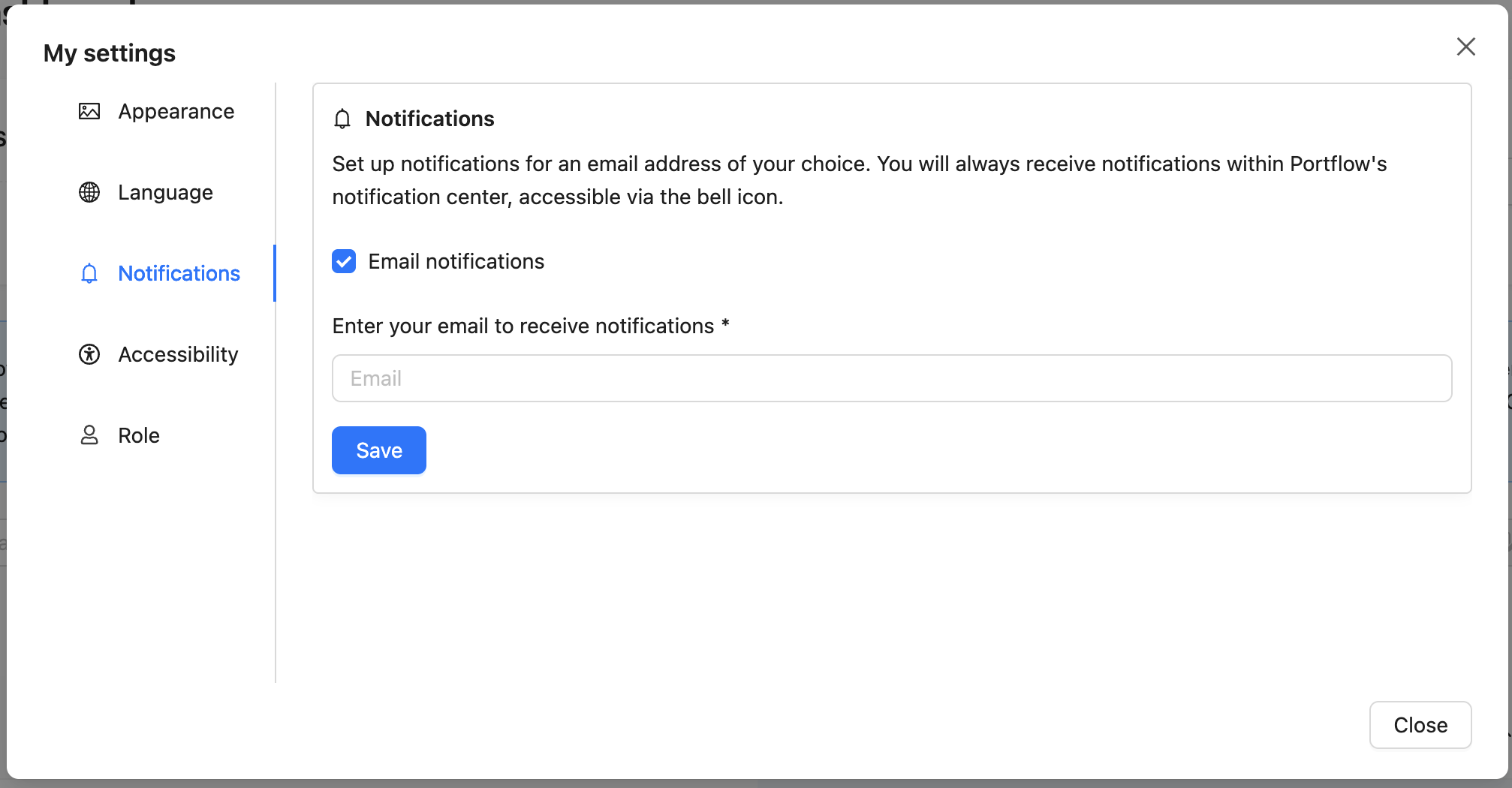
Note: Some institutions don't allow for alternative email addresses to be used. In that case, you will receive email notifications on your institution email address (e.g. name@institution.edu).
A Portflow Admin can configure this in 📄 Feature options