Archiving and Deleting User Data
Last updated: July 13, 2026
Summary
Users can be deactivated and then deleted to archive and fully delete user data from Portflow. Additionally, specific assessment snapshots can be deleted by admins too (as they cannot be deleted by the learners themselves).
Caution:
Deleting and deactivating users (including snapshots) are irreversible actions. The Portflow team also cannot undo any actions taken here.
Because of the permanent effects of actions in data management / user deletion, please read the information carefully.
Deactivate and Delete Users
For data lifecycle management purposes, Admins and Data managers can delete user data from Portflow. This is done in two phases:
Deactivate: Delete the live portfolio and block access to Portflow, but retain submitted snapshots for accreditation and quality assurance. If necessary, a user can be reactivated to start a new portfolio. This step can be considered as 'Archiving' a user.
Delete: Delete the submitted snapshots (completely delete the user).
In both cases, the feedback/comments created by the user in other portfolios (i.e. the feedback and appreciations the left behind, including their name and role at that time), will not be deleted. This data is considered crucial for the receiver and therefore not deletable.
Warning:
To offer alumni access to users, the user must NOT be deactivated. Deactivation means the deletion of the active live development portfolio and preventing access to Portflow, this also applies to alumni users.
How can users be deactivated or deleted?
User data can be deleted (by deactivation or deletion of a user) by Super Admins or Data Managers through the User Interface via Admin → Data Management (see below) or the Portflow Public API. They can be deactivated or deleted immediately, or their deactivation/deletion can be scheduled ahead of time.
What happens when a user is deactivated?
User deactivation is the first phase is of archiving and deleting user data. Deactivation means that the user can no longer access their live portfolio. The live portfolio will be permanently deleted, together with all Non-Assessment Snapshots. (i.e. snapshots that were not submitted in the LMS, grading tools, or that don't have an assessment link). The Assessment Snapshots will be kept accessible through the submission and/or Assessment Link. The user is no longer available to share a portfolio with and all active shares are revoked.
Note: User deactivation is recommended for when the learner has left the institution and has no intention to return. In most cases, a grace period of 3 months — 2 years is applied before deactivating users after graduation.
What data is deleted and what data is retained upon deactivation?
The following overview lists all data that is deleted and kept during deactivation:
Deleted data | Kept data |
Live Development portfolio, the user will also lose access to Portflow to prevent unintended recreation of data. | Assessment Snapshots: Snapshots of the portfolio that have been submitted in the LMS, other grading tools, or that have an assessment link, including underlying evidence files. |
Non-Assessment Snapshots: Snapshots that have not been submitted for assessment. | User information: name, pronouns (if applicable), LMS user email address, LMS ID, UUID, Sourced ID. |
Showcasing Links: all Showcasing Links for Snapshots will be withdrawn because the user will no longer be able to revoke them themselves as they can no longer use Portflow. |
Can users be reactivated?
After deactivation, a user can be reactivated. When reactivated, they can then use Portflow again, but their live development portfolio will be empty and all deleted data remains deleted. The user will regain access to previously created Assessment Snapshots.
How to reactivate a user?
Deactivated users can be reactivated by Super Admins or Data Managers through the User Interface via Admin → Data Management → Deactivated users (see below) or through the Portflow Public API.
How to delete all user data?
The second phase in archiving and deleting user data is to delete a user. Deletion means that the remaining user data (i.e. Assessment Snapshots) will be permanently deleted. Deactivated users can be fully deleted by Super Admins or Data Managers through the User Interface via Admin → Data Management → Deactivated users (see below) or through the Portflow Public API.
Note: Users can only be deleted after they have been deactivated.
What actions are available for admins in the user interface?
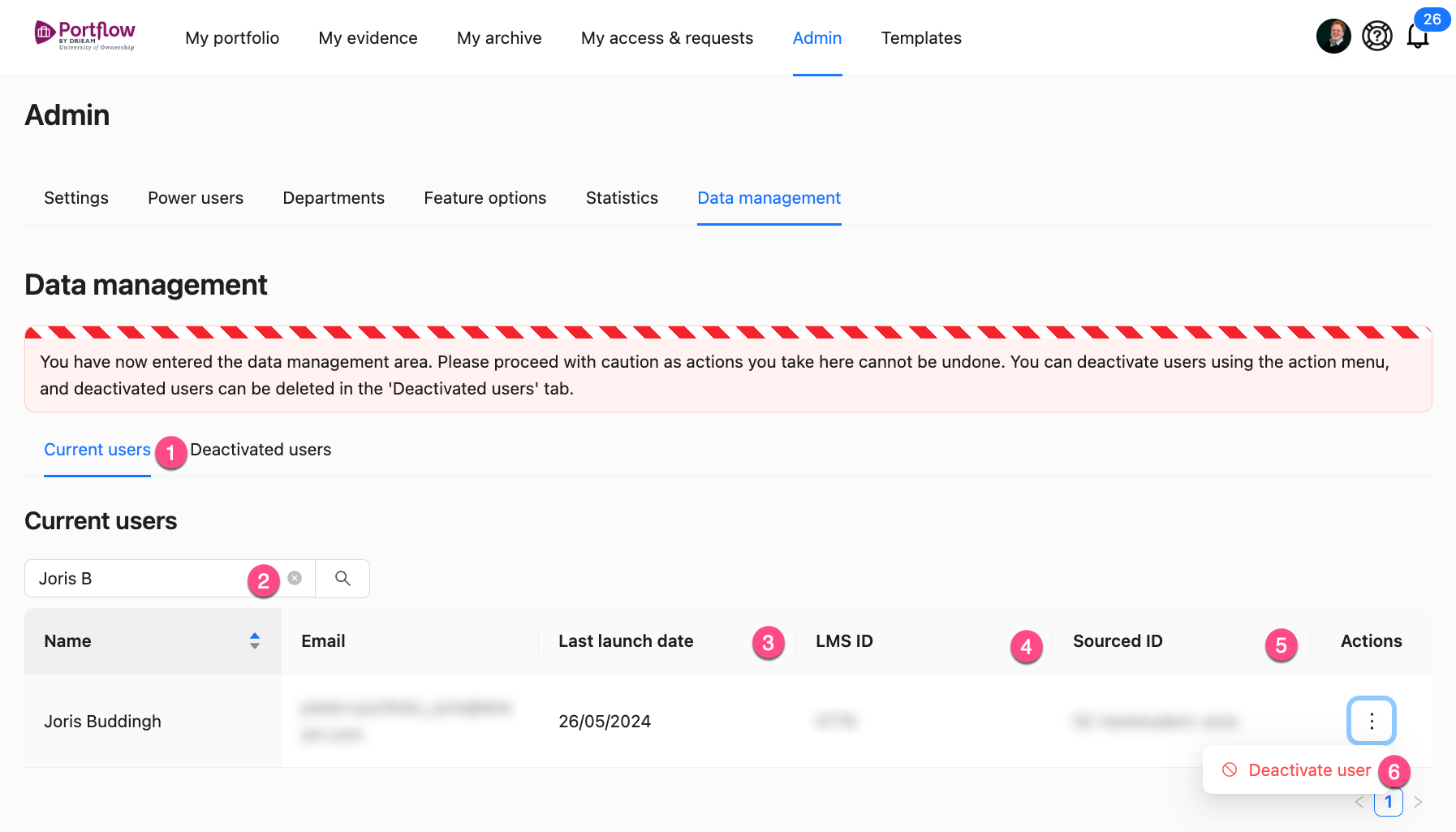
Super Admins and Data Managers can access the tab 'Data management' within the 'Admin' tab. There, they have access to the list of current and deactivated users (1). In the table, you can search on both name and email address (2). The table provides additional information on students to help make sure you're deleting the right person: the last date they have used (launched) Portflow (3) from the LMS, their LMS ID (4), and the Sourced ID (5), sometimes refered to as 'SIS-ID' or 'Org defined ID'. The Actions menu ︙ gives you the option to Deactivate (a current user), Plan deactivation (a current user), Plan deletion (of a deactivated/planned to be deactivated user), Reactivate (a deactivated user) or Delete (a deactivated user).
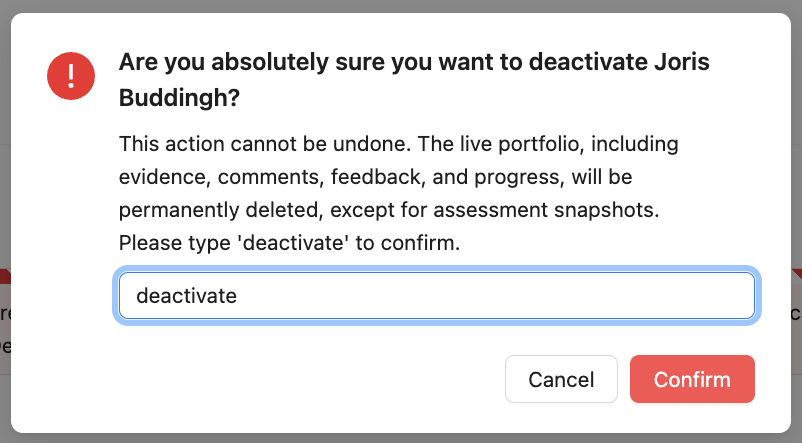
After clicking Deactivate or Delete, you'll get a confirmation prompt stating the user's name, which you need to confirm by entering the word deactivate or delete respectively. This is a destructive action, and cannot be undone, nor can it be undone by the Portflow support team.
How to check the validity of the planned deactivation?
To prevent unintended deactivation of users, some validation mechanisms are built in for both Leaners and Admins.
Student notice
Before deactivating a user (through the API or the user interface), Portflow will notify the learner. This notification will display on the Portflow home page for learners who will be deactivated in less than 10 weeks. They then have the possibility to contact their institution if this is unexpected.

Admin notice
As a Super Admin or Data manager, you have the possibility to check which users will be deactivated while they still have user activity close to the planned deactivation date. You can check this 'suspicious' activity for all users and subsequently interfere if necessary.
Go Admin → Data management → Current users
Enable the filter 'Activity prior to deactivation'
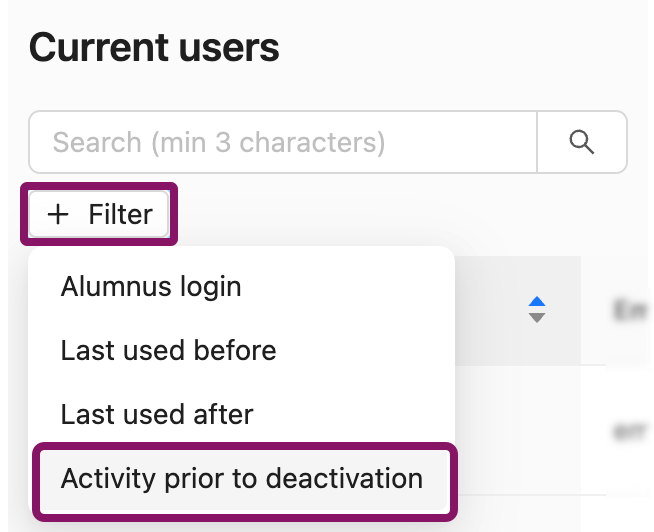
Choose the number of weeks that is unacceptable for activity to be present, before the planned deactivation date.
For example, if you expect learner activity to stop 26 weeks (half a year) before deactivation, you would set 26 weeks as the filter value. Any activity within those 26 weeks is concerning and needs to be investigated.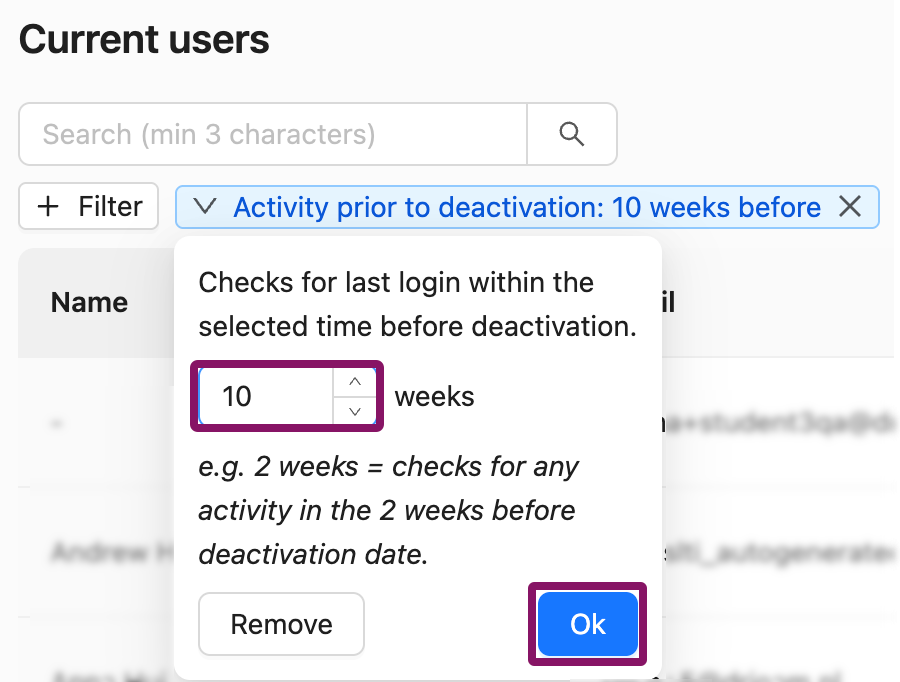
All users with activity within this timeframe will be highlighted in red in the Planned deactivation date column.
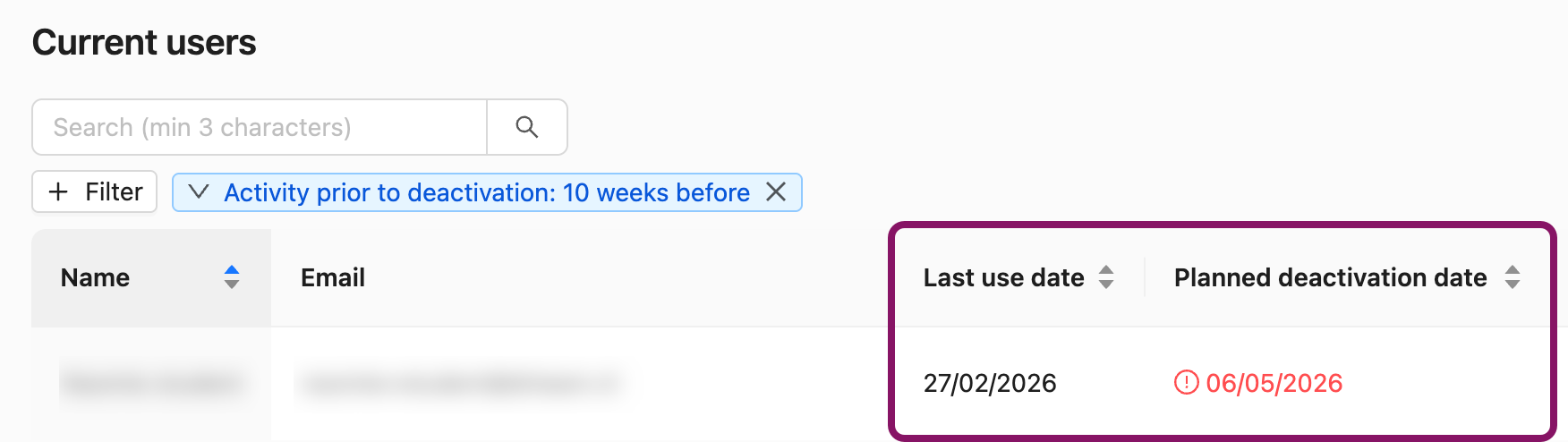
Tip: You can use this filter, and sorting (ascending or descending) of the column Planned deactivation date together to order on the most pressing cases.
Delete Assessment Snapshots
Learners can delete their Non-Assessment Snapshots (Snapshots that have not yet been submitted to the LMS or other grading tool, and have no assessment links) themselves. Once the student has submitted the Snapshot for assessment, only an institution admin can delete that Snapshot. The learner can get a Snapshot ID from their Snapshot overview and send that ID to their teacher or admin to request deletion.
Warning: Deleting Snapshots is permanent, and cannot be undone.
The Portflow team also cannot undo this for you.
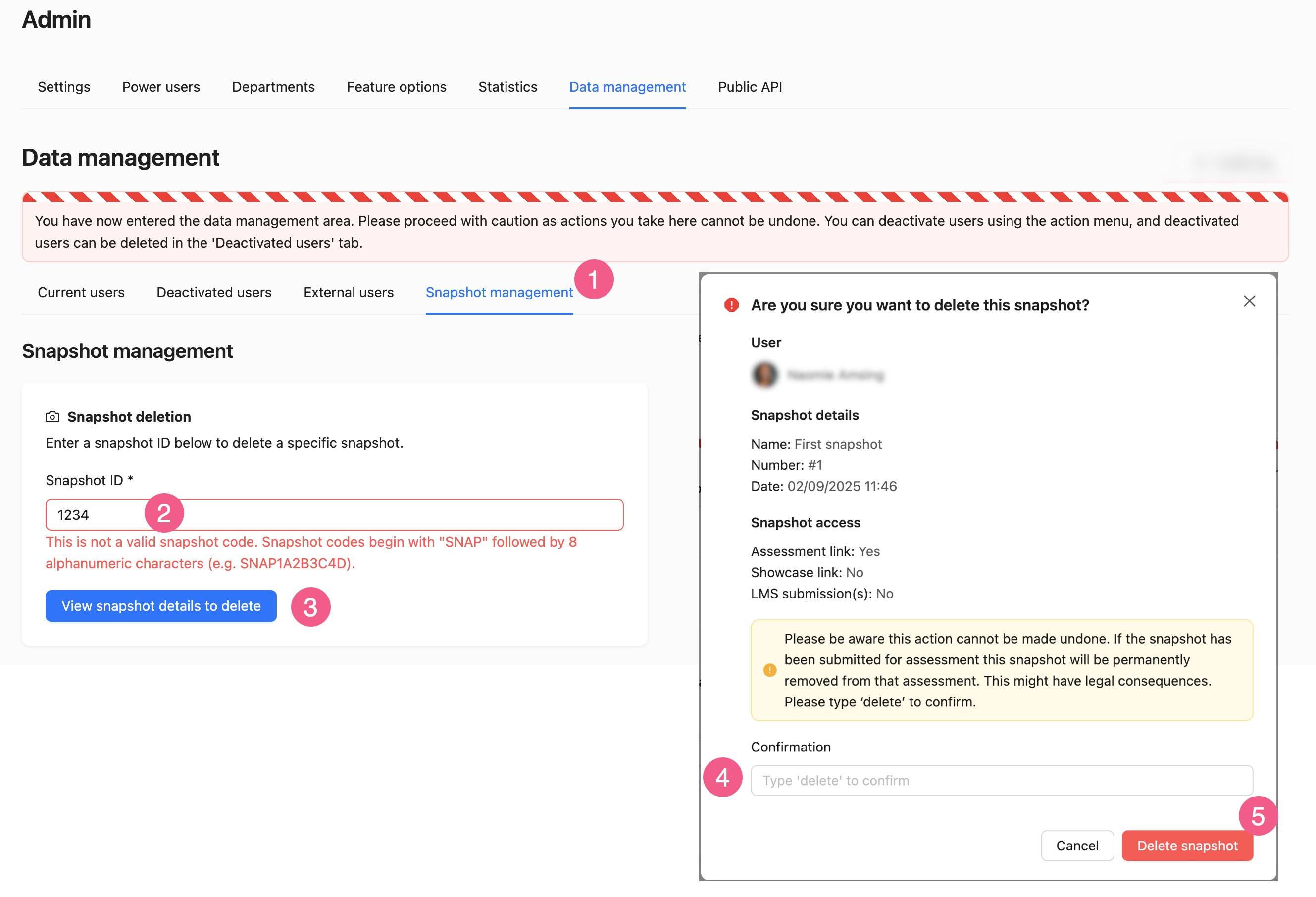
Go to Admin → Data management → Snapshot management.
Fill in the Snapshot ID provided by the learner. This ID begins with
SNAPand is followed by 8 characters.Click the button View snapshot details to delete to continue.
Review the details. If you are ready to delete the Snapshot, confirm by typing 'delete'.
Click the button Delete snapshot to initiate the deletion.