Portal for Externals
Last updated: October 5, 2026
Summary
A learner can invite external users, such as an internship assessor, to view their Portfolio and add insights (e.g. Feedback, Reviews). The learner can choose to share either their entire Portfolio or selected Collections. Additionally, the learner controls the visibility of the Feedback. External users can access the Portal for Externals to view all shared Portfolios, Collections, and Evidence, as well as any pending requests, which is especially useful when they are involved with multiple learners.
Access for External Users
How does access to Portflow for external users work?
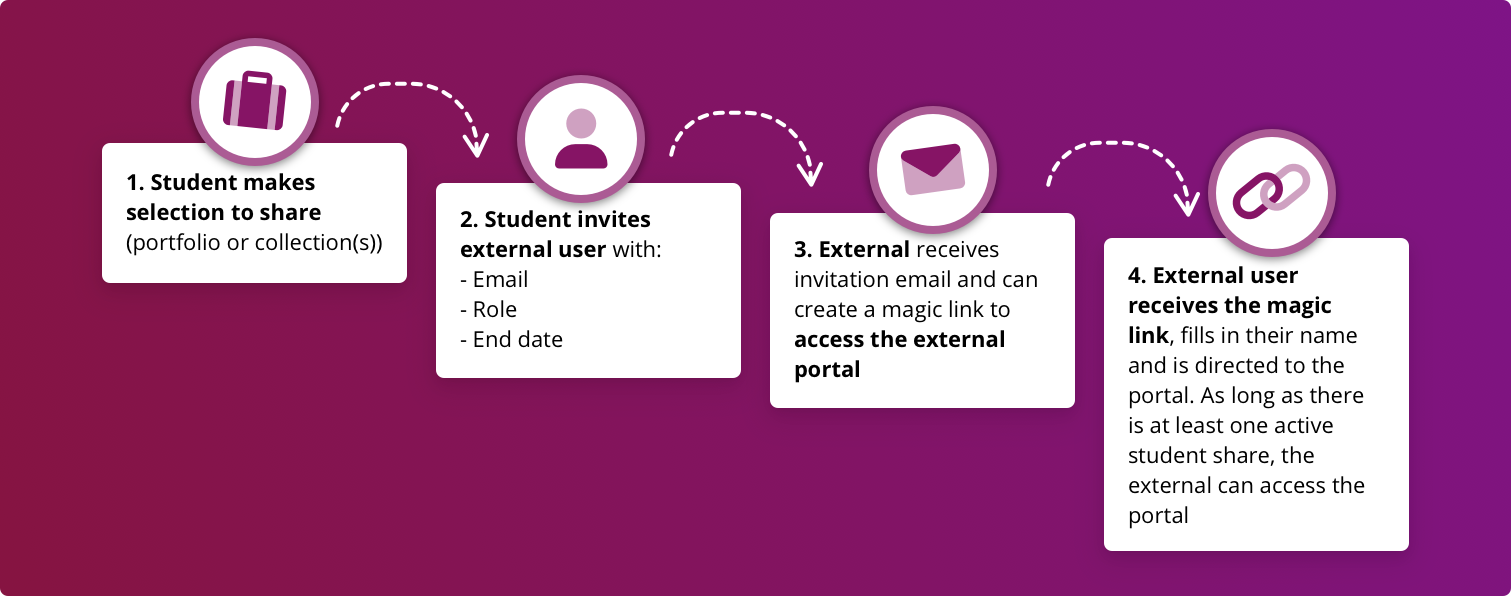
External users gain access to a Portfolio, Collection, or Evidence of a learner in Portflow via the Portal for Externals. Once a learner has shared something with an external user, that external user receives an email with a 'magic link' that provides secure access to the shared asset as well as the Portal for Externals.
Note: Access to the Portal for Externals is possible via the magic link shared via email that is sent when a learner shares something with an external user.
Alternatively, the following URLs can be used to access the Portal for Externals:
🇦🇺 AUS: au.portflow.app/external/login
Note: The Portal for Externals can be accessed as long as there is at least one share active.
Steps to access Portflow as an external user
A learner shares their Portfolio, Collection(s), or Evidence with an external user.
The external user will receive an email informing them that they are invited to access a shared asset. This email contains a link to enter the login page of the Portal for Externals.
On the login page, the external user enters their email address (prefilled when they clicked the link in the invitation email).
A magic link is sent to the same email address which will provide them with access to the Portal. The magic link in the email is only valid for a short period of time.
Multifactor Authentication for External Users
If the institution has required it, you will need to confirm your identity using an MFA method. The first time you log into the portal, you will be asked to set up MFA using an authenticator app to generate one-time passwords. Scan the QR code with your chosen device and app to complete the setup process.
When you want to log in after this first time, you use the authenticator app to get the 6-digit code.
If your institution has not required it, but you would like to use MFA to log in to Portflow, you can set it up yourself once logged in. Click your avatar and then select MFA. Scan the QR code with your device and app of choice to set it up.
A Portflow Admin can configure whether MFA is required in 📄 Feature options.
What to do when you lost access to your MFA app?
When you have lost access to your MFA authenticator app as well as your back-up codes, please contact the institution (e.g. learner, contact person, or administrator) to have your MFA reset.
What can external users view and do on the Portal for Externals?
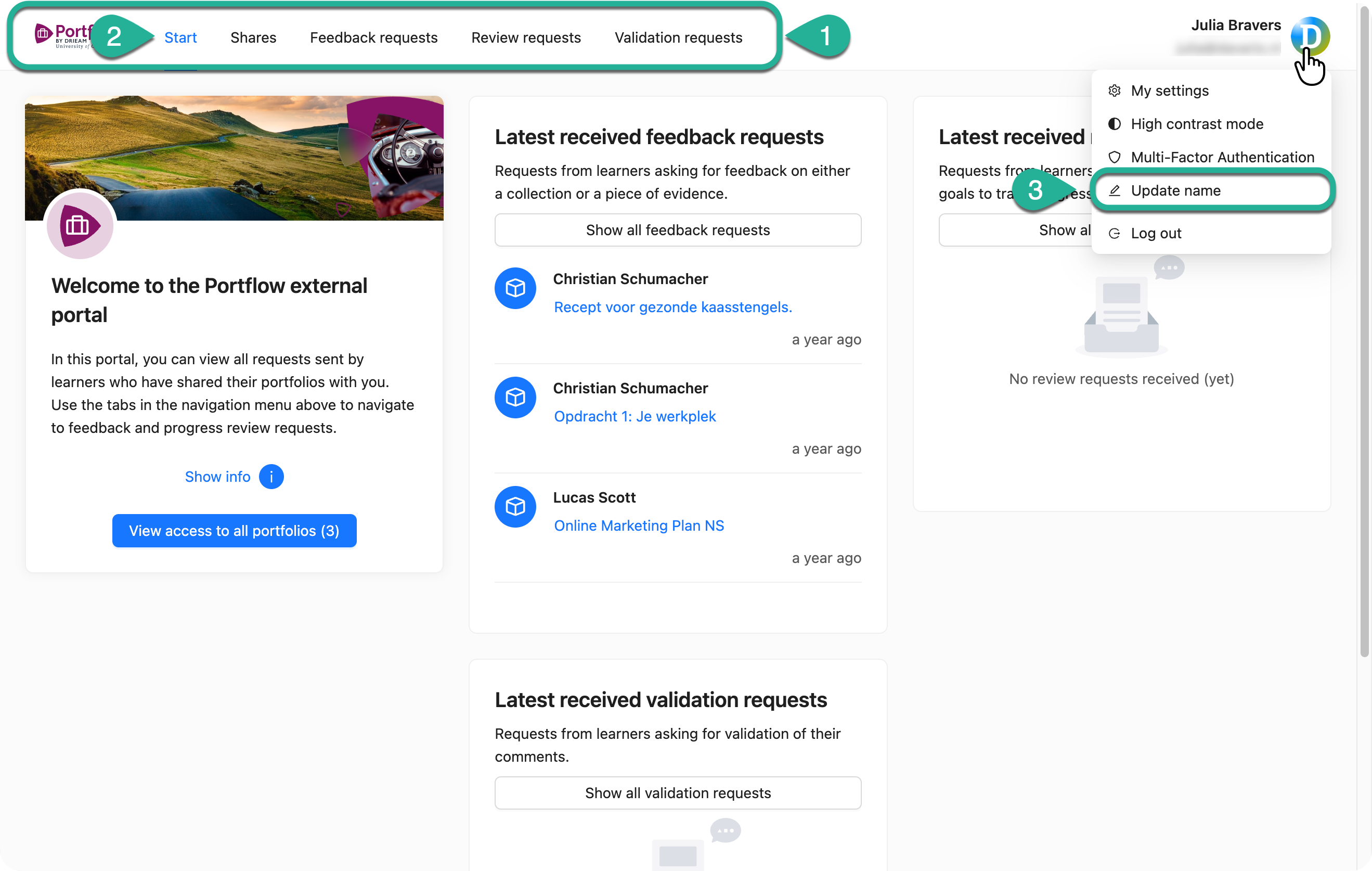
Using the tabs in the main navigation (1), external users can access an overview of all shared assets (Portfolios, Collections, Evidence), pending Feedback Requests, pending Review Requests, and pending Validation requests.
On the Start page (2), external users can find a summary of the latest received requests. The external user can also update their name via the User Menu (3).
Other actions available via the User Menu, are My Settings, where default views can be defined, the language can be picked, and high contrast mode can be enabled. Additionally, the external user can set up Multi-Factor Authentication. For more on this, visit 📄 Log in to Portflow.
Tip: When accessing the Portal for Externals from a request email, e.g. a feedback request, the external user will be directed straight to the specific Evidence, Collection, or Portfolio they are being asked to review or provide feedback on.
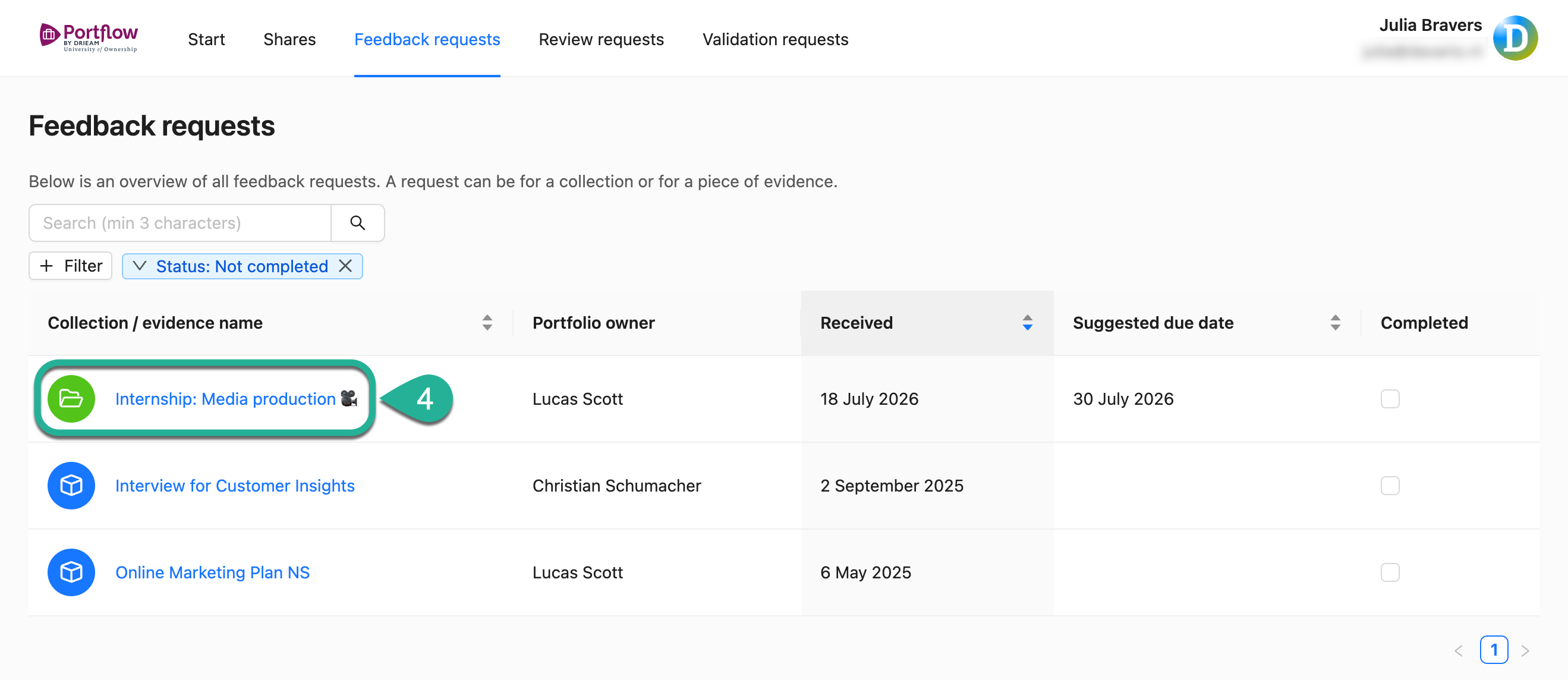
The interface for shared Portfolios, pending Feedback Requests, and pending Review Requests is nearly identical to that in the regular Portflow under My access and requests for internal users. By clicking on a request's name (4), the external user is directed to the learner's Portfolio and can begin responding to the request.