Alumni Access to Portflow
Last updated: August 31, 2026
Summary
Learners can retain full interactive access to their portfolio after graduation by setting up Alumnus Login. This service for alumni can be offered by the institution, which is delivered by Drieam. Learners can link their personal OAuth account to Portflow during their enrolment and can access Portflow after graduation.
About Alumni Access
When learners graduate, they typically lose access to their institution's user account, including access to their LMS account. This means that they will no longer be able to access Portflow via the LMS. Learners (alumni) might however still like to use Portflow after graduation, e.g. to help land the start of their professional career. If the institution has enabled this functionality, learners can set up their Alumnus login to access and keep using Portflow after graduation.
Portflow supports various OAuth providers for learners to link their personal account to Portflow. These methods can be used to access and use Portflow after graduation:
Google
Microsoft
LinkedIn
GitHub
How can use Alumni Access be used?
Learners (alumni) can use their Alumnus Login after:
1) an Admin has enabled the Feature Option to allow for Alumnus Login,
2) the Learner has set up an Alumnus Login (OAuth) themselves,
3) the Alumnus activation date has been set and that date has passed.
1. How to enable the Feature Option for alumni access?
As a Super Admin or Functional Manager, go to Admin → Feature options.
Scroll down to Alumnus login and turn the toggle on.
Click Save at the top or bottom of the page.
Learners can now add their personal account (OAuth) to Portflow via their user menu.
2. How to set up a personal alumnus login method as learner?
As a learner, navigate to your user menu and add choose one of the available login methods (OAuth providers). See 📄 Alumni Access to Portflow for more info.
Learners can now use this method to validate they have access to Portflow. However, as long as the alumnus activation date (see next step) has not been set and passed, they will not be able to view or user their Portfolio.
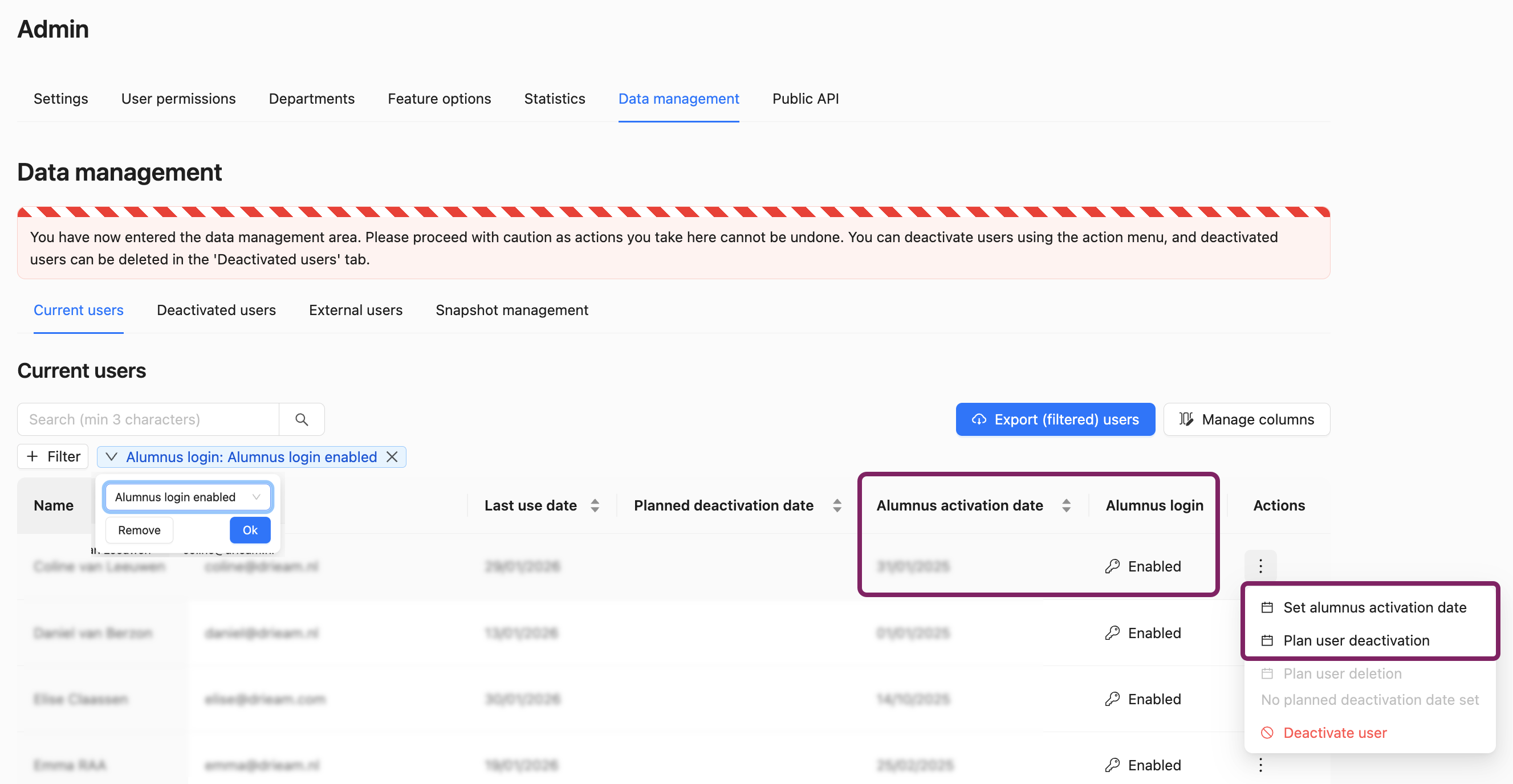
As a Super Admin or Functional Manager, you can view which users have linked added their Alumnus Login via Admin → Data Management → Current users. In the column Alumnus login, you can see whether the user has set up an Alumnus Login method.
3. How to set the Alumnus activation date for a user?
The Alumnus activation date needs to be set and have passed for users to be able to access and use Portflow. This date can be set by Super Admins or Data Managers via the user interface (see below) or via the Portflow Public API.
How to set the Alumnus activation date via the user interface?
As a Super Admin or Data Manager, go to Admin → Data Management → Current users.
Find the user you want to set the Alumnus activation date for.
Click the Action menu ︙(three dots) in the user's row.
Click Set alumnus activation date.
Set the date and click Save.
Note:
Alumnus activation date cannot be set for a Super Admin or Data Manager, as all users with the Alumni activation date set will lose access to the Admin panel in Portflow.
Warning:
To offer alumni access to users, the user must NOT be deactivated. Deactivation means the deletion of the active development portfolio and preventing access to Portflow.