Link Evidence to Collections, Goals, and Activities
Last updated: July 30, 2026
Summary
In Portflow, there are several ways to organise Evidence (see 📄 About Evidence & 'My Evidence'). Evidence can be added directly into a Collection or later linked to a(nother) Collection (see 📄 Collections & Activities). In addition, Evidence can be linked to Goals, Sub-Goals (see 📄 Goals & Sub-Goals) and Activities (see 📄 Collections & Activities).
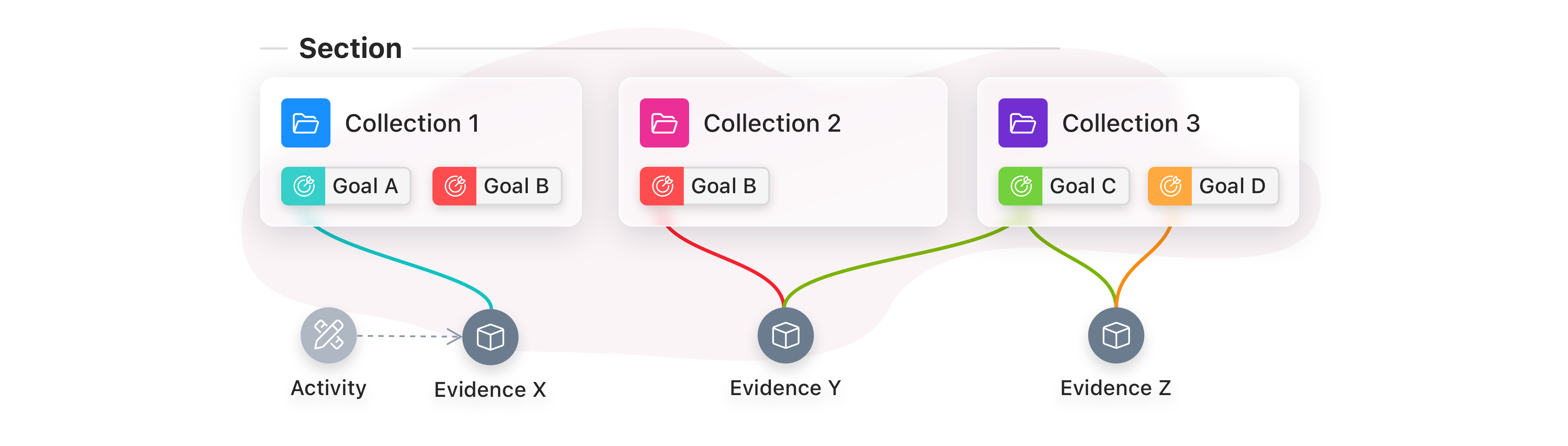
Evidence can be linked to the Portflow Structure of Collections, Activities, Goals and Sub-Goals. Evidence can be linked to multiple Collections and Goals at the same time.
How to link (add) Evidence to Collections?
Note: When Evidence is not linked to any Collection, it will not be visible to visitors of the Portfolio (except when shared separately as Evidence).
As a learner, you can link Evidence to Collections in three ways: via the 'My evidence' page, via a Collection page or via the Evidence page.
Via the 'My evidence' page
Go to the 'My Evidence' page and click the Action menu (︙) next to an Evidence
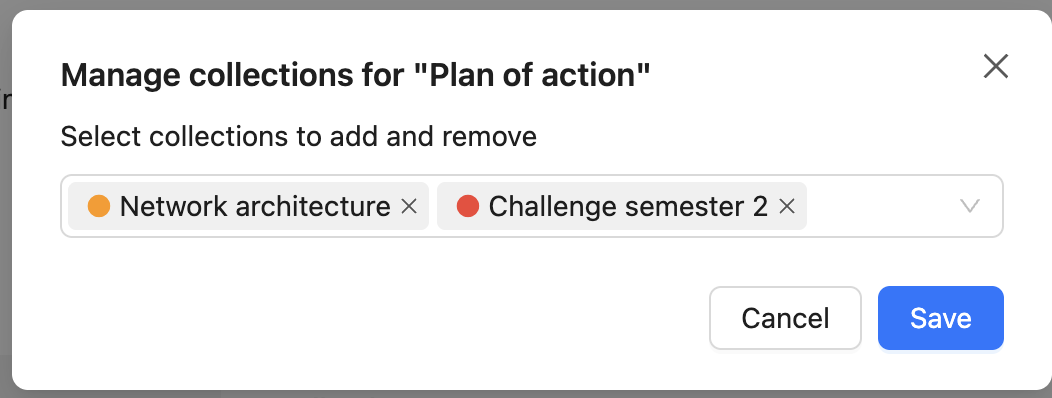
Select Manage collections
Select Collections to add or remove
Click Save
Via a Collection page
Go to a Collection and click + Add evidence or the button with a plus and a cube icon (+☐)
Add new Evidence or click Browse your existing Evidence
Via an Evidence page
Go to an Evidence page and click the Action menu (⋯) in the top-right
Select Manage collections
Select Collections to add or remove
Click Save
How to link Evidence to Goals and Sub-Goals?
Note: A visitor will only see linked Goals on an Evidence page, if those Goals are also linked to (a) Collection(s). If Evidence is linked to a Goal, but this Goal is not linked to any Collection, the visitor will not see that Goal on the Evidence page.
Tip: Via the Action menu (︙), you can also move & remove a Goal from the Collection. The linked Evidence will still remain available in the Collection.
As a learner, you can link Goals to one or more pieces of Evidence. Relations between Goals and Activities leading to Evidence might also have been set in a Template. You can link and unlink Goals from Evidence in four places: Via the Collection page, via the Evidence page, via the 'My Evidence' page, and via the Goal card.
Note: Sub-Goals can only be linked to the Evidence once the parent Goal has been linked.
Via the Collection page
You can both associate a Goal with an Evidence and vice versa (add Evidence to a Goal).
Linking Goals to Evidence
If the Evidence is not already in the Collection, add it to the Collection first
Click the Action menu (︙) in the card of the Evidence in the Collection
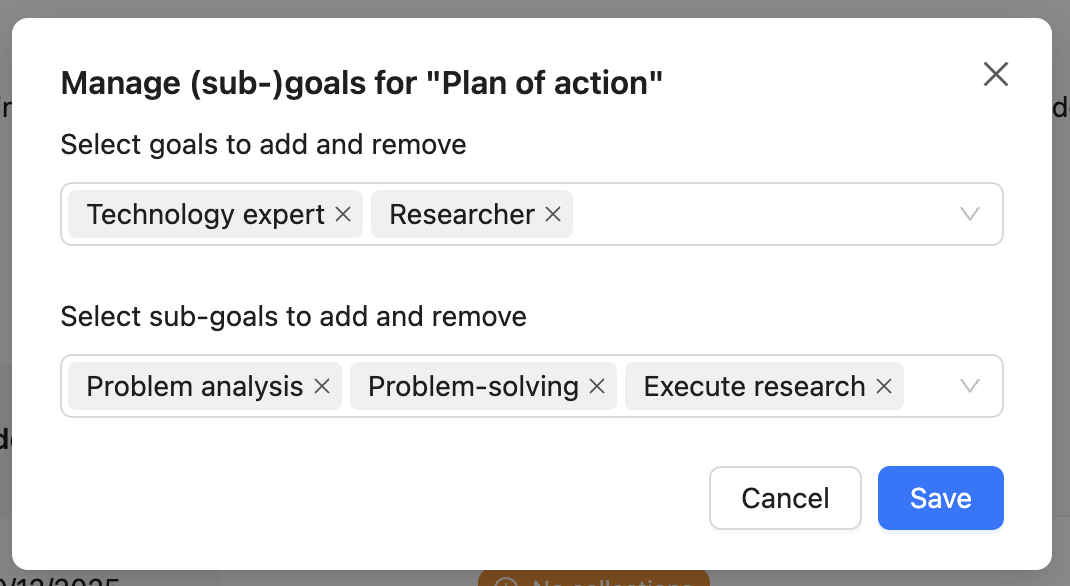
Select Manage (sub-)goals
Select one or more Goals and Sub-Goals within your Collection to which you want to link the Evidence
Click Save
Linking Evidence to Goals
Click the button with a plus and a cube icon (+☐) in the header of the Goal in the Collection
Create new Evidence or Browse your existing evidence
Via the Evidence page
Click the Action menu (⋯) in the top-right
Select Manage (sub-)goals.
Select one or more Goals and Sub-Goals within your Collection to which you want to link the Evidence
Click Save
Via the 'My evidence' page
Click the Action menu (︙) next to an Evidence
Select Manage (sub-)goals
Select one or more Goals and Sub-Goals to which you want to link the Evidence
Click Save
Via the Goal card
Open the goal card
Open the tab Evidence
Click +Add evidence to goal
Create new Evidence or Browse your existing evidence
Linking Evidence to an Activity
Planned Activities can be seen as 'placeholders' for Evidence. See 📄 Collections & Activities. You can plan Activities and add Evidence to them later. Activities can be linked to (Sub-)Goals just like Evidence. Activities cannot exist separately from a Collection, where Evidence can.
Using the Activity timeline, you can first create an Activity (1) and later add Evidence to it (2). Or you can directly create a new Activity with a linked Evidence immediately (3).
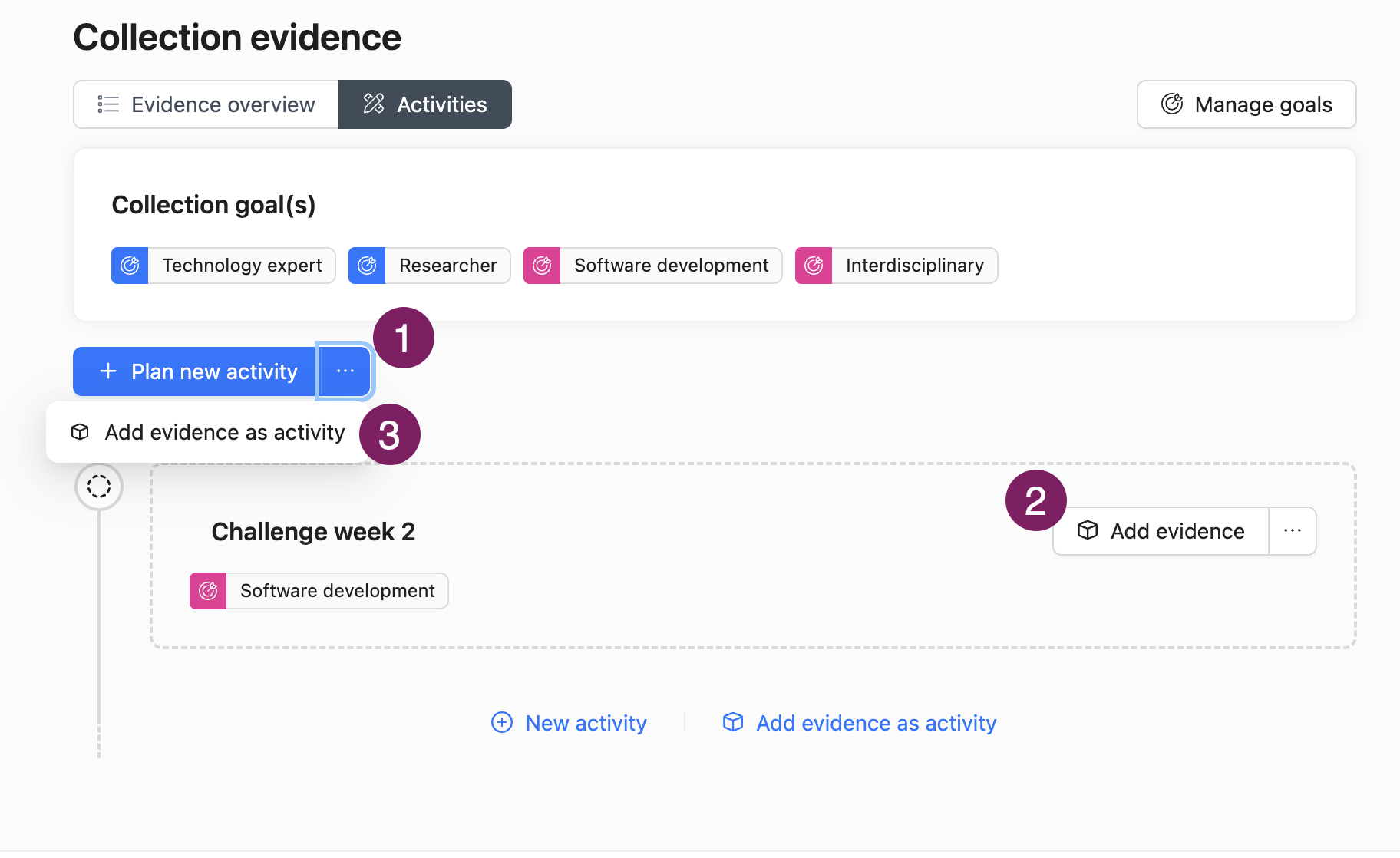
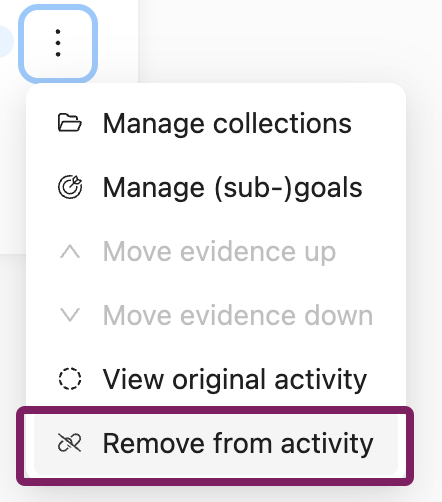
Note: When you select Remove from activity via the Action menu (︙), the Activity and the Evidence both continue to exist, but they no longer have a link to each other. You can re-add the Evidence back to the Activity if desired.