Import LMS assignment as Evidence
Last updated: October 23, 2026
Summary
Learners can import previously submitted (and graded) assignments from the LMS (Brightspace, Canvas), including received Feedback and Rubrics.
Applicable for | 🐼 |
Not applicable for | 🧑🏫 |
Upcoming feature: Optionally importing the LMS assignment grade will be available after October 1, 2026.
How to import an LMS assignment in Portflow?
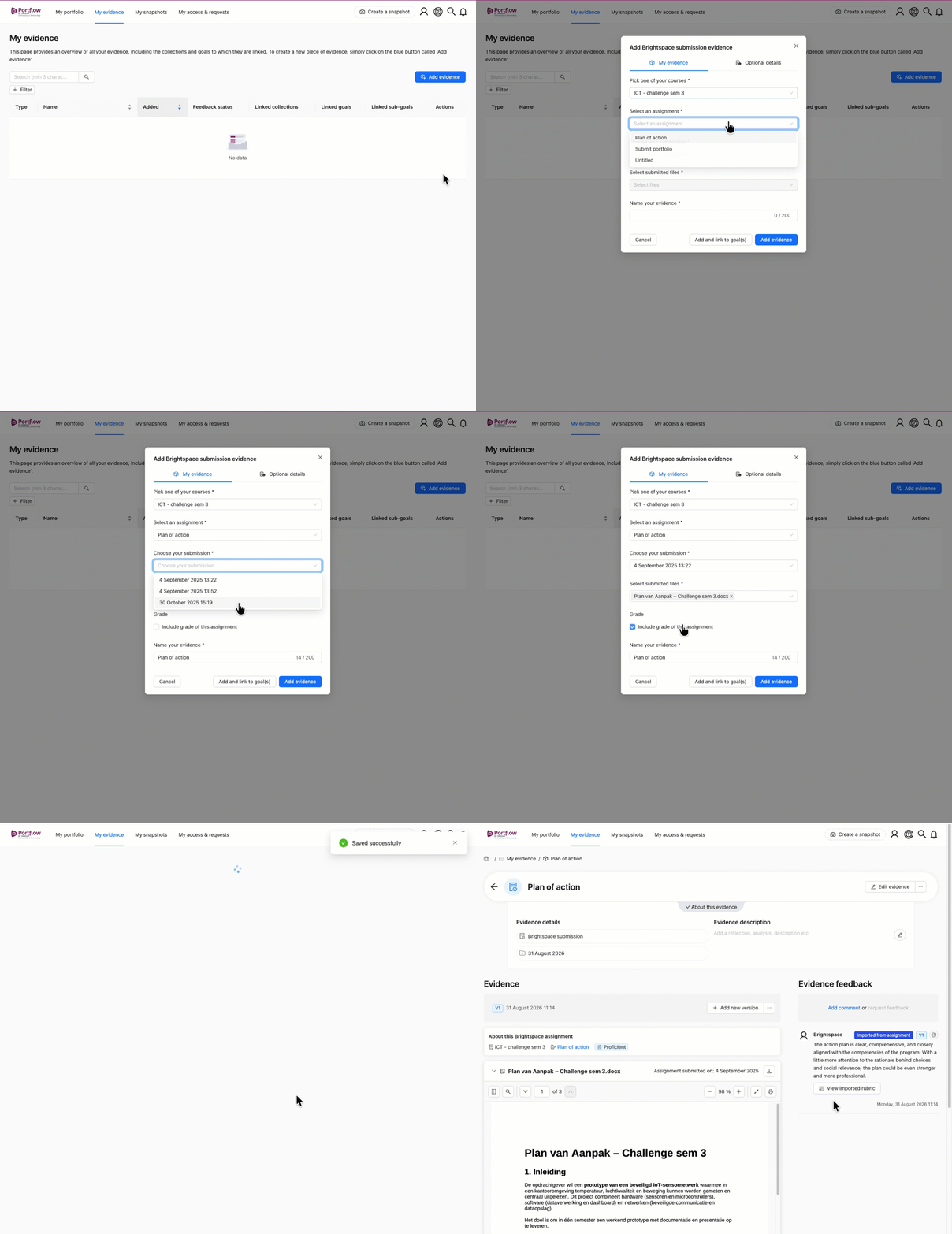
As a learner, you can directly import Evidence from your LMS (Brightspace or Canvas) into Portflow as Evidence. You can choose to import an LMS assignment on any page where you can add Evidence, such as the Collection page, the Goal Card or the 'My Evidence' page.
Click + Add evidence or the button with a plus and a cube icon (+☐).
Select Brightspace assignment or Canvas assignment (depending on your LMS).
🐼
CanvasIf you have recently received feedback on your submission, you can quickly select it and skip steps 4-7. See the chapter below to learn more.Select the course where you submitted the assignment.
Select the assignment you want to import.
Under submission, select what attempt of the assignment you would like to import. By default, the most recent attempt is selected.
If it is an assignment without a submission, you do not need to select a submission.
Select which file(s) you want to import.
If the assignment was graded in the LMS, you can import the Grade with the submission.
Name the evidence (you can change this later).
Click Add.
What assignment types can be imported?
Brightspace:
Observed in person (imports: feedback & placeholder artifact)
On paper submission (imports: feedback & placeholder artifact)
File submission (imports: feedback & submitted file)
Text submission (imports: feedback & submitted text)
Canvas:
No submission (imports: feedback & placeholder artifact)
On paper submission (imports: feedback & placeholder artifact)
Online:
File upload (imports: feedback & submitted file)
Website URL (imports: feedback & link + screenshot of website)
Text submission (imports: feedback & submitted text)
How to quickly add recently graded assignments?
Applicable for | 🐼 |
Not applicable for | 🫎 |
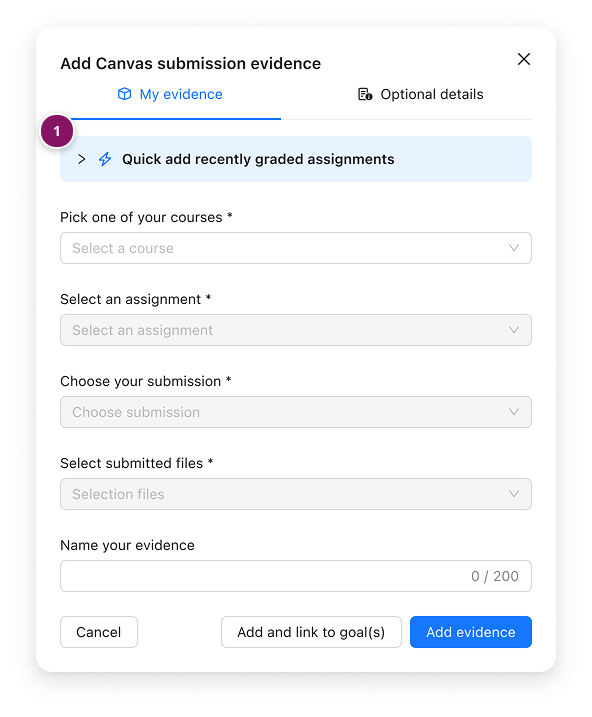
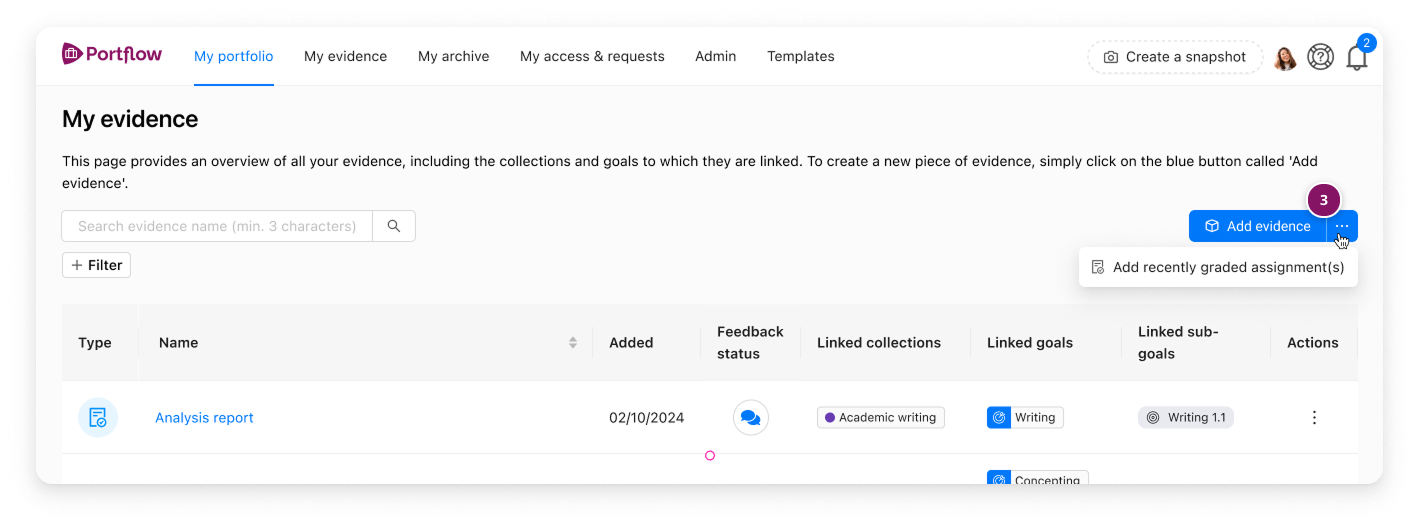
As a learner, you can quickly add recently graded assignments, saving time in the abovementioned steps. To achieve this, after selecting Canvas assignment, as explained in the previous paragraph, you'll see a banner: “Quick add recently graded assignments” (1).
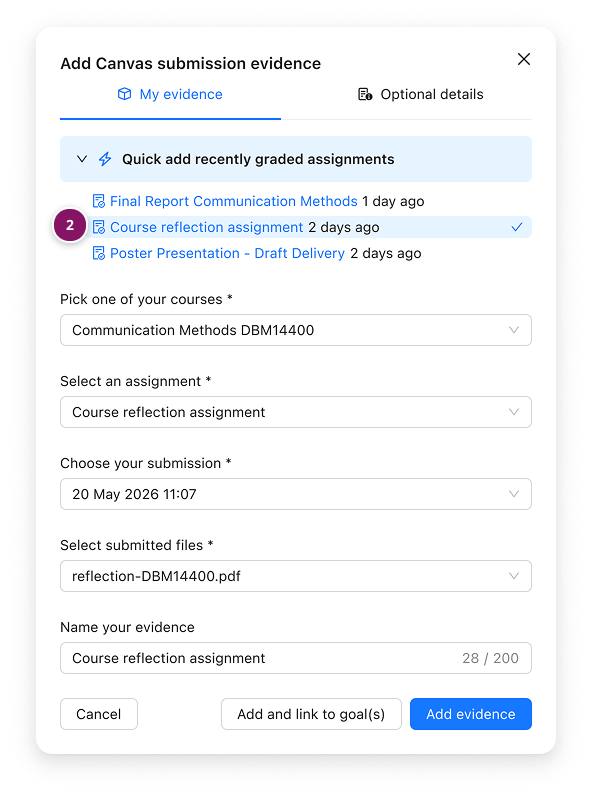
Expand the Quick add recently graded assignments banner to see a short list of recently graded assignments. Click one (2) and Portflow will automatically fill in the assignment details in the fields below. Then click Add evidence to add it to your portfolio.
Tip: This “Quick add” flow can also be accessed from the “My evidence” page (3).
Is Feedback also imported?
Yes, Feedback from teachers (and, if applicable, peers) on an LMS assignment is also imported into Portflow and is labelled accordingly. Files that are attached to Feedback are also imported. Grades are imported if the student has selected it. Media files attached to the Feedback or annotations are not imported.
If the assignment has no submitted file, but has been reviewed in person or on paper, a placeholder artifact is displayed, while the Feedback is imported as usual.
The learner can associate the received Feedback with a Goal or Sub-goal. This Feedback will then be aggregated on the Feedback tab of that Goal card.
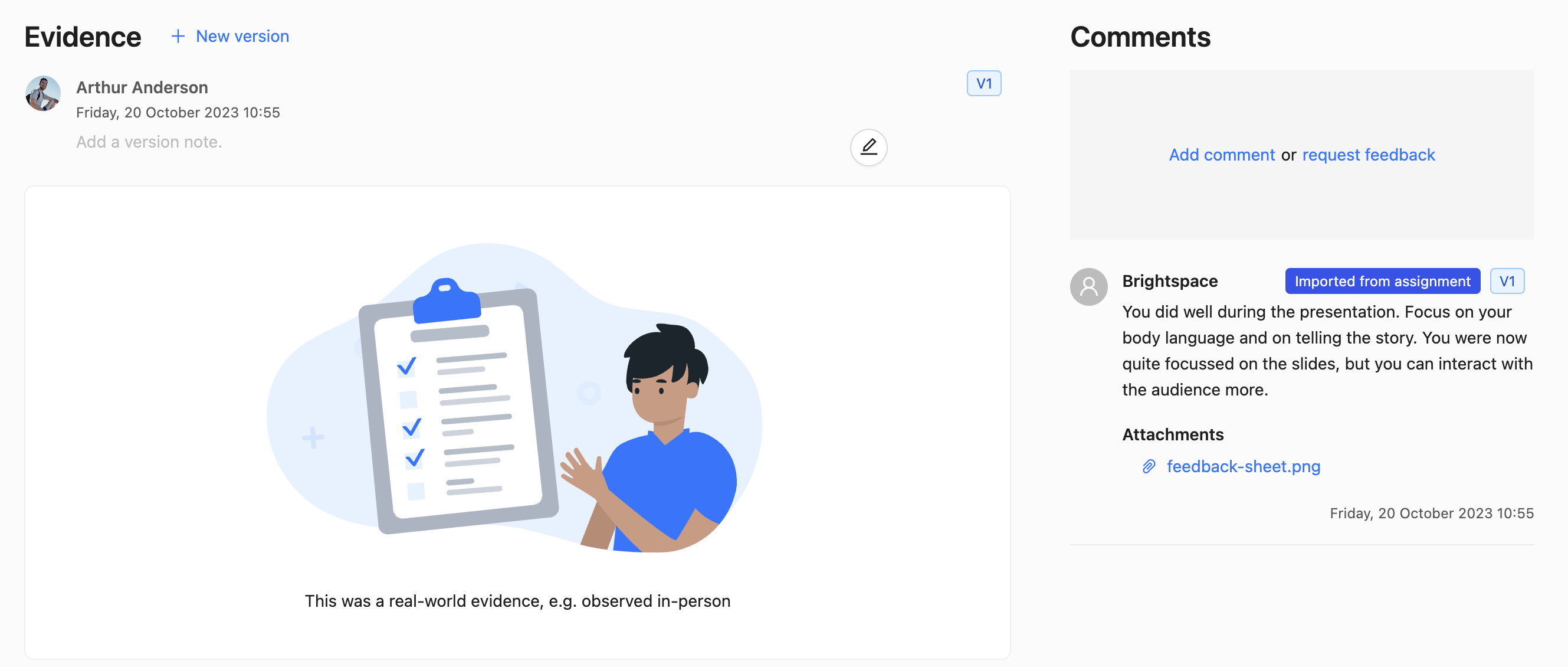
Note: Annotations cannot currently be imported into Portflow, as there are no API endpoints available for this from Canvas or Brightspace. As a result, Feedback included in annotations is not transferred to Portflow.
Note: Feedback is only imported with the assignment, if grades and feedback are published to learners (refer to Canvas or Brightspace instructions on publishing grades).
Is the Rubric also imported?
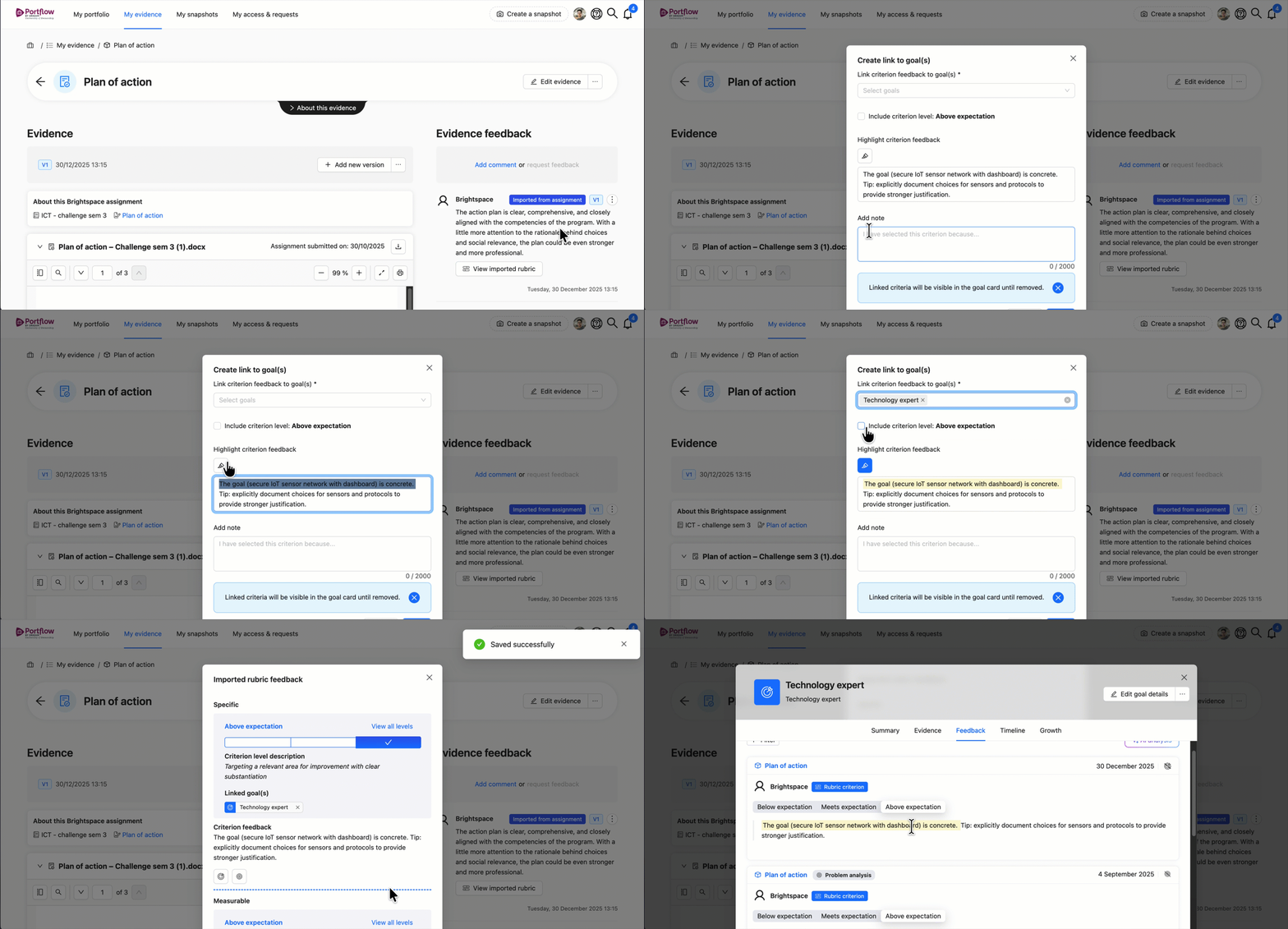
Yes, the Rubric from the LMS assignment is also imported to Portflow as an attachment to the Feedback from the LMS.
The learner can associate the criterion Feedback with a Goal or Sub-goal. This Feedback will then be aggregated on the Feedback tab of that Goal card. Optionally, a learner can choose to include the level description from the rubric. If this is not selected, only the qualitative feedback is included.