Goals & Sub-Goals
Last updated: July 30, 2026
Summary
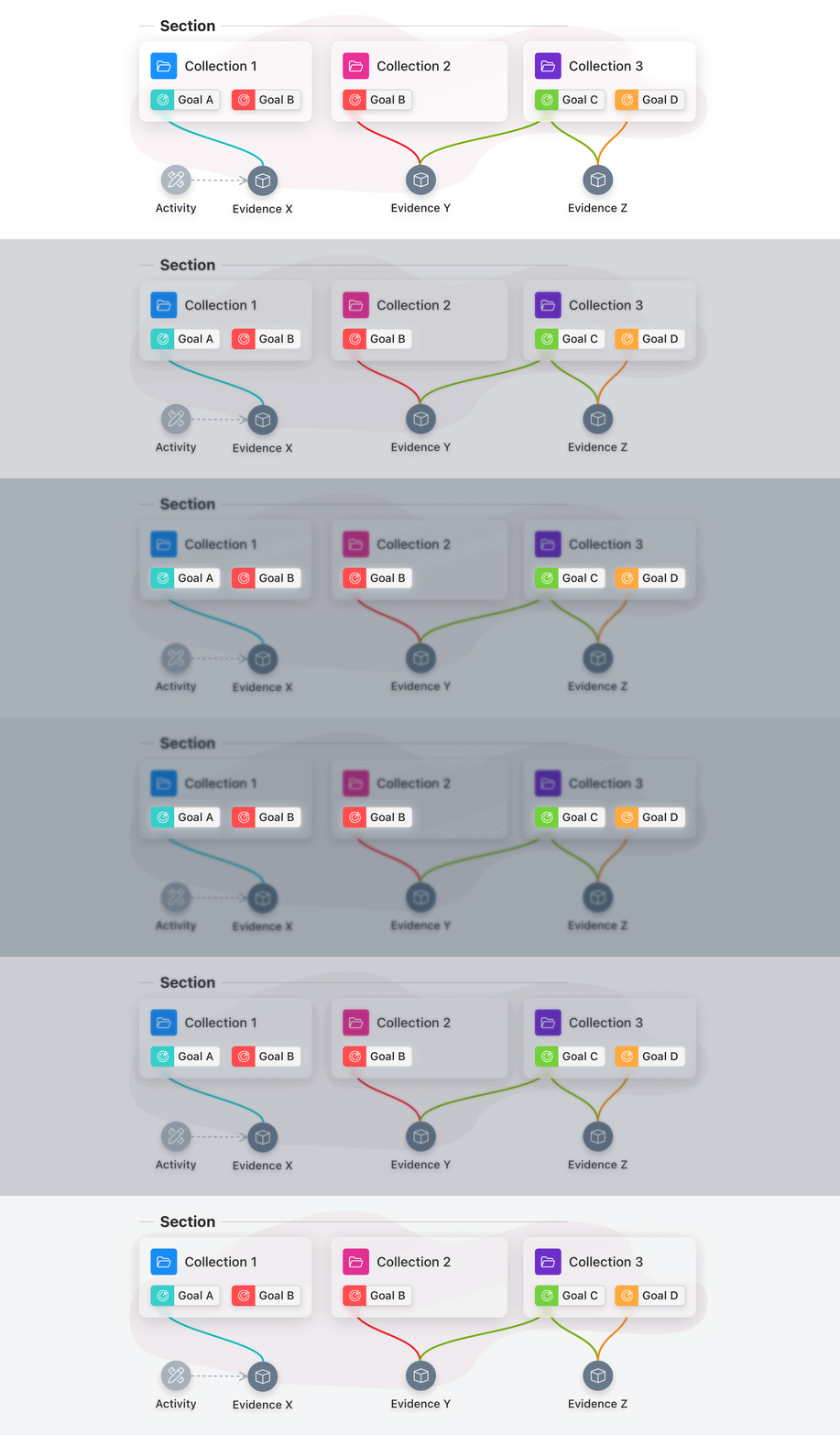
Goals are used to link Evidence, Feedback, and Collections to track progress on any type of learning objective: e.g. learning outcomes, competencies, skills, graduate attributes. They form one of the two main dimensions into the learning journey, next to Collections (contexts) (see 📄 Collections & Activities). Goals can have Sub-Goals as dimensions or milestones within the parent Goal.
About Goals, Sub-Goals, and Goal Sets
What are Goals?
Within Portflow, Goals can be used to indicate the learning objectives (e.g. learning outcomes, competencies, skills, graduate attributes) of a learner. Goals can be used in multiple Collections, where Activities, Evidence, and Feedback can be associated with them. They are used to tracking and providing insight into the learner's progress.
What are Sub-Goals?
Within Portflow, Sub-Goals can represent dimensions or milestones of a larger learning objective or learning outcome (Goal). Sub-Goals can be linked to Activities, Evidence, and Feedback. They can help teachers and learners (self-)assess these multifaceted aspects of Goals by breaking down overarching Goals into specific, more tangible components.
What are Goal Sets?
Goal Sets are groups of related Goals (see 📄 Goal Repository & Goal Sets), created by a Template Creator (see 📄 Super Admins, Power Users, and Departments). The information of a Goal Set will be updated if the learner (re)imports a Template that contains at least one of the Goals within that Goal Set. Goal Sets can be used to select all related Goals at once, e.g. when creating spider graphs or requesting Progress Reviews.
Creating Goals and Sub-Goals
Learners can add Goals themselves, or they can be imported from a Template that is defined by a teacher or learning designer (see 📄 Templates). When a learner adds Goals themselves, these are typically personal learning objectives in addition to a set of imported, programme-defined Goals. Goals can have a Name, Nickname, Description, and Status.
How to create a Goal?
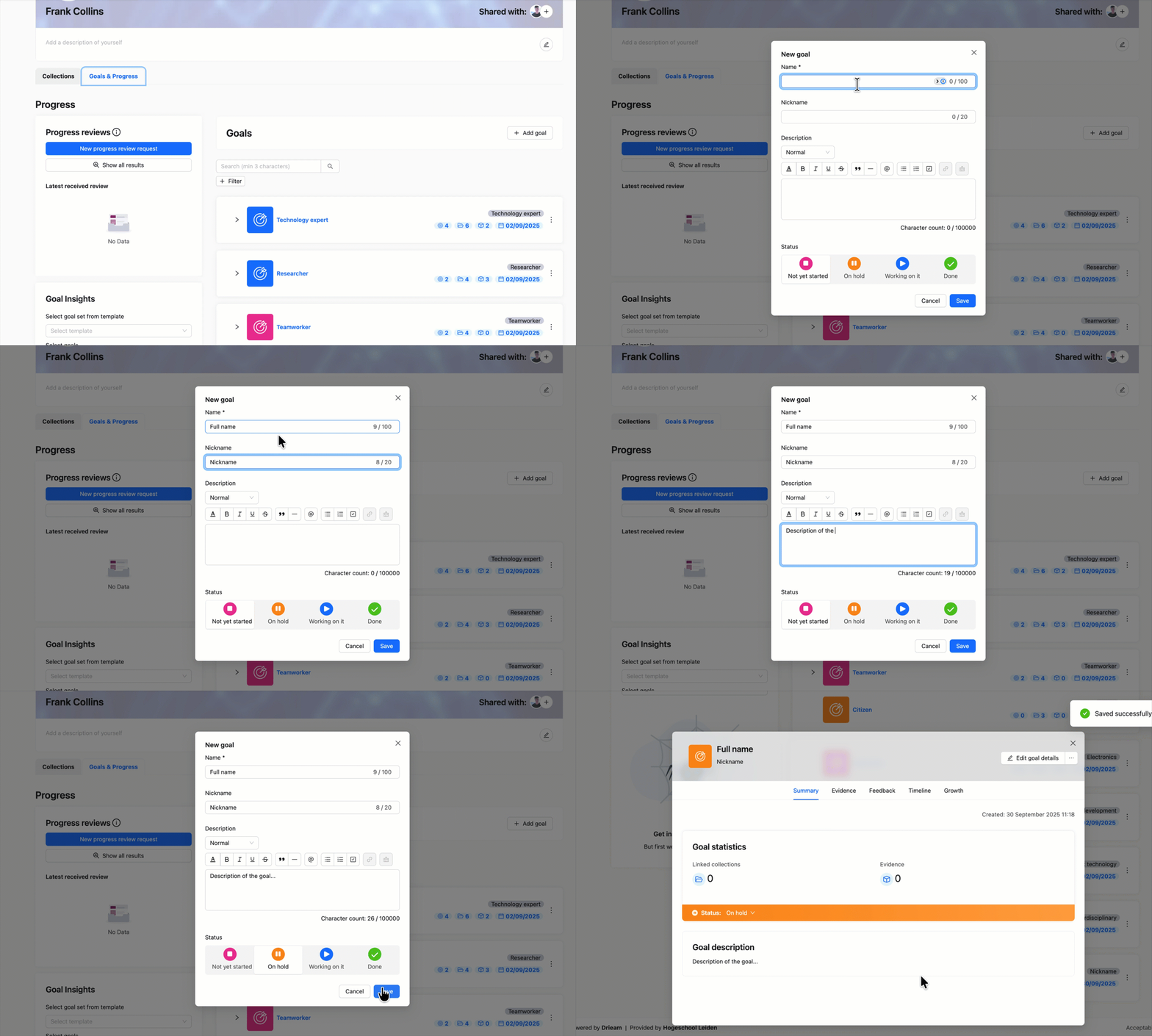
As a learner, you can create a new Goal in two ways: via the ‘Goals & Progress' tab on the Portflow dashboard or from a Collection page.
Via the 'Goals & Progress' tab
On the 'Goals & Progress' tab, click + Add goal
Give the Goal a Name (required), Nickname, and Description
Choose the Status of the Goal (Not yet started, On hold, Working on it, or Done)
Click Save
Via a Collection page
On a Collection page, click Manage goals
Click + Create new goal
Give the Goal a Name (required), Nickname, and Description
Choose the Status of the Goal (Not yet started, On hold, Working on it, or Done)
Click Save
The Nickname is used to identify the Goal in places where there is little space, such as in tags and visualisations (graphs). If you do not provide a Nickname, Portflow will pick the first 20 characters of your Goal and use that as the Nickname.
Use the Status of a Goal to indicate whether you are actively working on the Goal. The Status colour is also reflected in the colour of that Goal's icon. You can filter your list of Goals on these statuses.
How to create a Sub-Goal?
As a learner, you can create a new Sub-Goal in two ways: from the ‘Goals & Progress' tab on the Portflow dashboard or from a Goal card.
Via the 'Goals & Progress' tab
On the 'Goals & Progress' tab, click the Action menu (︙) on the right-hand side of a Goal
Select Add sub-goal
Give the Sub-Goal a Name (required), Nickname, and Description
Via the Goal Card
Open a Goal Card and click the Action menu (︙) next to the Goal name.
Select Add sub-goal
Give the Sub-Goal a Name (required), Nickname, and Description
How to manage links between Goals and Collections?
As a learner, you can link Goals to one or more Collections. Relations between Goals and Collections might also have been set in a Template that a learner imported.
To link/add a Goal to a Collection:
On a Collection page, click Manage goals
Click Add existing goal (alternatively, you can add a new Goal here with Create new goal)
Select one or more Goals
Click Add
To unlink/remove a Goal from a Collection:
On a Collection page, click Manage goals
Click the cross (╳) next to the Goal you wish to remove
Confirm by clicking Remove
Note: It is not possible to link Sub-Goals to a Collection. You can link Sub-Goals to Activities, Evidence and Feedback within that Collection.