Group work (co-creations)
Last updated: November 2, 2026
Summary
Co-created Evidence allows learners to collaborate on Evidence. Teachers can review group work and provide feedback once, automatically syncing it across all participating students' portfolios.
Applicable for | 🐼 |
Not applicable for | — |
What is a co-creation in Portflow?
A co-creation is an Evidence Version which is shared amongst multiple learners. If Feedback is provided on the co-creation, this Feedback will be synced to all of the co-creators personal Portfolios (current and future co-creators).
All co-creators are equal. They can invite anyone to participate, or choose to end their own membership. On leaving, content and Feedback will be 'frozen' in their own Portfolio, while the rest of the group can continue to collaborate.
Since the scope of a co-creation is a Version, it can occur that learners have Versions in their Evidence which are not co-created, or co-created with a different set of learners.
 | Co-creations are indicated with the green striped colour pattern and the icon of 2 people. |
What is part of a co-creation?
Once the Evidence Version is an active co-creation, the following data are continuously synced between co-creators:
Comments, Feedback and Feedback requests
Feedback validations
Names, profile images and co-creation status of co-creators
NB: Only profile images of active co-creators are visible.
Once you receive an invite for a co-creation, the following data are synced once, on invite:
Evidence name
Version description
Evidence Version content (for example file contents)
NB: Version content cannot be edited in either regular or co-created Evidence
These data are personal and not synced between co-creators:
Linked (Sub-)Goals and Collections
Evidence Description
Other Versions of the Evidence
Version number
Visibility of Feedback (if Feedback is visible or hidden)
How to start a co-creation?
You can invite any LMS user to become a co-creator on your existing Evidence Version. If you haven't created the Evidence yet, do so first.
After creating the Version you can invite co-creators:
On the Version, use the action menu (⋯), then Add co-creator(s)
Find the users you wish to invite by their name. Click Add (x), where the x represents the number of invites you will send.
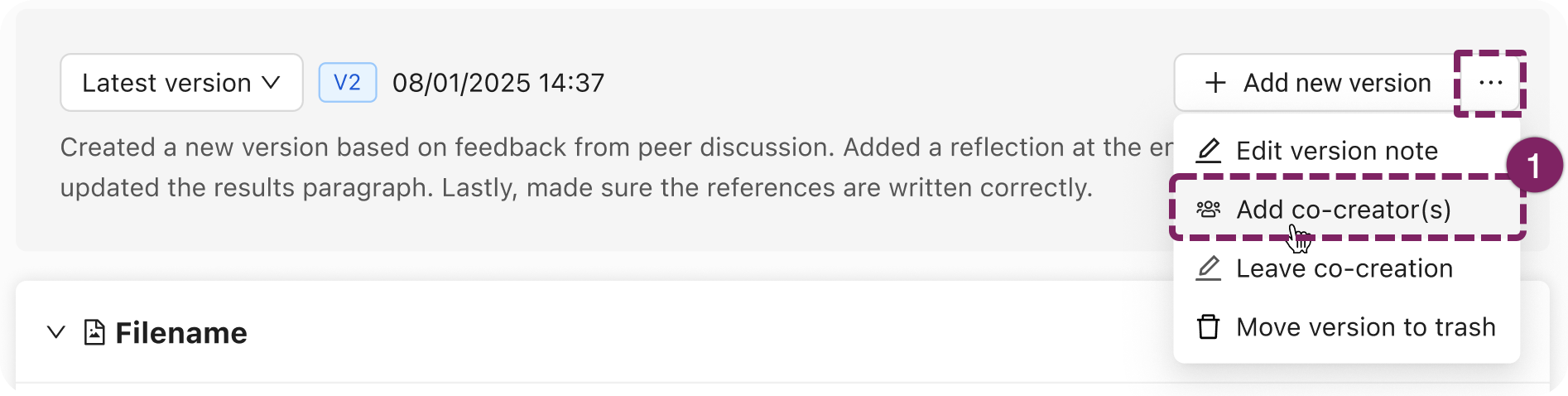
If (one of) the previous version(s) were also co-created, the user search will be pre-filled with the current active co-creators.
The invitees will now receive a notification to join your co-creation (both in Interactions > Co-creation requests and in their Notification centre).
Any active co-creators are equal owners of the co-creation and can invite others or retract invitations.
Receiving a co-creation invite
If you receive a co-creation invite, you will get a notification. You can find all pending co-creation requests in Interactions > Co-creation requests (3).
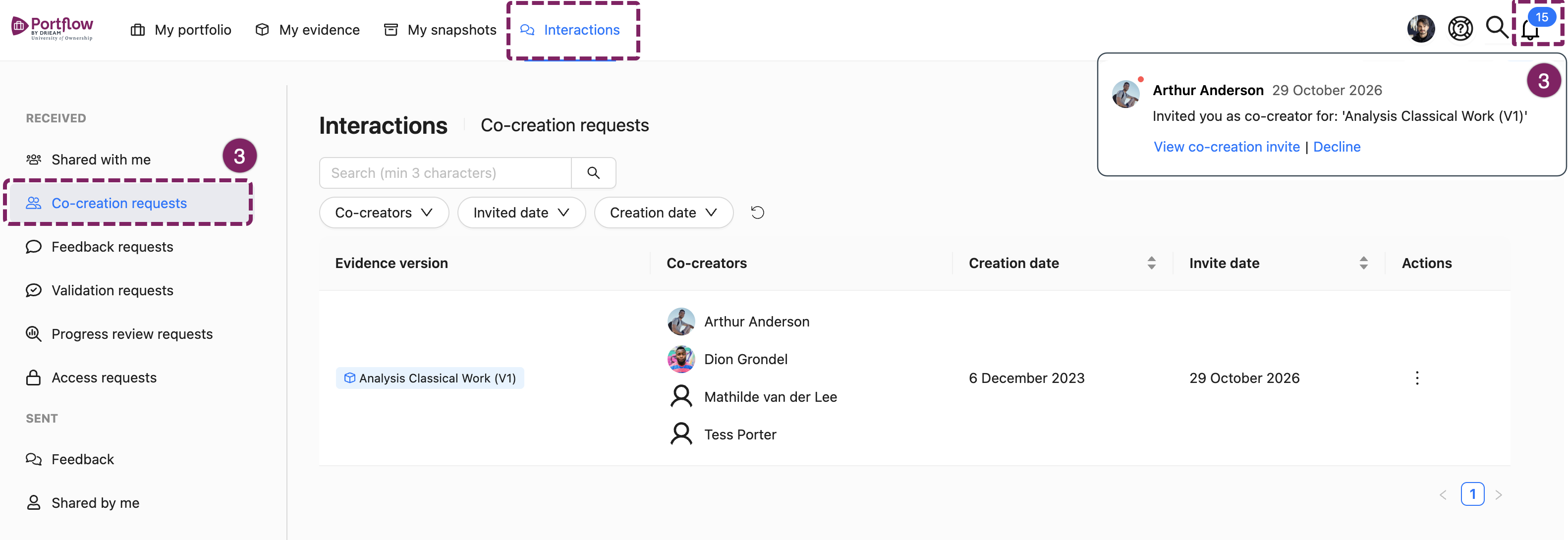
From the notification or request, you can preview the Version and Feedback. You can choose to accept it or decline it. If you decline, you can only reconsider if you receive a new invite.
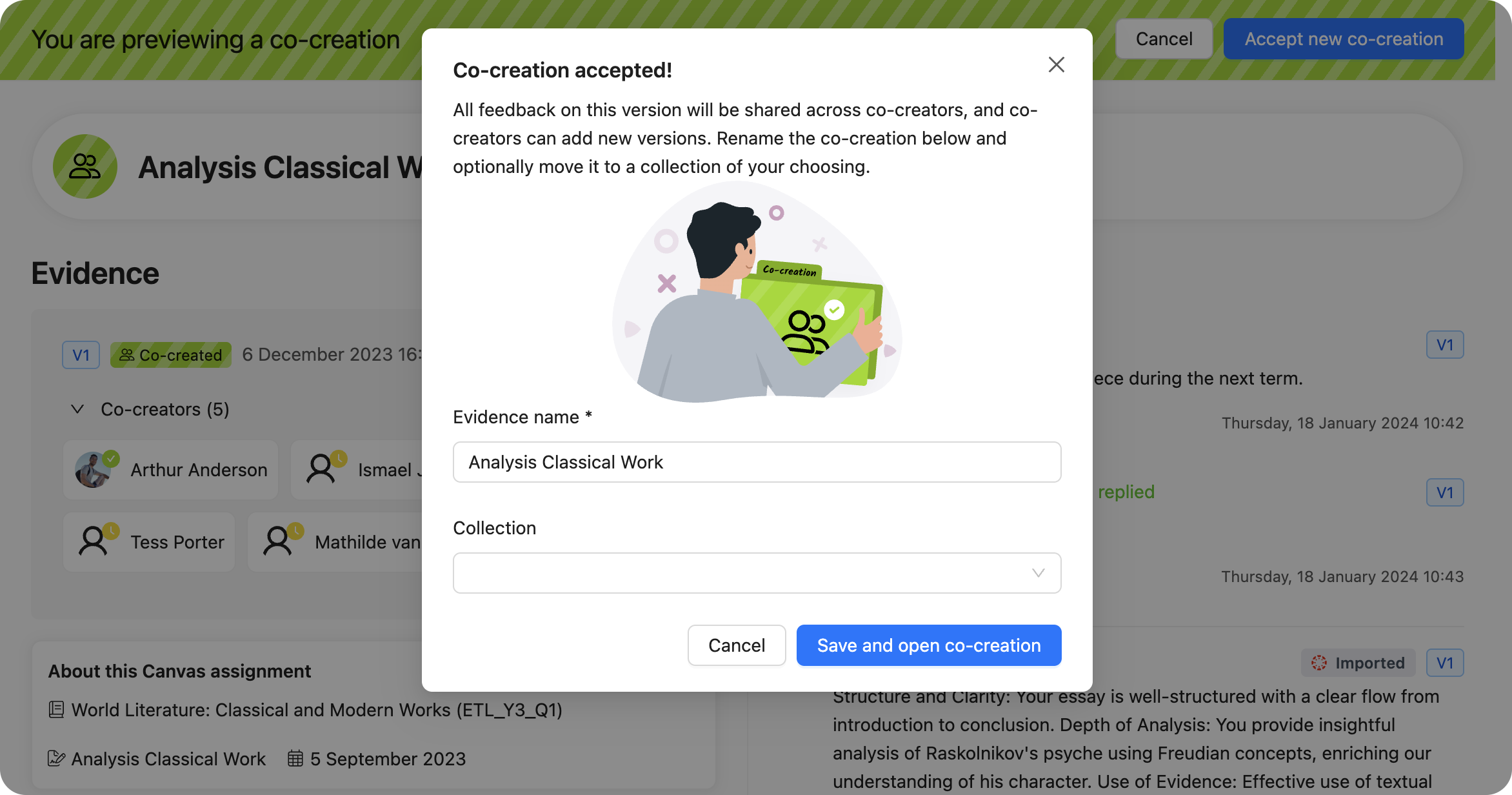
If you accept, you will become an equal co-creator on the Version. If it is a new co-creation you will add a new Evidence to your Portfolio. The Evidence name is suggested from the invitee, but you can choose any Evidence name. You can immediately add it to a Collection, or you can do that later.
If it is a subsequent version of an existing co-creation, it will be added as an additional version to the same Evidence. The versions are ordered on original creation date (not acceptance order).
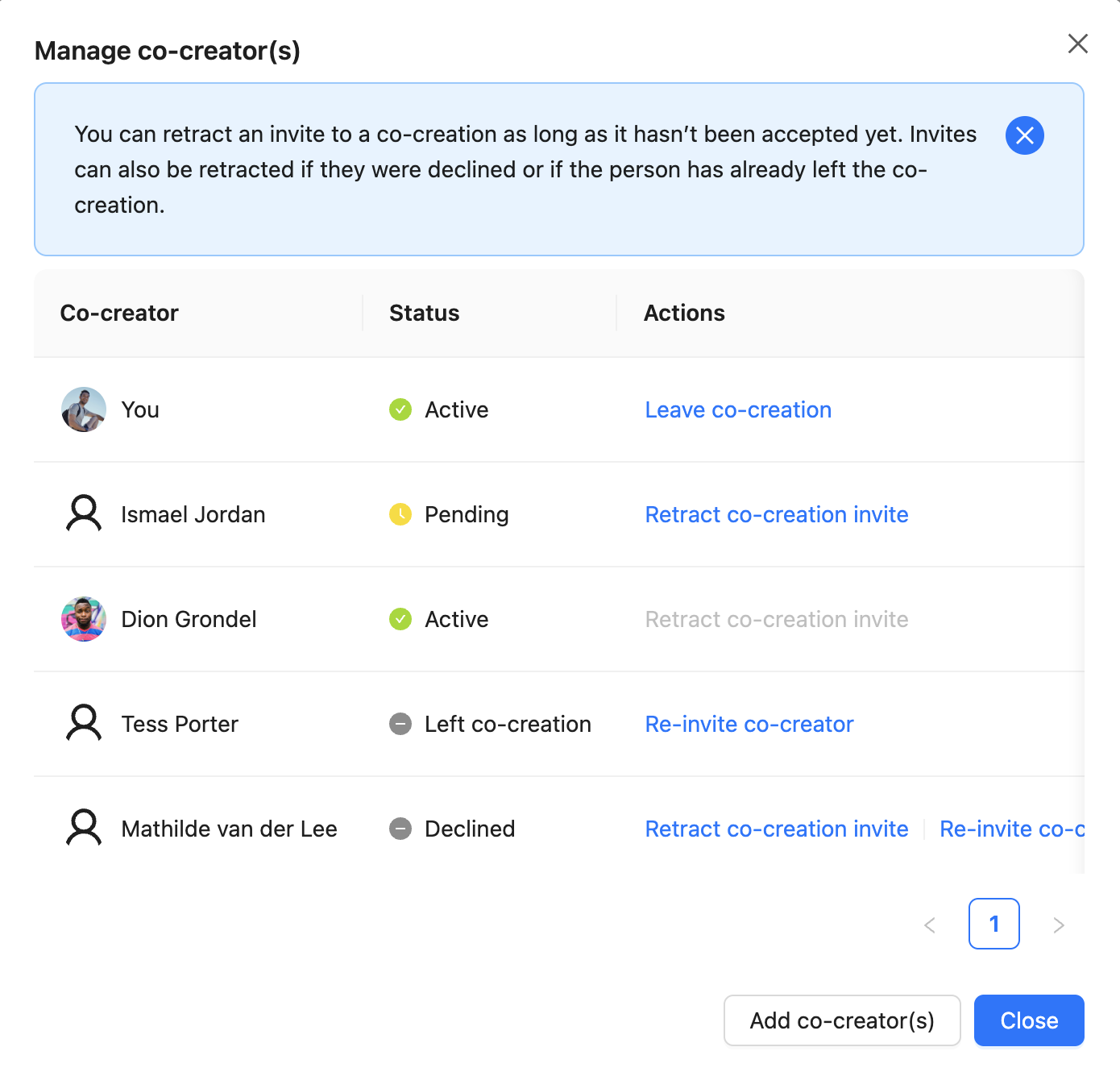
Invite statuses
All possible co-creator statuses are:
✅ Active - Accepted the invite
🟧 Pending - Received the invite
⬜ Left - Accepted and then left the co-creation
⬜ Declined - Declined the invite
If someone's invite is retracted (not possible on Active co-creators), they will no longer show in the co-creator list.
Collaborate and Manage Versions
Iterate on the work
You can create multiple Versions of 1 Evidence as co-creations, possibly with different group members. These Versions can show your progress (as a group). If any of the co-creators create a new version in their co-creation Evidence, the default flow is to invite the previous co-creators as well, but you can (de)select anyone.

First, you add a new Version and the content as normally.
Before saving, use the shortcut Add version and invite co-creator(s).
The previous co-creators are pre-filled. Adjust the selection accordingly.
Click Add (x) where x is the number of co-creators you are going to invite.
They will now receive an invite again. If they accept, the Version is added to their Evidence of the previous co-creation Version.
If you forgot to add co-creators immediately, you can also do it later.
Leave the co-creation
If you wish to no longer receive new Feedback on this Version, you can leave co-creation. This will freeze the co-creation as it is currently.
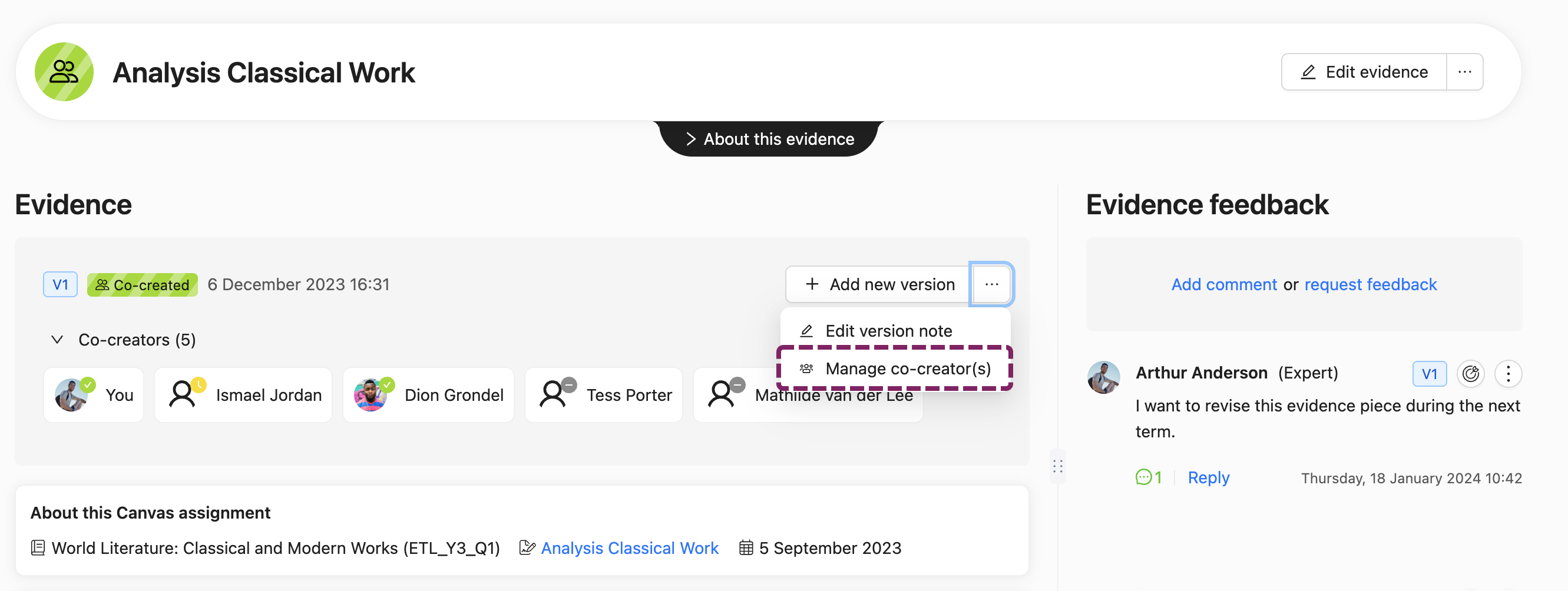
On the Version, Click on ⋯ and then Manage co-creators.
For yourself, click on Leave co-creation
Confirm with leave
A copy will be made in your Portfolio. All co-creators at that moment will be displayed. Any Feedback that the group receives, you will not receive. Any Feedback that you receive, the group will not receive.
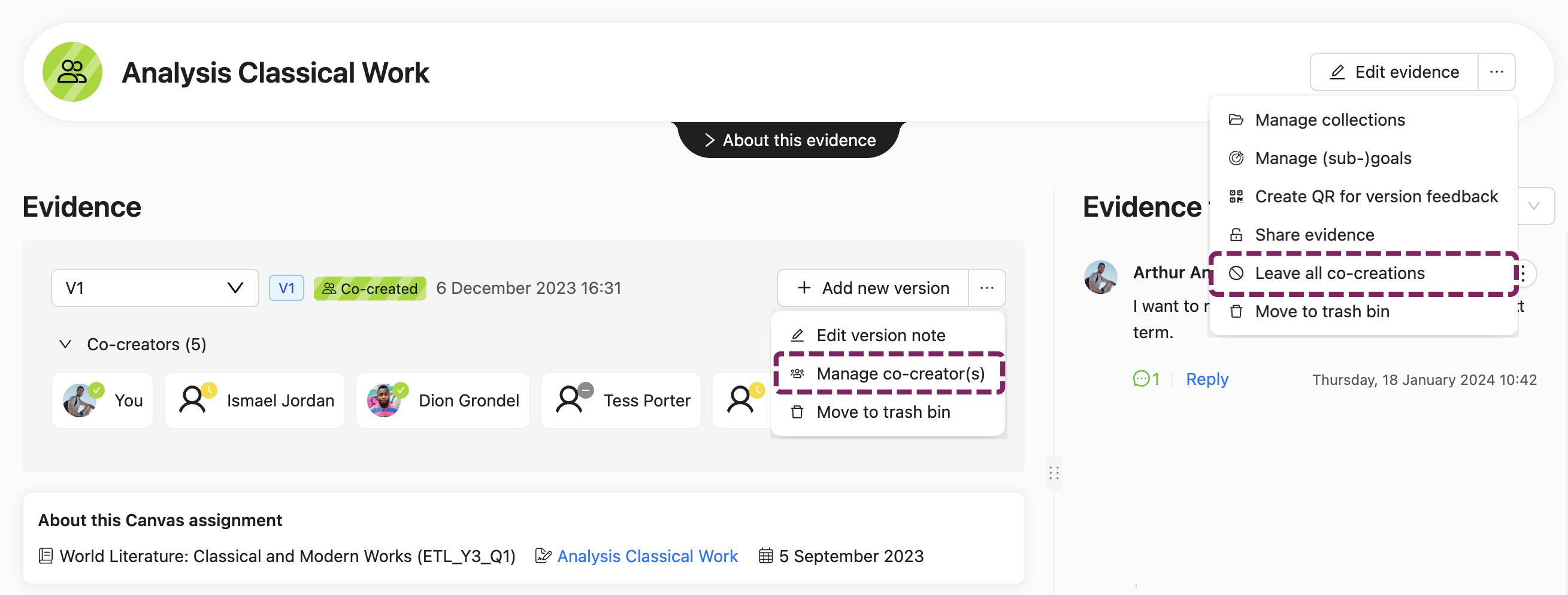
Leave all co-creations
If you wish to no longer receive any invitations for new Versions of the co-creation, you can leave all co-creations (Versions) of this Evidence.
On the Evidence, click on ⋯ and then Leave all co-creations
Confirm with leave
A copy will be made in your Portfolio. All co-creators at that moment will be displayed. Any Feedback that the group receives, you will not receive. Any Feedback that you receive, the group will not receive.
Giving and receiving Feedback
You can use @mentions ( 📄 Mention Evidence, Collections, Goals, and Sub-Goals) in Feedback or the Evidence itself, but these will only be accessible for guests within your own Portfolio. The @mention is still shown in the Portfolio of your co-creators but will not take them to your linked component.
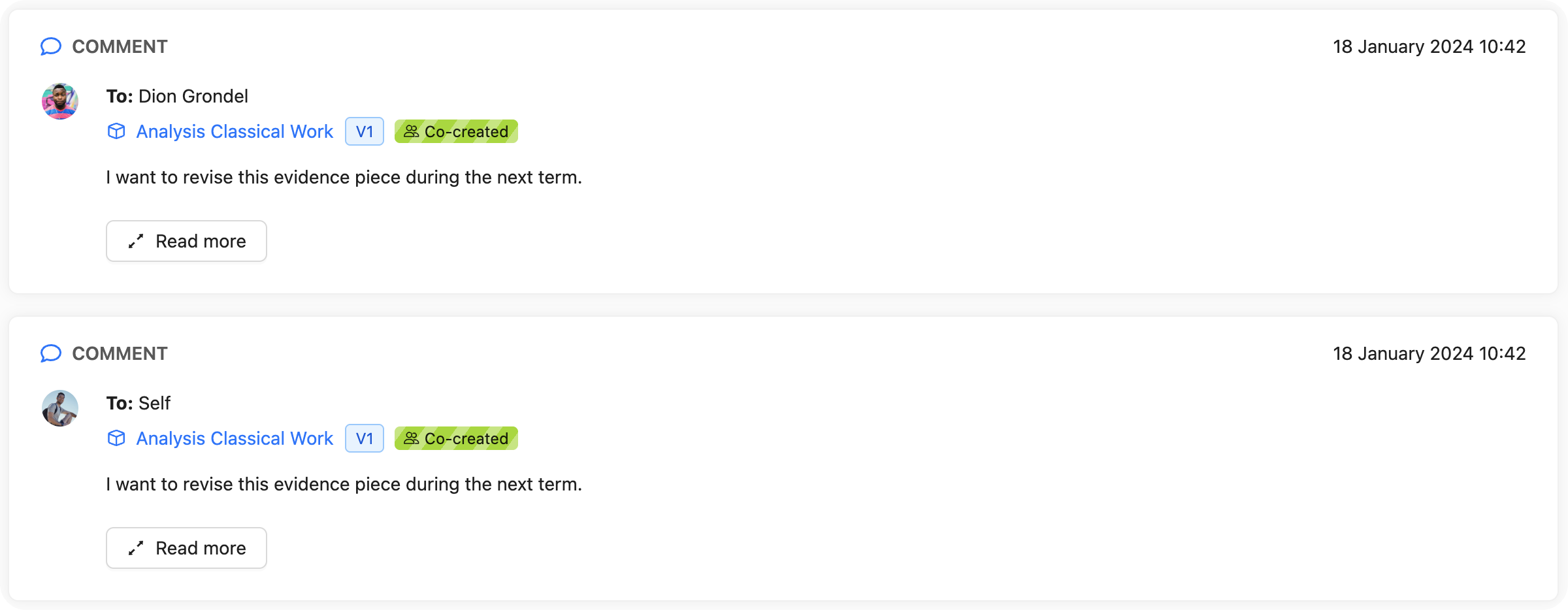
You can request and provide Feedback as usual. All Feedback on co-creations will be synced across all co-creator Portfolios. This means that you give Feedback once, and the current and future co-creators will all receive this Feedback in their Portfolio.
In the Feedback outbox (📄 Feedback Outbox), you will have a duplicate entry for all co-creators whose Portfolio contains your Feedback (also those who are added later than when your original Feedback was sent).
Goal Feedback
Any co-creator can request Goal-specific Feedback ( 📄 Request and Provide Feedback). Anyone who replies, can give Feedback on the original requester's Goals. Co-creators can view this Feedback and then link it to their own Goals.
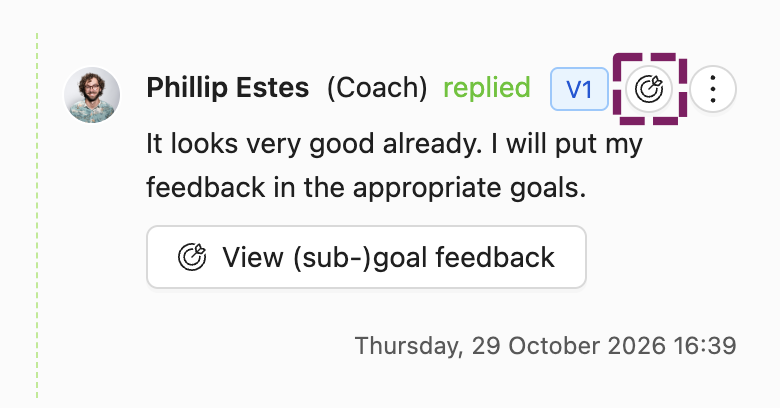
Go to the Goal-specific Feedback you wish to link to your own Goals
Click on the Goal icon
Select the criterion you wish to link
Select your own Goal you wish to match to it
Save the Goal-link
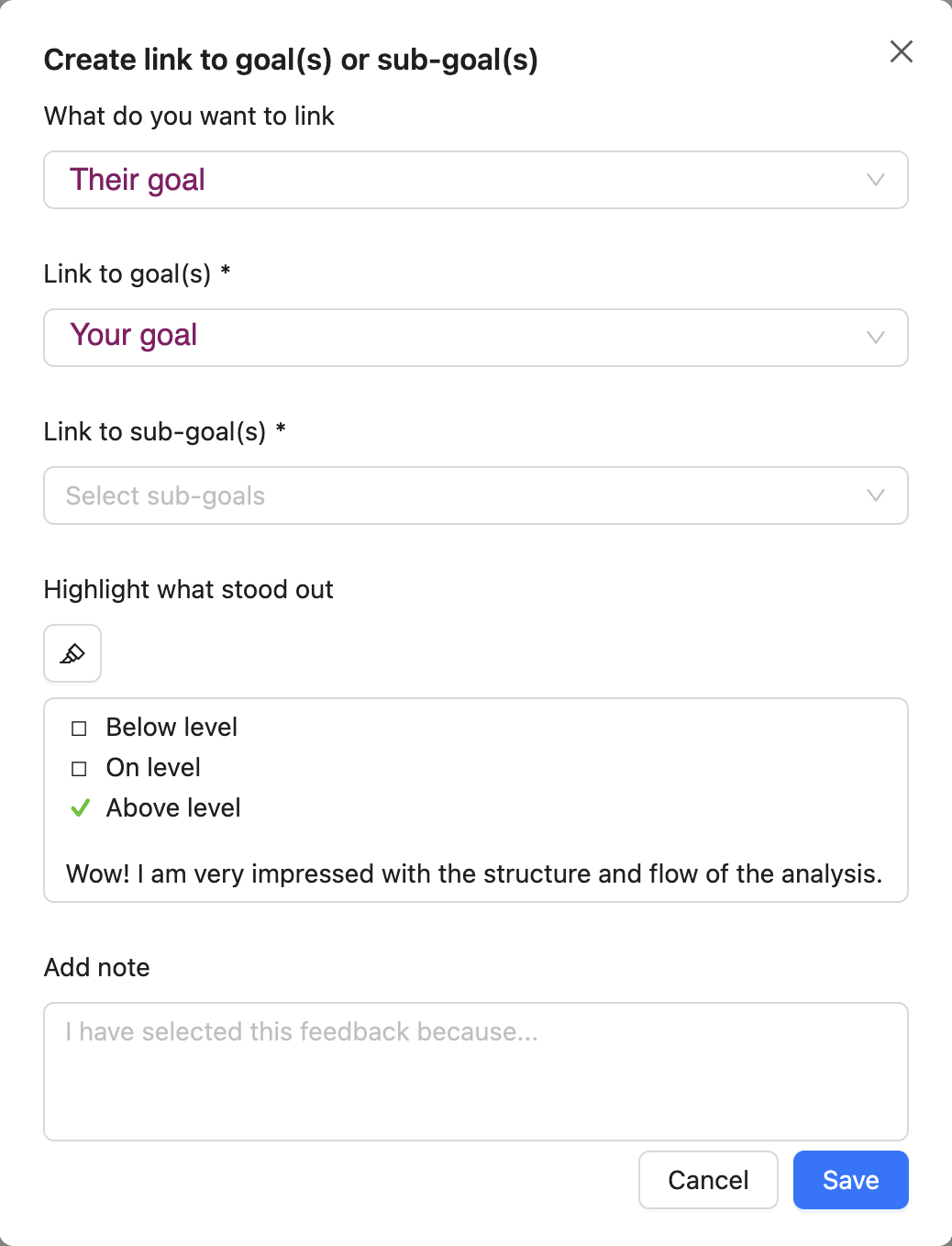
The Goal-specific Feedback will now be part of the Feedback tab of your selected Goals, and the Goals will be linked as tags on the comment.