Feedback Outbox
Last updated: November 2, 2026
Summary
The Sent feedback page (also known as the Feedback outbox) gives you an overview of all Feedback you have given in Portflow. You can search and filter your Feedback, read it back in full, and go straight to the Evidence, Collection or Progress Review it was given on. Your Feedback stays available on this page, even when you no longer have access to the Portfolio, or when the learner has hidden or removed it.
Applicable for | 🐼 |
Not applicable for | External users |
Why use the Feedback Outbox?
As a coach, teacher or peer, you give a lot of Feedback across many Portfolios. With the Feedback Outbox, you can easily find it back without clicking through a whole Portfolio. For example, to:
Check whether you already gave Feedback on a certain topic.
See whether a learner has done something with your Feedback.
Look up what you wrote down during or after a conversation.
Find and reuse feedback you have formulated before.
How to use the Feedback Outbox?
Sent feedback can be found on the Interactions page.
Note: The Interactions page was previously called My access & requests. All tabs you know from this page (such as Shared with me, Feedback requests and Validation requests) can still be found there, now in the menu on the left.
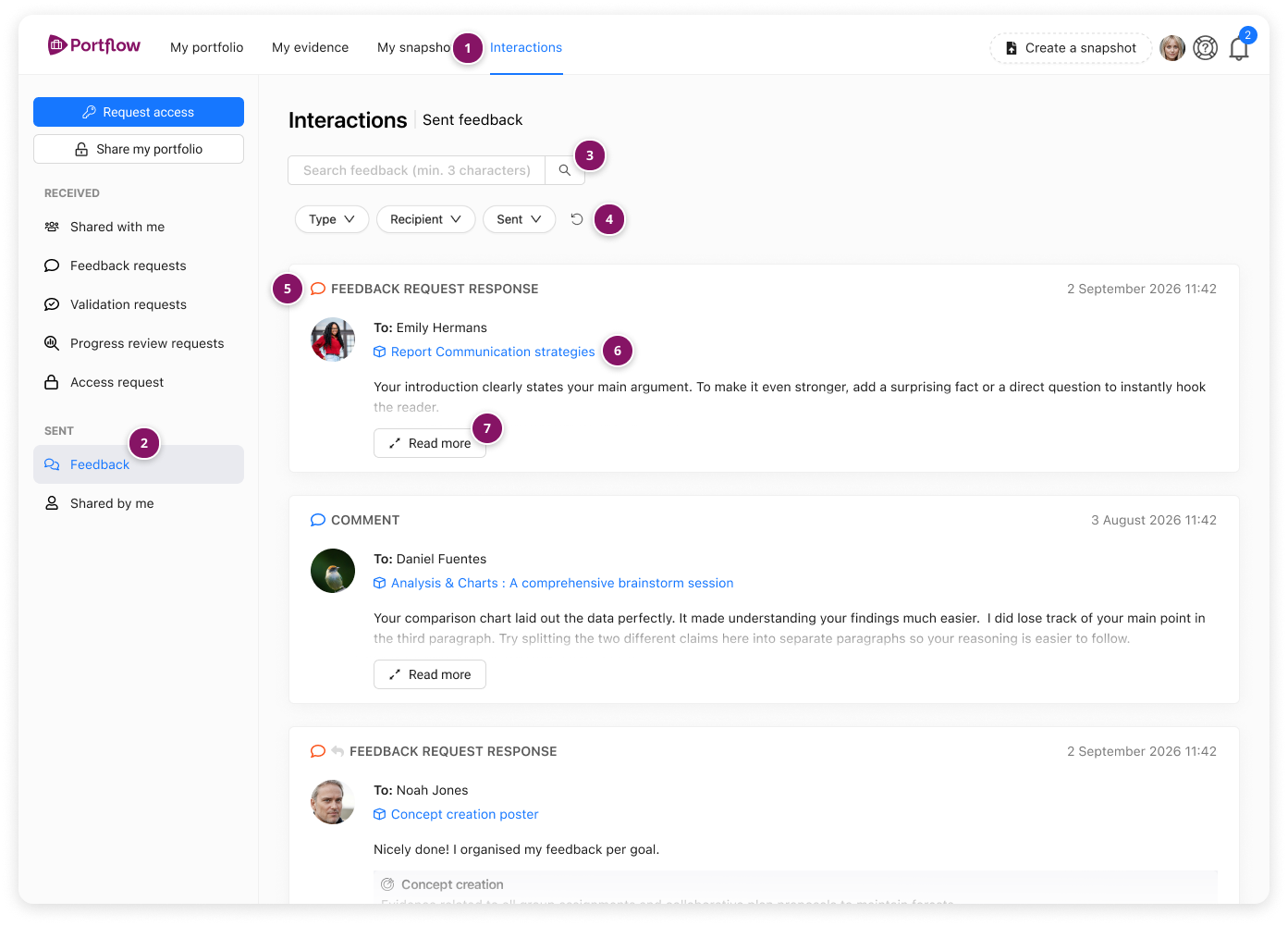
Click Interactions in the main navigation (1).
In the menu on the left, under Sent, click Feedback (2).
Search for feedback. You can search on:
the name of the recipient
the name of the Evidence, Collection or Progress Review
the content of your Feedback
Filter on feedback
Tip: Combine a filter and a search. For example, select a learner under Recipient and search for a keyword to quickly find the Feedback you gave that learner about a specific topic.
The type of Feedback. A reply icon (↩) shows that the Feedback was a reply in a comment thread.
The link to the item the feedback was given on
Read more button to read the feedback in full. A pop-up opens with the full content of your Feedback
You may see these labels in the outbox:
Edited: you have edited the Feedback after posting it. Sent feedback always shows the latest version of your Feedback.
Co-created: the Feedback was given on co-created Evidence. You will see the Feedback once for each co-creator, as each of them received it in their personal Portfolio.
What can I find in the Feedback Outbox?
Sent feedback shows the following Feedback that you have given, with the most recent Feedback at the top:
Comments: Feedback on a Collection or Evidence, including replies in a comment thread and Ad-hoc Feedback (QR code).
Feedback request responses: your responses to Feedback Requests, including (Sub-)Goal-specific Feedback.
Progress reviews: Progress Reviews you have submitted, including your Self-Reviews.
Feedback requests: Feedback Requests you have sent yourself, on your own Portfolio.
Note: The following types are not shown in Sent feedback:
Feedback given in the LMS (imported assignments).
Validations of Feedback, and the remarks you added when declining a Validation Request.
What if I no longer have access?
You still see your Feedback in Sent Feedback, even when you can no longer open the Portfolio or Evidence. This is the case when, for example:
the share of the Portfolio, Collection or Evidence has ended or was removed;
the learner has moved the Evidence to the trash or deleted it;
the learner has hidden your Feedback.
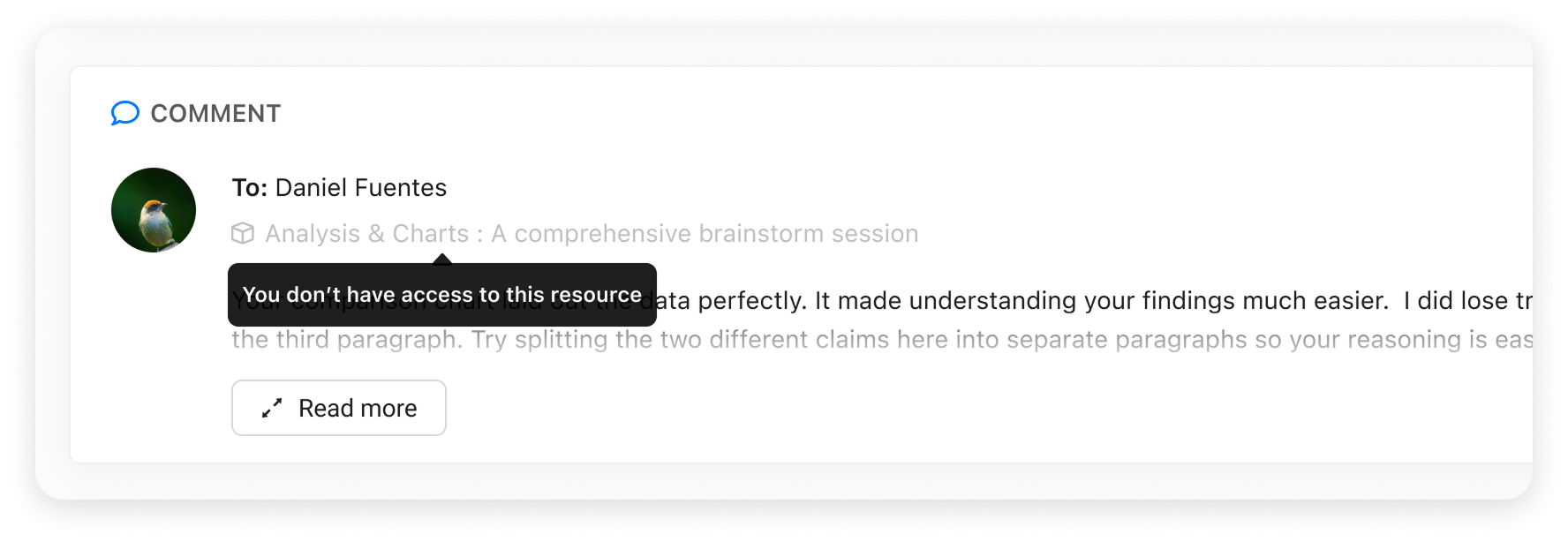
In these cases, the link is greyed out. You can still click Read more to read your full Feedback.