Snippets
Last updated: October 1, 2026
Summary
Snippets contain textual information that an instructor can share with students as the basis for a Free-text Evidence or Feedback. You could regard Snippets as flexible templates or formats to help structure Evidence or Feedback. For example, Evidence Snippets could be used as formats for study plans, reflections, specific assignments or standardised procedures within the field. Feedback Snippets could be used to generate single-point rubrics.
What is a Snippet?
Snippets are textual information that a teacher can share with learners as the basis for Free-text Evidence or Feedback (Requests). You could regard Snippets as flexible, stackable templates or formats to help structure Evidence or Feedback.
Snippets have the following properties:
Title
Type (
EvidenceorFeedback)Description
Snippet code (starting with
SNIP)Language
Status (
PublishedorUnpublished)Availability (
PublicorShared)Content
What do the Status and Availability of Snippets entail?
The status and availability of a Snippet can be set separately. The status indicates whether the Snippet is still a draft, or whether the Snippet is already 'done' and usable. The availability indicates whether a Snippet should be universally available within the institution, or whether it is aimed to be used by a specific group of learners.
The combination of the two determines whether and how a Snippet can be found and used:
Availability → Status ↓ |
|
|
| Found/usable by no one | Found/usable by no one |
| Found/usable by everyone | Found/usable only with code |
Note: Unpublishing a Snippet does not affect previously created Evidence or Feedback based on that Snippet. It will only make it unavailable for future use.
Permissions regarding Snippets
Snippet creators can create Snippets within their Department(s), and can only create Shared Snippets (geen openbare).
Organization-wide scaffold creators and Super Admins can create Snippets within all Department(s) or in no specific Department, and can also create Public Snippets.
Template creators, Organization-wide scaffold creators or Super Admins can use all Snippets within their Department(s) in a Template, or Snippets in no specific Department. If a Snippet is unpublished, learners will not be able to see or use the Snippet in the Activity after import.
How to create a Snippet?
Super Admins, Organization-wide scaffold creators and Power Users with the ability 'Snippet Creator' can create and manage Snippets in the Scaffolds tab within Portflow. If you don't already have these permissions, you can request them from an administrator. See 📄 Super Admins, Power Users, and Departments.
Go to Portflow → Scaffolds → Snippets.
In this overview, you will first see Snippets you have edit permissions on. You can remove the filter Editable by me to see Snippets in no specific Department and Public Snippets as well.
Click + New snippet.
Choose the type (
EvidenceorFeedback).Set the details (Name, Language, Department, and Availability).
You can change the properties later.
Note: Snippet creators can only create Shared Snippets, not Public. They are also restricted to their own Department(s). Organisation-wide scaffold creators can also create public Snippets, and can link a Snippet to all Departments or to no specific Department.
Click Save to go to the Snippet content and description.
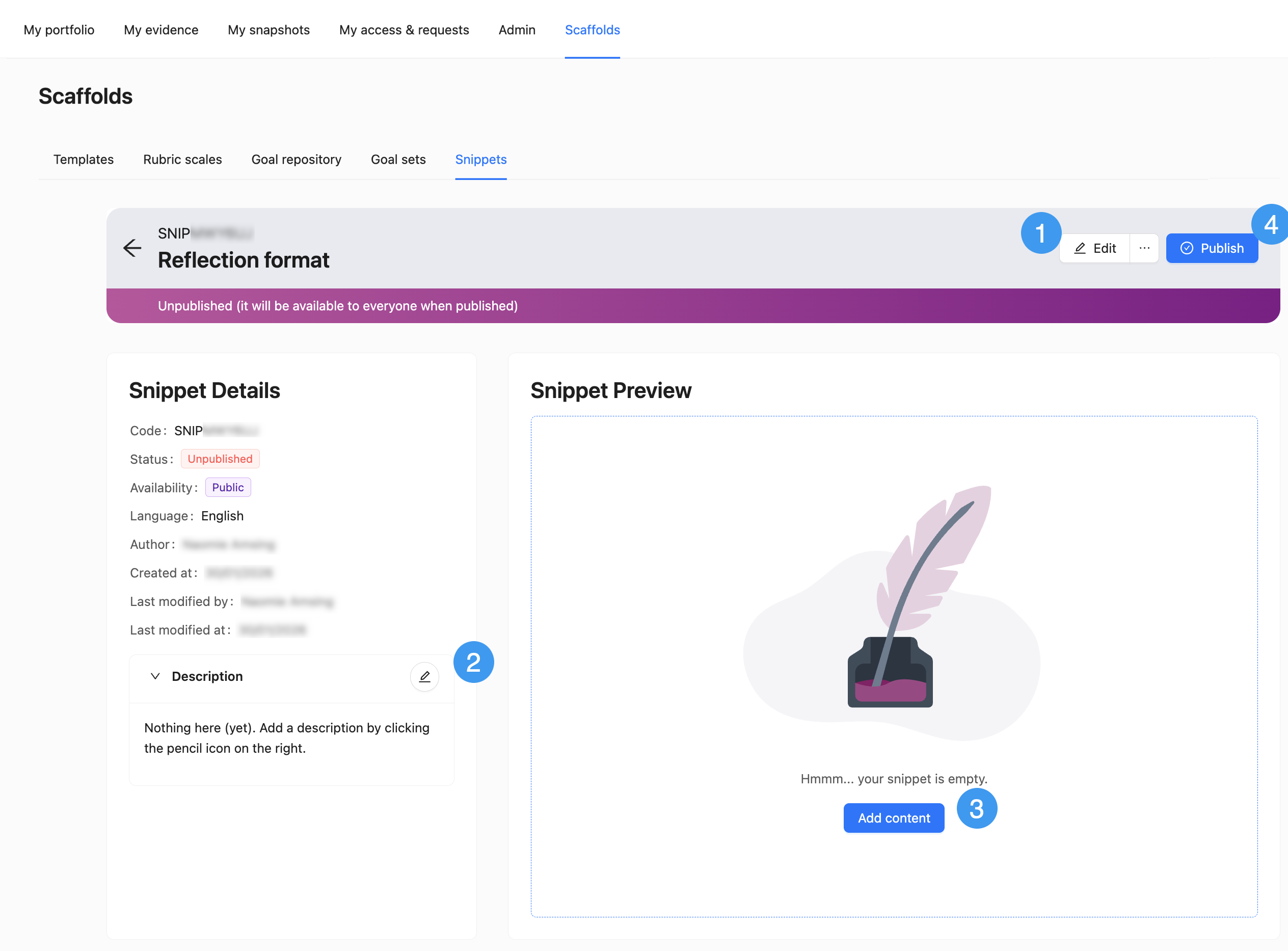
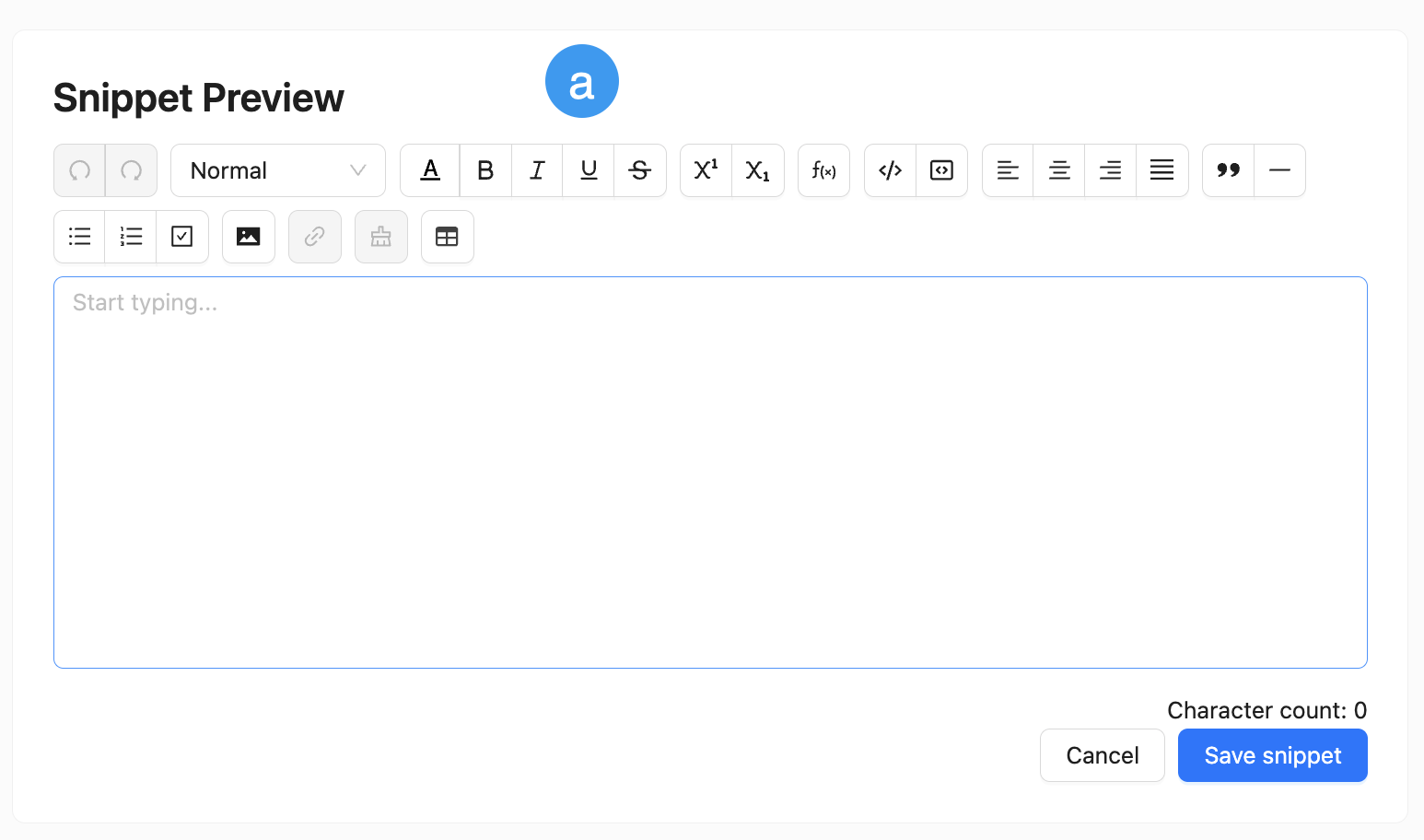
In the Snippet, you can Edit the details (1). From the Action Menu (︙), you can duplicate or delete the Snippet. You can add a Description (2) that can help learners select the right Snippet or provide additional context or instructions. You can add the content of the Snippet (3) with the Portflow text editor (a).
In the banner at the top, you get information on who can view and use the Snippet and you can (un)publish the Snippet (4).
Note: When you modify or unpublish the Snippet, it does not affect Evidence or Feedback that have already used this Snippet.
How to share a Snippet with learners?
Snippets that have 'public' availability can be found by title by learners in the Snippet Selector when creating Free-Text Evidence or when giving or requesting Feedback.
Snippets that have 'shared' availability can only be found by code (e.g. SNIPABCXYZ)by learners in the Snippet Selector when creating Free-Text Evidence or when giving or requesting Feedback.
Tip: To share a 'shared' Snippet with learners, copy the Snippet Code and share it through the LMS, through the Template, or in class.
Include a Snippet in templated Activities
Snippets can also be included in Activities as part of Templates (see 📄 Templates). This way, the learner can directly use a specific Snippet when they add Evidence for that Activity.