Goal Repository & Goal Sets
Last updated: October 1, 2026
Summary
The Goal Repository allows Power Users to create and manage Repository Goals that can be reused across multiple Templates.
Goal Sets are groups of Repository Goals that belong together. Goal Sets allow users to select a set of related Goals at once, e.g. when building Templates or viewing progress.
Goal Repository
What is the Goal Repository?
The Goal Repository allows Power Users to create Goals that can be reused in multiple Templates (see 📄 Templates), making it easy to track growth in a longitudinal way on Goals across Templates. Repository Goals form the foundation of scaffolded Goals that typically represent programme-wide/overarching Goals (e.g. learning outcomes, graduate attribute, skills, or competencies). Repository Goal Creators can create new Goals in the Goal Repository and convert existing (single use) Template Goals to Repository Goals.
Note:
Repository Goals can be edited by Repository Goal Creators from that Goal's Department. These changes will be reflected in existing Templates that include these Goals. Changes that are made to Repository Goals will only be reflected in learner's Portfolios after they have (re)imported a Template containing that Repository Goal.
Permissions regarding the Goal Repository
Template creators will be able to see and use Repository Goals from any Department in their own Templates.
Repository Goal creators will be able to view any Repository Goal from any or no specific Department, and will be able to manage Repository Goals within their own Department(s).
Super Admins and Organization-wide Scaffold creators will be able to manage Repository Goals in any Department or no specific Department.
How to manage Repository Goals?
Repository Goals can be created and managed by Power Users with Repository goal creator abilities. More about these abilities can be found in 📄 Super Admins, Power Users, and Departments.
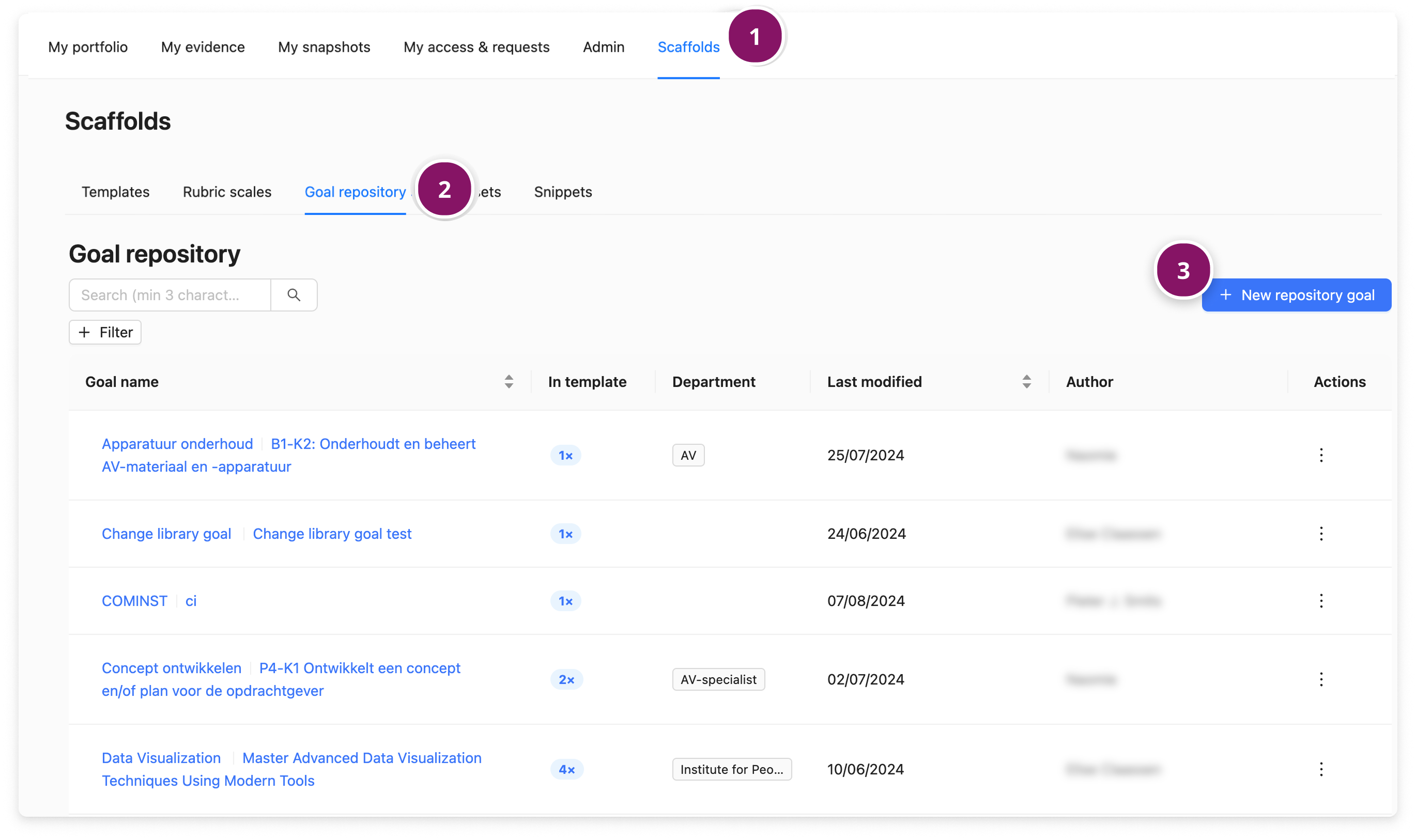
To create or manage repository goals, go to the Scaffolds tab (1). Then click on the Goal Repository tab (2). This table lists all existing Repository Goals. You can use the search bar to find Goals by their names or nicknames. The filter Editable by me is enabled by default, focussing on the Goals you have permissions for. You can remove the filter to see all Repository Goals.
Click ‘+ New repository goal’ (3), to add a new one.
Note:
Super Admins and Organization-wide scaffold creators can manage Repository Goals for all Departments, as well as Repository Goals linked to no Departments (i.e. institution-wide Repository Goals).
How to create and update Repository Goals?
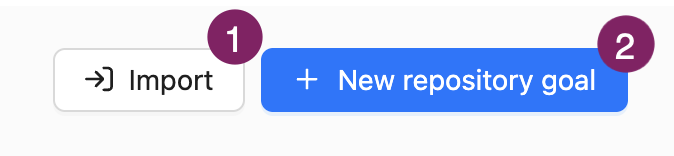
You can create/edit Repository Goals through a CSV import (1) — practical for adding or updating Goals in bulk, or you can create them individually through the User Interface (2) — useful when creating Goals one by one.
Through CSV import
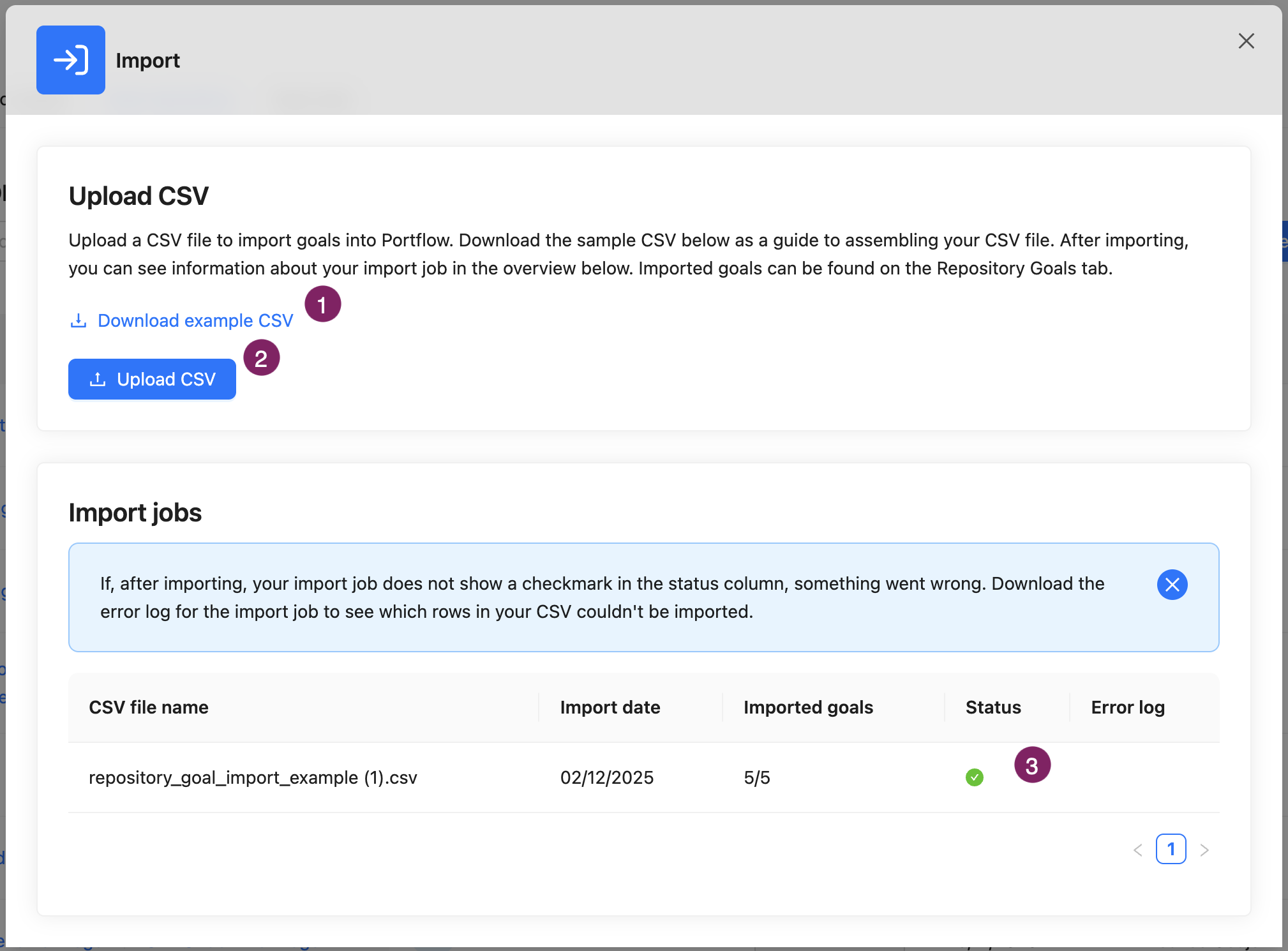
When you choose to create Repository goals with a CSV file, you can download an example file (1). The necessary columns are:
sourced_id* | name | nickname | description | parent_goal_id |
*The sourced_id is not required, but highly recommended. If you do choose to use the sourced_id, you will overwrite existing content if the ID already exists. Using this ID, you can easily update existing Repository Goals.
Note: Portflow does not issue a sourced_id. This ID is typically issued by the source (e.g. curriculum management system). The ID can also be defined manually. It allows you to update the Repository Goal via CSV later on.
When you want to create a Sub-Goal, you can use the sourced_id of the parent Goal in the column parent_goal_id. If you leave this last column empty, you will create a Goal instead of a Sub-Goal.
If your file is finished, you can upload it (2). In the table with imported jobs, you can find the status of an import (3). If your import was not successful, you can download the error log to see any errors and retry after adjusting the file.
Tip: You can also bulk-update repository goals in the same manner as creating them. To do this, make sure to always add a sourced_id.
Through the user interface
To create a new Repository Goal, click the + New repository goal button in the Goal Repository.
By clicking on the name of a Repository Goal, you can view and/or edit it.
Note: Power Users can edit Repository Goals of the Department(s) that they belong to. They can only view all Repository Goals from other Departments.
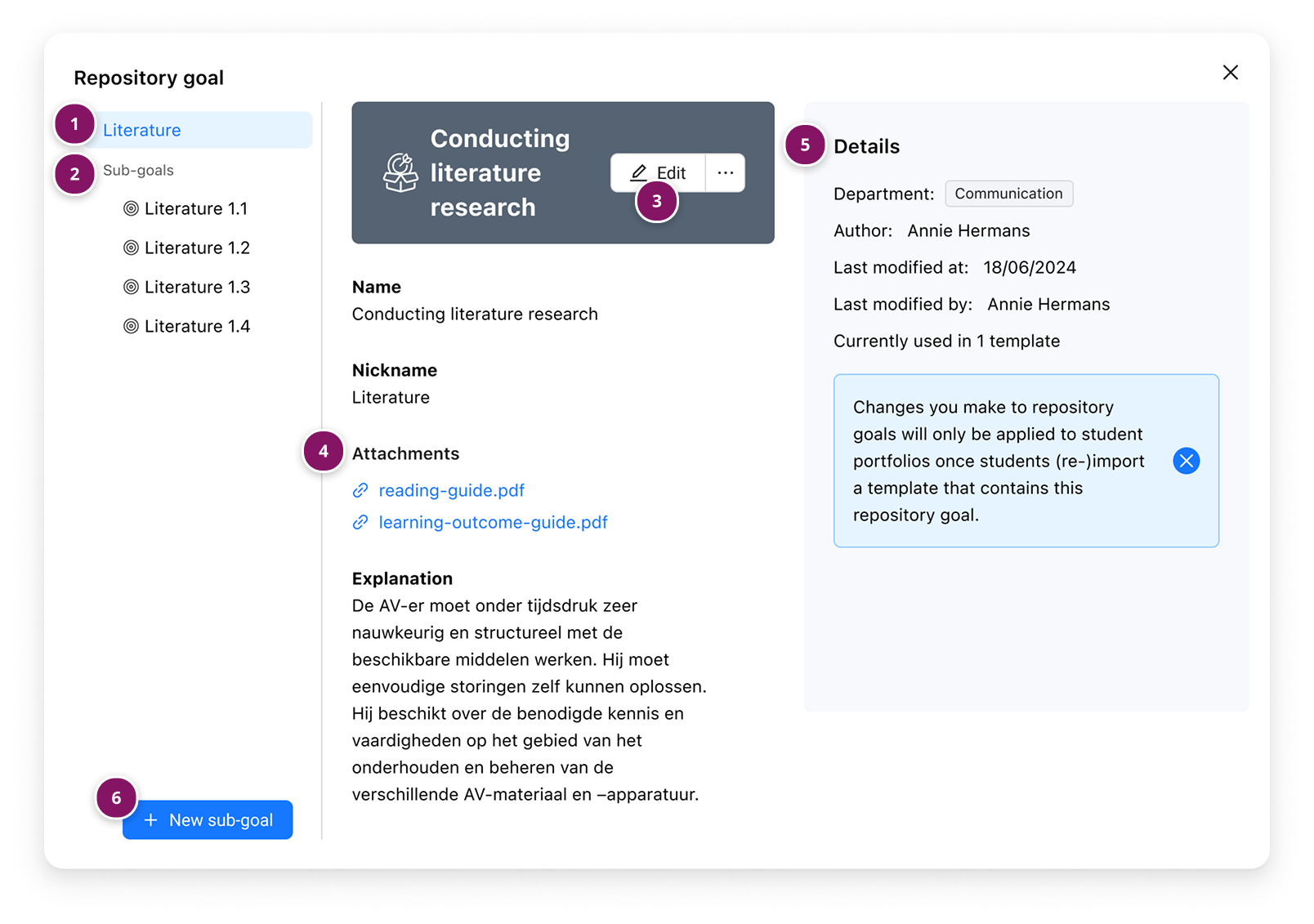
The image below shows an example of a Repository Goal:
Information about the Repository Goal, including its name, nickname, and description.
The Sub-Goals of the Repository Goal.
Edit button. Click the three dots for more options to manage the Repository Goal details.
You can delete a Repository Goal if it is in a Department you are part of.
You can duplicate any Repository Goal.
Attachments, which you can add via the edit button
Details of the Repository Goal, e.g. Department and number of times the Goal has been used in Templates.
Add a new Sub-Goal to the Repository Goal.
How to suggest Rubric Scales for Repository Goals?
You can link one or more Rubric Scales (see 📄 Rubric Scales) to suggest to learners when they create a Progress Review. This provides guidance on which Rubric Scale is expected to be used for a given Repository Goal. Learners can select the Rubric Scale they believe best fits their Progress Review Request.
Configure suggested Rubric Scales
Open a Repository Goal and navigate to the Repository Goal details (as described in step 3 in the section above).
Switch to the Rubric Scales tab (1) and click the +Add rubric scale button.
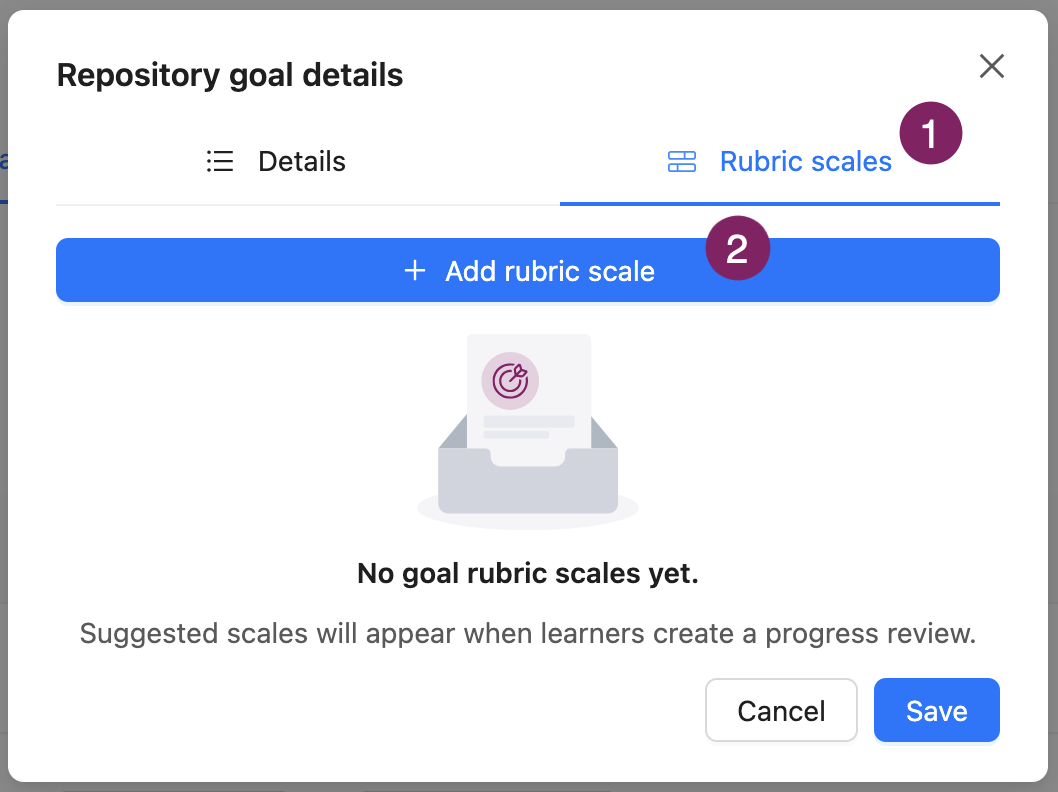
A new pop-up opens. Choose to add a rubric scale for the Goal or its Sub-Goal(s) (3).
Select a Rubric Scale that should be suggested to learners (4). You can add more later.
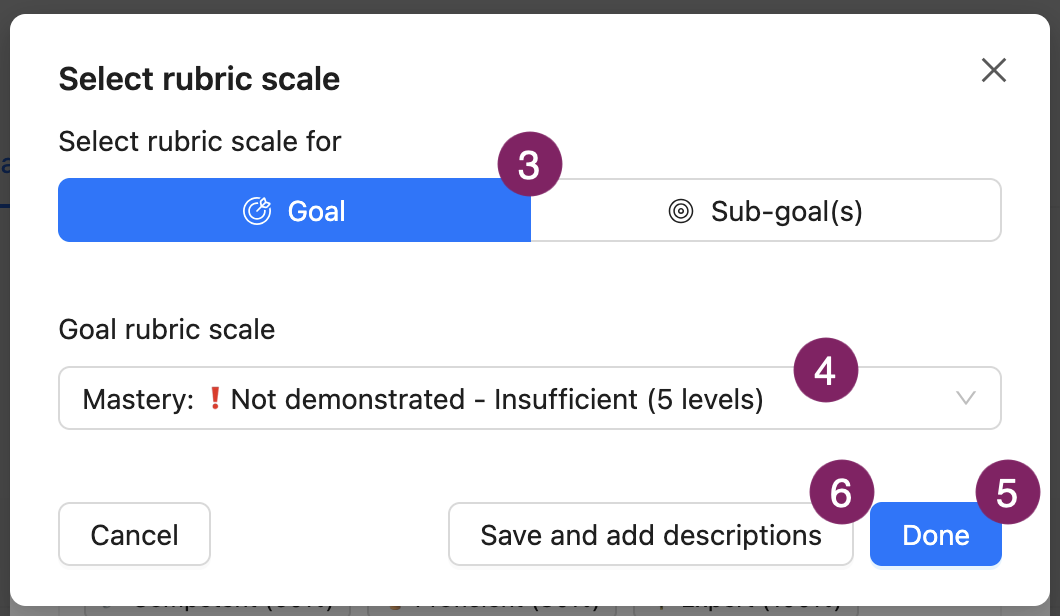
Click Done (5). Alternatively, you can click Save and add descriptions (6) to immediately add level descriptions for this Rubric Scale.
You can see if/which Rubric Scales are linked, and which Levels are associated with it. If you had already added descriptions, you will see the button Edit descriptions (7). From here, you can also click Add descriptions (8) for Scales that don't have descriptions yet.
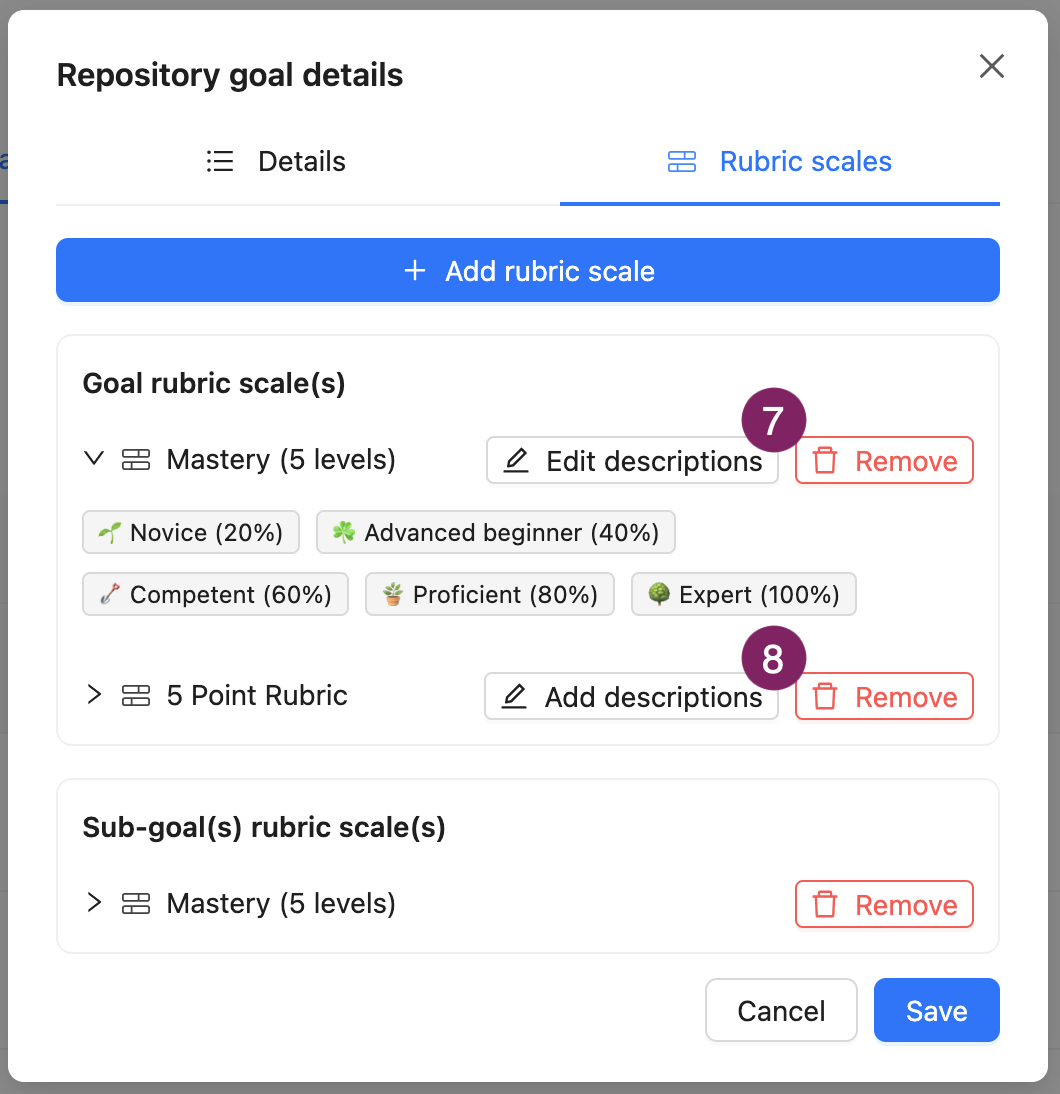
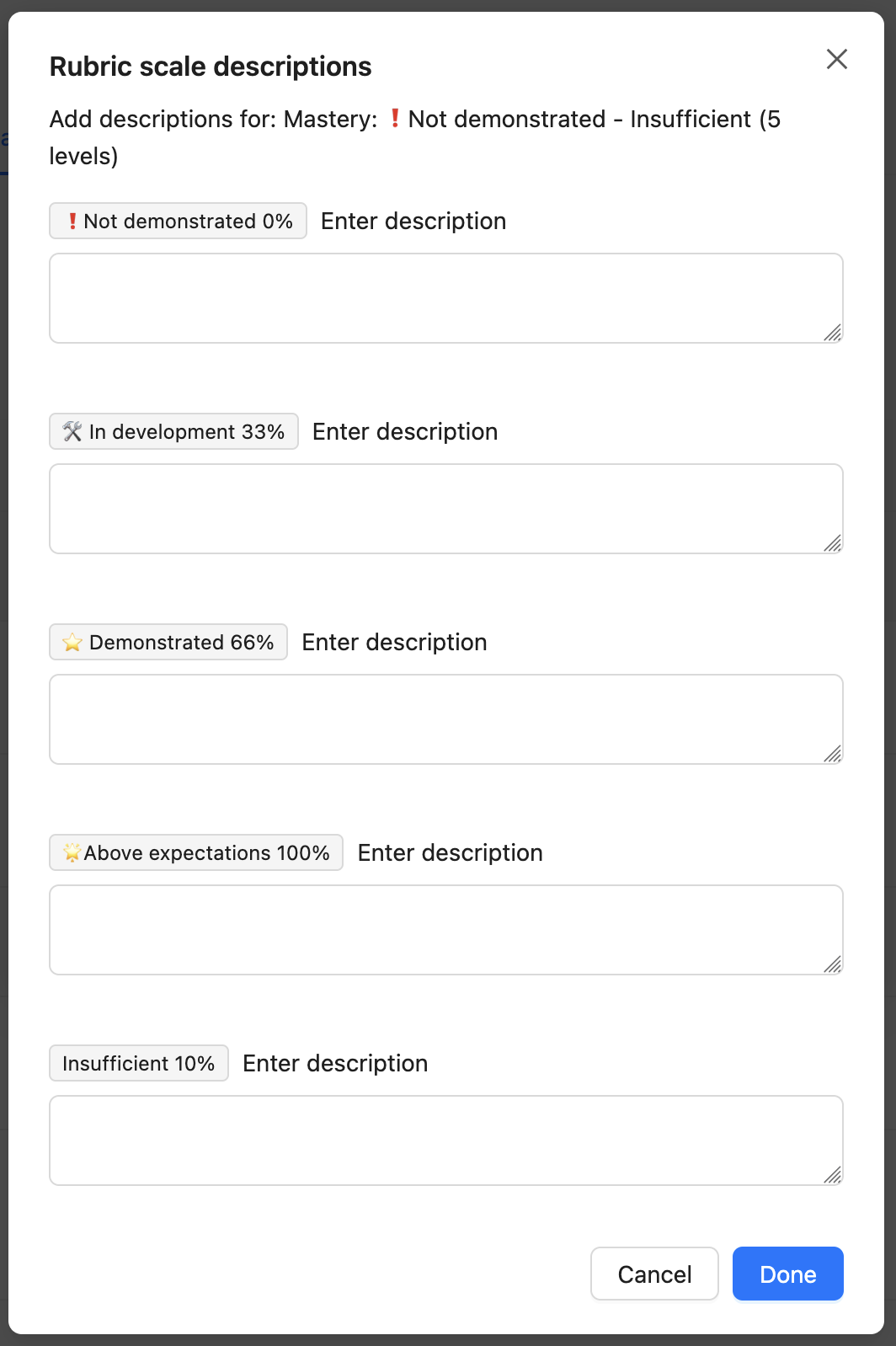
If you use the button from 6, 7 or 8 (Add/Edit Descriptions), you land in a new pop-up to add descriptions to these Rubric Scale Levels. Click Done to save the descriptions.
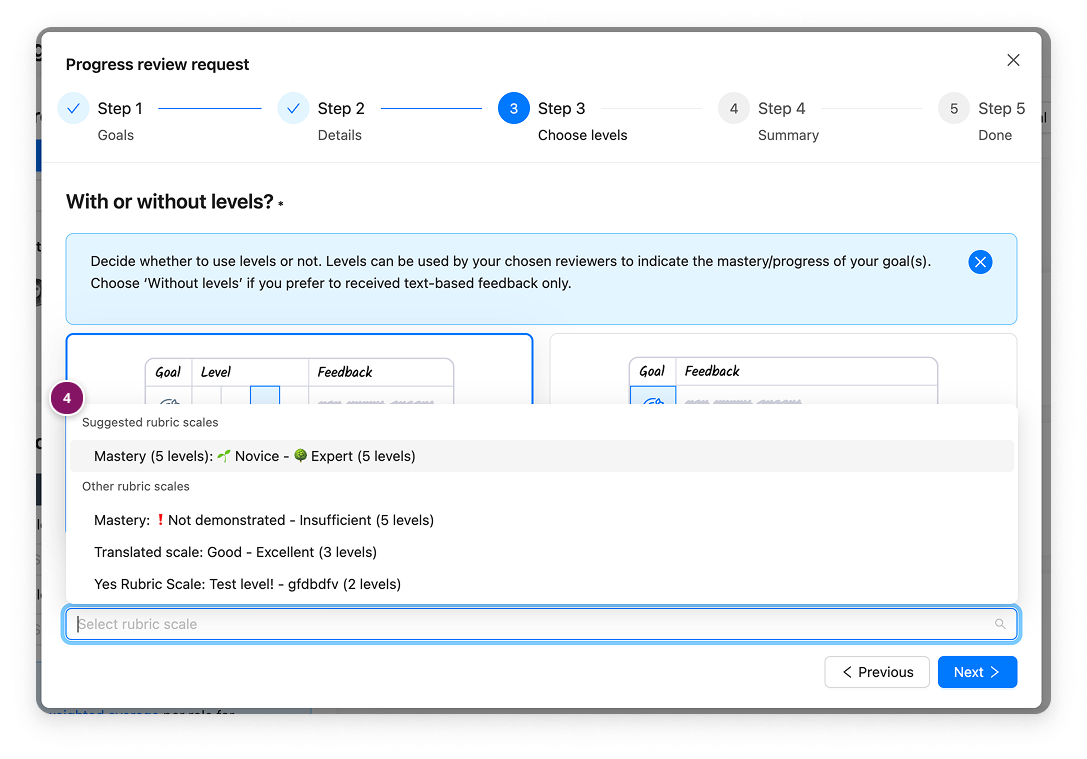
When a learner starts a Progress Review that includes the Repository Goal with a suggested Rubric Scale, the suggested Rubric Scale(s) will be displayed in the section ‘Suggested rubric scales’.
When someone is using the Progress Review that uses the combination of the Repository Goal and Rubric Scale, they will not yet see the descriptions. These will become available in the coming weeks.
Note: It does not matter when the learner has imported the Repository Goal. The suggested Rubric Scales when starting a Progress Review has a live connection to the Repository Goal (determining which Rubric Scales are suggested at that moment).
How to convert existing Template-specific Goals to Repository Goals?
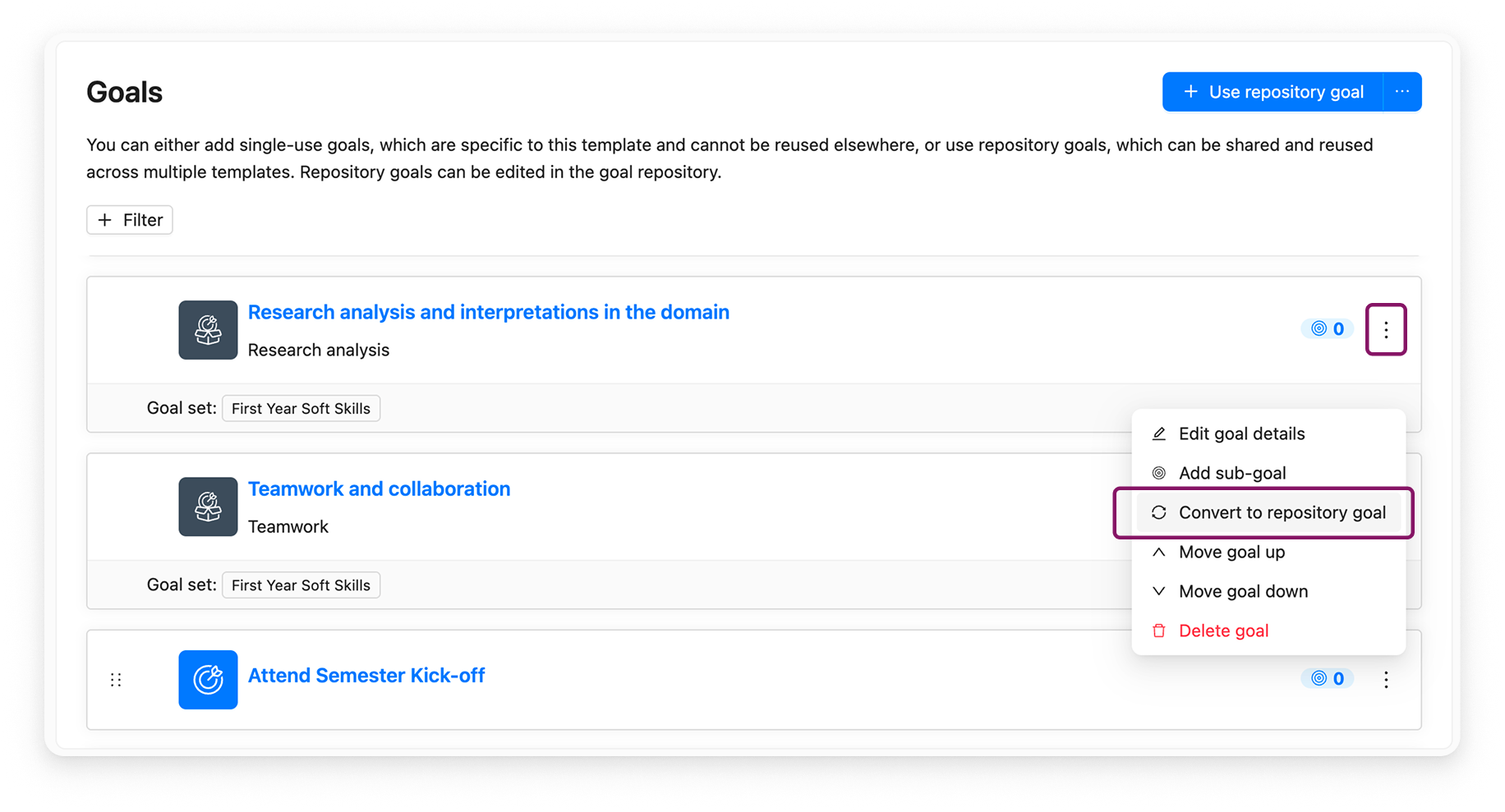
If you already have one or more Goals in a Template, you can convert them to Repository Goals. This way, you don't have to create Repository Goals from scratch. To achieve this, go to a Template which contains Template-specific Goals, go to the Goals section and select the Convert to repository goal option from the action menu (accessible via the three dots ︙).
If you used Goals in a Template before the Goal Repository was introduced, and you would like to reuse the same Goals in other Templates, you only need to convert the Goals in the ‘old’ Template to Repository Goals. You can then reuse the Repository Goals in 'new' Template(s). Now, learners can continue working on the same Goal they had imported before.
Note: Converted Goals cannot be converted back.
Goal Sets
What are Goal Sets?
Goal Sets let you group Repository Goals together under a shared theme or purpose, for example: programme-level outcomes, term objectives or module-level objectives. With Goal Sets, you can easily add multiple related Repository Goals to a Template in one go. You can also start with a few Goals from a Goal Set and add more from the same set later in following Templates.
How to create and manage Goal Sets?
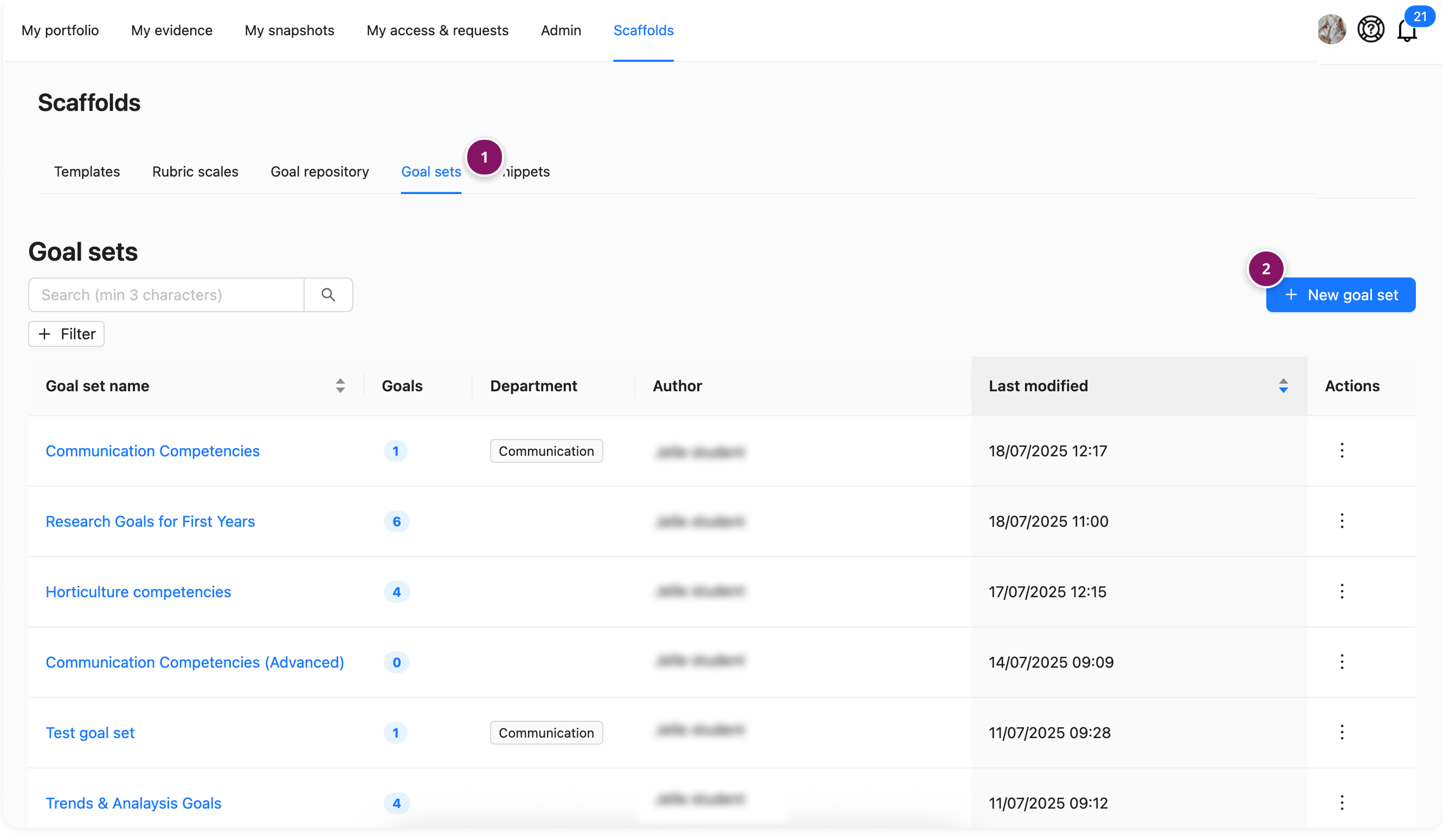
Repository Goal Creators can create, edit, and delete Goal Sets via the tab Goal Sets (1) within the tab Scaffolds. In this overview, you can see all existing Goal Sets, how many Goals they contain and to which Department they belong. From here, you can also Create a new goal set (2).
When creating a new Goal Set, you can give it a Name (1) and optionally add an Internal note (2). Use this note to provide guidelines for colleagues who will be working with the Goal Set, or to explain its purpose. You can also assign the Goal Set to a specific Department (3).
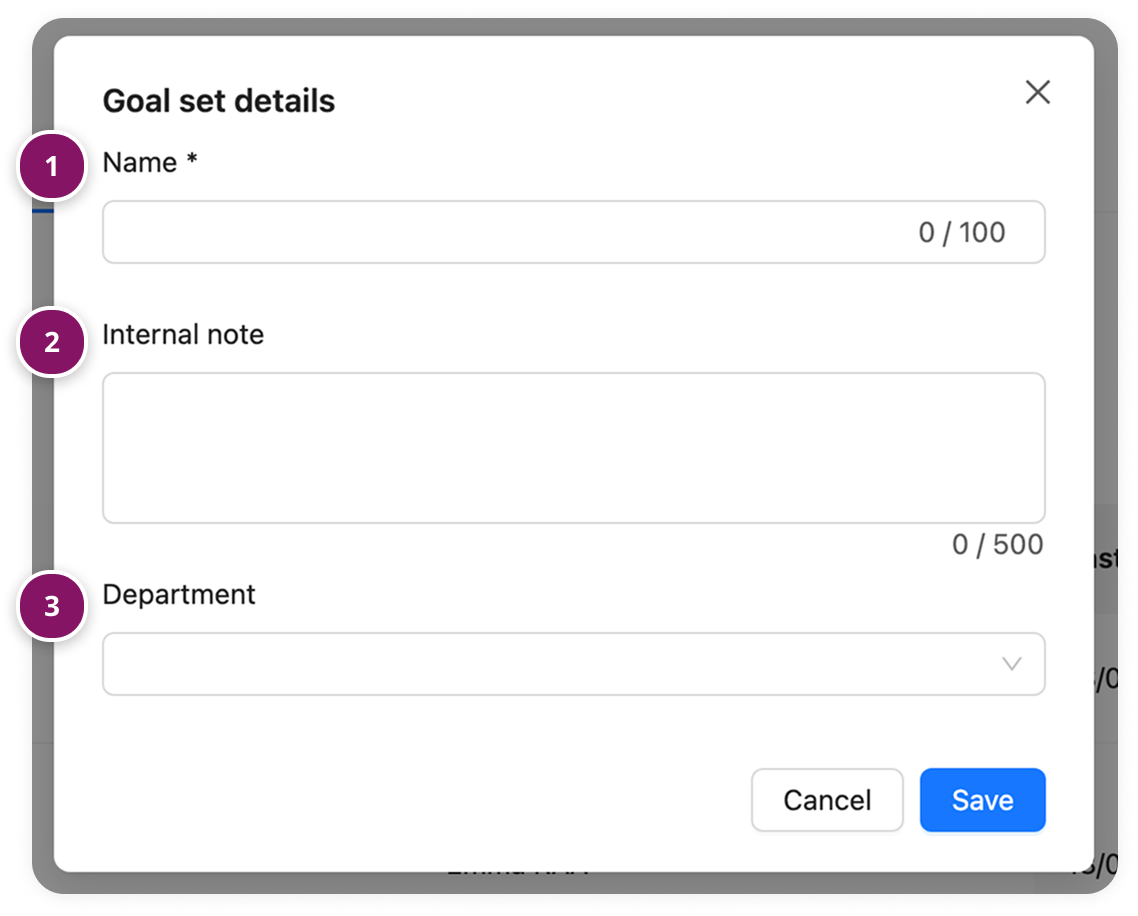
Note: Once a Department is selected, only Repository Goals from that same Department can be added to the Goal Set.
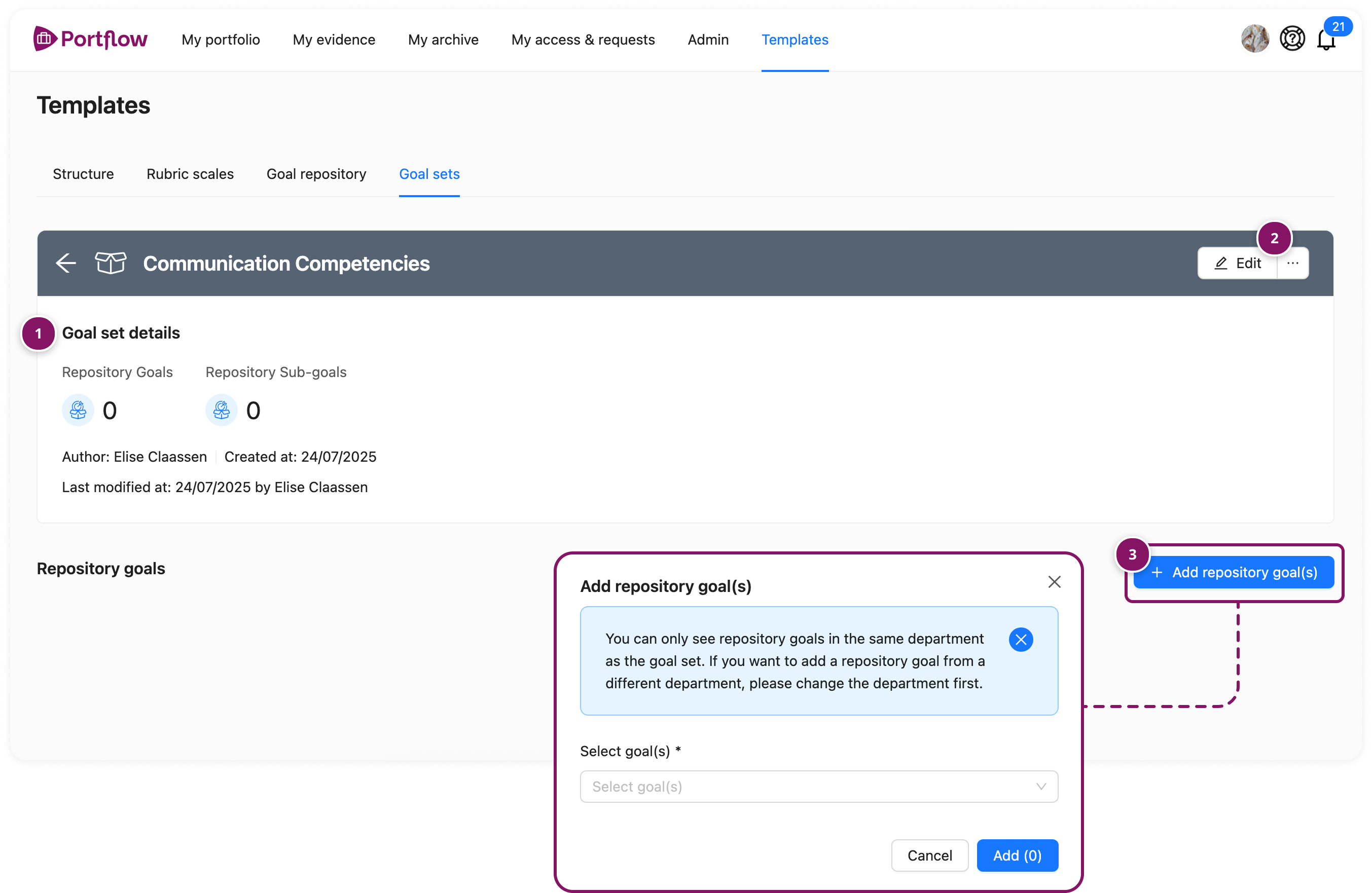
After clicking Save, you’ll be taken to the page for the Goal Set you just created. Here, you can view its name and details (1). You can edit (2) the Goal Set (such as updating the name or internal description) and start adding Repository Goals (3) to it. When you add a Repository Goal that contains Sub-Goals, those Sub-Goals will automatically be included in the Goal Set as well.
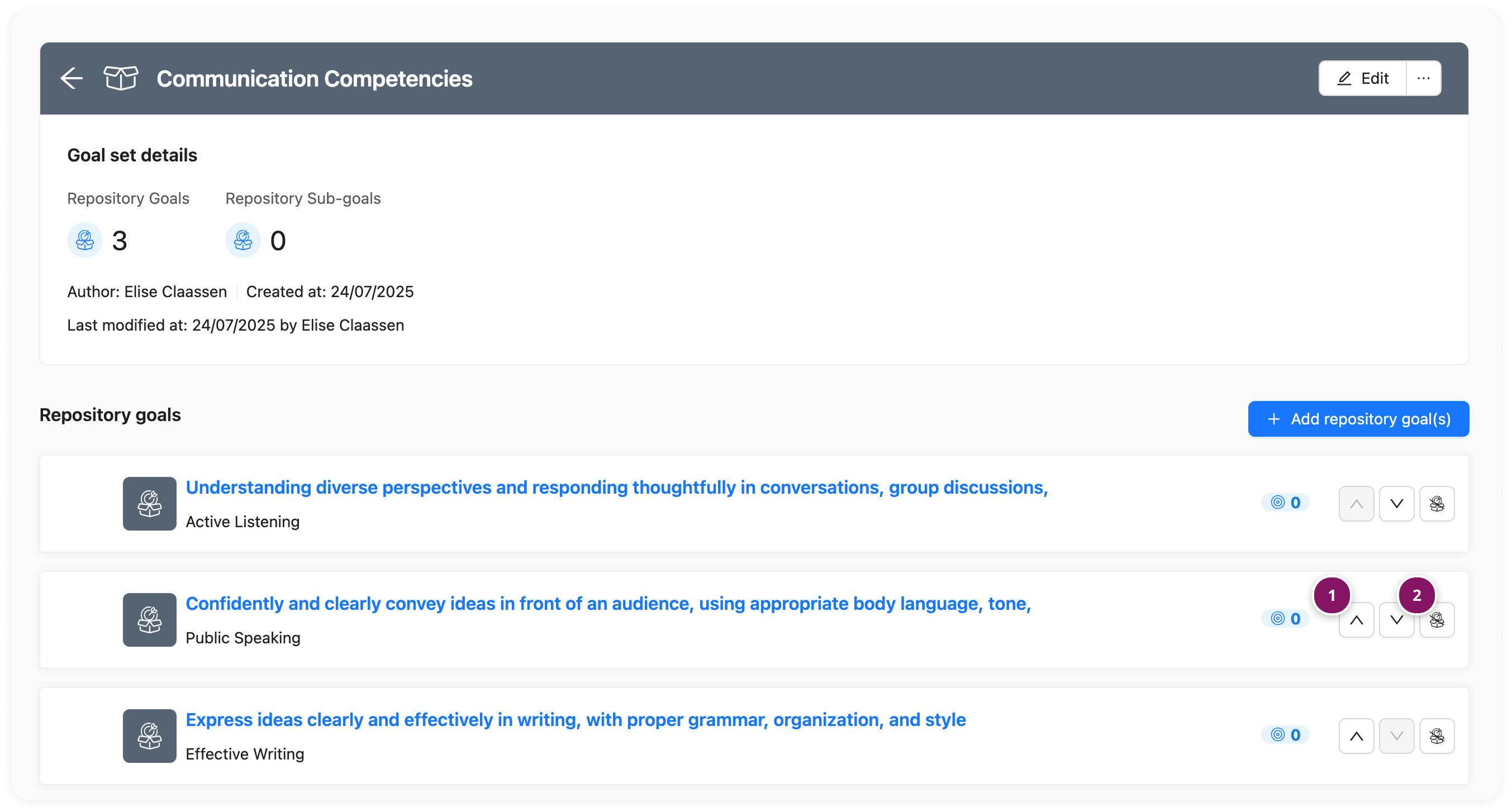
Once you have added Repository Goals, you can reorder (1) and remove (2) them from the Goal Set. Removing a Goal from the Goal Set will not delete the Repository Goal.
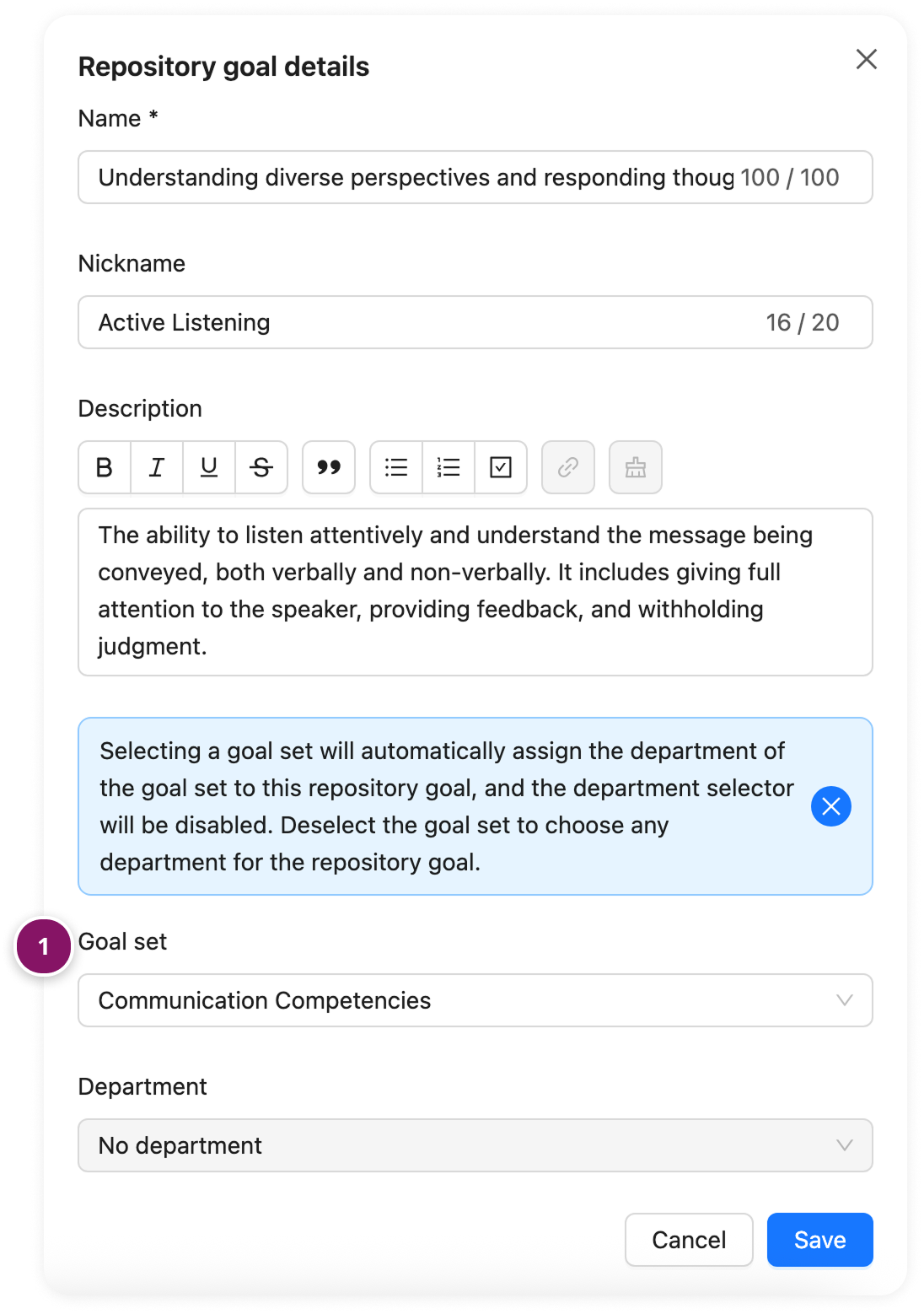
Note: When creating a new Repository Goal, you can directly assign it to a Goal Set (1) during creation. Both new and existing Repository Goals can be added to or removed from a Goal Set at any time.
How to use a Goal Set in a Template?
To add a Goal Set to a Template, start by navigating to the Template and clicking the + Use repository goal button (1). Then, click the Filter button (2) to select a Goal Set.
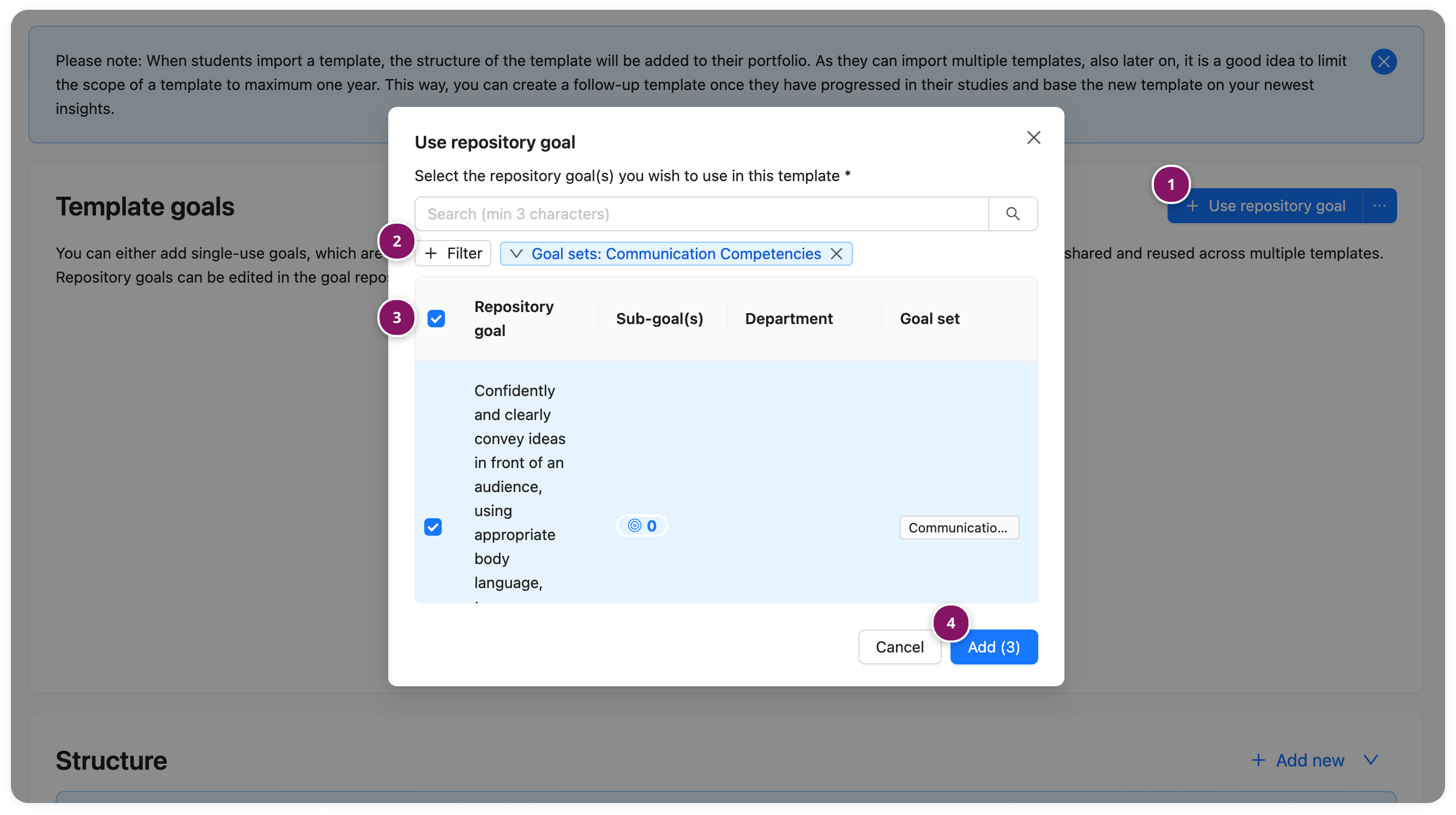
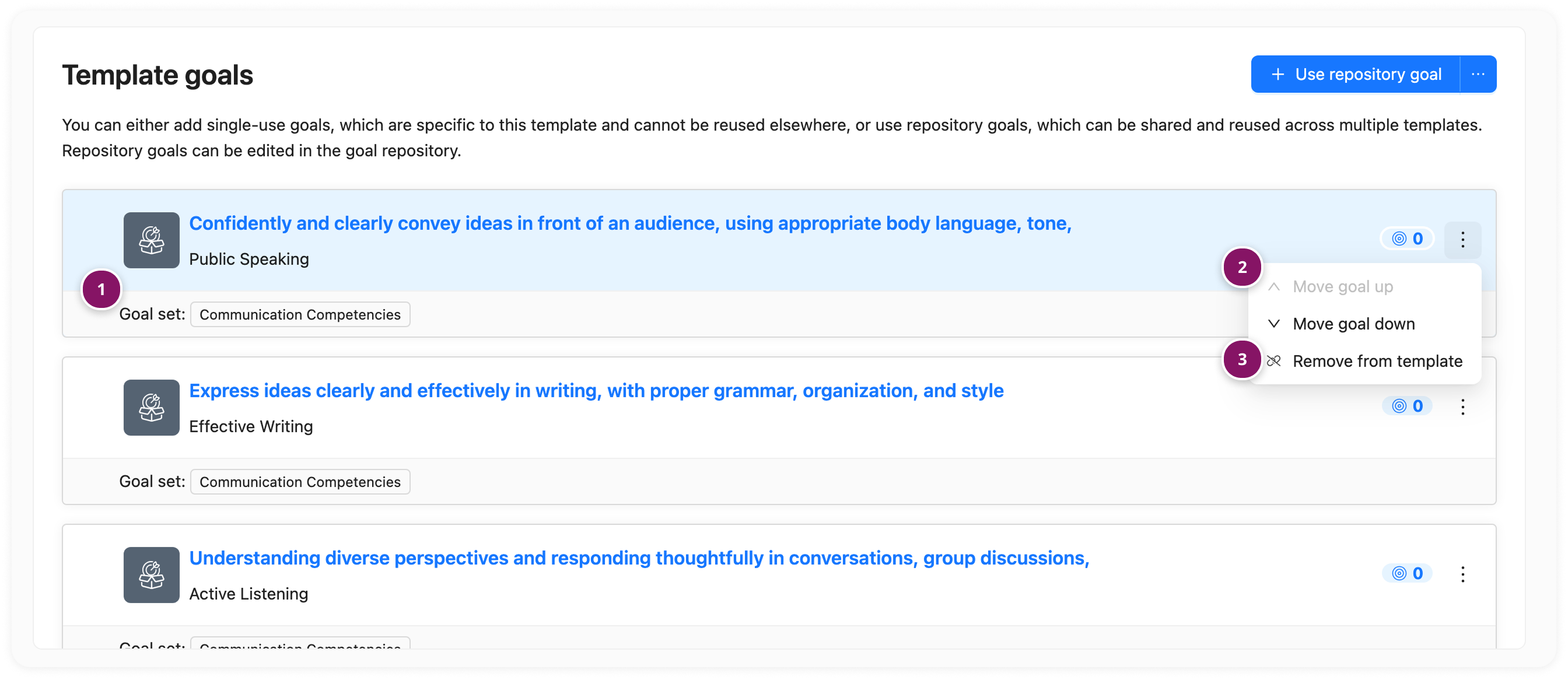
Note: For each Repository Goal added to a Template, you can always see whether it belongs to a Goal Set (1), and if so, which one. You can also reorder (2) these Repository Goals or remove (3) them from your Template at any time.