Manage External Users
Last updated: July 29, 2026
Summary
Learners can invite External users to access their Portfolio or Evidence and provide feedback and insights. Admins can monitor External User access to Portflow and manage Multi-Factor Authentication for External Users.
Who are External Users?
External Users are users outside your institution (effecively outside your LMS) that can be invited by Learners to access their Portfolio, Collection(s) or Evidence. As long as they have active access to a learner's portfolio content, they can give feedback and insights. External Users do not have a portfolio. External users can access Portflow via the Portal for Externals (see 📄 Portal for Externals). Learners can manage access (scope and duration of access) to their portfolio content by External Users themselves.
Admin actions for External Users
As a Super Admin or Data Manager, you can do several things to manage external users:
Monitor External Users access for your institution
Require the use of MFA with an authenticator app for External Users
Reset the MFA method for an External User
1. How to monitor External User access for your institution?
If you wish to know what External Users have been invited by your students, you can view and download the list from Portflow.
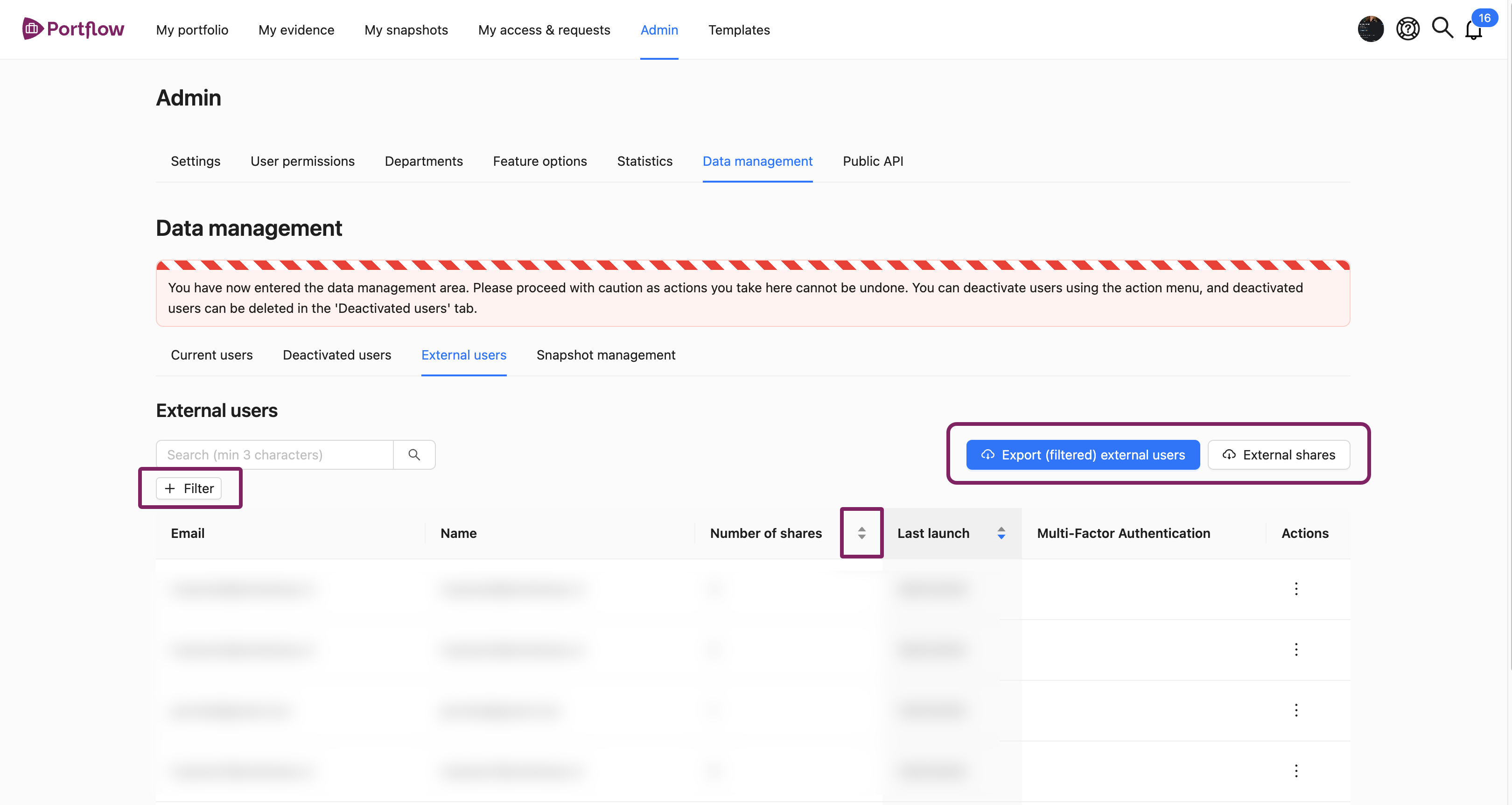
As a Super Admin or Data Manager, go to Admin → Data management → External users.
There are two types of downloads. Either you can download the (filtered) list of External Users (name, e-mail, number of shares, last login, MFA), or you can download the list of External Shares (name, e-mail, creation date, expiration date, type, owner name and owner e-mail). The latter download will also provide insights into what specific learner portfolio (components) the External User has access to. You can sort, filter or download the overviews as desired.
Note:
An external user will be automatically deleted (name, email, personal settings), after the last share has expired for a few months. The given feedback and insights into learners' portfolios will not be deleted.
2. MFA with an authenticator app for External Users
External users log in to Portflow's Portal for Externals through a magic link sent to their email. All external users can optionally enable an additional Multi-Factor Authentication (MFA) method with an authenticator app (OTP) for their account.
By default, it is not mandatory to set up an authenticator app next to the magic link. As an institution, you can make using an additional MFA method using an authenticator app mandatory for External Users. LMS users access Portflow through the LMS using your institution's (SSO) sign-in method, which likely already requires MFA per your institution's settings and policies.
Note:
The default login method using a magic link can already be considered to be a form of Multi-Factor Authentication. Using MFA with an authenticator app via short-lived One-Time Passwords (OTP) will add another layer of protection on top.
Please also consider the additional threshold for External Users to provide feedback or contribute to Learners' Portfolios when being required to use both methods before enabling the setting.
How to require External Users to use an authenticator app?
As a Super Admin or Functional Manager, go to Admin → Feature Options.
Scroll down to Require MFA with authenticator app for external users and turn the toggle on.
Click Save at the top or bottom of the page.
If this Feature Option is disabled after being enabled, External Users can still use MFA via the authenticator app if desired or disable it for their account.
Learn more about setting up MFA with authenticator app as an External User: 📄 Log in to Portflow).
3. How to reset the MFA via authenticator app method for an External User?
If an External User has lost access to their device or app for MFA, you can reset it for them.
As a Super Admin or Data Manager, go to Admin → Data management → External users.
Find the relevant External User.
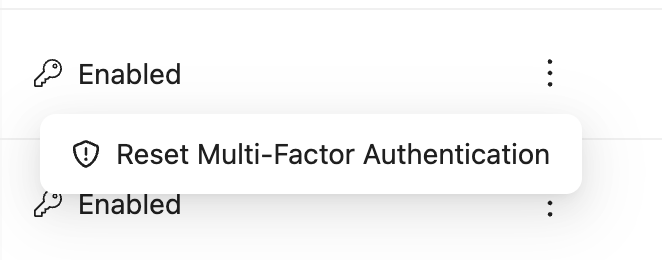
Click the Action Menu ︙ (three dots) and choose the option Reset Multi-Factor Authentication.