Request and Provide Feedback
Last updated: October 1, 2026
Summary
There are several ways to get Feedback in your Portfolio. You can send a Feedback Request to people who have access to your Portfolio in Portflow, have feedback validated by them, or they can give unsolicited Feedback. You can also create a QR code to request Ad Hoc Feedback on your Evidence.
Feedback Requests
Would you like to receive Feedback from someone about your Collection or Evidence? You can send a Feedback Request that the person can respond to.
Tip: The better the Feedback question (include specifics), the more valuable your received Feedback will be.
How to request Feedback?
As a learner, you can request Feedback on a Collection page or Evidence page to anyone with access to that component in your Portfolio.
Note: You can only send Feedback Requests to users who have access to your Portfolio, Collection, or Evidence (see 📄 Share your Portfolio).
Ensure the person you'd like to receive Feedback from has access to the relevant component (see 📄 Share your Portfolio).
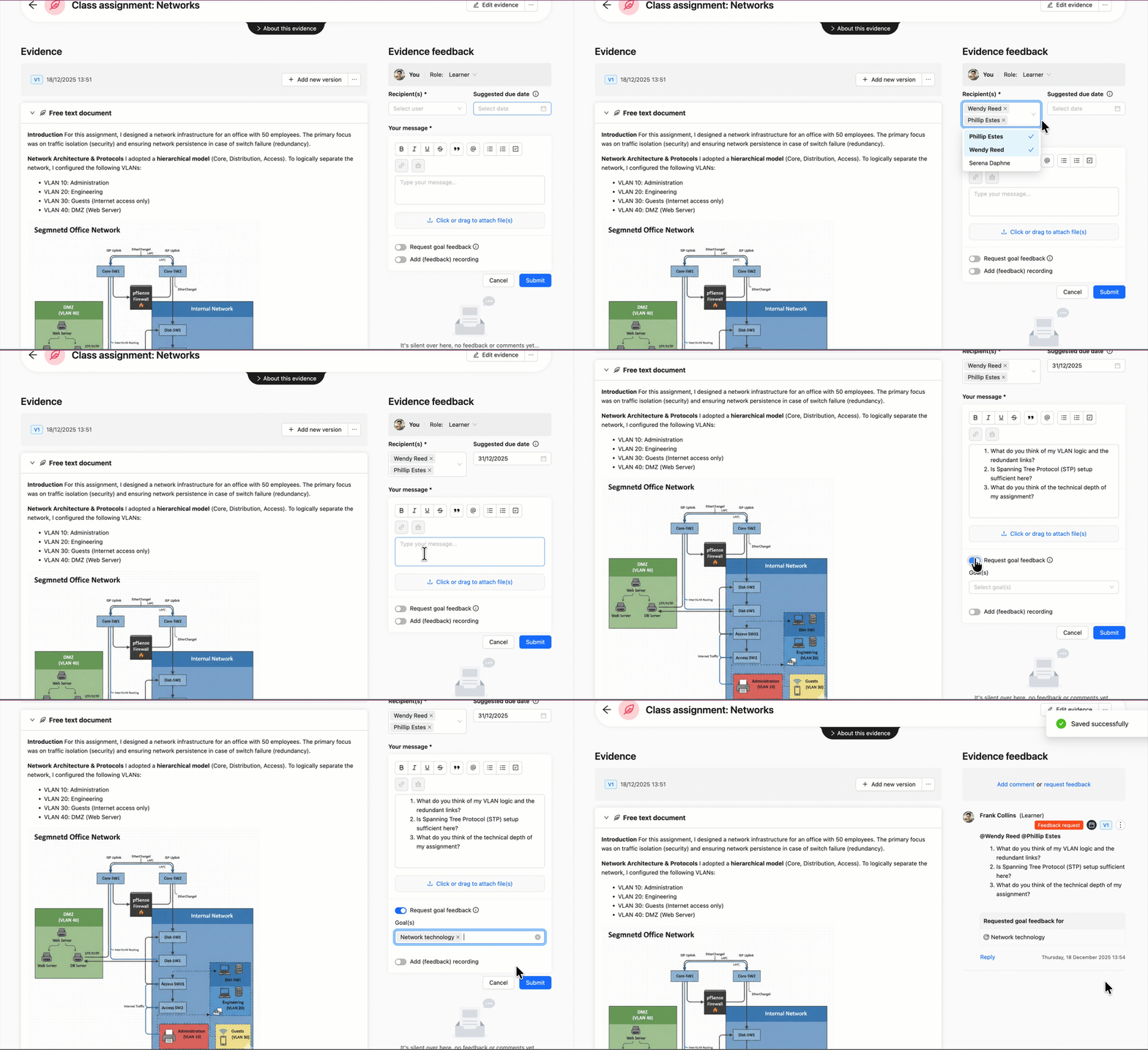
Open the Collection or Evidence page and click Request feedback.
Select the Role which you are requesting Feedback from (usually 'Learner').
Select the person(s) you want to request Feedback from (under Receipient(s)).
Select a Suggested due date by which you would like to receive the Feedback (optional).
Carefully describe what you would like to receive Feedback on, adding more specifics is helpful for the Feedback giver.
Would you like to receive Feedback related to a specific (Sub)Goal? You can request (Sub-)Goal-specific Feedback on a Collection or Evidence. The Feedback giver will get a specific field to note their Feedback related to the (Sub-)Goals. If they do not have access to the Goals through their share, they can only see the Goal name and not the Goal details.
Do you wish to receive Feedback in a specific format? You can use a Snippet to suggest a Feedback framework or structure (see 📄 Snippets (Evidence templates and Feedback templates).
You can select a Snippet for Goal-specific Feedback (if applicable). This format will be applied to all Goal-specific Feedback fields.
You can select a Snippet for the general Feedback. This format will be applied to the ‘general’ Feedback field.
Add Attachments or audio, video or screen recordings if desired.
Click Send.
The user will receive a notification of your request. As soon as the user responds, you will receive a notification. You can view the status of your Feedback request on the 'My evidence' page (see 📄 About Evidence & 'My Evidence').
How to respond to a Feedback Request?
If you have access to another person's Portfolio, Collection, or Evidence in Portflow, you can receive Feedback Requests. You will receive a notification from this request (see 📄 Notifications). An overview of all (open) Feedback Requests can also be found on the My access & requests page on the Feedback requests tab.
Click the notification or the Feedback Request on the Feedback requests page.
You will be redirected to the Collection or Evidence that Feedback was requested. The Feedback Request will be highlighted.
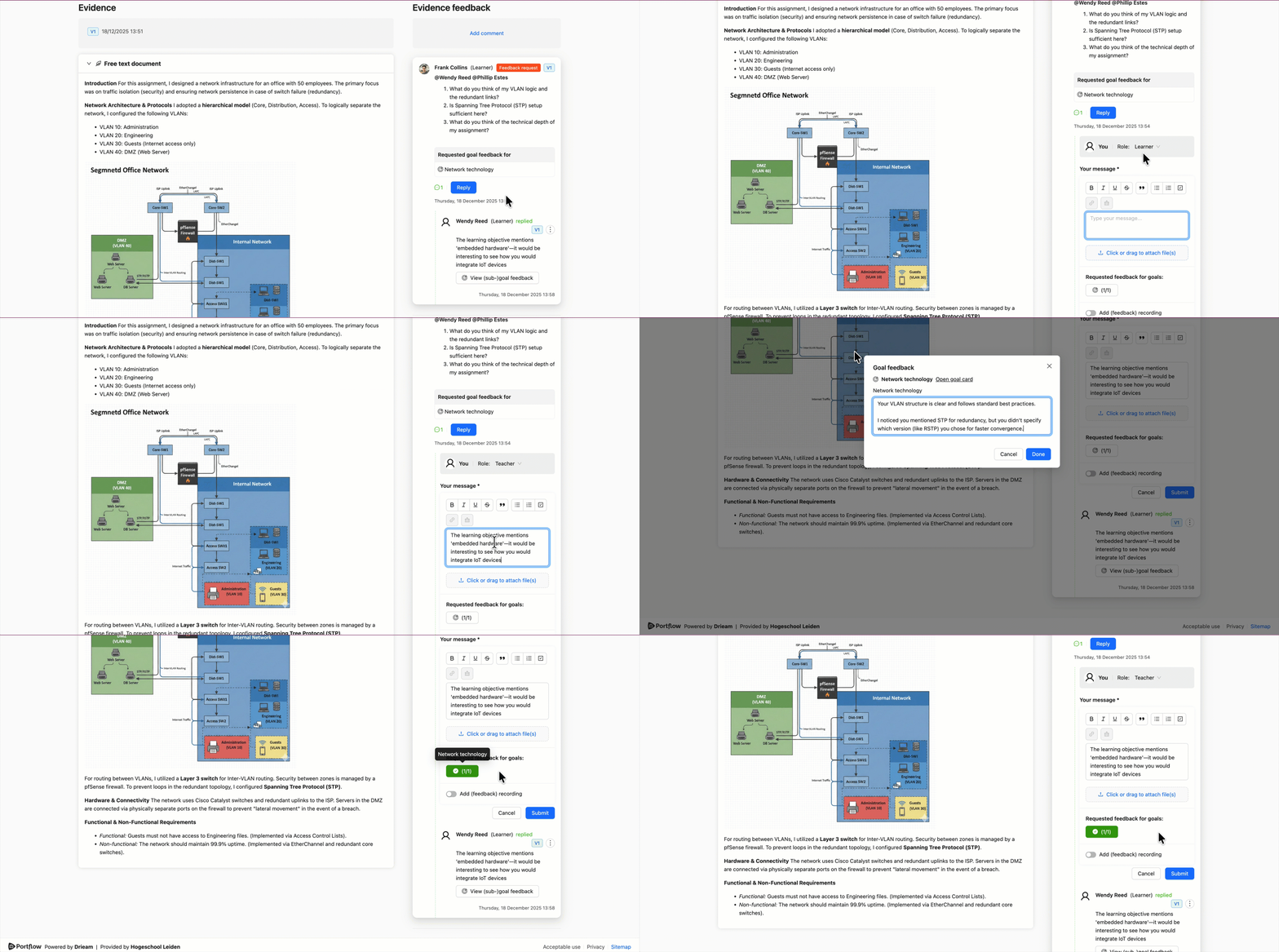
Click Reply.
Choose the Role from which you are giving feedback.
Enter your Feedback
If the requester has suggested a Snippet, this will be prefilled in the general Feedback field. You can add to or edit the text.
You can add your own Snippet if there was not one included, or if you would rather use a different Snippet. You can search on name, or go to the other tab to search with a code.
If the Feedback Request includes (Sub)Goal-specific Feedback, enter your Goal-specific Feedback in the corresponding field(s). You do not have to respond to all (Sub)Goals.
If the requester has suggested a Snippet, this will be prefilled for all Goal-specific Feedback fields. You can add to or edit the text.
You can add your own Snippet if there was not one attached, or if you would rather use a different Snippet. You can search on name, or go to the other tab to search with a code.
If you have provided (Sub)Goal-specific Feedback, the button will turn green and show a check mark. This Feedback will show in the related Goal's Feedback tab automatically. Read more about this: 📄 Progress Tab & Goal Cards
If you want, you can add an Attachment, or add audio, video, or screen recorded Feedback.
Click Submit to post your Feedback.
Note: After responding, the Request is automatically marked as 'completed' in the overview on the My access & requests page.
To mark the Notification as read, you can click the avatar of the requester in the Notification centre.
How to post unsolicited Feedback?
It is possible to post unsolicited Feedback to a Collection or Evidence that you have access to. This can be done in your own Portfolio or the Portfolio of another user.
Go to the Collection or Evidence where you want to place Feedback.
Click Add comment.
Choose the Role from which you are giving feedback.
If you wish, you can add a Snippet as a base for your comment. You can search on name, or go to the other tab to search with a code.
Type your Feedback in the text field.
If you want, you can add an Attachment, or add audio, video, or screen recorded Feedback.
Click Submit.
Feedback will be marked with name, role, version (for Evidence), and time of posting. If the Feedback is posted in someone else’s Portfolio, the owner will receive a Notification of this. Feedback can then be replied to (also by (other) visitors).
Note: Feedback from an LMS imported assignment cannot be responded to.
Feedback with QR-code (Ad-hoc Feedback)
If you expect Feedback to be given 'in real life', you can prepare and download a QR code for Feedback. The Feedback giver can scan this QR with their mobile phone and give Feedback on the spot. This Feedback will be added to the Evidence in your Portfolio.
Note: Anyone can scan the QR code and provide Ad-hoc Feedback. Therefore, be mindful of how and with whom you share the code.
How to create a QR code for Ad-hoc Feedback?
As a learner, go to the Evidence you wish to receive Feedback on (or create a new Evidence), in the web app (in your LMS) or the Portflow mobile app.
Note:
The QR code is valid for 48 hours to prevent unintended spamming of Feedback.
The QR code does not provide access to the Evidence content itself, it assumes the feedback giver witnessed the Activity related to the Evidence.
Web app
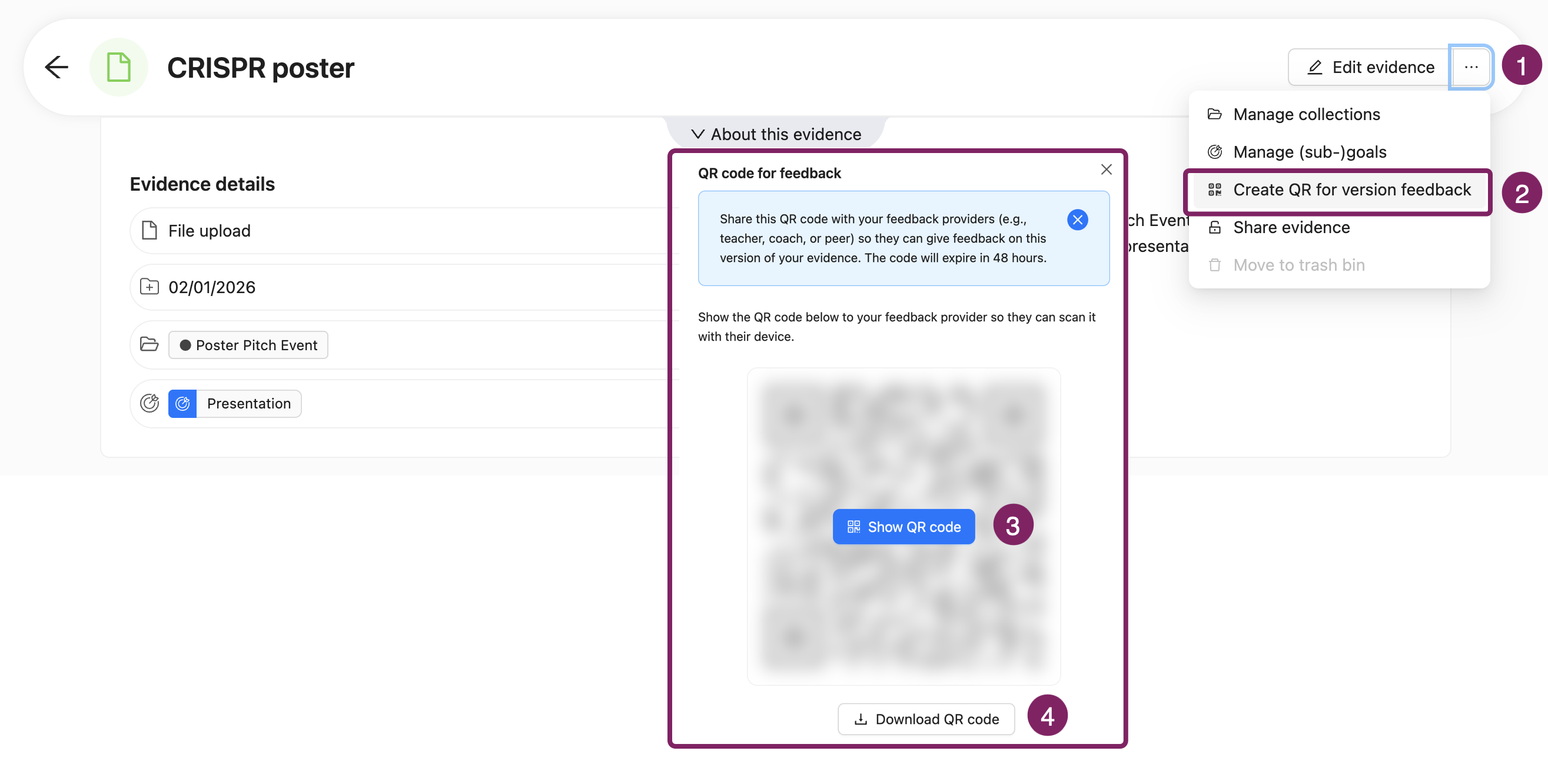
Click the Action menu (⋯) in the Evidence banner.
Select Create QR code for version feedback.
You will now see a pop-up with a blurred QR code.Click Show QR code if you are sure that no one is watching. Confirm this by clicking Display QR Code.
Download the QR code as an image.
Mobile app
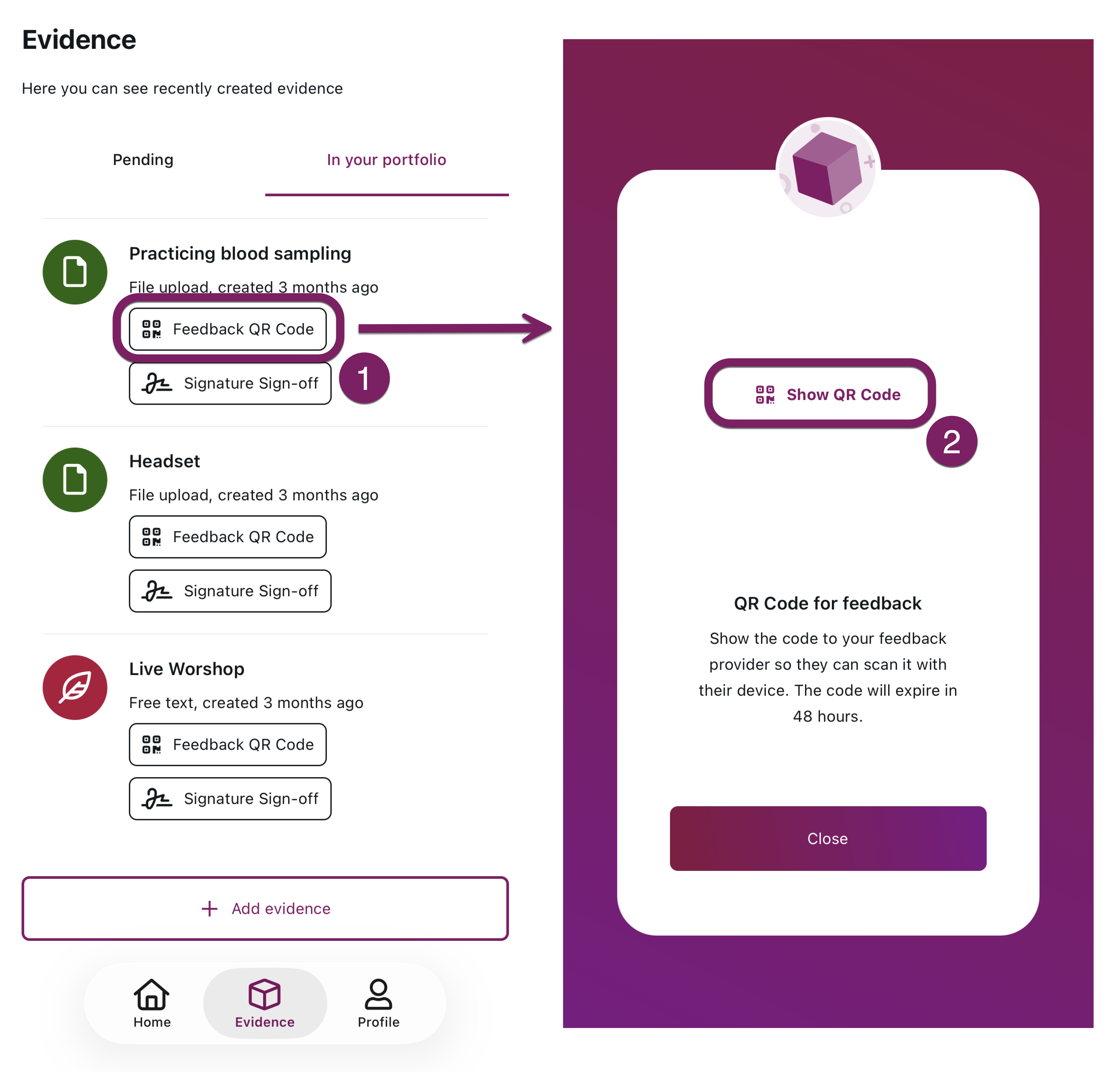
Click on the button Feedback QR code.
You will now see a pop-up with a blurred QR code.Click Show QR code.
Show the QR code to the person you'd like to receive Feedback from, or screenshot it for later.
You can print the image or display it on a device (such as your mobile phone). When someone scans the code, they can leave Feedback for this Evidence.
How to provide Ad-hoc Feedback with QR code?
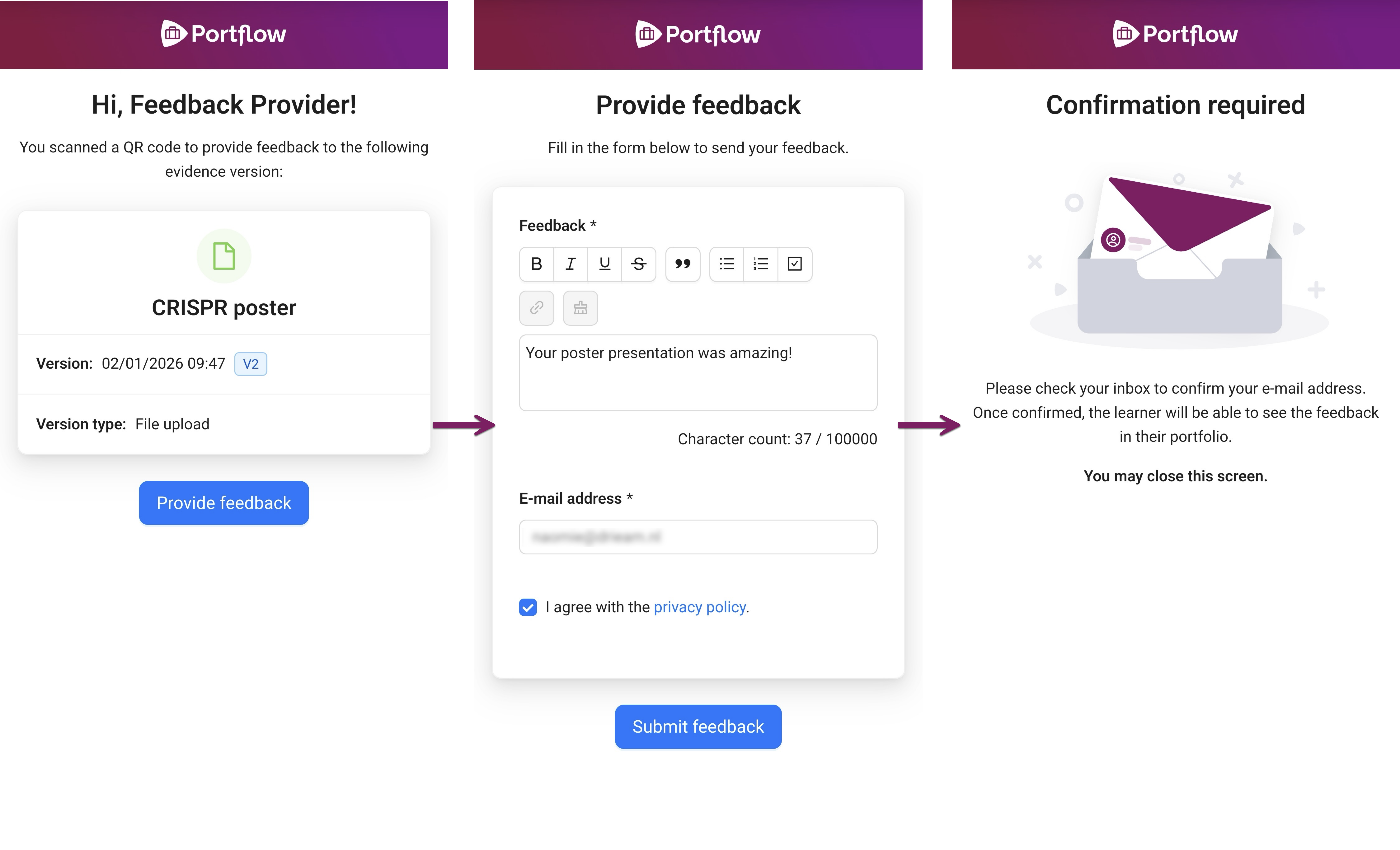
As a feedback giver, you can scan a QR code with your mobile phone camera. This will bring you to a mobile web form that you can use to give Feedback to the learner.
Note: If you have scanned a QR code (with your mobile phone camera), you can always check whether this is the correct site before visiting it. The link should start with: app.portflow.app or au.portflow.app. If this is not the case, it is not a URL for providing feedback in Portflow!
Scan the QR Code
Check if the Evidence indeed matches the activity you aim to give Feedback on and tap Provide feedback
Enter your Feedback and E-mail address.
The e-mail address will be used to confirm your Feedback and identity. If you are an LMS user, enter the e-mail address that is also known in your LMS (Canvas/Brightspace/Moodle/Blackboard).
You'll receive a link in your mailbox to confirm your provided Feedback and identity
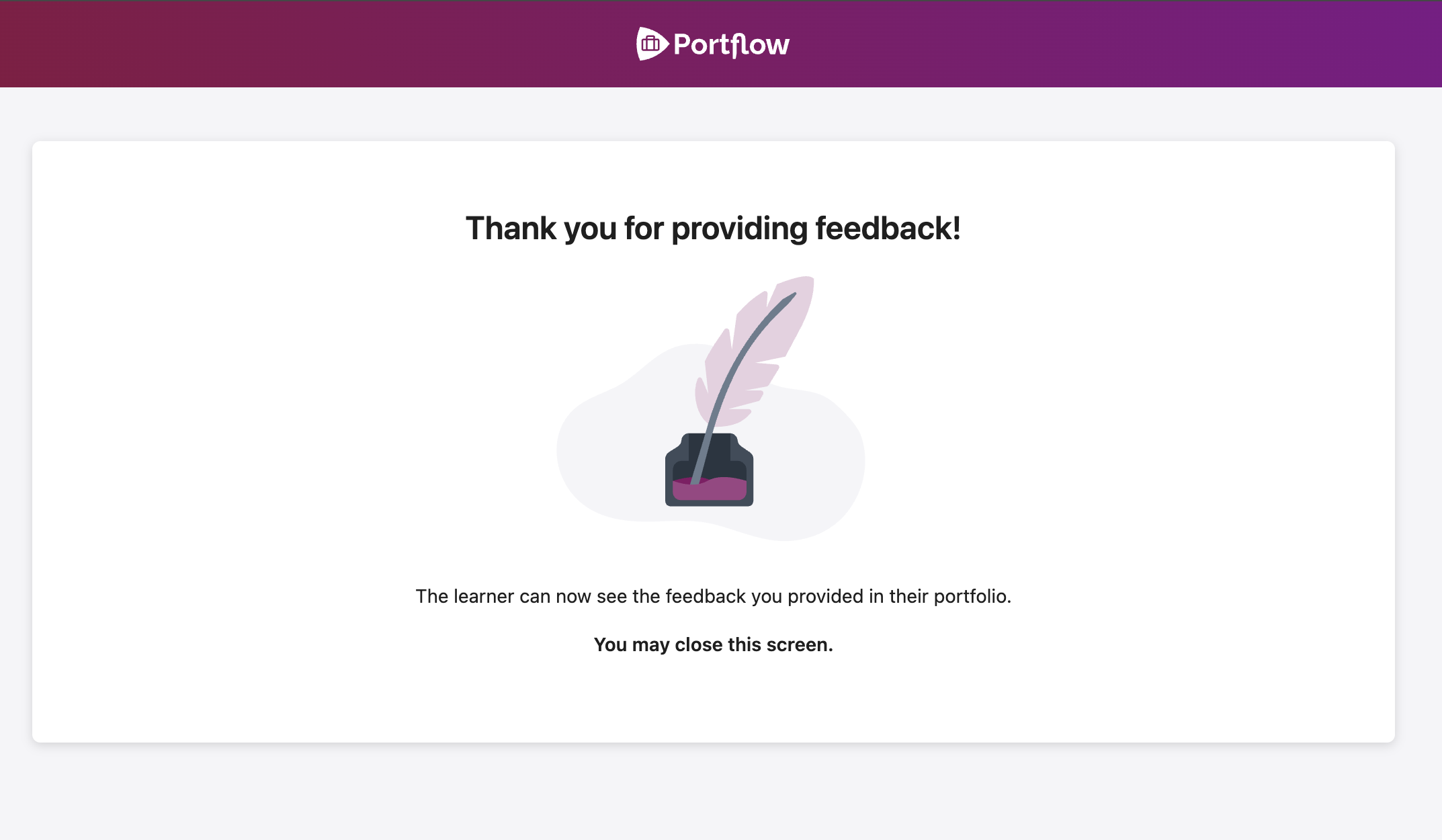
If you're an external user, clicking the link in the e-mail confirms the Feedback and your identity.
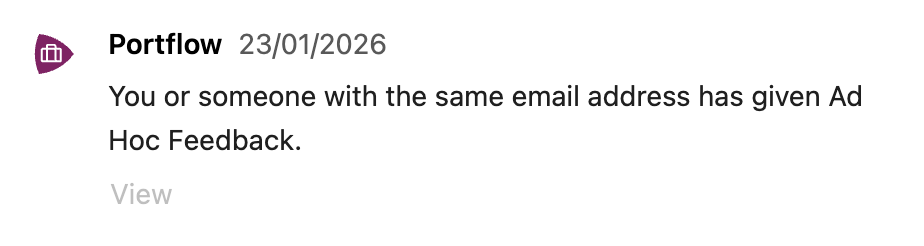
If you are a Portflow user, you have to log in first to confirm. You can either use the link in the e-mail or the notification in Portflow.
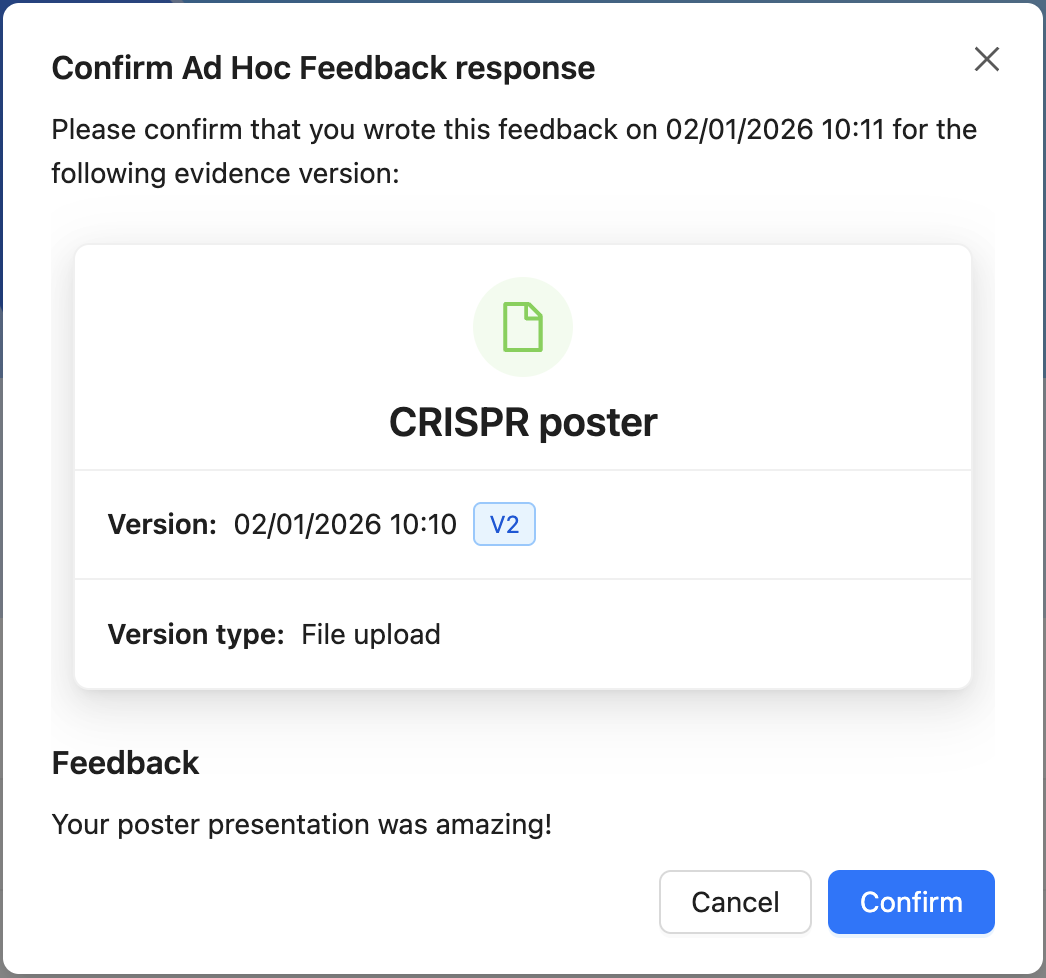
Note: If your e-mail address is already known in Portflow, the Feedback will be linked to your (LMS/external) account. If you are not (yet) known in Portflow, only your e-mail address will be displayed.
Your feedback will now be displayed in Portflow alongside the Evidence, along with your name. If you are a known user, you can edit your Feedback in Portflow if necessary.
Feedback Validation
If you have received feedback in-person, you can add it to your Portfolio yourself as a ‘Comment’. This allows you to describe the feedback in your own words and get validation on your understanding of the received feedback from the feedback giver. You can ask for validation of your summary of the feedback.
How to request Feedback Validation?
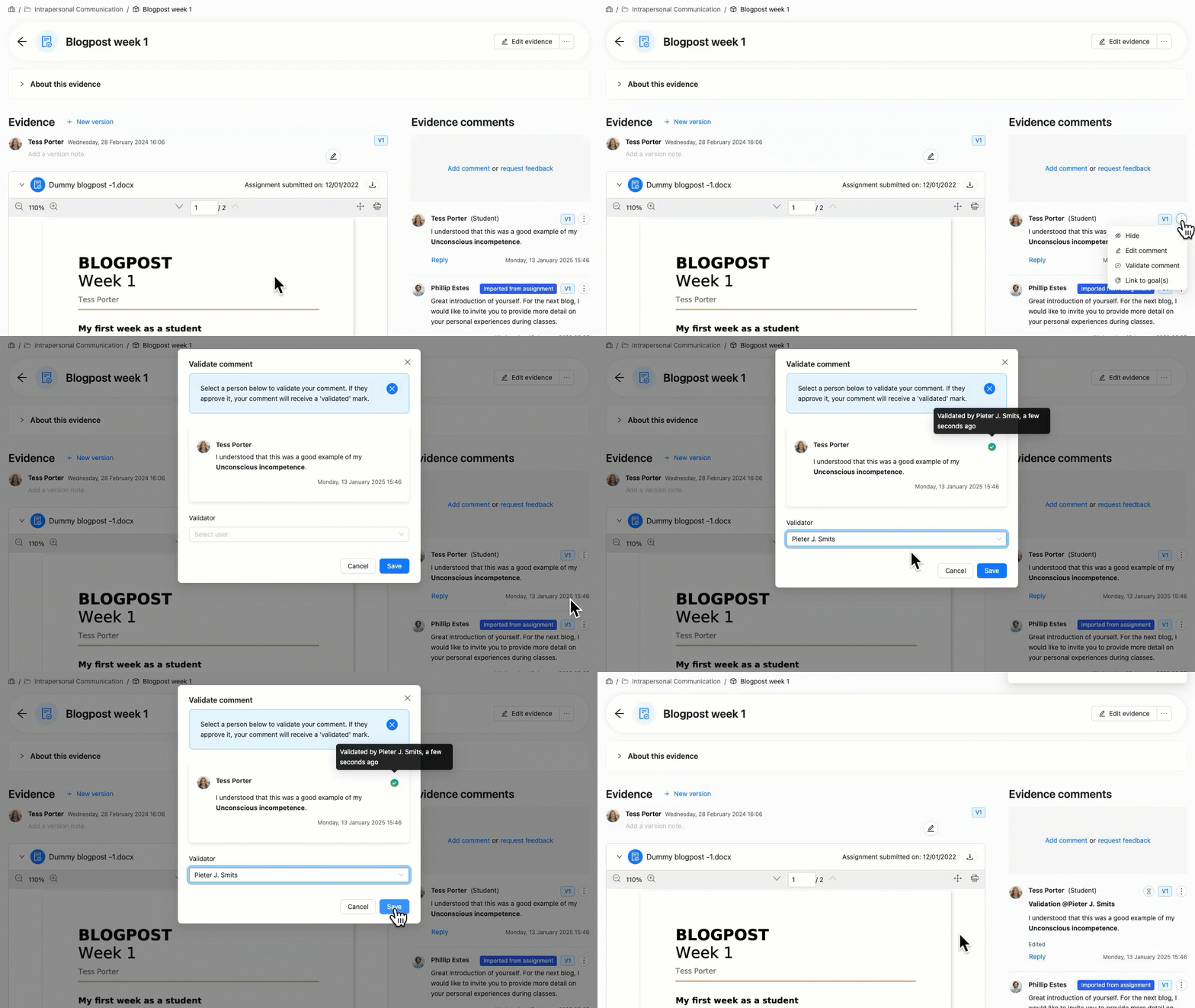
As a learner, you can add a 'Comment' to describe verbally received feedback on your Evidence or Collection and request validation by the Feedback giver.
Add a Comment to an Evidence or a Collection.
Use the Action menu (︙) for the comment, and select Validate comment.
Select a Validator (someone you have previously invited to your Portfolio).
Click Save to send the Validation request.
An orange label ‘Validation requested’ is shown to indicate the (unvalidated) request. When the validator has validated the Feedback, the label changes into a green checkmark.
How to validate Feedback
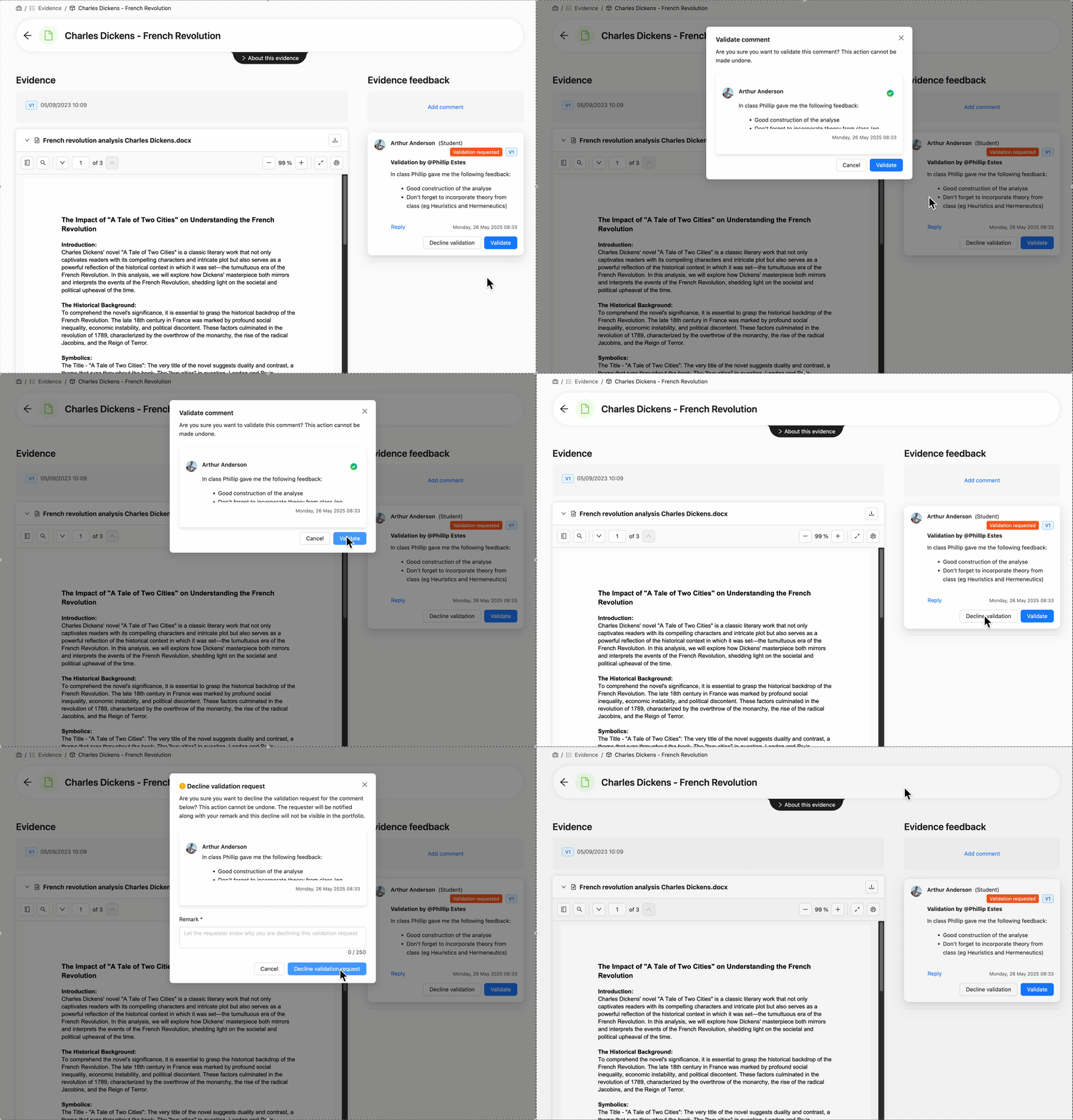
A learner has posted a summary of oral feedback and would like you to validate that it is accurate. You will receive a Notification, and you can find all Validation Requests in the Validation requests tab on the My access & requests page.
Navigate to the Validation Request (via Notifications or My access & requests).
You have the option to Validate or Decline the Validation Request.
Click Validate. A pop-up opens informing you that this action cannot be undone. Click Validate again to confirm your validation.
or
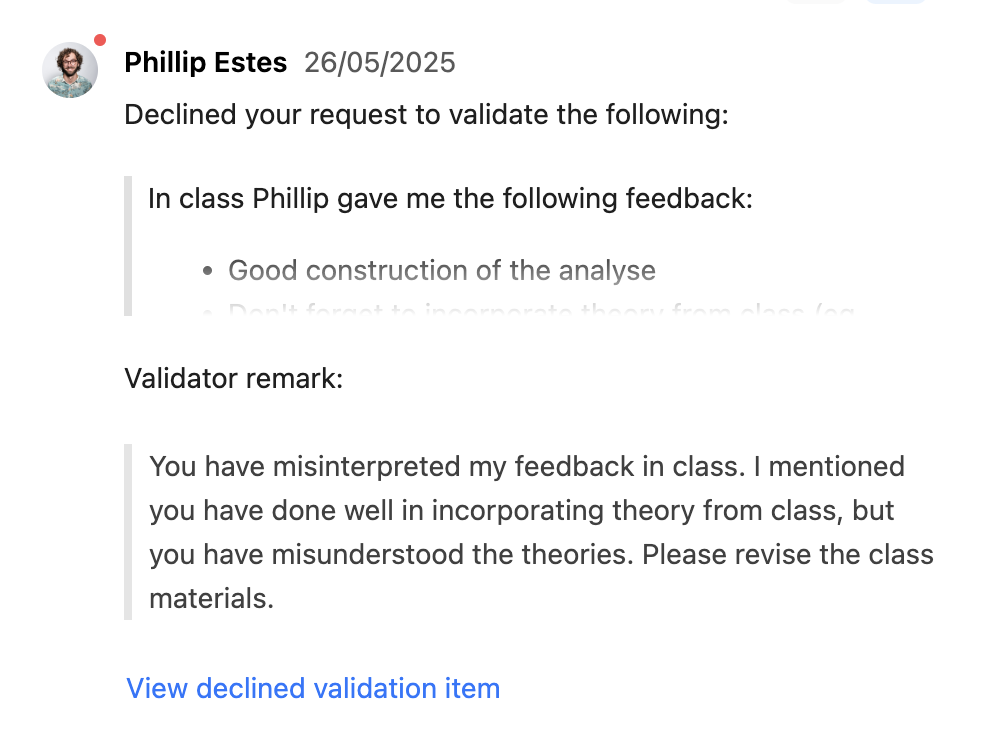
Click Decline validation. A pop-up opens informing you that this action cannot be undone. It is required to add a Remark on why the request was denied. The requester will receive this remark in their own Notifications. It will not show up in their Portfolio. Click Decline validation request again to confirm your decline.
Optionally, you can leave a Reply to the original comment to add more information or context.
If rejected, the learner can edit their comment and request validation again, using the steps above.
How to edit Feedback?
As a feedback giver, you can edit your Feedback on a Collection or Evidence later. You can also remove content or add attachments.
Note: It’s only possible to edit your Feedback before someone else has responded to your Feedback.
Navigate to your Feedback Comment
Click the Action menu (︙)
Select Edit comment
Make your changes to the text, role, or attachment(s)
Click Send to save
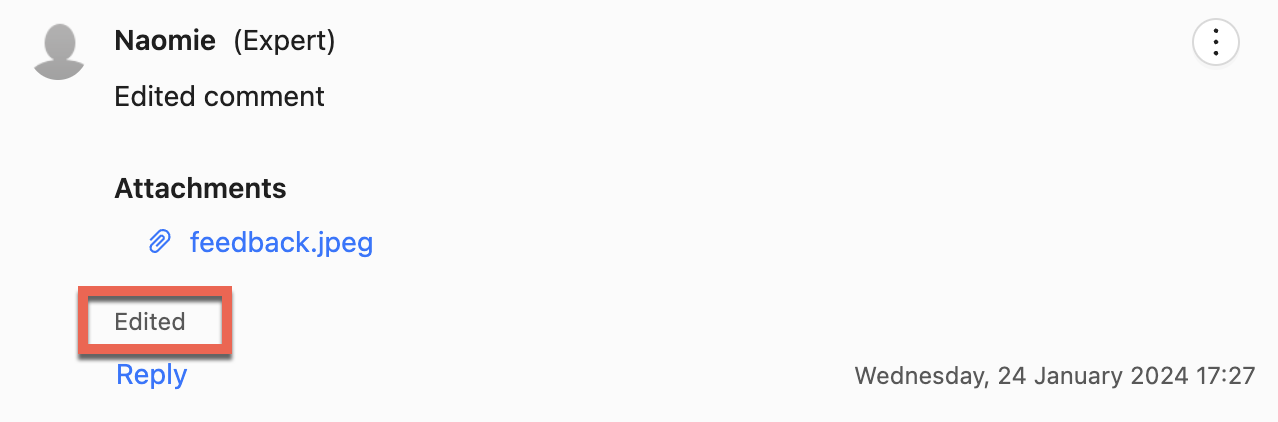
The comment will be labelled as 'Edited'. If the Feedback had previously been linked to a Goal, the label will be coloured Orange, to indicate that action is needed: relink the Feedback to the Goal. 📄 Link Feedback to Goals
Hiding Feedback Comments
How to hide Feedback Comments?
As learner (Portfolio owner), you can hide Feedback from your Evidence or Collections without deleting the Feedback.
Navigate to the Feedback Comment you want to hide.
Click the Action menu (︙) next to the comment.
Select Hide.
The Feedback Comment is no longer visible, but it is visible that there was a Comment, which has been hidden.

How to restore/reveal hidden Feedback Comments?
As learner (Portfolio owner), you can unhide or reveal previously hidden Feedback, restoring the Comment visibility.
Navigate to the Feedback you want to reveal
Click the Action menu (︙) next to the comment
Select Reveal
