Progress Tab & Goal Cards
Last updated: October 1, 2026
Summary
The Goals & Progress tab in Portflow provides a dashboard with insights into the Goals the learner is working on, as well as their progress. The Goal Card provides rich insights into the Goal Details, linked Evidence and Collections, received Feedback, a Timeline, and Progress visualisations.
How to gain insights into your Goals?
On the Goals & Progress tab, you can view your Goals (1). You can filter the Goals on their status (2). You can also see in how many Collections a goal recurs, how much Evidence has been added to a Goal and how many Sub-Goals a Goal has (3). This overview is also available to visitors (invitees).
Note: If a Goal is not related to any Collections, it will be marked with an orange label. This Goal will not be visible to any visitors.
Via the Action menu (︙) (4), you can edit the Goal, add Sub-Goals or delete the Goal. If you expand the Goal using the arrow icon at the left side (❯), you can see the underlying Sub-Goals.
Not all Goals allow for editing the details. In that case, you will see a label of ‘Repository goal’ on the Goal Card. These Repository Goals are managed by your institution.
You can add new main Goals using the + Add goal button at the top (5).
On the Goals & Progress tab, you can also get quick insights into the current state of a set of Goals by selecting a Template, Goal Set, or individual Goals (6). This will create a spider diagram. The data is based on completed Progress Reviews (see 📄 Create a Progress Review Request).
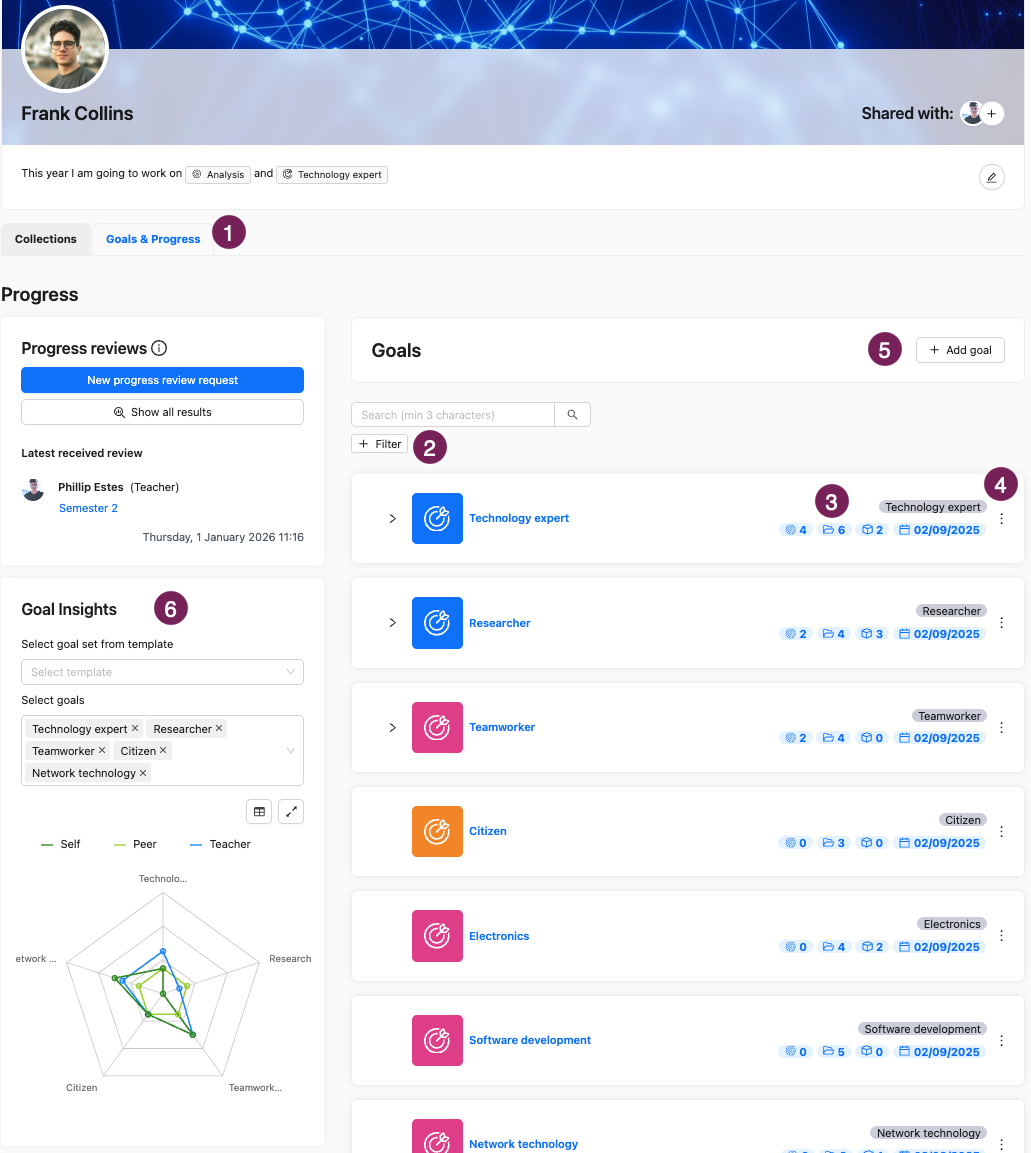
Clicking on a Goal takes you to the Goal Card.
What is the Goal Card?
The Goal Card provides a full overview of everything related to a Goal (see 📄 Goals & Sub-Goals). It contains the Goal Details, linked Evidence and Collections, related Feedback, a Timeline and a visualisation of growth.
Note: If you are on the goal card of a Repository Goal (as indicated with the label 'Repository goal'), you cannot change the name, nickname, and explanation. If you import a Template that contains this Goal, the import will update those fields.
A Goal Card has multiple tabs (1). The 5 tabs provide different types of information:
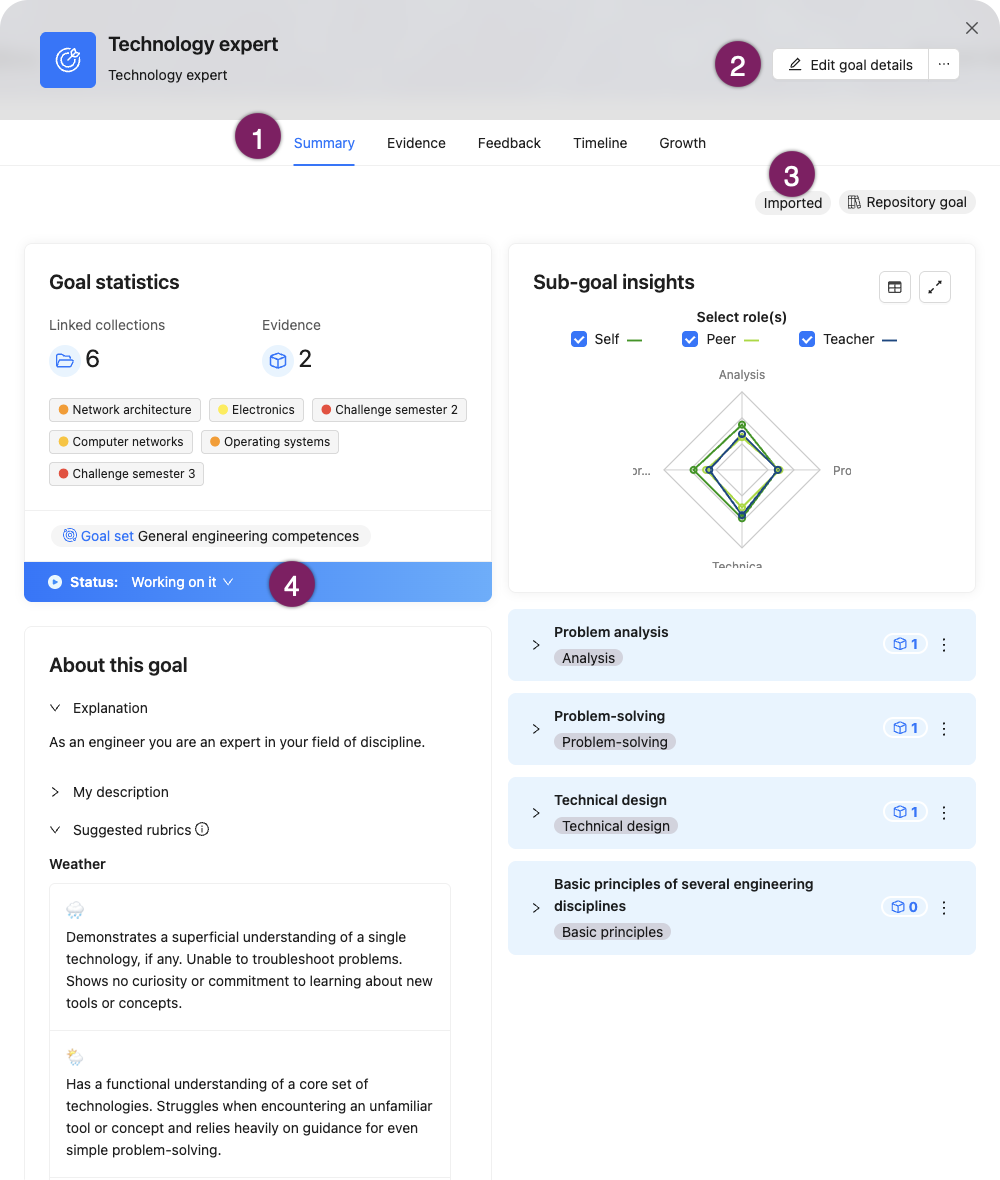
Using the Edit goal details button (2) you can change the Name, Nickname, Description, and Status of the Goal. Using the Imported tag (3), you can view the original Goal information (as it was imported from the Template).
Tabs in the Goal Card
Summary
A Summary of the context of a Goal with Statistics, Description, and Status.
The 'Imported' label (3) indicates that the Goal was imported via a Template.
Furthermore, you can see the Goal statistics: to which Collections this Goal was added, and how many Evidences are linked to the Goal. As a learner, you can edit the Status (4), as a visitor you can only see the Status.
At the bottom, you see the Description of the Goal, either provided from the Template and possibly a modified description by the learner. Underneath the description, you will find the Suggested Rubric scales that are attached to a Repository Goal. If the Rubric Scale contains level descriptions for this Goal, you will see them here as well.
If this Goal has Sub-Goals, you will see the Sub-Goal insights and the details of the Sub-Goals. The Sub-Goal insights are an average of the levels from the completed Progress Reviews. You can change the order of Sub-Goals via the Action menu (︙) next to a Sub-Goal. If you want to add a new Sub-Goal, you can do so via the Action menu (⋯) at the top of the Goal Card (2).
Note: If the Goal is part of a Goal Set, the name of the Goal Set is displayed with a label on the card, above the status. When one of the Goals from the Goal Set is (re)imported, its information is updated.
Evidence
A list of all Evidence that is linked to the Goal, which Collections they are in, and to what Sub-Goals they are linked.
Feedback
A complete overview of all received qualitative/narrative Feedback that is linked to or associated with the Goal and its Sub-Goals. See the section below for more information about the Feedback tab.
Timeline
A chronological overview of all thing that 'happened' with and to this Goal over time: e.g. whether Evidence has been added and whether its Status has changed.
Growth
Visualisations (graphs) showing the ratings given during Progress Reviews providing insights into the quantitative appreciation of growth from the various perspectives (roles) involved.
Feedback Tab on the Goal Card
The Feedback tab displays a chronological overview of all Feedback received on or associated with that Goal and its Sub-Goals.
Feedback and scores from Progress Reviews (see 📄 Create a Progress Review Request) are automatically added. Learners can also add other Feedback (on Evidence and Collections) to this overview themselves (see 📄 Link Feedback to Goals).
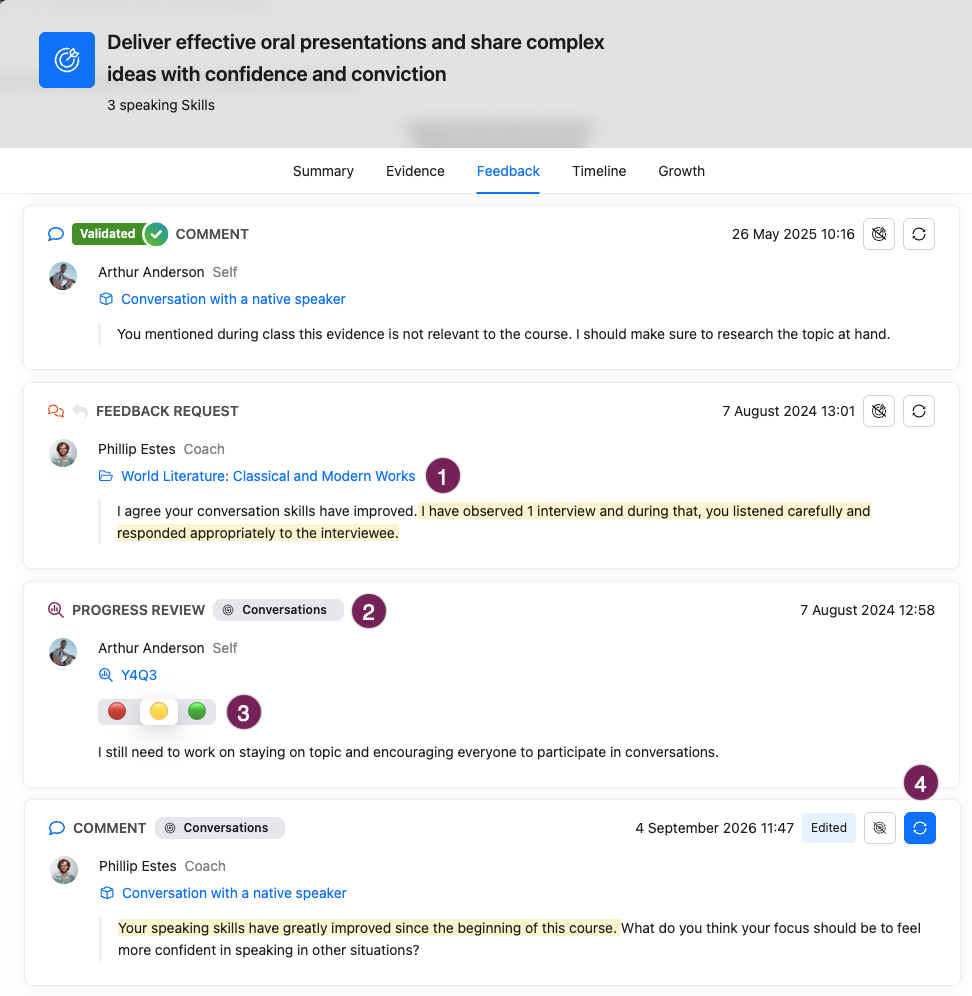
Within the Goal Card, click Feedback to go to the Feedback tab. If desired, you can filter the Feedback by Sub-Goal, Type, Date (before or after a certain date) or Role. The Date indicates when the Feedback was given. The overview is sorted by date (most recent first).
The Feedback title is the title of the context (Evidence, Collection, or Progress Review) the Feedback was provided on (1). The distinction between these three contexts is shown with a corresponding icon (cube, folder, and magnifying glass, respectively). For Feedback related to a Sub-Goal, the name of the Sub-Goal is shown with a gray label (2). Clicking the Feedback title will take you to the relevant context.
The Feedback is labelled with a ‘Type’ as well: Comment (unsolicited Feedback), Rubric Criterion Feedback from LMS imports, Feedback Request replies and Progress Review responses. The yellow marking is created by the learner to indicate the relevant section of the Feedback they have linked. The learner can make a note to give additional context to the Feedback. For Feedback of the Progress Review type, quantitative Feedback is shown along with the Rubric Scale and the selected Level (3).
Linked Feedback (not originating from Progress Reviews) can be removed or updated from the Feedback overview by the learner. If the Feedback was edited after the Goals were linked, the re-link button will be coloured blue (4).