Share your Portfolio
Last updated: July 30, 2026
Summary
Learners can share their Portfolio, selected Collections, or specific Evidence with anyone inside or outside the institution. After sharing, the invitee can contribute insights to the Portfolio, e.g. as Feedback or by completing a Progress Review.
What are the choices for sharing the Portfolio?
If you (a learner) are going to share the Portfolio with an LMS user (📄 Share with LMS users) or an external user (📄 Share with Externals), you can choose to share with full (Portfolio) access, access to some Collections, or access to a specific piece of Evidence. The table below shows the difference between the Share types:
Share type | Full (Portfolio) Share | Collection Share | Evidence Share |
|---|---|---|---|
Homepage & Introduction | ✓ Included | ✓ Included | X Not included |
Collections * | ✓ All non-hidden | ◐ Shared Collections only | X Not included |
Evidence ** | ◐ Linked to Collections only | ◐ Shared Collections only | ◐ Shared Evidence only |
Goals | ◐ Linked to Collections only | ◐ Linked to shared Collections only | X Not included |
Received Feedback *** | ✓ Included | ✓ Included | ✓ Included |
Progress Reviews | ✓ Included | ◐ Linked to shared Goals only | X Not included |
*Hidden Collections will only be visible to the Portfolio owner.
**Evidence not in a Collection will only be visible to the Portfolio owner.
***You can choose to share with limited Feedback visibility. Then visitors will only be able to see Feedback from themselves and the Portfolio owner.
Note: You must always give someone access to your Portfolio before you can ask that person for Feedback.
For some institutions: Before you can give a teacher or peer (other LMS user) access to your Portfolio, they must have already opened Portflow at least once before.
How to manage Shares in 'My access & requests'?
Manage existing Shares
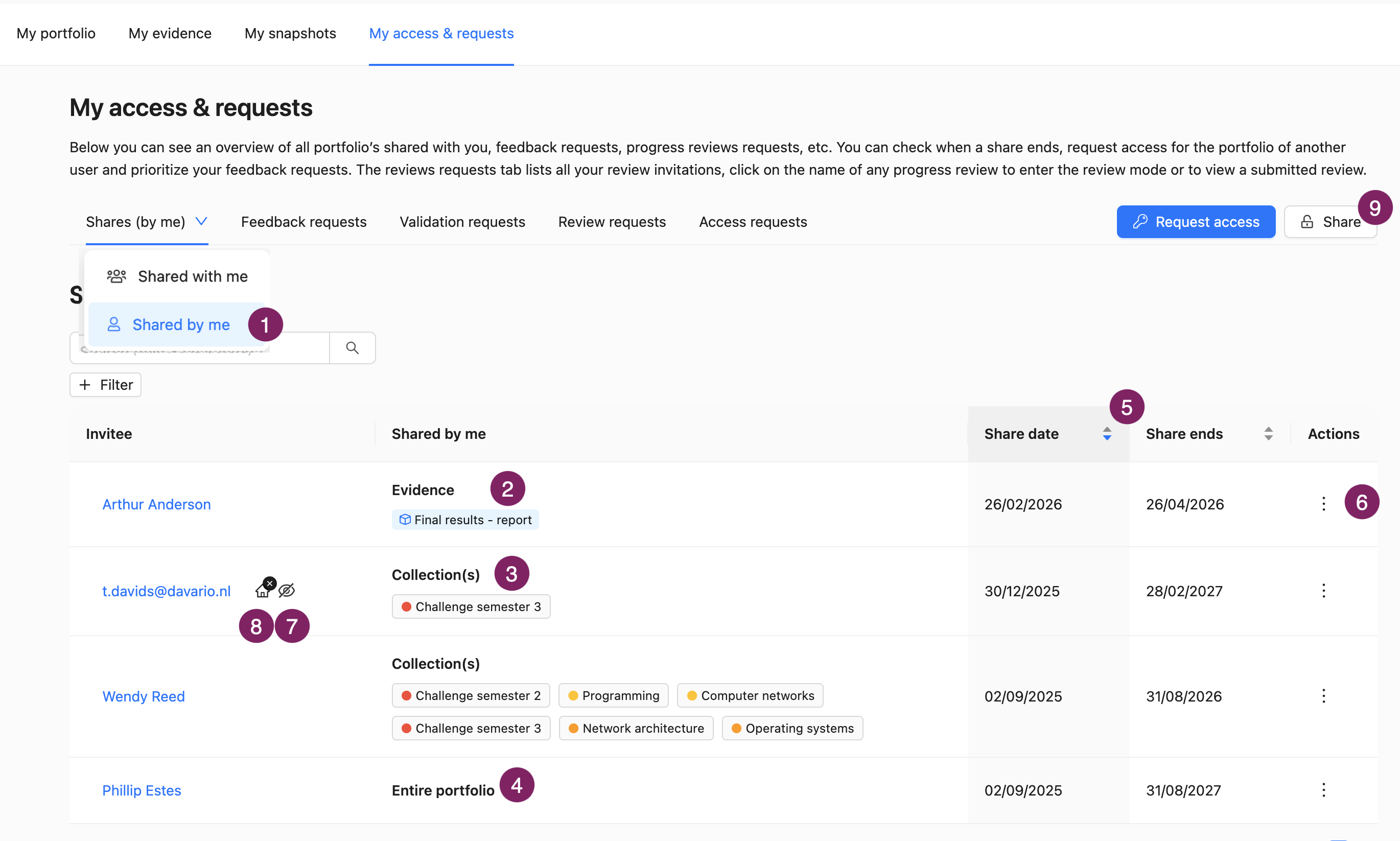
You can get a full overview of whom you have shared your Portfolio, Collections and Evidence with. Go to the My access & requests (1) page, In the Shares tab, there are two headings: 'Shares with me' and 'Shares by me'.
Under the heading Shared (by me) (1), you will see a list of Shares and people with whom you have shared Evidence (2), Collection(s) (3) or your entire Portfolio (4). You can also find the start and end date (5) for this access. Via the Action menu (︙) (6) you can extend or revoke access.
The eye icon (7) is displayed for invitees who have limited visibility on Feedback. This person can only see their own and your Comments and Progress Review responses. The house with the cross (8) is displayed for external invitees (who do not have an LMS account).
Share from ‘My access & requests’
From the My access & requests (1) page, you can share your Portfolio or Collections using the Share button at the top (9). If you want to share specific Evidence, you can do that from the page of that Evidence.
How to manage Shares from the Homepage, Collection page or Evidence page?
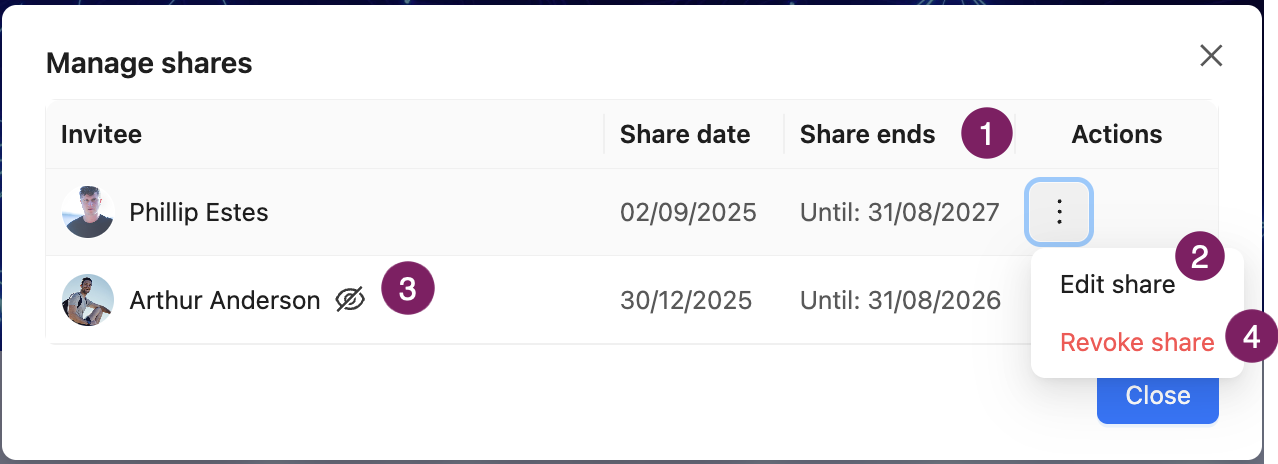
By clicking Shared with: on your Portflow Home page, a Collection page or Evidence page, you will see a list of people with whom you have shared the entire Portfolio (Home page), current Collection (Collection page) or current Evidence (Evidence page). Here, you will see the following things:
The date when the invitee's access will be automatically revoked (1) and the option to extend this period. Use the Action menu (︙), then click Edit share (2)
Whether the invitee can see all Feedback, or only Feedback from themselves and you (3). You can edit this through the Action menu (︙), then click Edit share (2).
The possibility to revoke access. Use the Action menu (︙), then click Revoke share (4)
Note:
On the home page, you will only see shares with access to the entire Portfolio.
On the Collection page, you will only see shares for this specific Collection (not Portfolio shares).
On the Evidence page, you will only see shares for this specific Evidence (not Portfolio or Collection shares)
When an invitee declines the invitation or the access has expired, they will disappear from the list.