Create a Progress Review Request
Last updated: August 6, 2026
Summary
Progress Reviews are intended as an (interim) evaluation of progress. Anyone with access to the Portfolio can be invited to review a selection of Goals. You can decide whether you want to collect quantitative insights (based on rubric levels) and/or qualitative insights (narrative feedback).
Applicable for | 🐼 |
Not applicable for | — |
Selecting Sub-goals needs to be enabled by a Portflow admin. 📄 Feature options
Who do you invite for a Progress Review?
As Portfolio owner you decide who (and when) you ask for a Progress Review. You can invite fellow students, teachers, coaches and external users (e.g. an internship assessor). You can also opt for a self-review. That way you can compare how you rate your own progress against how others rate you.
Note: While you can invite anyone, the person you want to invite must have access to a Collection, multiple collections or the entire Portfolio. Learn more about shares: 📄 Share your Portfolio
Depending on the Goals you have selected for the Progress Review, and the Access you have given your visitors, you can invite visitors to review your progress.
How to start a Progress Review request?
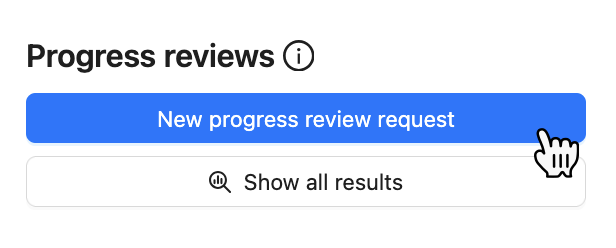
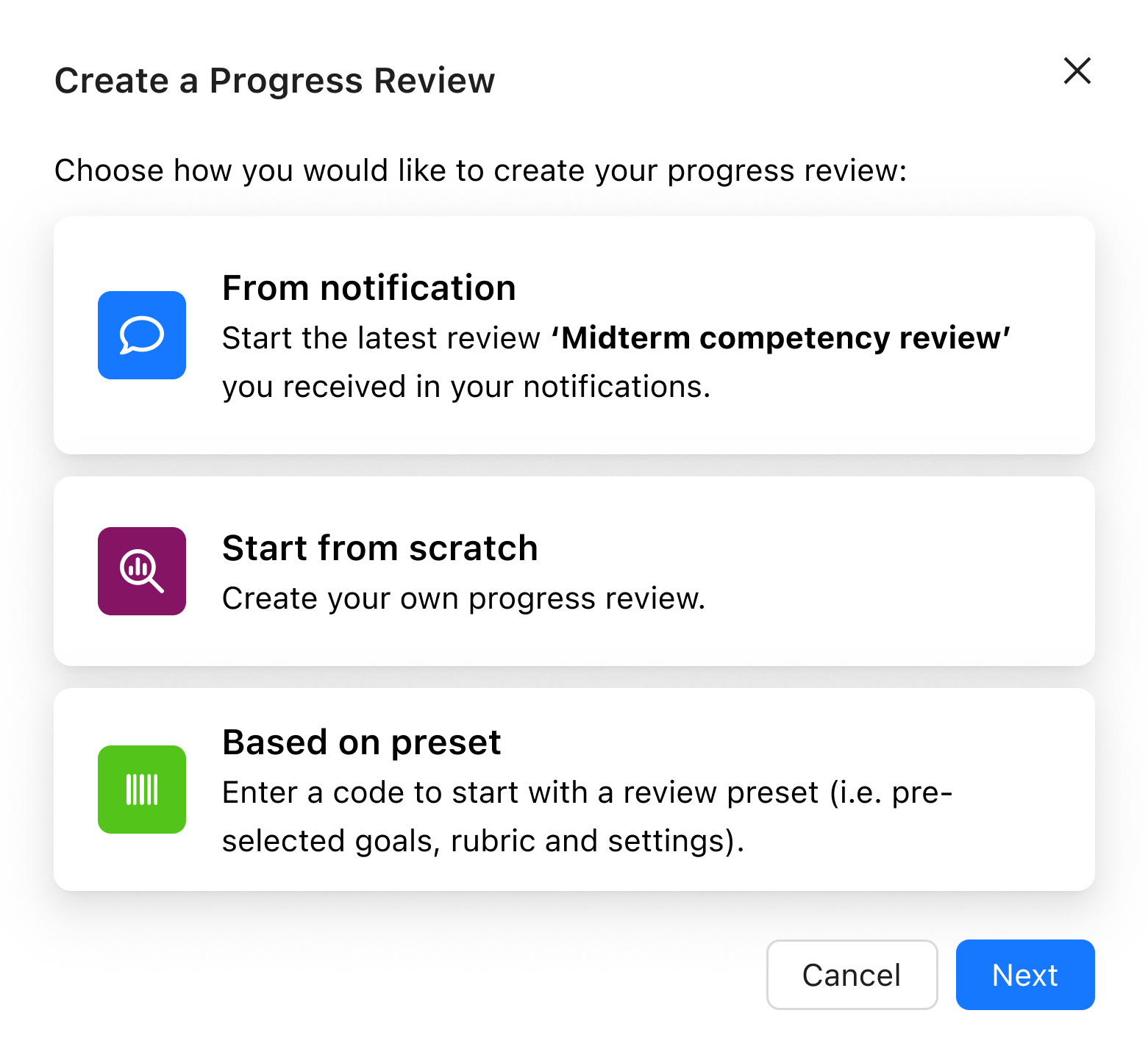
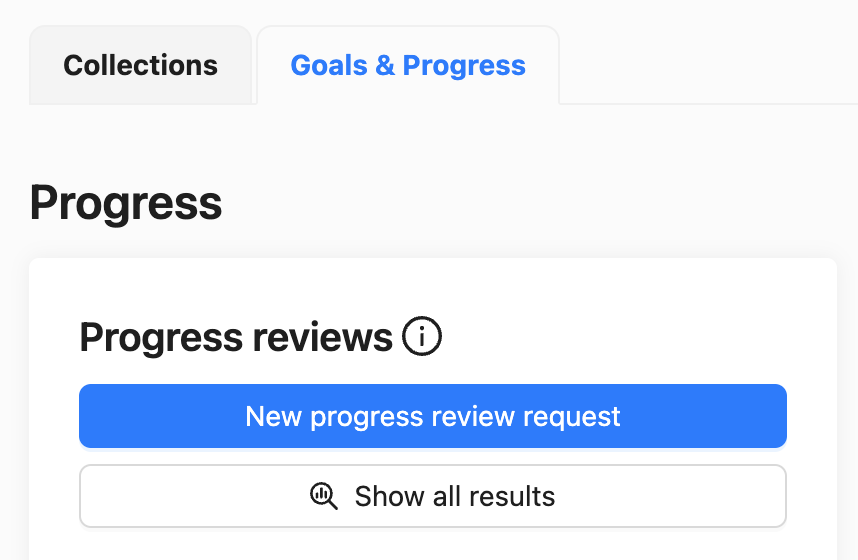
First navigate to the 'Goals & Progress' tab in your Portfolio. Here you will find the button to start a new Review request. You can choose whether to compile your own Review request or whether to start from a Review Preset your teacher has prepared for you.
 |  |
How to start a Progress Review request with a Preset code?
Go to ‘Goals & Progress’ and click the button to start a new Progress Review request.
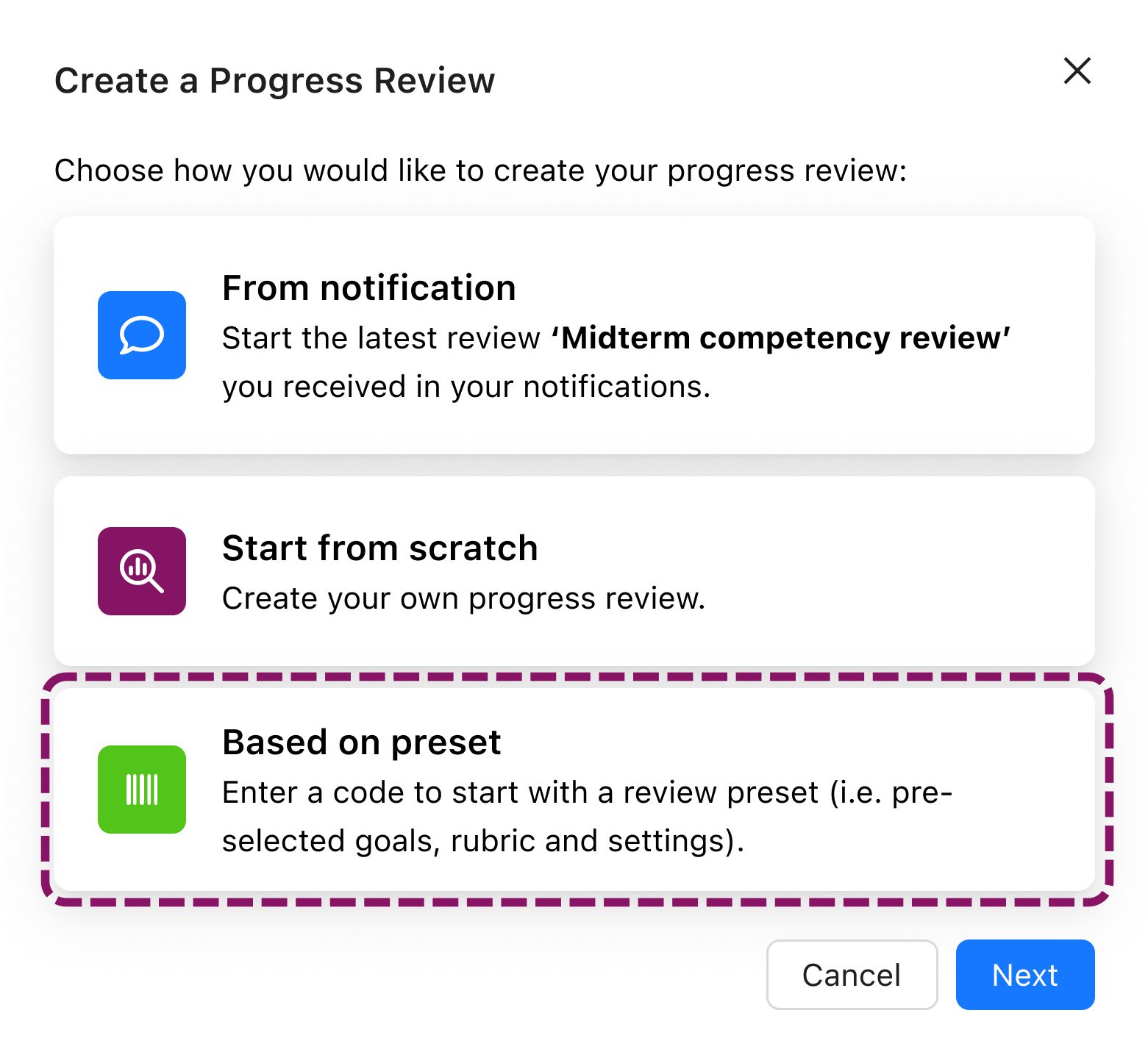
In the menu, choose ‘Based on preset’. In the following step, enter the code you have received from your teacher.
From the preview, you can either choose to accept all suggestions and go to step 3 ‘details’ immediately (1, Continue), or go through each step (Goals → Levels → Details) separately (2, Customise).
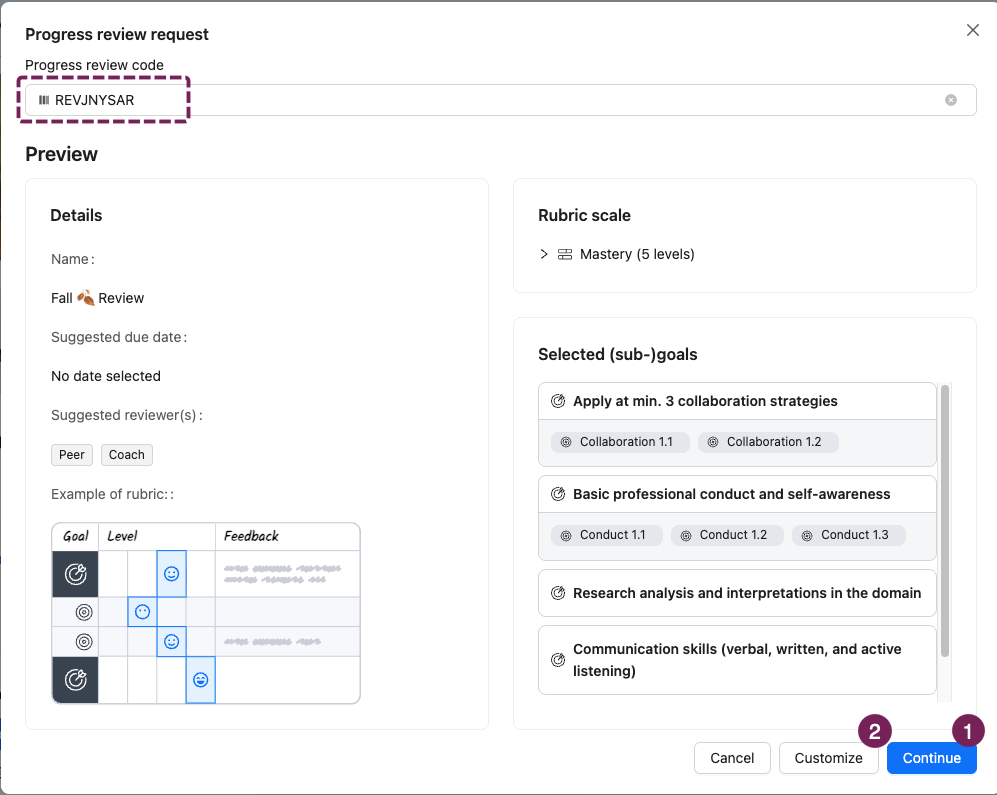
The suggestions from the Preset will be prefilled in your request, but you are able to make any customisations.
How to start a Review request from the Preset Notification?
From the Notification drawer
If you have received a Notification with a Review Preset, you can start the Review request immediately from the Notification (1).
If you had previously received a Notification to import a Template and also a Notification to create a Progress Review, it is recommended to first import the Template (2). This is to ensure that you have imported the relevant goals.
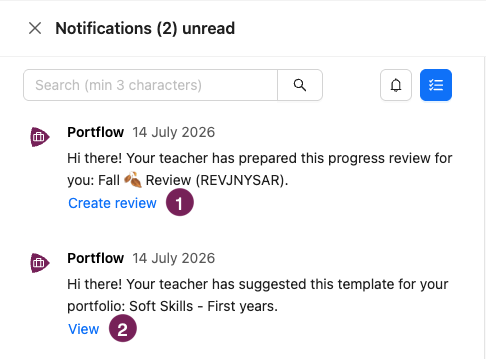
From the preview, you can either choose to accept all suggestions and go to step 3 ‘details’ immediately (1, Continue), or go through each step (Goals → Levels → Details) to customise the request (2, Customise).
Using the ‘From notification' option
Go to ‘Goals & Progress’ and click the button to start a new Progress Review request.
In the menu choose ‘From notification’. This will enter the code from the most recently received Preset suggestion.
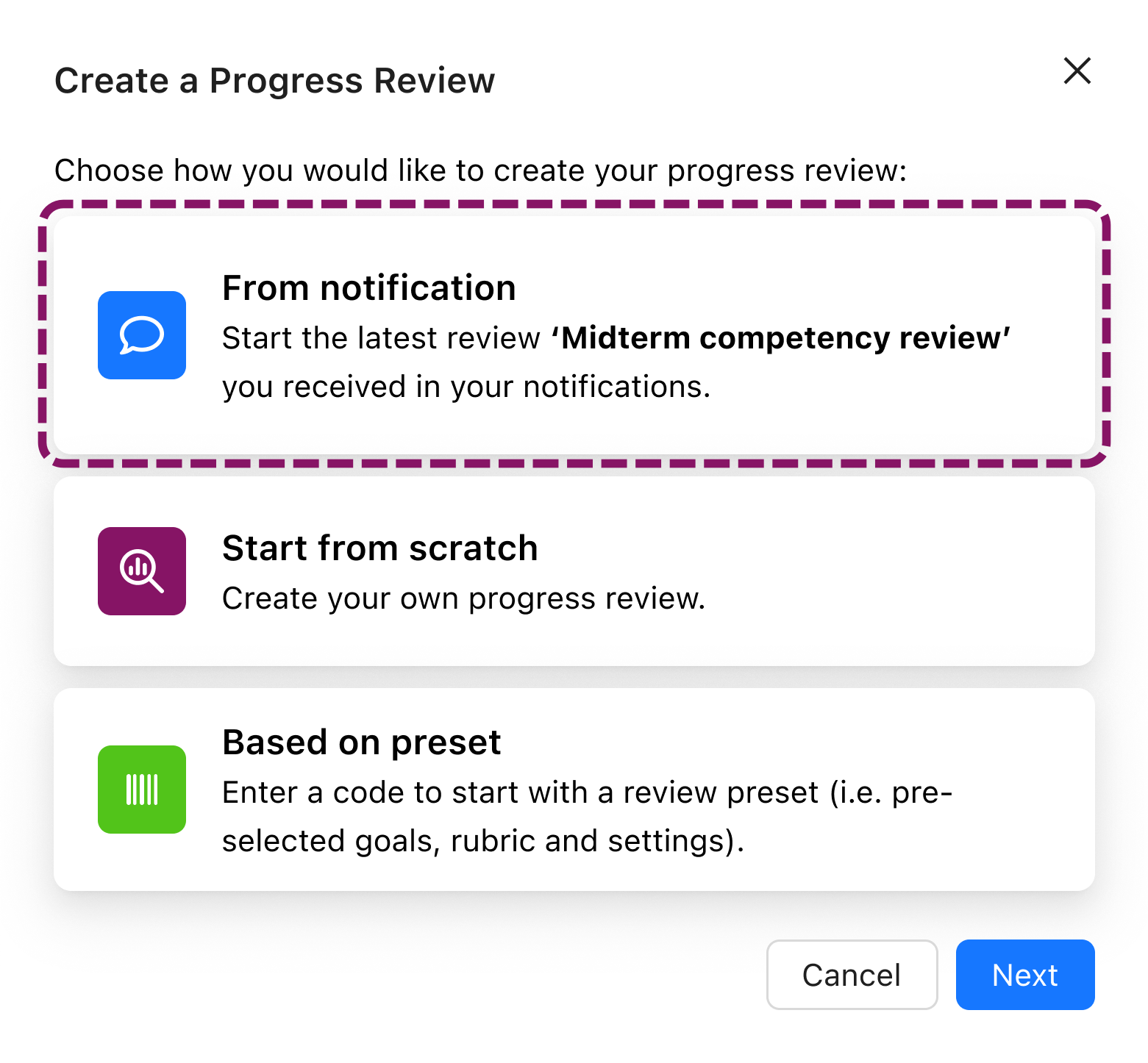
From the preview, you can either choose to accept all suggestions and go to step 3 ‘details’ immediately (1, Continue), or go through each step (Goals → Levels → Details) to customise the request (2, Customise).
How to start a Review request from scratch?
If you wish to create a new Review without any suggestions from your teacher you can set it up from scratch. You will be guided through a multi-step process to customise the Review request.
What are the steps for a Progress Review request?
Step 1 - Goals
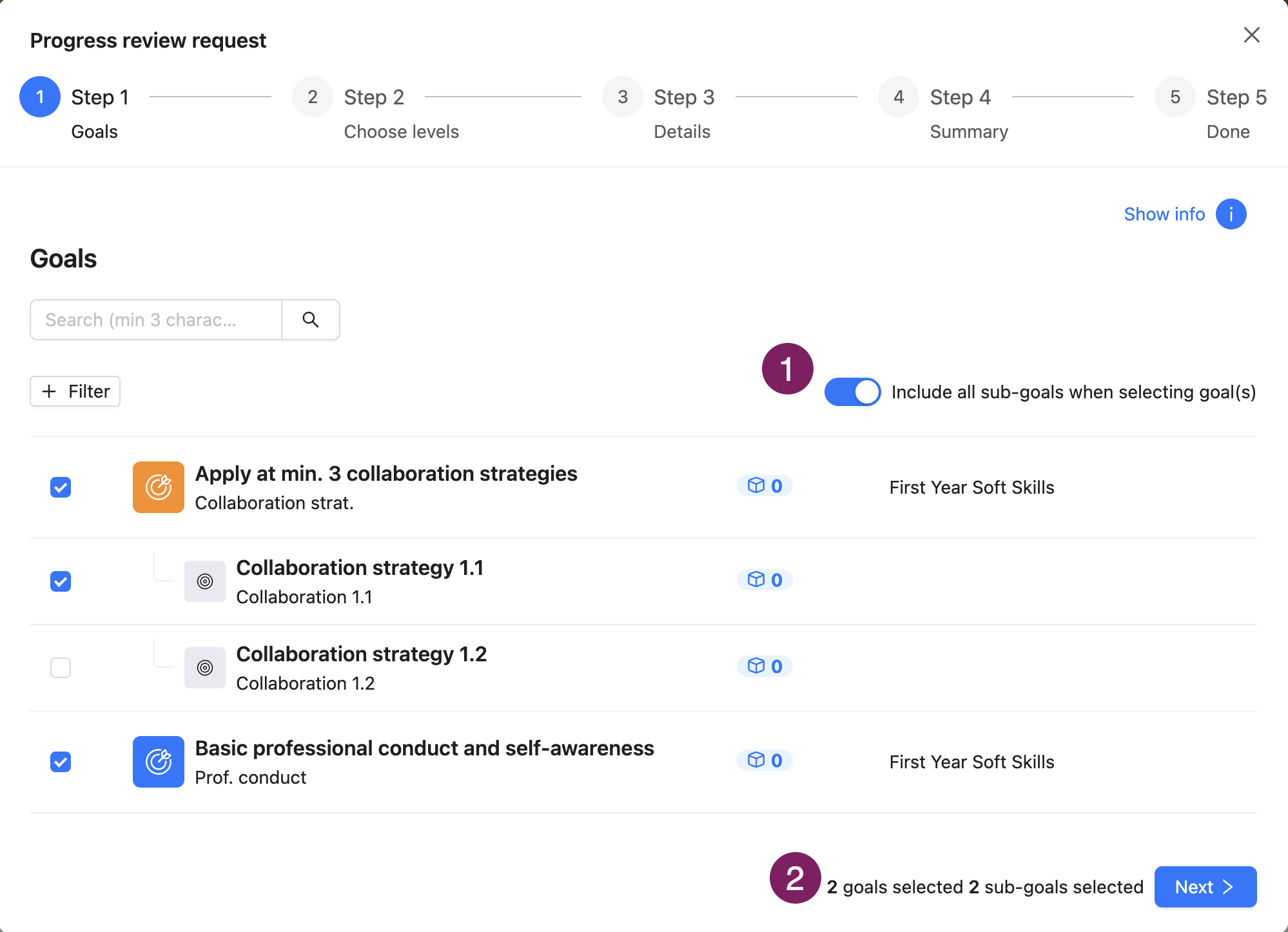
You can select as many Goals as you want to include in the Progress Review. This selection of Goals will form the criteria for a rubric. Your invitees will use that rubric to provide Feedback/insights for each of your selected Goals and Sub-goals.
You can select all Goals within a Goal set, by using a filter in your Goal overview on this step!
You can include Sub-goals in the Progress Review if you wish. If the toggle (1) is on, all Sub-goals of the selected Goals will be added to the Review request. If the toggle is off, you can choose if/which Sub-goals are included. In the bottom right you can check how many Goals and Sub-goals will be included in your request before clicking next (2).
Step 2 - levels
Now that you know what you want to review, it’s time to decide how you want to review those goals. Bear in mind that a Progress Review is not a formal assessment, but is intended to provide insights into your own progress.
With levels
Do you prefer quantitative insights where your progress is visualised in charts and scores? Then select the "With Levels" option. With that option, invitees (optionally) score the Goals and Sub-goals. For each Goal, invitees can also provide written Feedback.
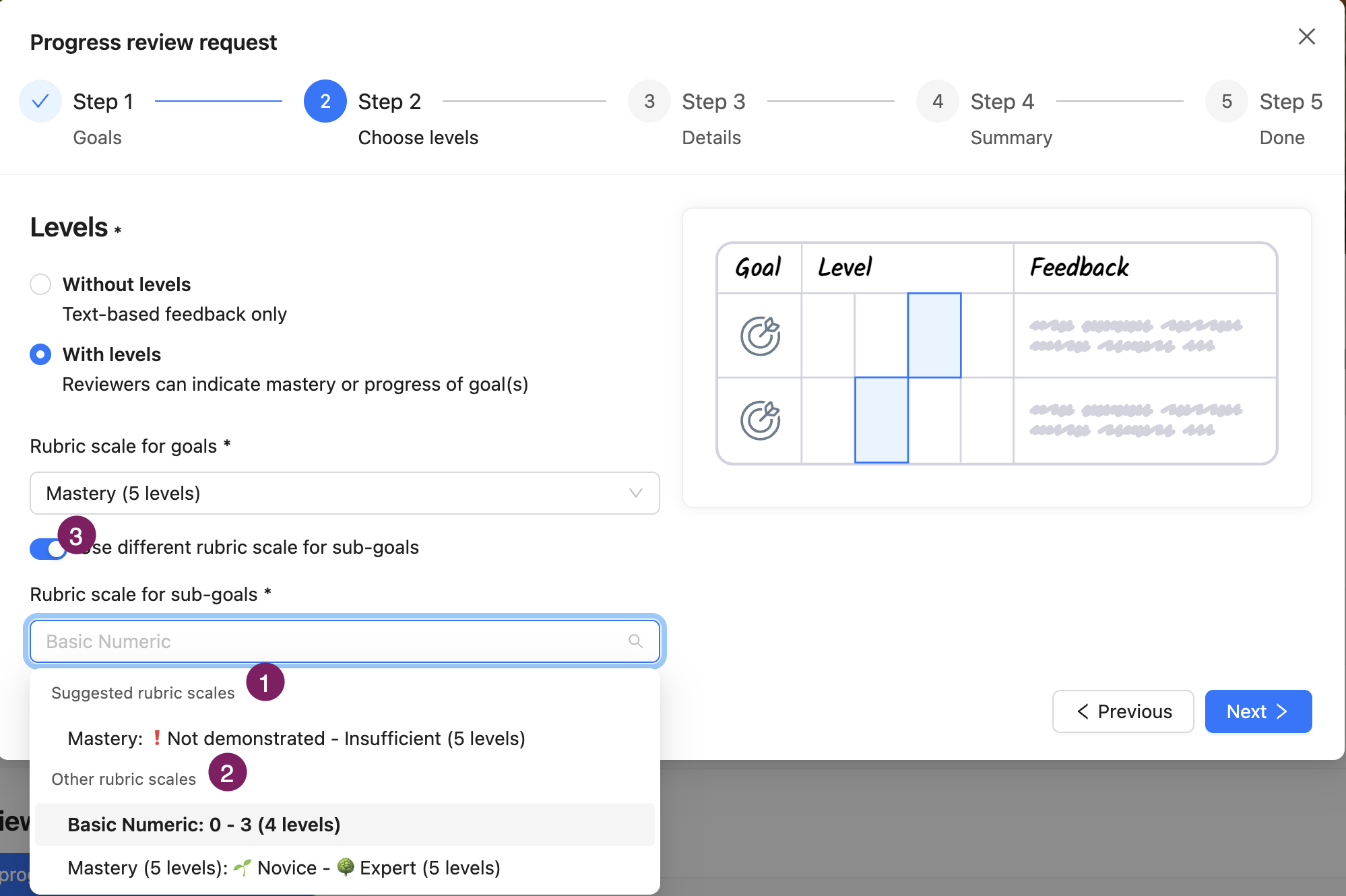
If your teacher has suggested a rubric scale for one or more of the selected Goals, these will show at the top (1). All other scales will be below the suggested scales (2).
If you had selected sub-goals in a previous step, you can choose to use the same scale as for goals or a use a different scale for sub-goals (3).
Without levels
This option allows your invitees to provide only narrative Feedback for every Goal. Choose this option if you prefer a Progress Review that does not use scores.
Step 3 - details
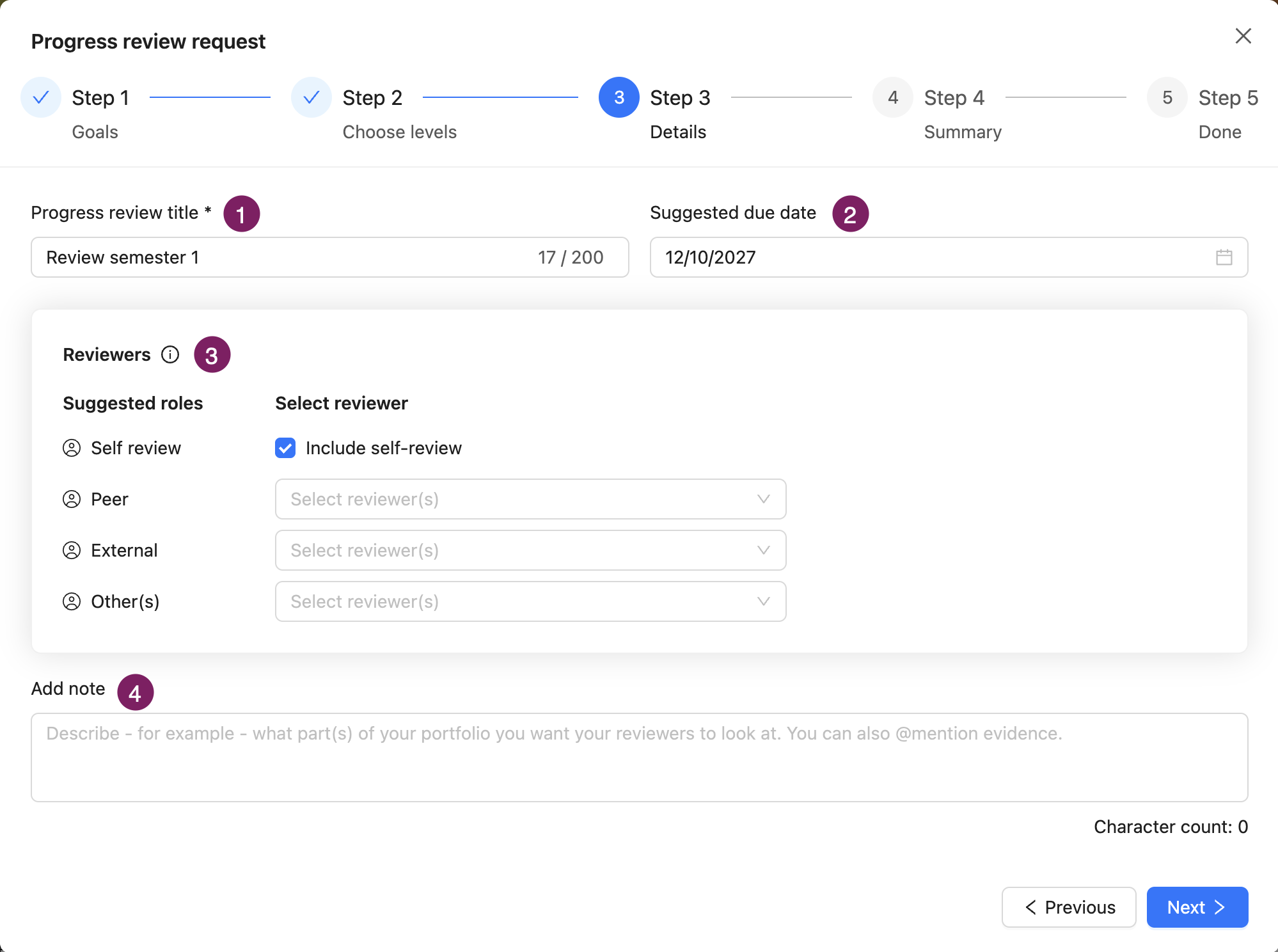
You can give the Progress Review a recognisable name (1). For example: Progress Review Professional Skills Q1.
You can specify a suggested due date (2). Enter this date to let invitees know when you would prefer to receive their Feedback and insights.
Please note that filling out the Suggested due date only communicates your preferred date, invitees are not required to adhere to this date.
You can invite others and/or yourself (3). If any roles were suggested in the Preset, you will see a separate selection box for this role. You can leave any of them empty but you need to select at least 1 reviewer (or self review). You can invite any visitor to Review, if they have access to collections in which all selected Goals from step 1 are reflected.
Tip! You can also do a progress review without inviting others; just create a Review request and select 'self-review' only. You will now only receive an invitation yourself.
Lastly, you can add an optional note for visitors with a specific question or focus (4).
You can include mentions to evidence and Goals by typing '@' in the note to clarify your Review request.
Step 4 - summary
In this step you can check all your chosen settings. If you want to change anything, you can use the previous button to navigate to one of the previous steps. Everything you had already entered is automatically saved.
Step 5 - done
The invitees will receive a Notification inviting them to start the Progress Review (via the Notification menu on the right, an email if they have set it up, and via 'My access and requests'). If you have opted for a self-review, you will also receive a Notification of this yourself.
How do you keep track of your Progress Reviews?
On the Goals & Progress tab you will find the button 'Show all results', which navigates to a page where you will find an overview of all Progress Reviews you have created.
Can I retract a Progress Review Request?
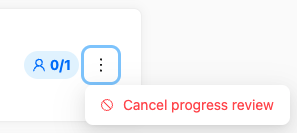
If you wish to retract the Progress Review request, you can do so only when no one has responded to the Progress Review yet. You can retract a Progress Review by going to ‘Show all results’ and clicking the three dots on the relevant progress review. You will find an option 'Cancel progress review' to retract your request.