User Settings
Last updated: October 12, 2026
Summary
User settings let you personalise your Portflow experience. Here you can adjust your default view, change language and notification settings, switch roles, and manage accessibility options.
Applicable for | 🐼 |
Not applicable for | - |
Note:
You cannot change your name or your pronouns within Portflow, since these are inherited and managed from your LMS.
Open User Settings
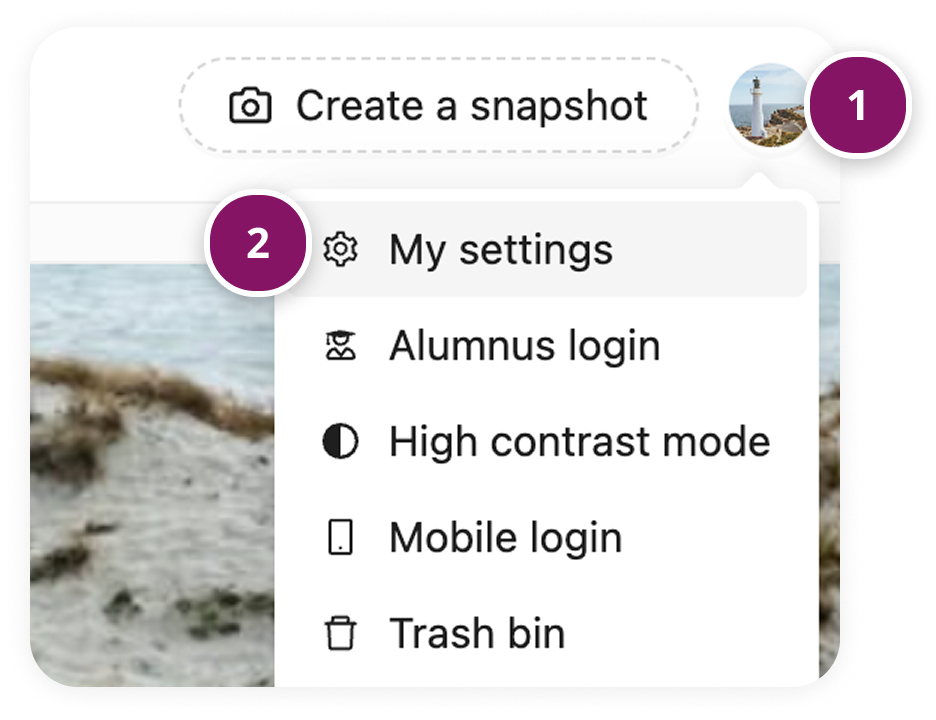
Open the User Menu (1) and click 'My settings' (2)
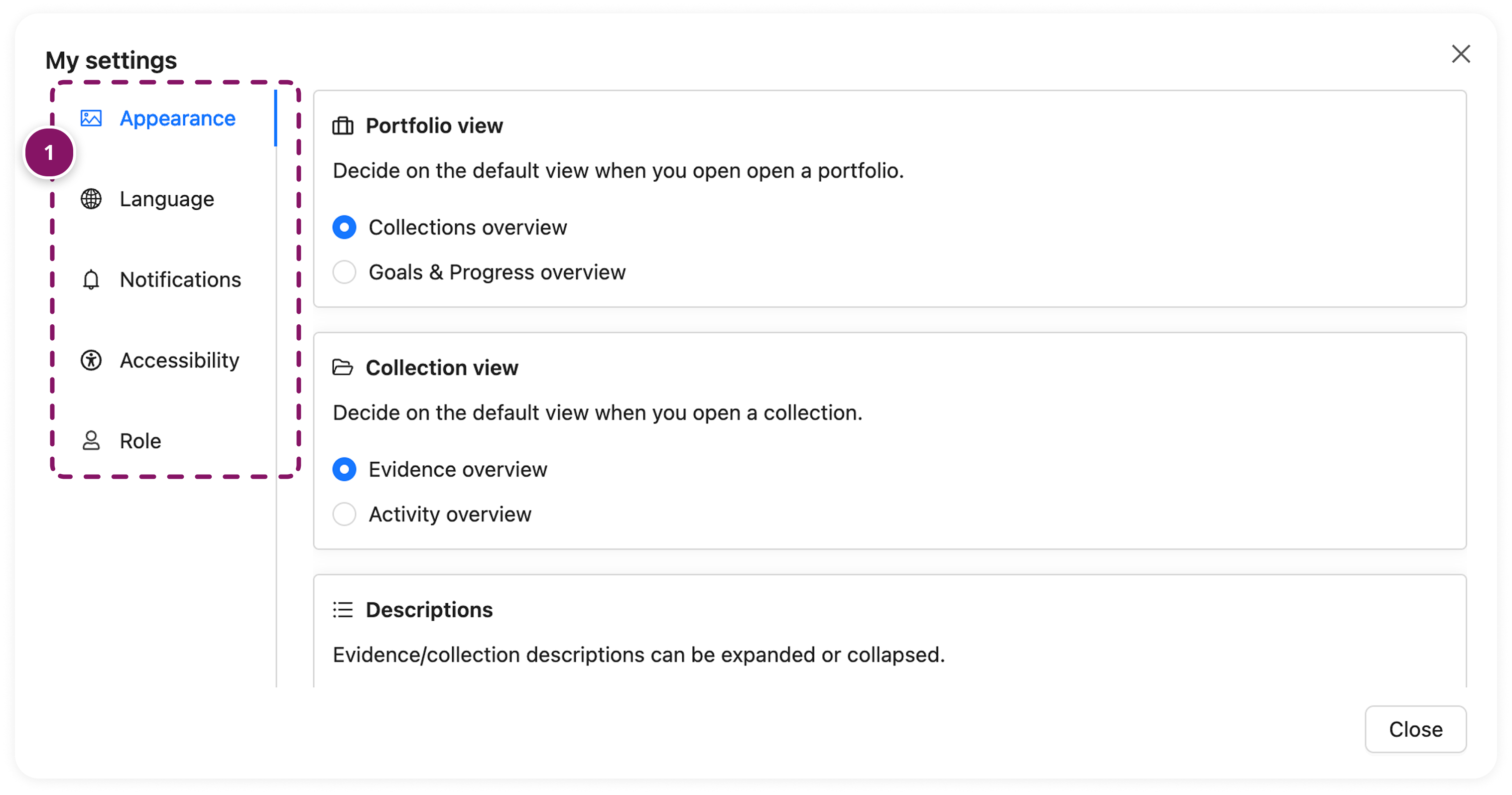
From the menu on the left (1) you can view and adjust various settings and preferences.
How to change default views?
In various places in Portflow, there are various views available, for which you can define the default behaviour. The settings selected here apply to you as a user, whether you are browsing your Portfolio or someone else's.
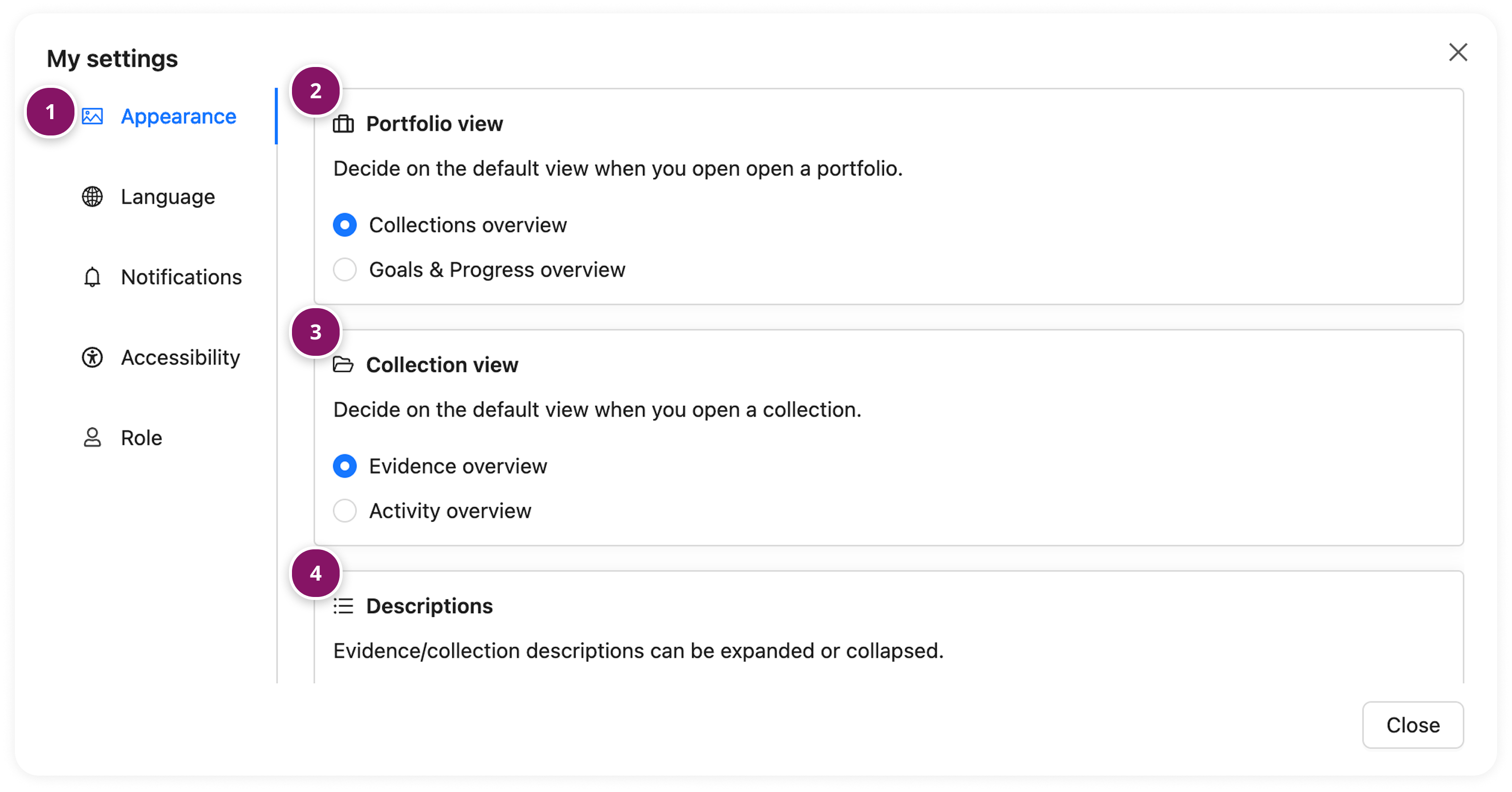
Click Appearance (1) in the left navigation
Choose what you see when opening a Portfolio in Portflow (2): Collections or Goals & Progress.
Choose what overview you see when opening a Collection (3): Evidence overview or Activity overview.
Decide how Descriptions of Evidence and Collections are shown by default (4): expanded or collapsed.
Tip:
Adjust the default view to fit your way of working. For example, if you often work with Goals, set the Goals & Progress overview as your default view when opening a Portfolio.
How to change the language of Portflow?
By default, Portflow will inherit the language as set in your LMS account. However, your Portflow language can be set to override that language selection with any of the available languages.
Available languages in Portflow
Portflow currently supports the following languages:
English
Dutch (Nederlands)
French (Français)
German (Deutsch)
Irish (Gaeilge)
Italian (Italianio)
Spanish (Español)
You'll need to refresh the page for the changes in language to take effect.
Note: some components, like Rubric Scale Levels will only be available in your institution's primary and optionally secondary language(s).
How to manage Accessibility settings?
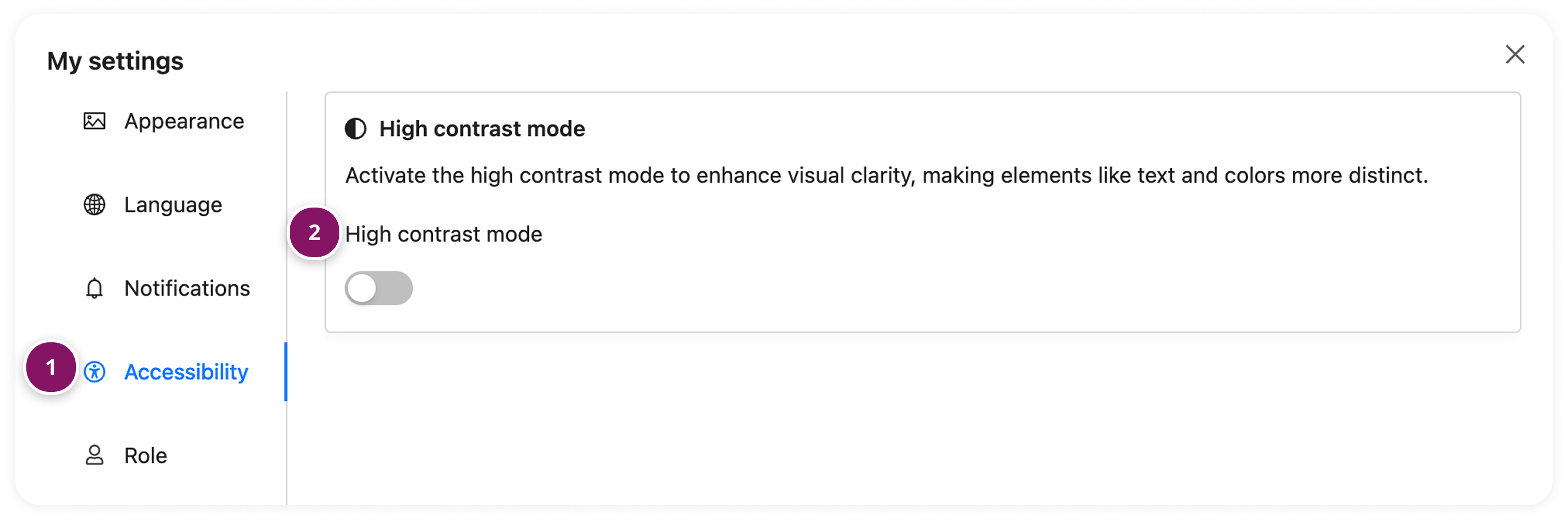
Click Accessibility (1) in the left navigation
Enable or disable the High contrast mode (2)
The changes will take effect immediately.
How to change my default role?
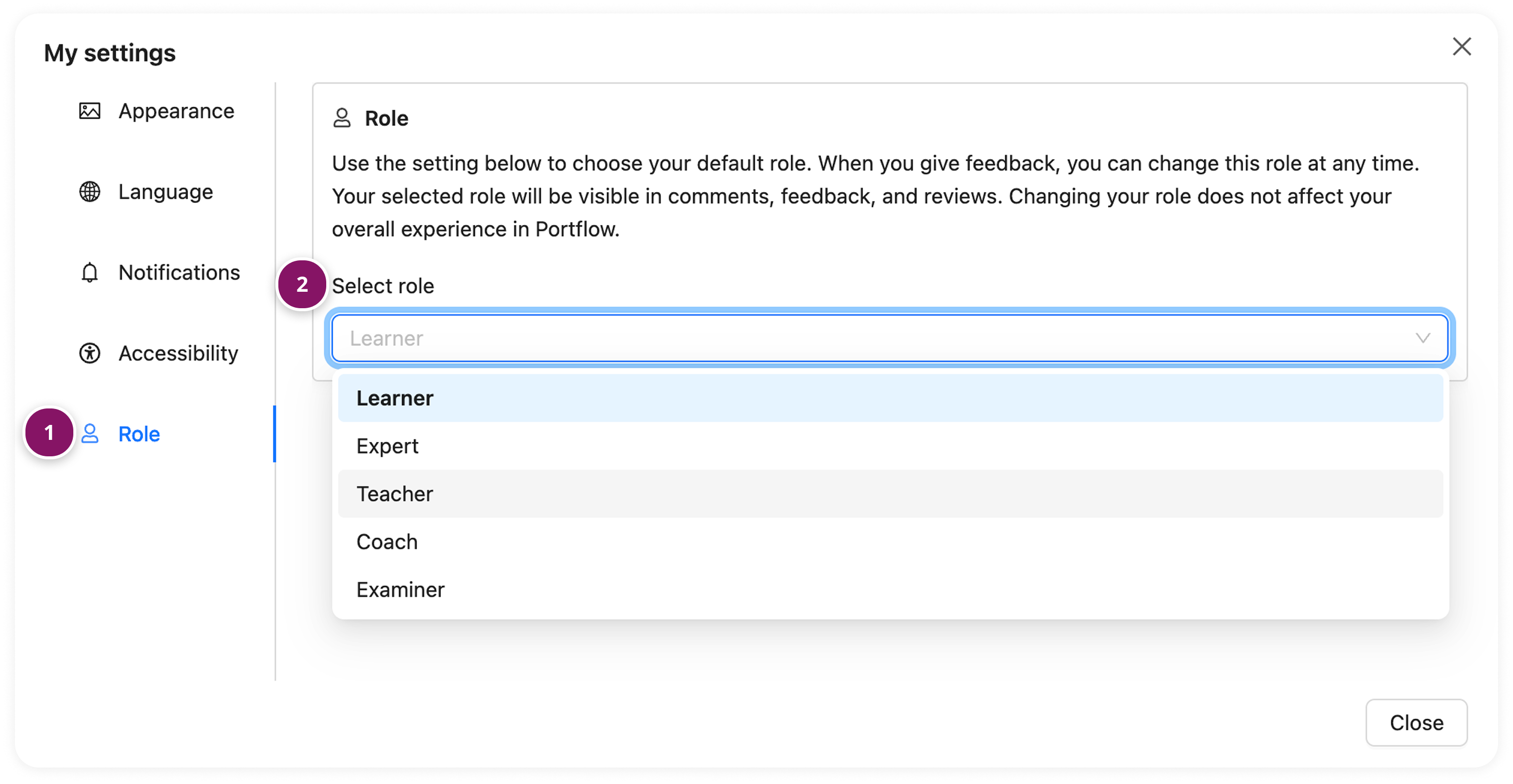
When you provide feedback or respond to a progress review, your role at that moment is stored together with your feedback and appreciations. The default role (the role that most often applies to you, can be managed in My settings.
Click Role (1) in the left navigation
Select a role (2)
Note:
You may want to temporarily change your role. For example, a Coach might act as a Teacher, or a Learner may take on the role of Student coach for Peers. Always select the correct role before giving feedback to ensure it is displayed accurately. In the process of giving feedback or in a progress review, you always have the opportunity to change your role to be different from the default role set in My settings.
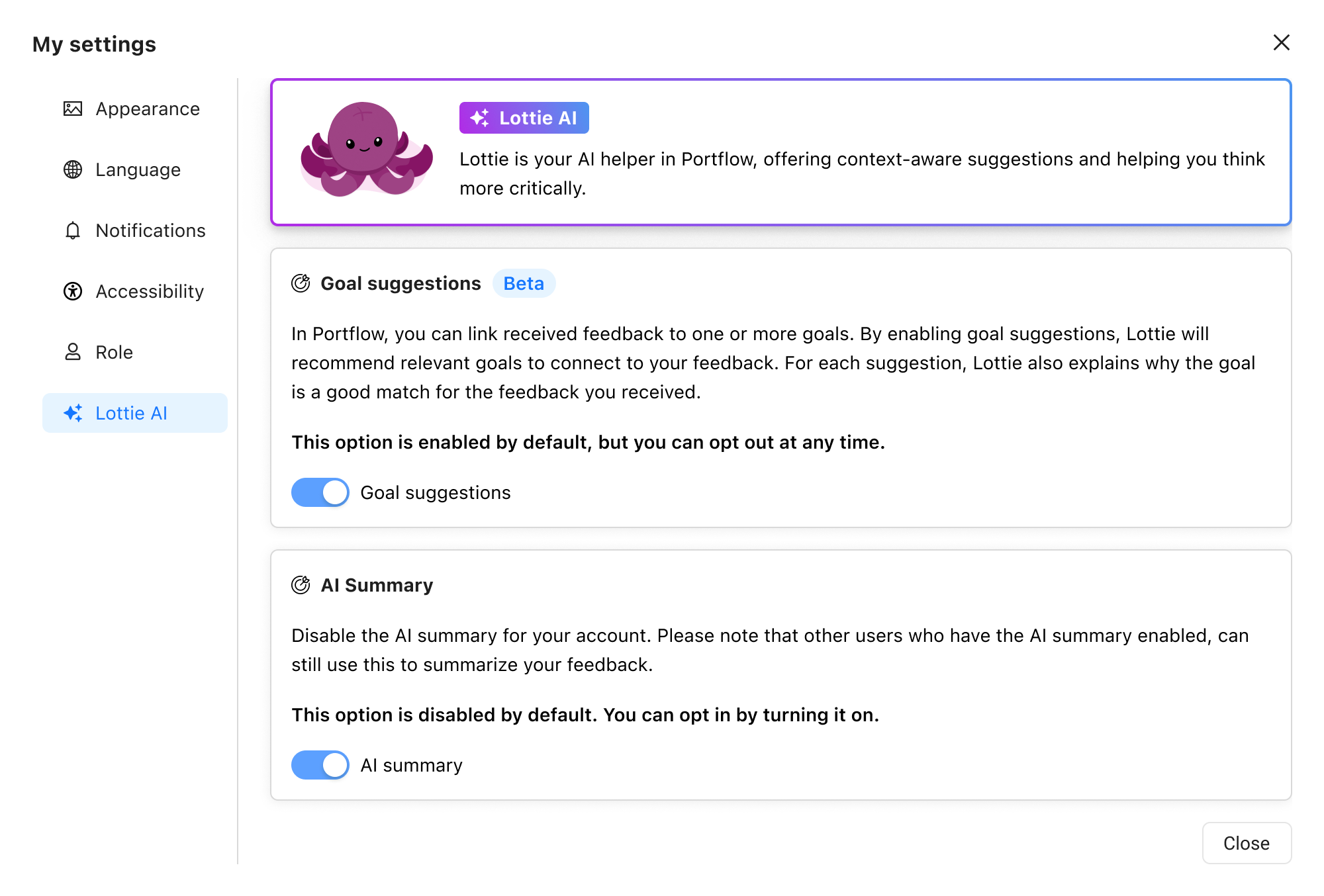
How to manage AI-functionalities?
You have control over which AI functionalities you wish to enable for yourself. Your institution sets a default availability, but you can opt-in or opt-out yourself.
More information about the AI functionalities: 📄 AI in Portflow: Feedback analysis and Goal suggestions (beta)
AI Goal suggestions
When linking Feedback to Goal(s), the AI suggests which (Sub-)Goals might be relevant. Read more: 📄 Link Feedback to Goals. Turning it off removes the button to suggest Goals.
AI Summary of Goal feedback
When reviewing the Feedback received on a Goal, you can get a summary of the information. Read more: 📄 Progress Tab & Goal Cards. Turning it off removes the button to suggest a summary for yourself. Visitors might still request a summary within your Portfolio, or use it to summarise your Feedback.