Manage API Applications
Last updated: August 6, 2026
Summary
Portflow provides a publicly documented API that allows for various use-cases. For each use-case, an 'App' can be created with a specific set of scopes.
Note: The Portflow Public API is in beta, although fully operational, it might be that changes to the API might occur. See 📄 Current Beta Features. Any changes will be communicated via the Release Notes.
In Portflow, a Super Admin or Data Manager can create applications ('Apps') that can access the Public Portflow API. An App can have one or more scopes that define what areas of the API that App has access to.
Tip: It is good security practice to not use more scopes than necessary, and to always use the client ID + secret in a secure location.
You can find the developer documentation of the Portflow API, including the possibility to download the repository (OpenAPI specification) here: https://developer.portflow.app/.
How do I create a new API Application?
As a Super Admin or Data Manager, go to Admin → Public API.
Click on + New application
Enter a name (recognisable for yourself),
Select scopes. You can edit the name and scopes later, if necessary.
Available scopes (refer to the API documentation for the related scopes):
analytics:readassessment_snapshots:readassessment_snapshots:writegoal_repository:readreviews:readusers:readusers:write
If you would like to use a certain scope that appears to be unavailable, Drieam can enable them for you. Send a support ticket with a request and explanation of why you need this scope.
Copy the client ID and client Secret. You can never view the secret again once you close this window, so make sure to save the secret in a secure location.
How do I use the Portflow Public API?
All information about how you can use the API is documented on https://developer.portflow.app/.
If you have any questions or issues, you can ask them to the team in a support ticket.
How do I manage an API Application?
For every application, you can edit the name and scope, using the Action Menu ︙ (3 dots) next to the name. A pop-up with the name and scope allows you to edit these fields.
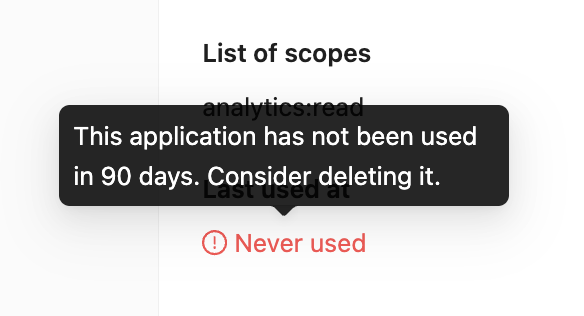
For every Application, you can view the last use date and time. Note: this information only goes back until March 2026. Any usage before this date is considered 'never used'.
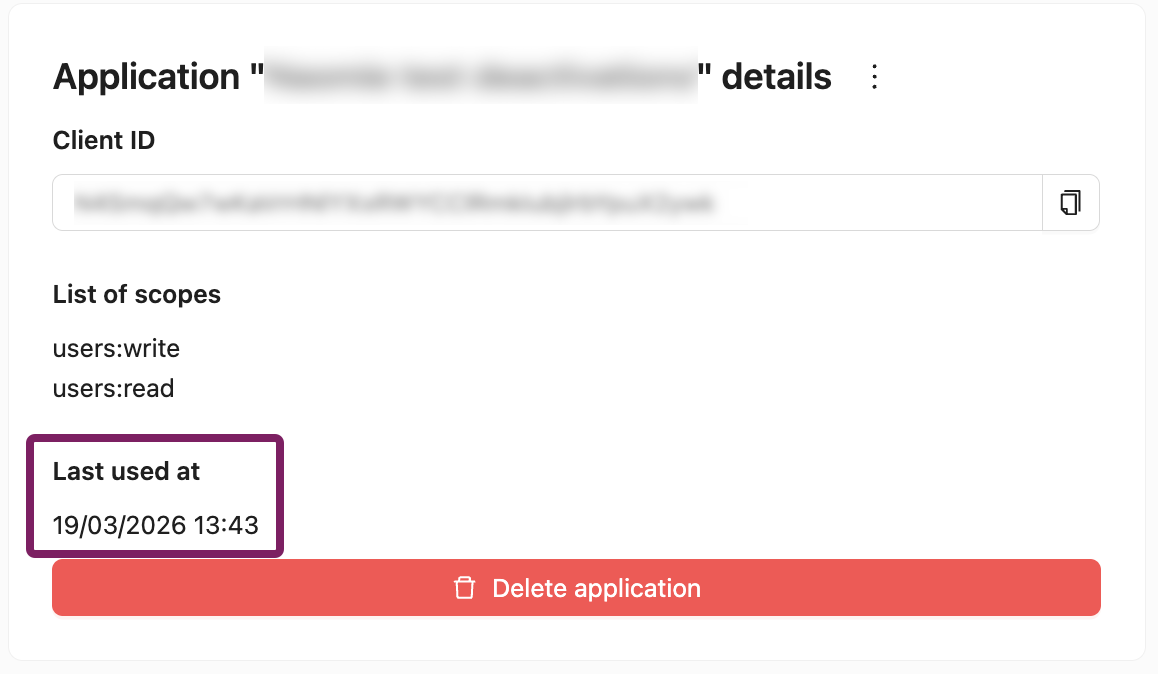
For any applications that is not used for 90 days or longer (or never used before), a warning is displayed. For security reasons, you might want to consider deleting applications that are not used anymore.