Share with Externals
Last updated: July 30, 2026
Summary
In Portflow, in addition to inviting LMS users (📄 Share with LMS users), you can also give external users (outside the educational institution) access to (a selection of) your Portfolio using their email address.
Applicable for | 🐼 |
Not applicable for | — |
How to share with externals?
As a learner, you can share your Portfolio, Collection(s), or Evidence with External users, so they can contribute Insights to your learning journey.
There are multiple options to share your Portfolio. Learn more about them in 📄 Share your Portfolio
Go to the Portfolio home page. Click the plus icon (+) next to 'Shared with'.
Go to My access & requests. Click on Share.
Go to the Collection page. Click on the plus icon (+) next to 'Shared with'.
Go to the Evidence page. Click the Action menu (⋯) and then select Share Evidence.
Underneath the email address field, Click on 'Click here to invite external users'
Enter the email address and role of invitee.
Select how long you want to give the user access for. The maximal duration is 4 years.
You can extend or revoke the access through ‘My access & requests’ if you wish.
Choose whether you want to share the full Portfolio or only certain Collections. You can then select which Collection(s) they should have access to.
If you want to share a specific Evidence only, you can share from that Evidence page.Choose if you want to hide Feedback from the visitor. They will then only be able to see Feedback and Progress Reviews written by themselves and you. If you have responded to someone else's original Feedback, your response will not be visible to the visitor.
Optionally add a note. For example, for what reason you are giving this person access.
Click Share to send the invitation
The invitee can now log in via a magic link in their e-mail. Learn more about the External Portal: 📄 Portal for Externals
An invitee can change their name, but not the role from which Feedback is given.
What to do if my external invitee does not receive an invite?
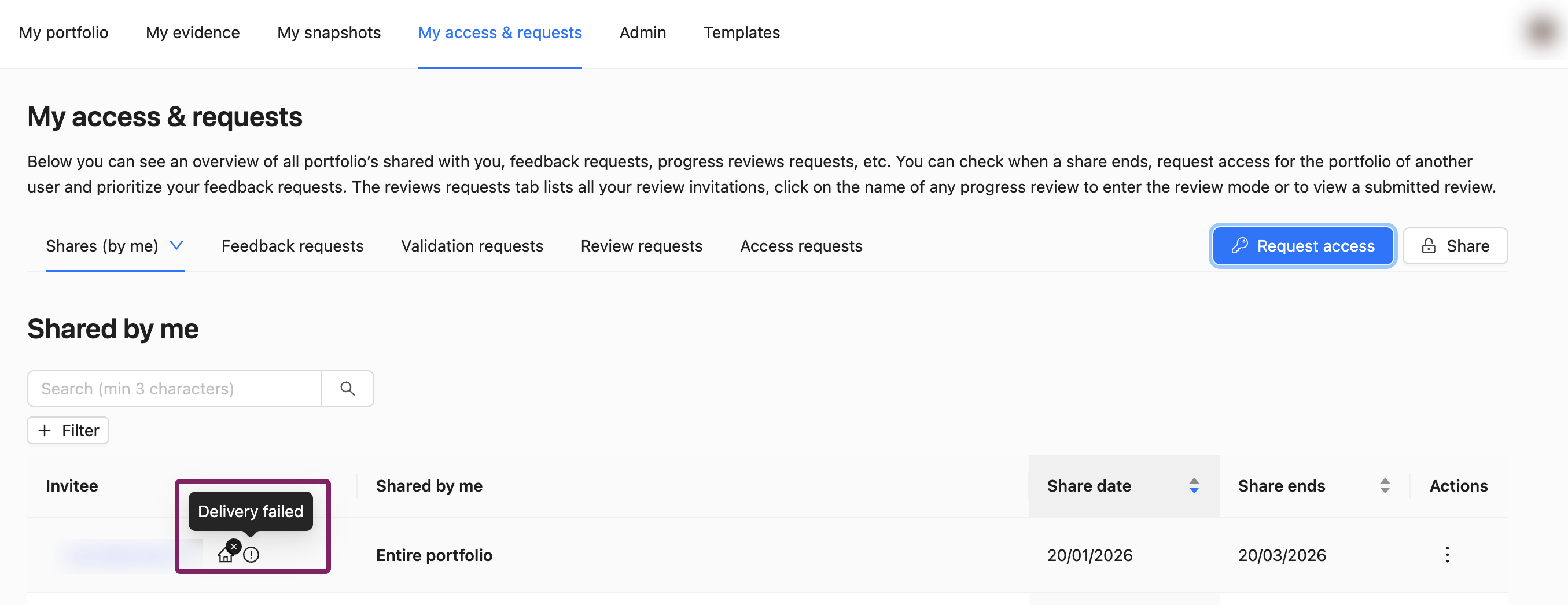
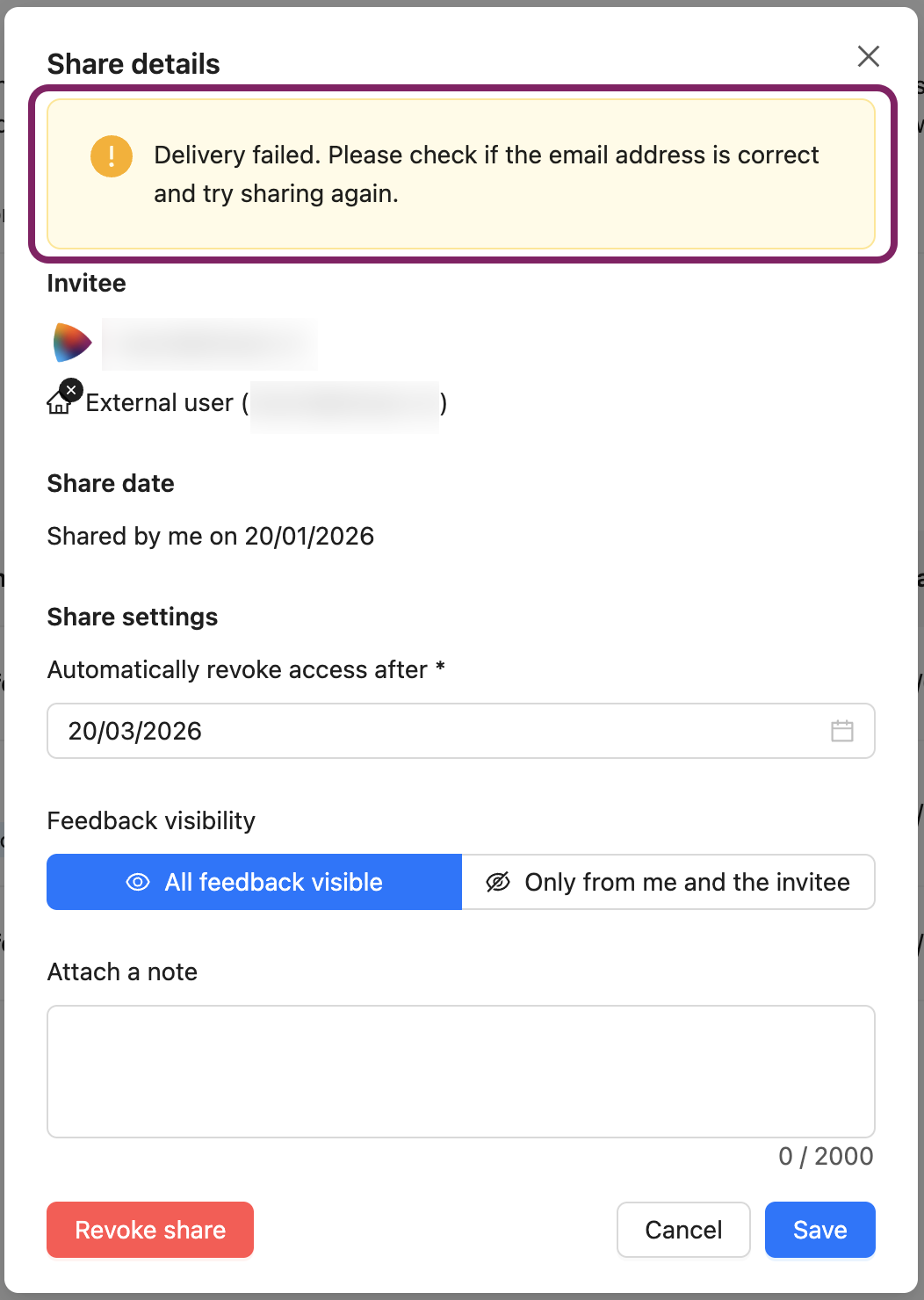
You can check whether you have spelled their mail address correctly from ‘My access & Requests’ / ‘Shared by me’.
If the share line displays an i icon which says ‘Delivery failed’, then you have probably misspelled the mail address. You can also see this notification when you expand the share (by clicking on their name).
It could also be that the e-mail address you have entered is an actual mail address, but it is not the intended recipient. You will not receive a notification for this.
How can an external invitee log in to Portflow?
For more info about this, please see 📄 Portal for Externals.