Insight in Progress
Last updated: November 11, 2026
Summary
There are several ways to gain insight into your progress on (Sub-)Goals. In this article you will learn more about the different ways.
Applicable for | 🐼 |
Not applicable for | — |
How to get insights into my progress?
To get (quantitative) insights into your progress, you as a learner can request Progress Reviews. When invitees respond, the results are saved to your Portfolio. Learn more about gathering insights through a Progress Review:📄 Create a Progress Review Request. Furthermore, you can view your Feedback tab for qualitative insights into your Goal: 📄 Progress Tab & Goal Cards
How to view results of a single Progress Review?
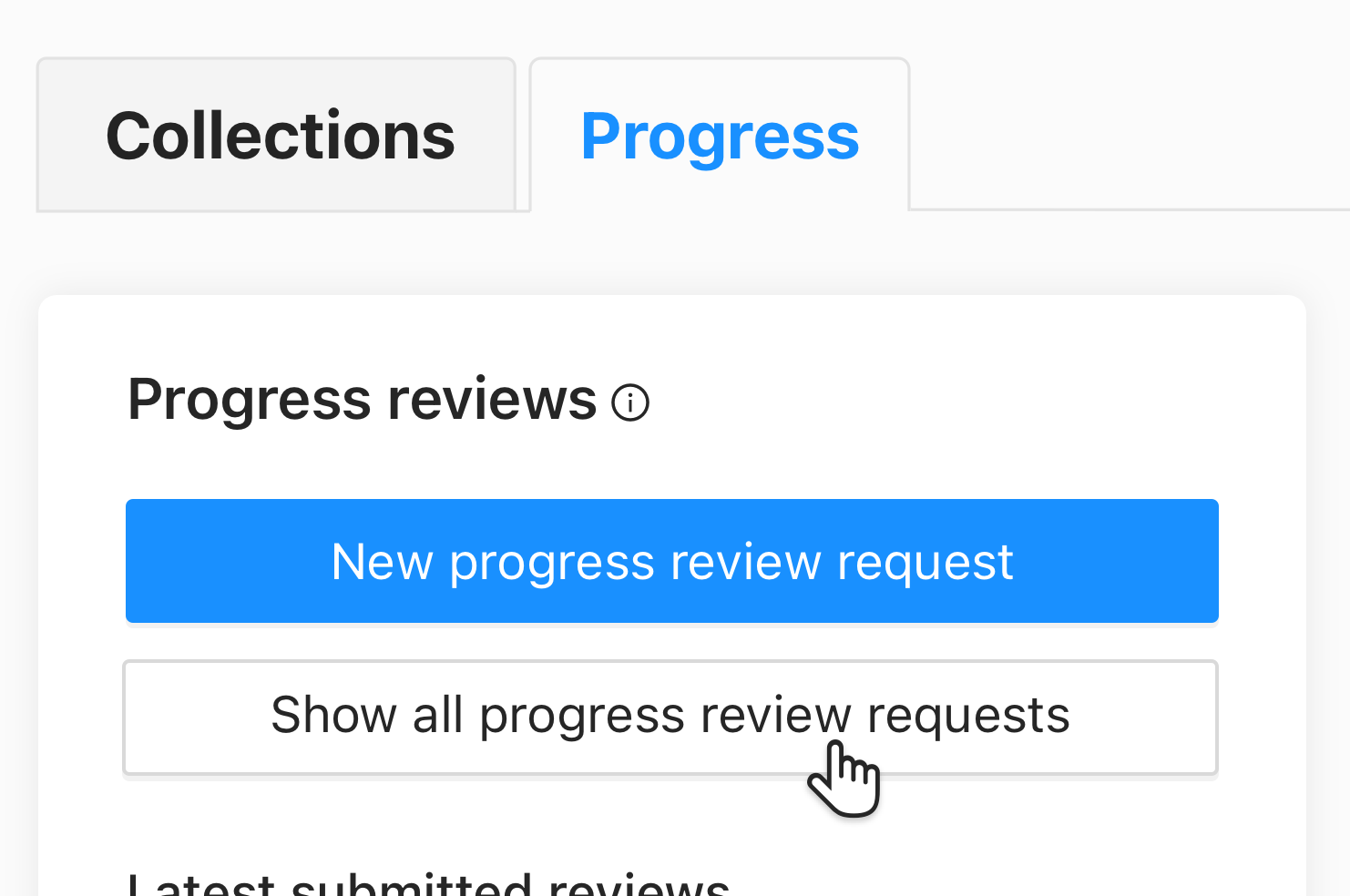
On the Progress tab you can find the button 'Show all results', which navigates to a page where you find an overview of all Progress Reviews you have created.
Tip: If you wish to read more about a mention from the results page, you can click on the mention and then use the browser back button to return to the results page.
Tip: You can mention a Progress Review in a reflection, a description or Free Text Evidence by typing @ followed by its name. The mention links straight to its results page. See 📄 Mention Evidence, Collections, Goals, Sub-Goals and Progress Reviews.
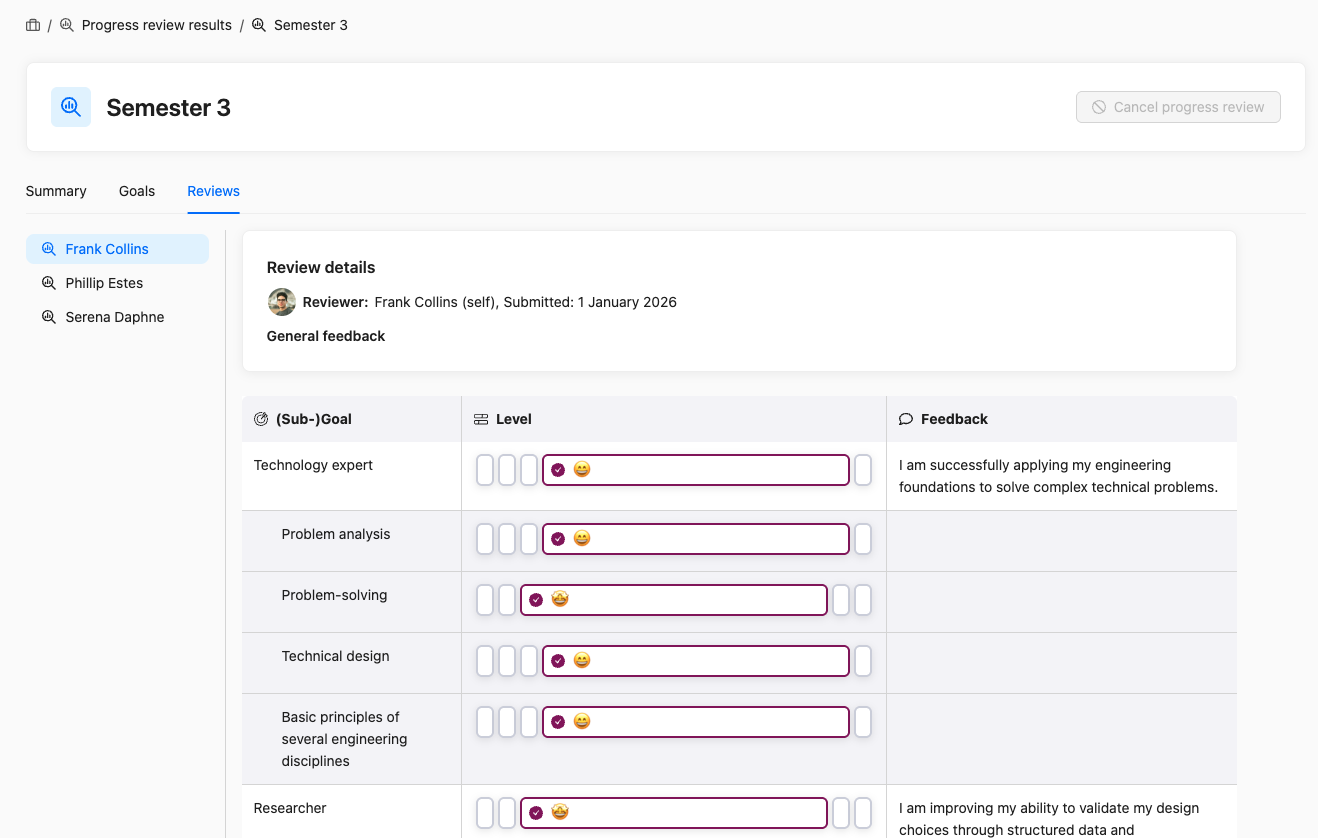
Click the Progress Review you are interested in. A window opens with the following tabs:
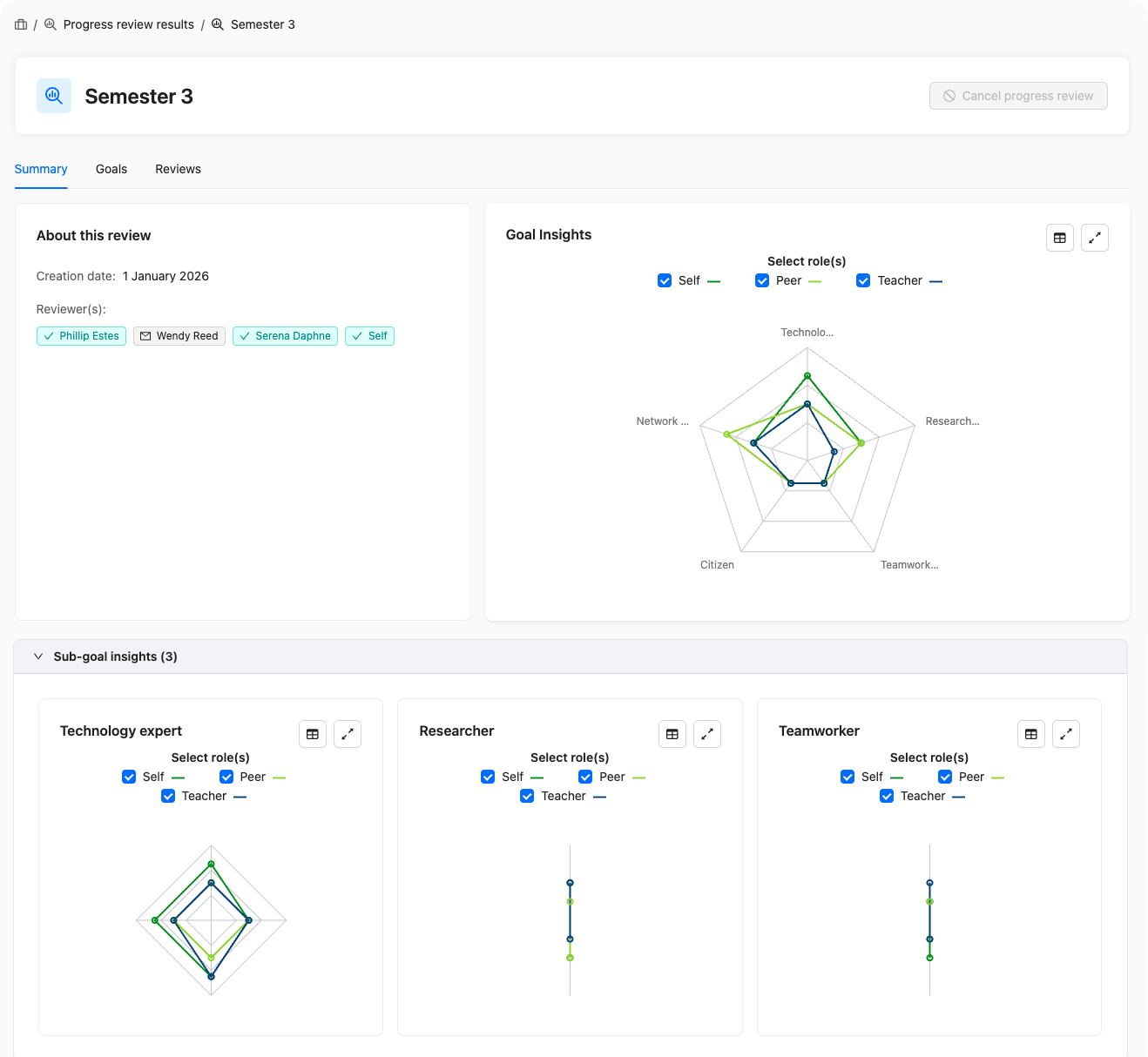
Summary: Here you can view the details related to your Progress Review. If you chose a Review with levels, you will see a spider diagram with Goal insights. If Sub-goals were reviewed as well, you will see a chart at the bottom for each goal that has Sub-goals.
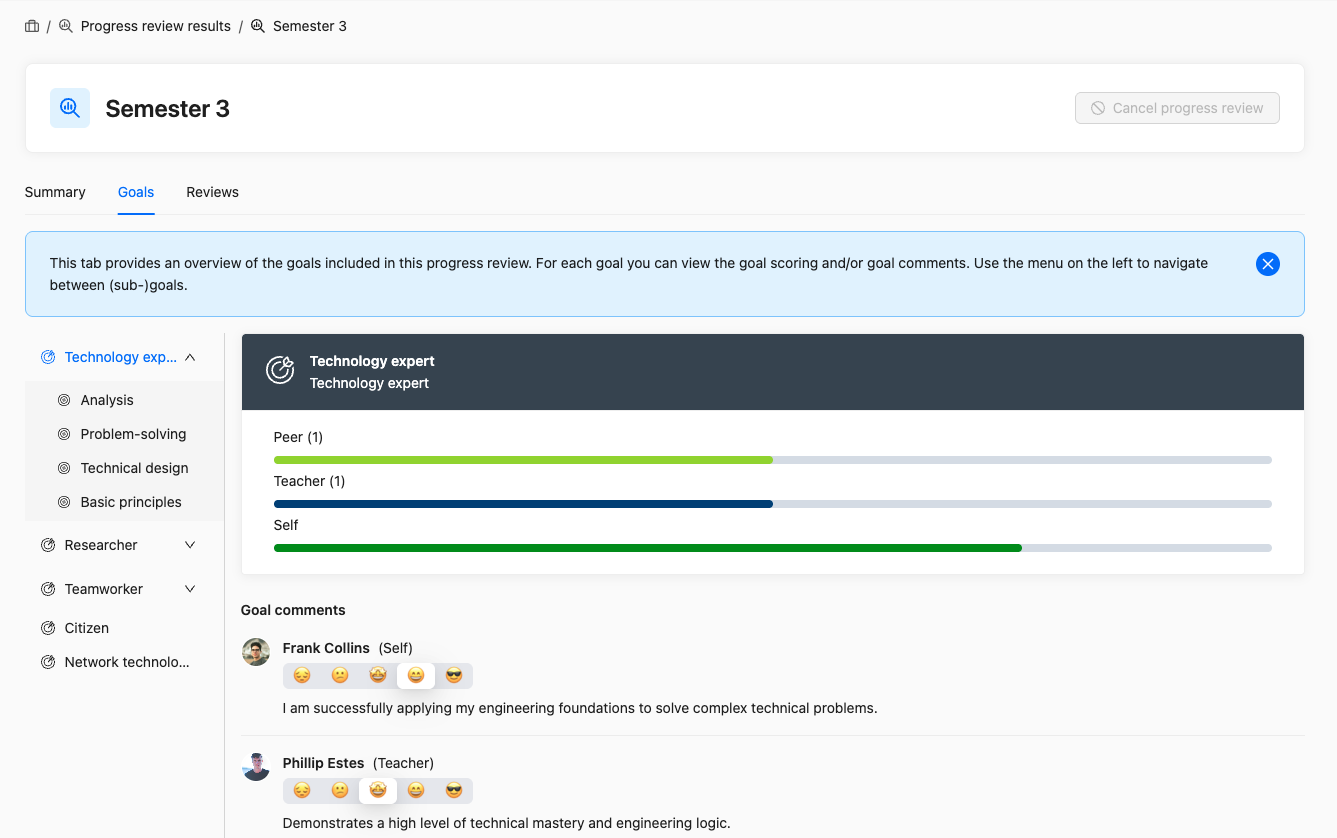
Goals: A summary of all selected Goals and associated Feedback. If you have chosen a Review with levels, you will see a bar graph for each role showing the average of their scores. If you expand the Goal in the menu on the left, you will see its Sub-goals. If you click on a Goal or Sub-goal, you will see the Reviews for that (Sub-)goal.
Reviews: For each invitee, you can see the rubric they submitted for this Review request.
How to view results of multiple Progress Reviews?
Of multiple Goals, at this moment
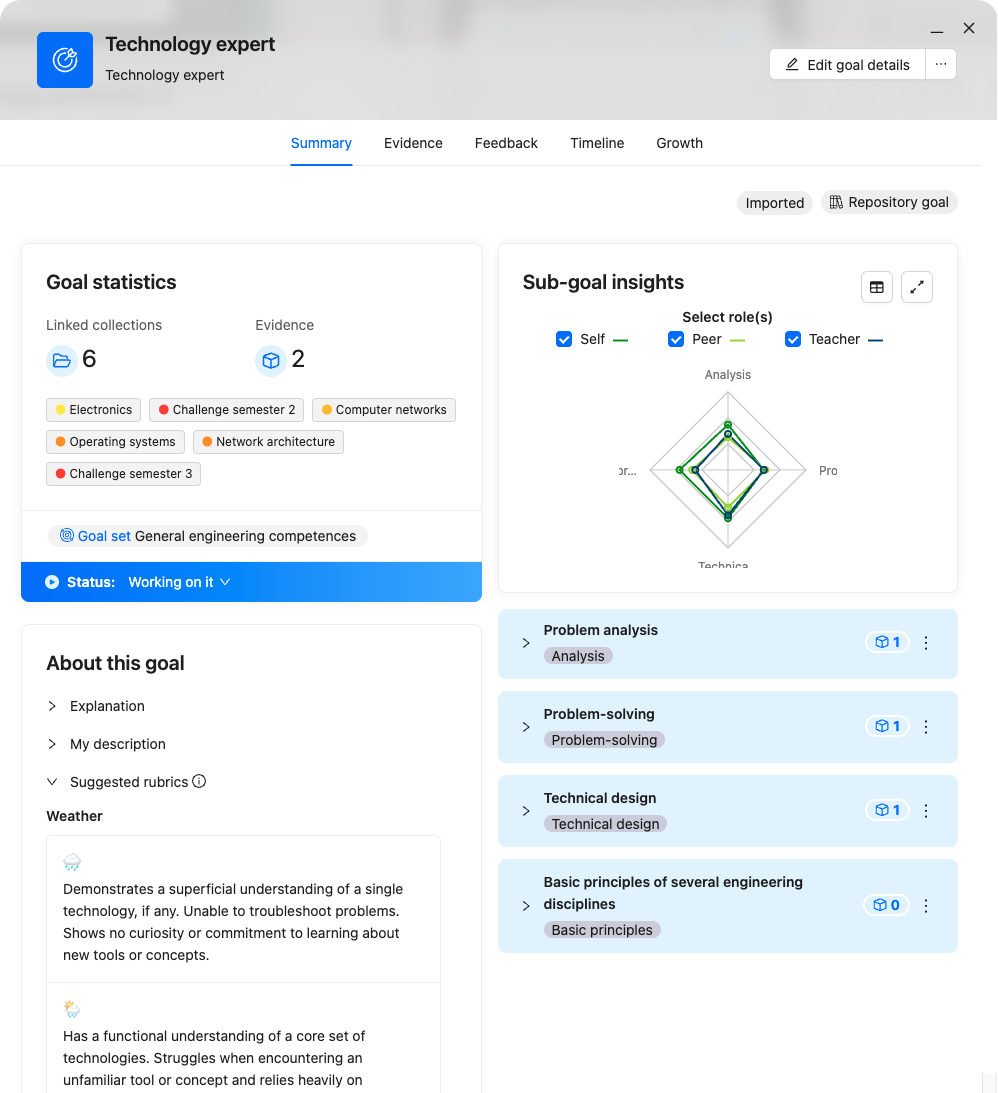
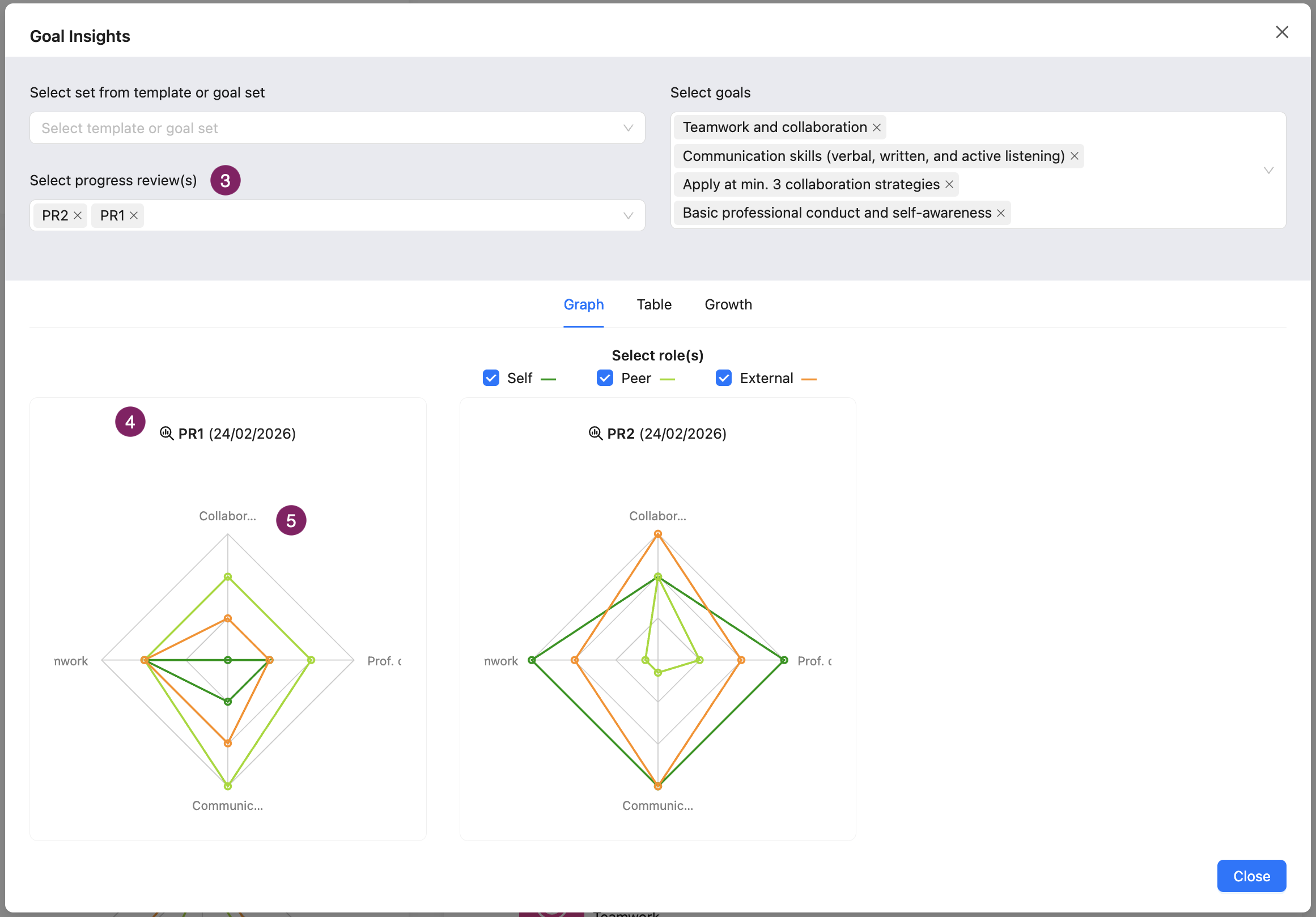
With a spider graph you can see the average rating per role, on a set of Goals
You can create a spider graph of the rating on a selection of Goals. You can build this spider diagram by scrolling on the 'Progress' tab to 'Goal insights'. Individually select Goals in the drop-down to create a spider graph, or select an entire Template/Goal Set.
Results in a spider graph are based on a weighted average: the last rating weighs 65% and the average of the previous results weighs 35%.
Note: Sub-goals are not shown in this summary
Of multiple Sub-goals of a Goal, at this moment
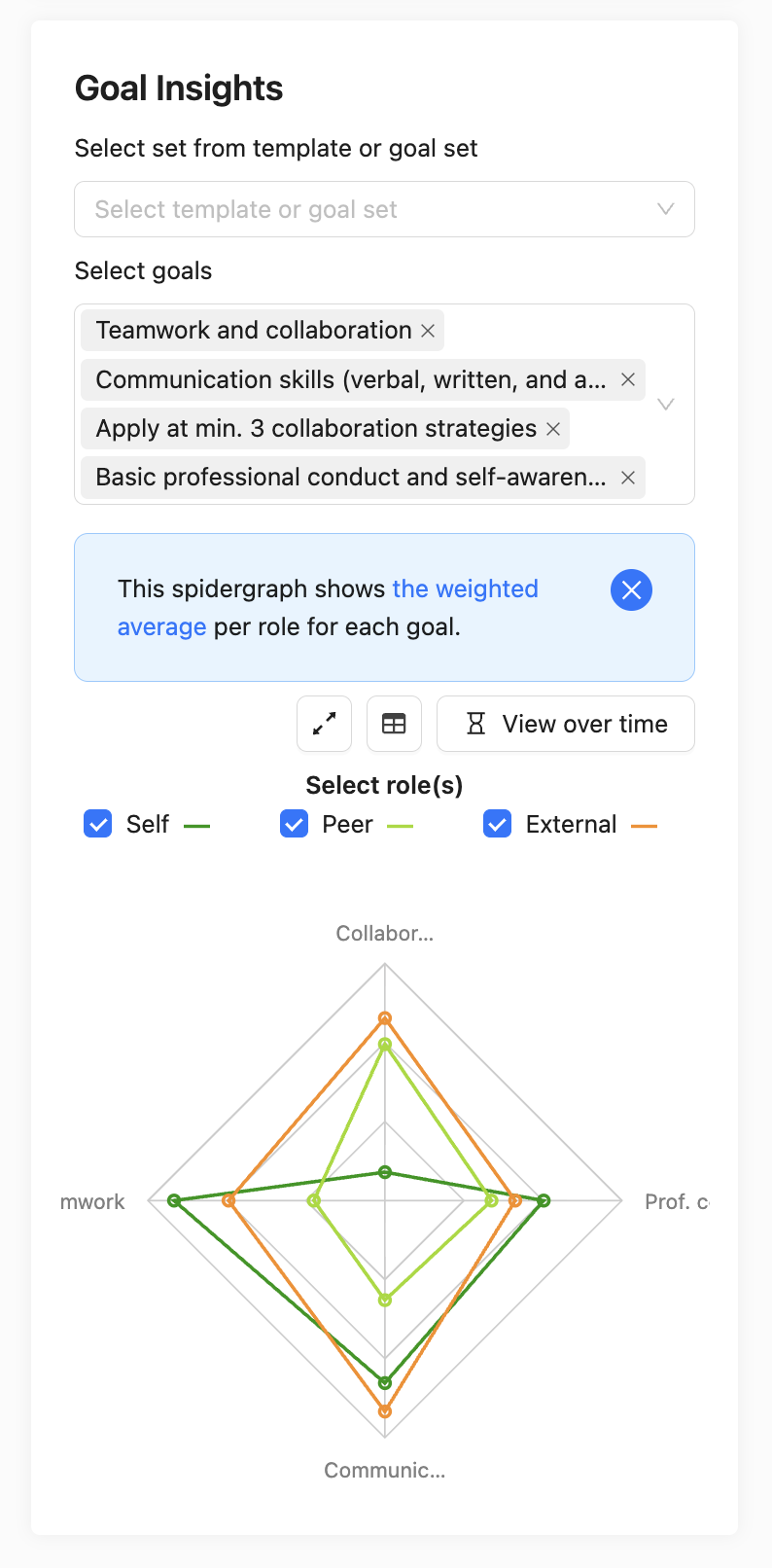
On the Goal card, you can view the weighted average of Progress Reviews on Sub-goals.
You can create a spider graph of the quantitative Progress Review of the Sub-goals. This spider graph is displayed on the Goal card.
Of multiple Goals, over time
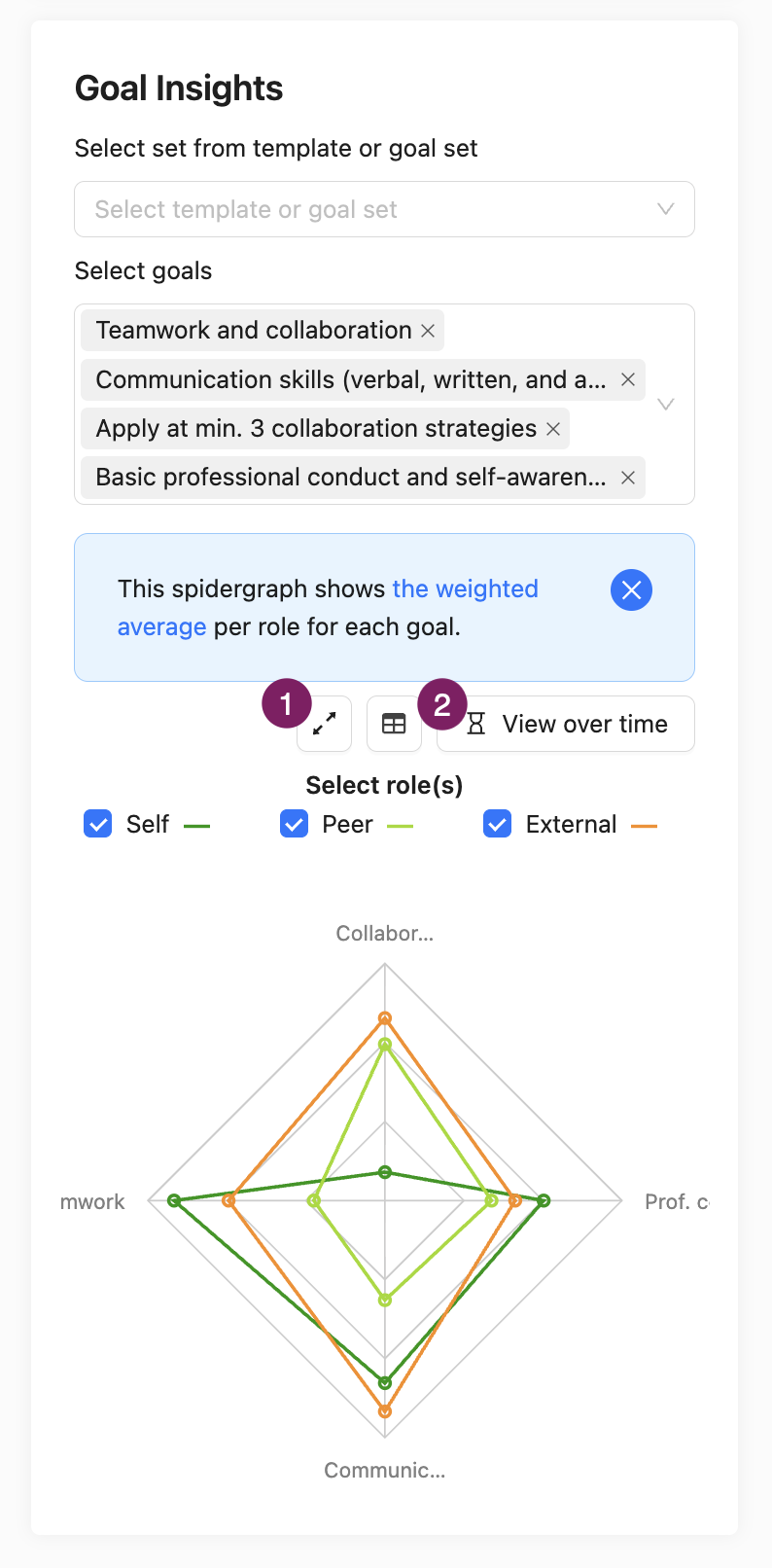
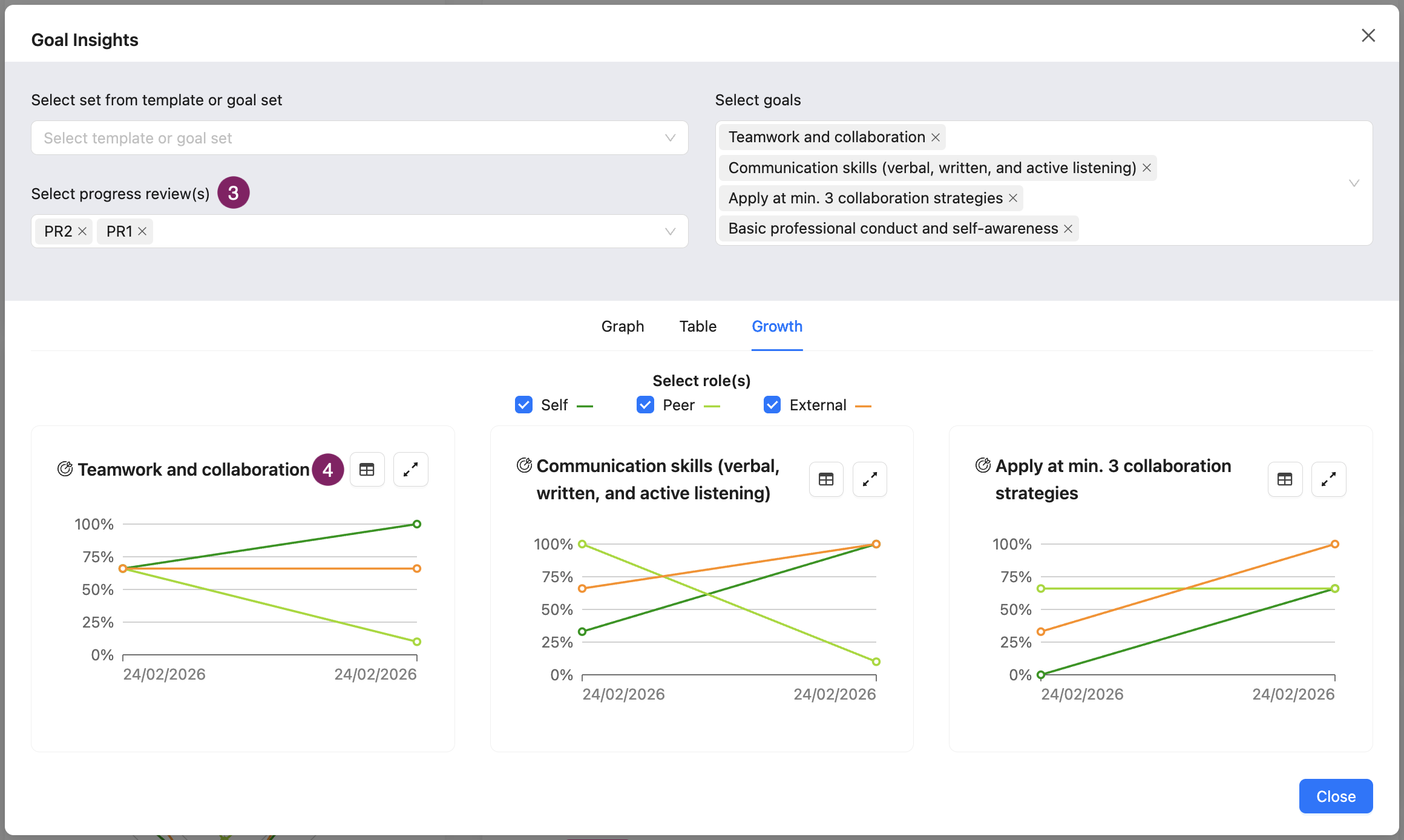
The 'Progress over time' view allows you to see progress as reviewed by multiple roles on multiple Goals over time.
From the left-hand sidebar under ‘Goals & Progress’, you can click on the expand icon (1) or the hourglass icon (2). This opens the full-size version of the graphs.
From here, you can select the desired Progress Reviews at the top (3). After selecting multiple Goals and multiple Progress Reviews, you will see a grid with a spider web for each Review (top), or a grid with a growth chart for each Goal (bottom). You can click on the Progress Review titles (4) or Goal names (5) to view more information about them.
Each point on the growth chart represents the moment when the Progress Review was created. This means that the various results from different roles from same Review are grouped together.
Of 1 Goal, over time
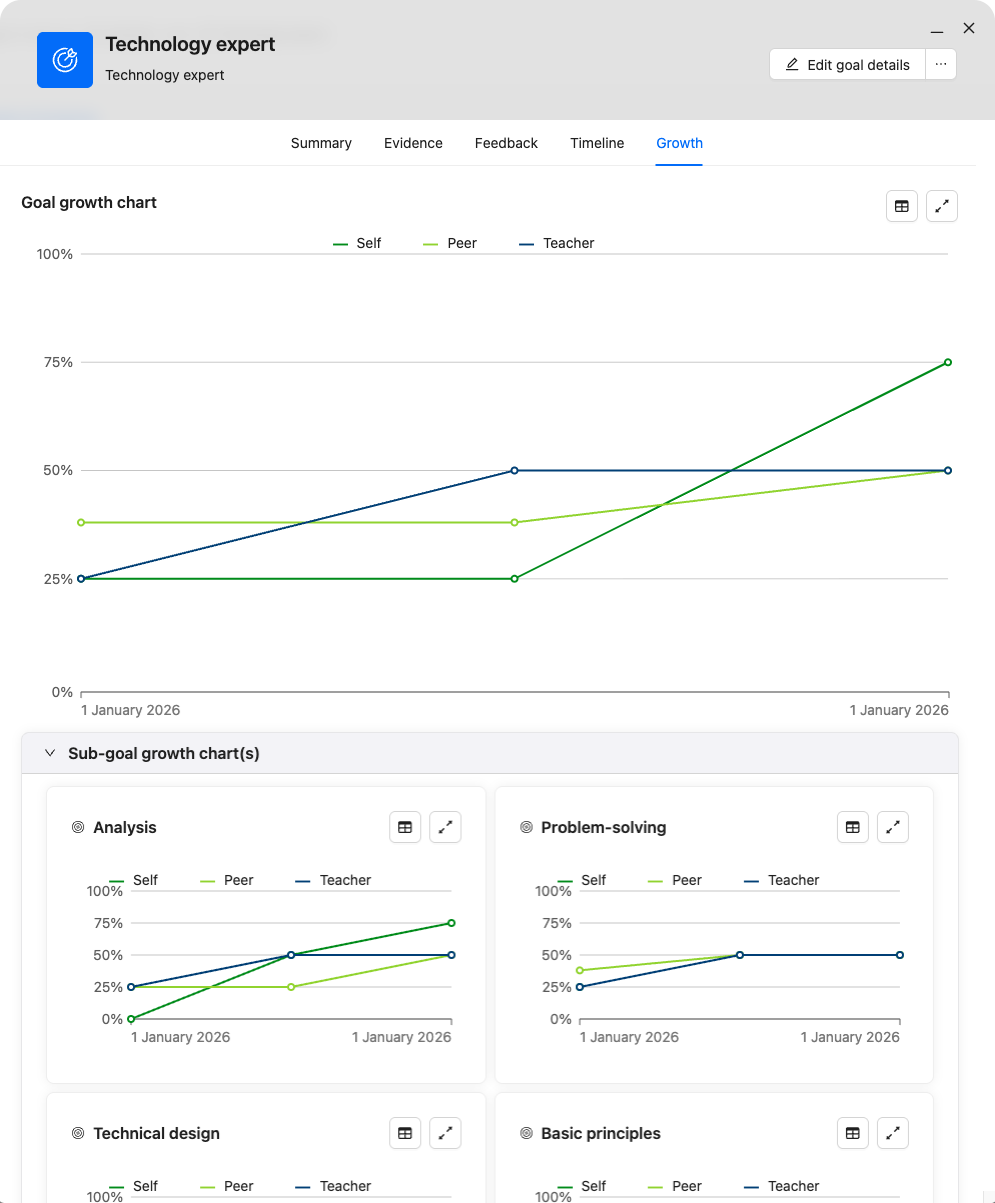
With a growth chart, you view the Progress Review result by role, by Goal over time.
You can view a growth chart in the Goal card. You can deselect roles by clicking on the name in the legend if you want to organise the graph.
If the Goal has Sub-goals, you can display graphs of Sub-goal insights at the bottom. The Sub-goal rating has no relation to the main Goal rating.