Import a Template
Last updated: September 18, 2026
Summary
Teachers can create Templates to help learners build and organise their Portfolio in Portflow (see 📄 Templates). A teacher can share this Template with learners using a code or via a notification. After import, the learners can adopt the Template to match their personal learning journey. Modifications can be reviewed at any time. Templates are 'stackable': Learners can import multiple Templates into their Portfolio.
How to import and adapt a Template?
As a learner, you can import a Template on the Portflow home page in the Collections tab using a Template Code provided by your Teacher or from a Notification.
Note: If you have received a suggested Template via a Notification, you can click the link in that Notification (in the Notification Centre) and skip steps 1-3 below:
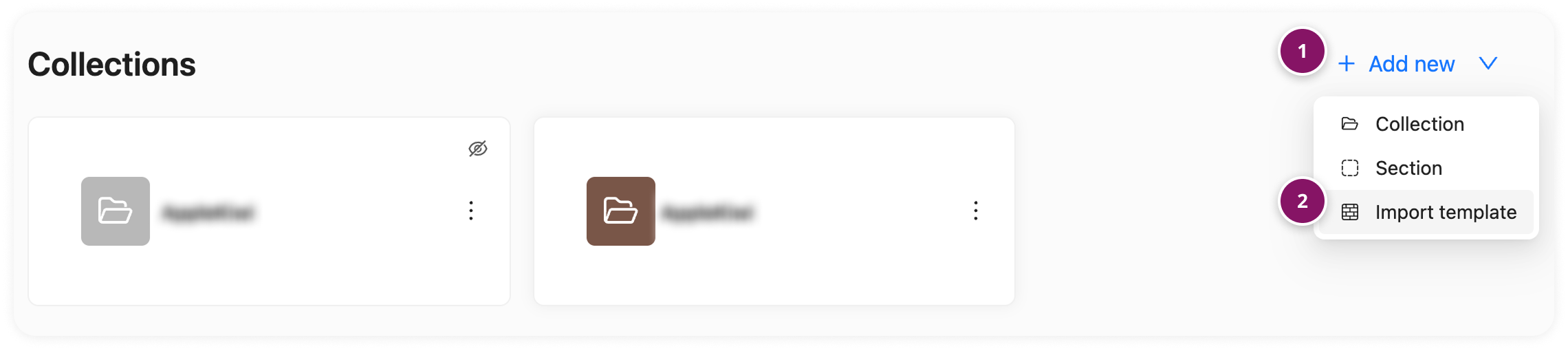
Click + Add new
Select Import template
Enter the Template code (3) provided by your teacher.
You'll now see more information about the template:
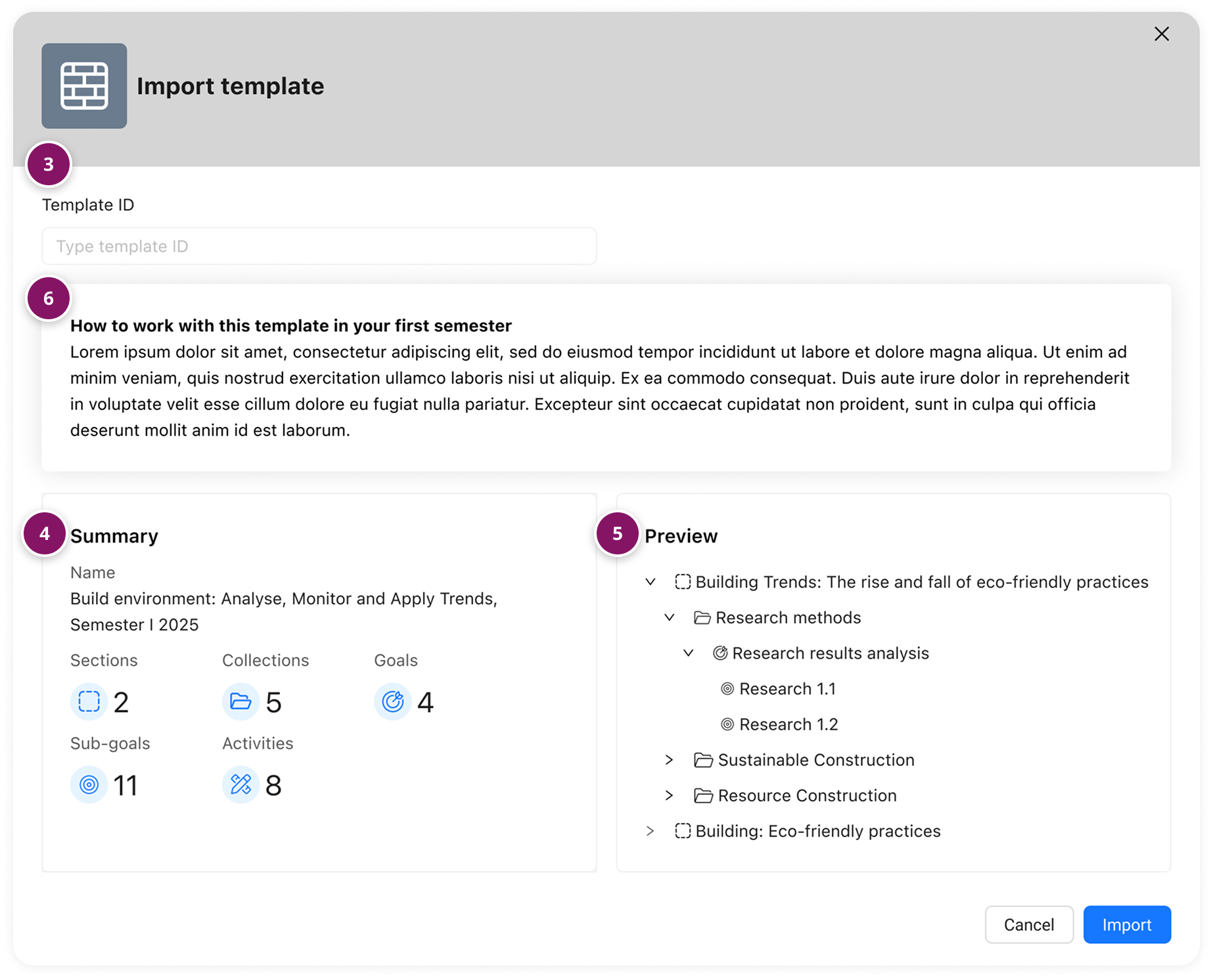
A Summary with the number of Sections, Collections, Goals, Sub-Goals and Activities (4)
A Preview of the Template content and structure (5)
An explanation with guidance/description on how to use the template (6)
To start using the Template, click Import.
The Template is now being imported. The content will be added on top of your existing Collections and Goals.
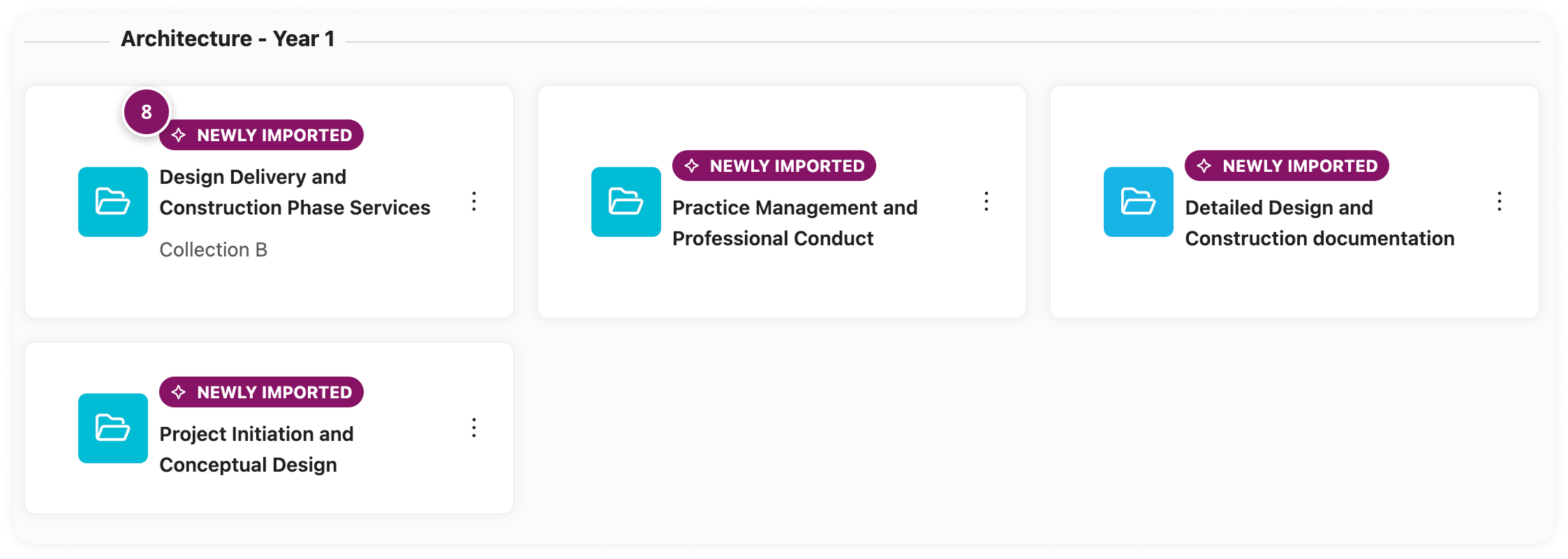
Newly added content (Collections, Goals) will be marked with a ‘Newly Imported’ tag (8) for 24 hours to help you easily find what has been imported.
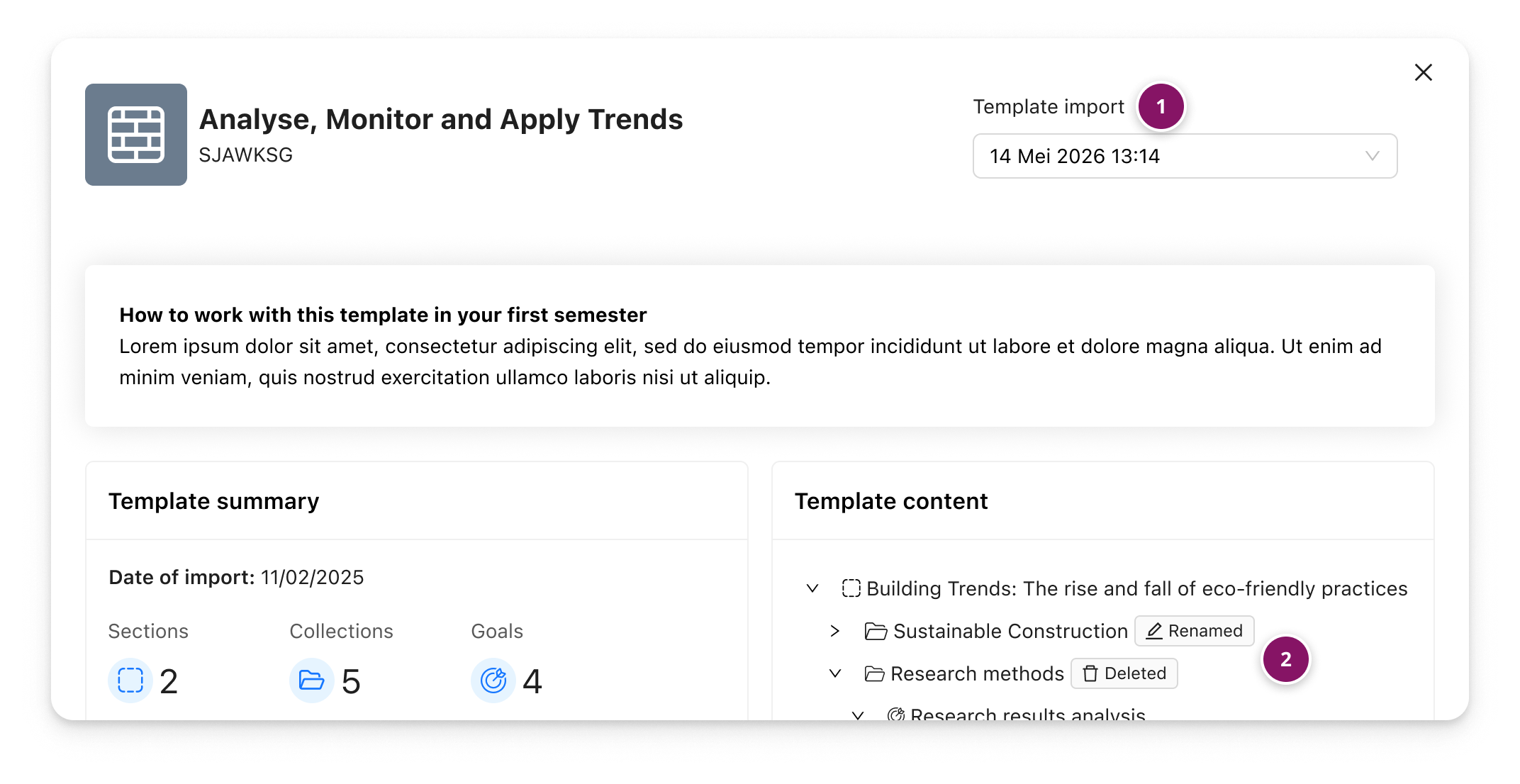
Note: After importing a Template, you can adopt/customise the imported content to match your personal learning journey (except for Repository Goals). To view details about a Template you've previously imported, you can click the ‘Imported’ tag (1) shown on any imported component. This will open the original Template information panel for easy reference.
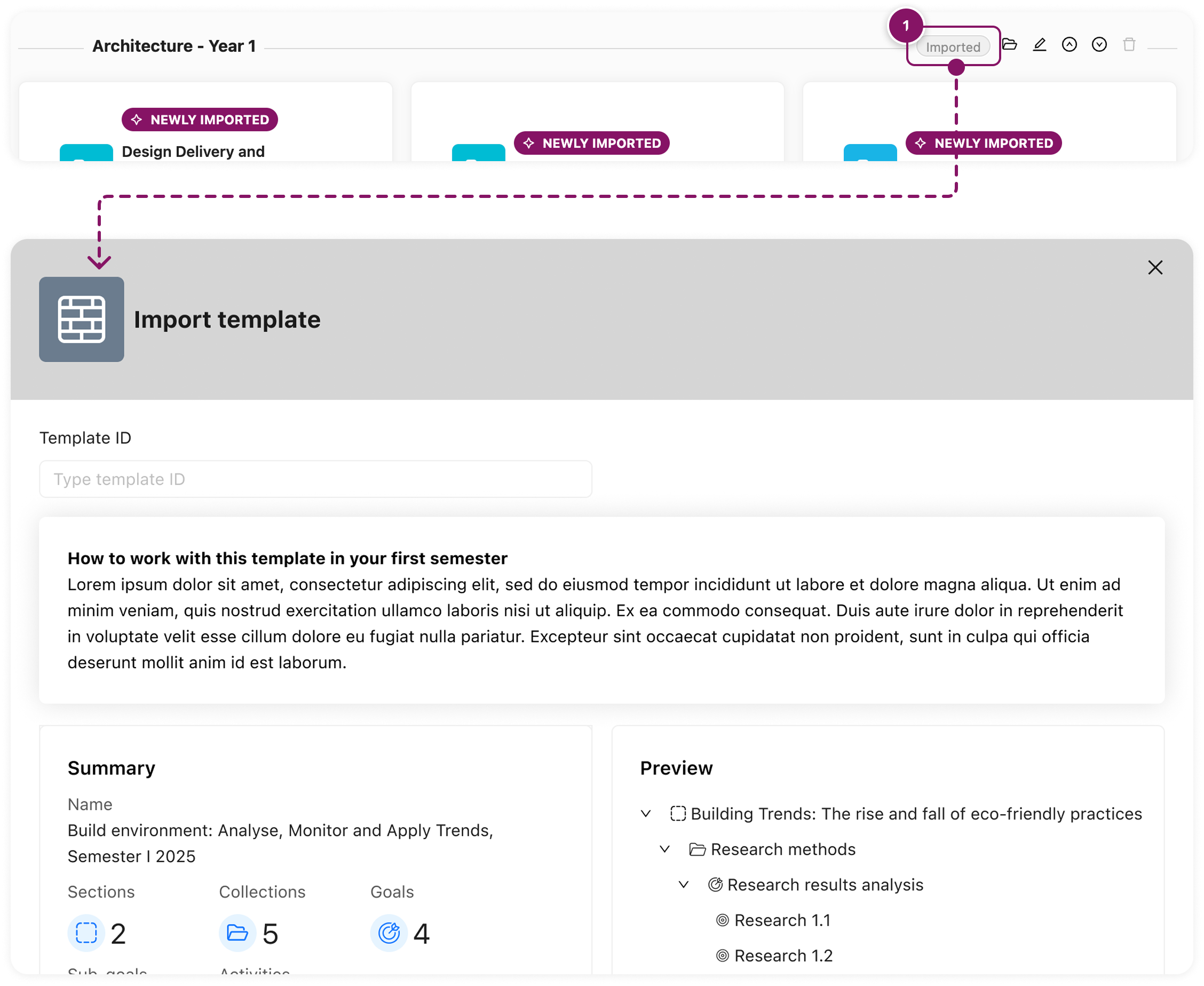
How to re-import a previously imported Template?
If a teacher makes changes to a Template, these will not automatically be applied to the learner Portfolios. Updates can be done manually by learners themselves, or learners can re-import a previously imported Template using the same Code. If the Template has been updated in the time between original import and re-import, the following will happen:
Changes to existing components (e.g. name updates or revised descriptions) will not be reflected after re-import.
Changes to Repository Goals (marked with an asterisk*) will be applied on re-import
New components (e.g. Activities, Collections, Goals) and relations of this new element to existing elements will be added to the learner’s portfolio.
Deleted components from the updated Template will not be removed from the learner’s portfolio.
If a learner has renamed components, and added Evidences and Feedback, these will not be impacted by a re-import. If a learner has deleted components and then re-imports the Template, the component will be re-created.
How to view learner modifications to the imported Template?
On clicking the ‘Imported’ tag on an imported component, you can view the changes that have been made by the learner (portfolio owner). You can use the drop-down to view previous imports (1). If you navigate to this modal from a Repository Goal, you will be able to select all previous Template imports that this Repository Goal was part of.
Additionally, a tag ‘Deleted’ or 'Renamed' is included with a Template element that has been deleted or renamed since the import (2).