Submit Portfolio Snapshot in the LMS
Last updated: July 30, 2026
Summary
A Snapshot of your Portfolio can be submitted in an assignment in an LMS (Learning Management System) course. A teacher or coach can specify when and where the Snapshot should be submitted, and what should be included in the Snapshot, see 📄 Create a Portfolio Assignment in the LMS (for Assessment).
Applicable for | 🐼 |
Not applicable for | 🎓 |
How can I submit my Portfolio Snapshot in Canvas? 🐼Canvas
As a learner, create a Snapshot (see 📄 Create a Snapshot (Freeze a Portfolio))
Go to the course and assignment where you want to submit your Snapshot
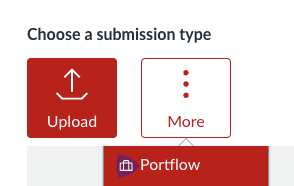
Click More, then select Portflow in the drop-down menu
Select the Snapshot you want to submit in this assignment
Click Submit assignment
How can I submit my Portfolio Snapshot in Brightspace? 🫎Brightspace
As a learner, create a Snapshot (see 📄 Create a Snapshot (Freeze a Portfolio))
Go to the course and assignment where you want to submit your Portfolio
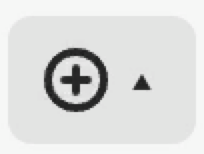
In the text box, click on the icon for 'Insert Stuff':

Select Portflow
Select the Snapshot you want to submit in this assignment
Click Insert and then Submit.
How can I submit my Portfolio Snapshot in Blackboard? 🧑🏫Blackboard
As a learner, create a Snapshot (see 📄 Create a Snapshot (Freeze a Portfolio))
Go to the course and assignment where you want to submit your portfolio
In the text box toolbar, click on the icon for ‘Insert Content'
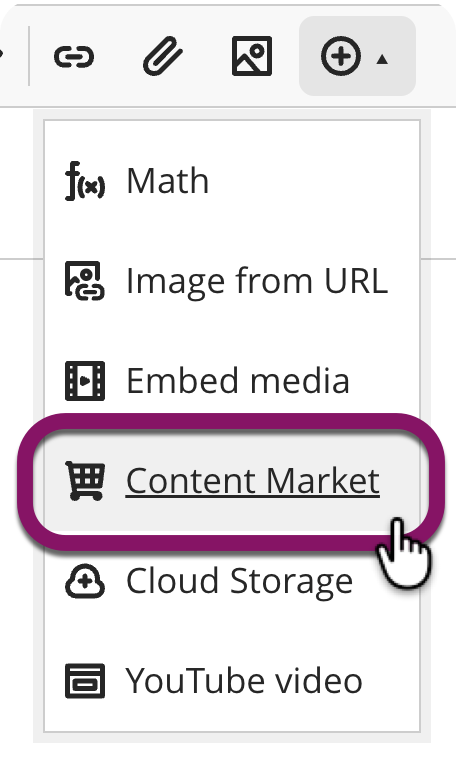
Select Content market
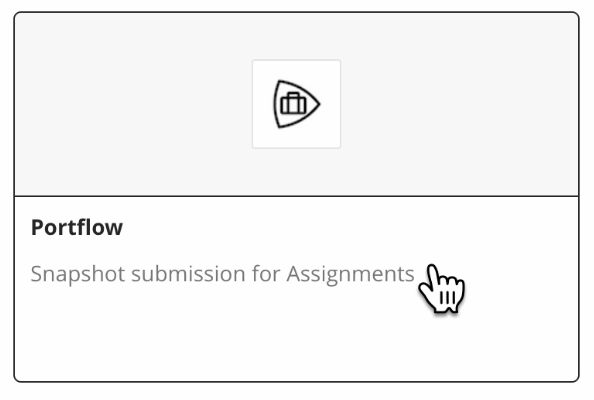
Select Portflow.
Select the Snapshot you want to submit in this assignment
Optionally provide a ‘Display name’.
Click Insert and then Submit.
How can I submit my Portfolio Snapshot in Moodle? 🎓Moodle
As a learner, create a Snapshot (see 📄 Create a Snapshot (Freeze a Portfolio))
Follow the steps in the article 📄 Public links to Snapshots to create an assessment link to your Snapshot. Submit this link in an assignment in Moodle.