Public links to Snapshots
Last updated: July 30, 2026
Summary
A Public Link allows someone outside the LMS (Learning Management System) to view the Snapshot (frozen version of the Portfolio), see 📄 Create a Snapshot (Freeze a Portfolio).
Applicable for | 🐼 |
Not applicable for | — |
Which public links are available?
Two types of links can be created: an Assessment link and a Showcase link, see the differences in the table below.
If you want to submit your Portfolio through the LMS, you don't need to create a public link. Read the article about LMS submissions to learn how to submit your Portfolio in the LMS:📄 Submit Portfolio in the LMS
Assessment link | Showcase link |
✓ All versions of the Evidence | ◐ Latest version of Evidence only |
✓Comments and Feedback visible | X Comments and Feedback not visible |
X Link cannot be retracted | ✓ Link can be retracted |
◐ Secured with password | ✓ Freely accessible |
✓Goals visible | X Goals not visible |
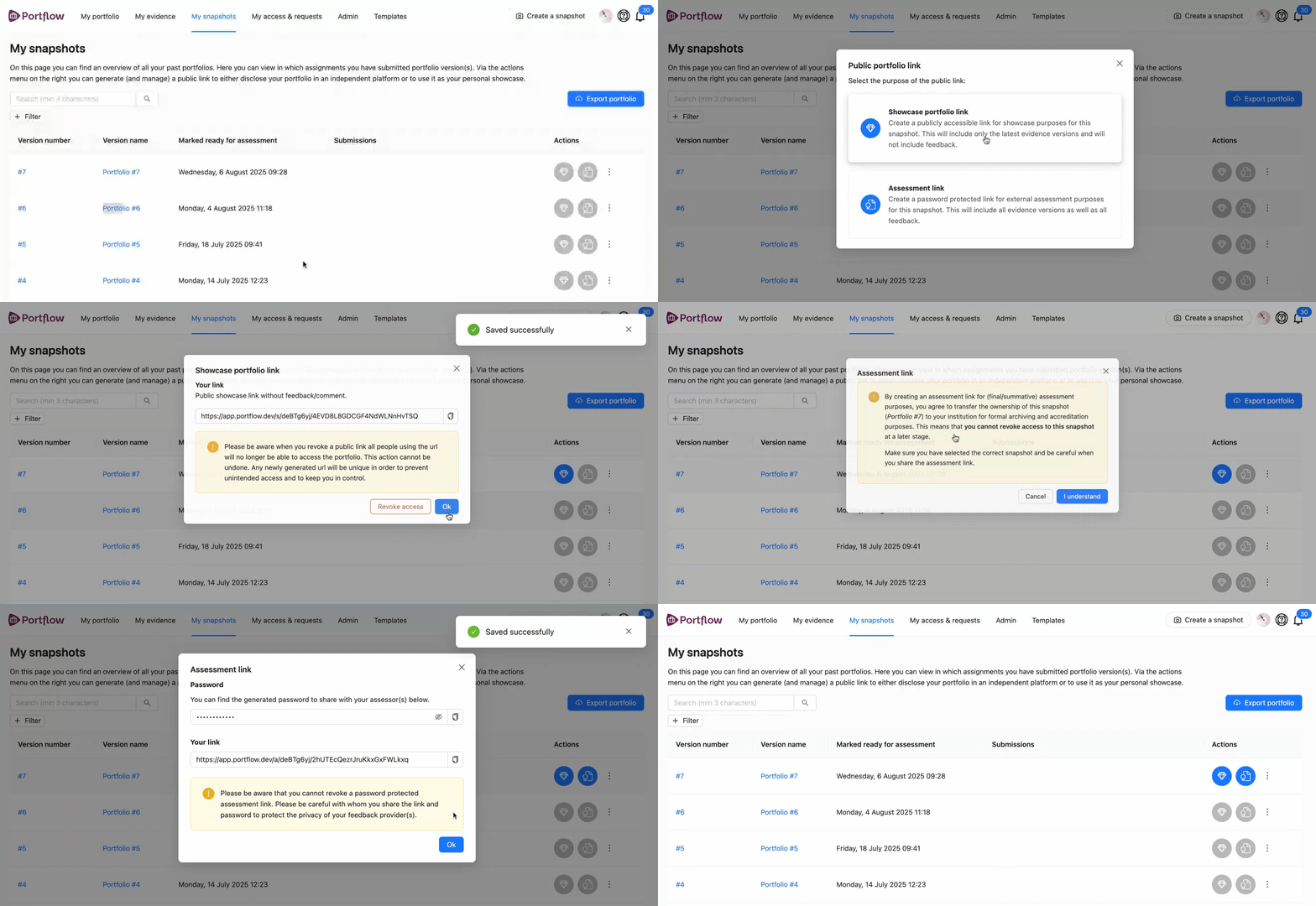
How to create a public link?
Make sure you have created a Snapshot of your Portfolio: 📄 Create a Snapshot (Freeze a Portfolio)
Go to the 'My Snapshots' page
Click on the three dots (⋮) on the Snapshot you want to share
Click on ‘Generate shareable link’
Choose a 'Showcase link' or 'Assessment link'
Copy the link (and password) of the Snapshot so that you can share it
Click on ‘OK’ to close the modal.
Once the link is generated, the icon under 'actions' will turn blue in color. Clicking the active icon will allow you to retrieve the link (and password).