Portflow Installation on Canvas (Instructure)
Last updated: October 27, 2026
Note
This installation manual assumes an institute-wide installation. If an installation on subaccount level is preferred, additional assistance from Drieam is recommended.
Before you start: make sure you have root account admin access.
1. Install app
🇦🇺 for Australian-hosted Portflow, please refer to the “former installation methods” at the end of this manual or edit the installation in the wizard described in this step by replacing app.portflow.app with au.portflow.app throughout the installation.
Go to Admin (root account) → [root account name] → Apps
Search, find, and open Portflow
Click Install
Walk through the steps by clicking Next;
All settings are preconfigured, so there is no need to change anything
Complete the installation by clicking Install App in the final step
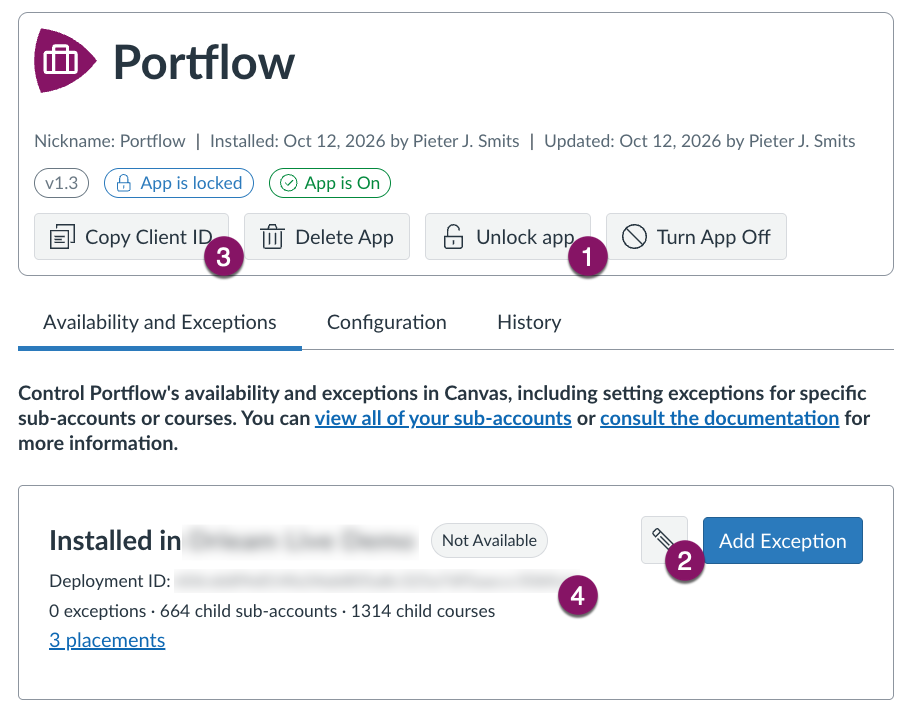
Click Unlock app (1) and confirm by clicking Unlock
Click the Pencil icon (2) and change the availability to Available and click Save
Communicate the Client ID (3) and the Deployment ID (4) with Drieam
2. Add API key
Go to Admin (root account) → [root account name] → Developer Keys
Open the Inherited tab
Click Show all keys at the bottom of the page to load all keys
Find Portflow
Enable the API key for your region:
🇪🇺 EU Hosting
Inherited API key with ID170000000002281🇦🇺 AU Hosting
Inherited API key with ID170000000002279
Make sure to never delete these keys as they are crucial for the Portflow installation.
3. Add service user & role
Portflow utilises a service user that is leveraging the rich Canvas API to provide a seamless integration. This user is used to i.a. send notifications in the Canvas Inbox and to allow users to search for other Canvas users to share their portfolio with.
Go to Admin (root account) → [root account name] → Permissions → Account roles
Add Role
Name: Portflow Admin
Grant the following permissions:
Users - view list
Users - view primary email address
SIS Data - read
Add a new user (person) to the account (e.g. [institution name] Portflow) - name is used to send notifications from.
N.b.Make sure to set SIS-ID, login, password and use a non-existent e-mail address (e.g.portfolio-admin@drieam.de) to prevent unintended merging of existing Canvas-accounts. E-mail address is required by Canvas, but will not be used.Add that new person with the created admin role Portflow Admin to the account (Admin (root account) → [root account name] → Settings → Admins).
In case of sub-account installation, add the person to the intended sub-account only and communicate the sub-account id with Drieam.
Make sure to never delete this user account, the account role or the assignment of the role.
4. Send required details to Drieam
After completion of the installation according to the steps 1-3 above, you can send the information (preferably securely) to support@portflow.app.
LTI developer key (step 1)
Public key
API developer key (step 1)
Indicate whether inherited or manual
Public key (if it is not the inherited key)
Secret key (if it is not the inherited key)
Deployment ID (step 2)
Deployment ID
Default and secondary language(s) of your institution (see below).
URL (vanity url) of the Canvas instance - the URL regular users use Canvas on.
In case of sub-account installation (instead of root-account): sub-account ID (from URL).
🌐 Available languages in Portflow
The default language for Portflow has to be set by Drieam. This is the language that will be shown to users who have their Canvas account set to any language other than the supported languages. Let Drieam know what your primary (default) language and secondary language(s) should be. This cannot be changed.
Portflow currently supports the following languages:
English
Dutch (Nederlands)
French (Français)
German (Deutsch)
Irish (Gaeilge)
Italian (Italianio)
Spanish (Español)
5. Authorise service user
Once Drieam has completed the installation, you can proceed to authorise the service user in Portflow:
Log in to your Canvas environment (use [vanity url]/login/canvas if normally using SSO) with the created credentials in step 3.
Go to Portflow → Admin → LMS and click the Authorise button.
Note: if you had given the Portflow Admin account on sub-account level on step 3c, you first need to temporarily give them any root-account admin role, so that they can view this button. After authorizing, you can remove this root account role for this user account again.
🥳 You have completed your installation!
Sub-account theme
In case Portflow is not to be available to everyone, but only for users within a specific subaccount, create a new theme in that subaccount with the custom js snippet from Drieam (see below).
For sub-account installation: replace [accountId] with the sub-account ID (step 2) and [toolId] with the number before the colon (:) from the Deployment ID (step 2).
JavaScript
/*Drieam Portfolio Theme - pjsmits*/

(() => {
  const menu = document.getElementById("menu");

  if (!menu) {
    return;
  }

  const historyLink = document.getElementById("global_nav_history_link");
//Rename account id and external id
  const menuItem = document.createElement("li");
  menuItem.className =
    "globalNavExternalTool menu-item ic-app-header__menu-list-item";
  menuItem.innerHTML = `
    <a class="ic-app-header__menu-list-link" href="/accounts/[accountId]/external_tools/[toolId]?launch_type=global_navigation">
            <svg version="1.1" class="ic-icon-svg ic-icon-svg--lti menu-item__icon" xmlns="http://www.w3.org/2000/svg" xmlns:xlink="http://www.w3.org/1999/xlink" viewBox="0 0 64 64">
                    <path d="M50.925 52.497c1.213 0 2.244-.427 3.094-1.28.849-.855 1.273-1.892 1.273-3.112V24.68c0-1.22-.424-2.258-1.273-3.112-.85-.854-1.88-1.28-3.094-1.28h-7.279v-4.393c0-1.22-.424-2.257-1.274-3.111-.849-.854-1.88-1.281-3.093-1.281H24.72c-1.213 0-2.244.427-3.093 1.28-.85.855-1.274 1.892-1.274 3.112v4.392h-7.28c-1.212 0-2.243.427-3.093 1.281-.849.854-1.273 1.891-1.273 3.112v23.425c0 1.22.424 2.257 1.273 3.111.85.854 1.88 1.281 3.094 1.281zM39.28 20.287H24.72v-4.392H39.28zM20.354 48.105h-7.28V24.68h7.28zm18.925 0H24.72V24.68H39.28zm11.646 0h-7.279V24.68h7.28z"></path>
                    </svg>
        <div class="menu-item__text">
            Portflow
        </div>
        </a>
    `;

  if (historyLink && historyLink.parentNode.parentNode.id === "menu") {
    menu.insertBefore(menuItem, historyLink.parentNode);
  } else {
    menu.appendChild(menuItem);
  }

})();
Former installation methods
For reference, the former installation methods are listed below. These are no longer recommended ways to install Portflow in Canvas.
1. Add developer keys
LTI
Key Name: Portflow
Owner: Admin email
Used to identify who has created the key for internal purposes.Redirect URI:
🇪🇺 EU Hostinghttps://app.portflow.app/lti/launches
🇦🇺 AU Hostinghttps://au.portflow.app/lti/launchesMethod: Paste JSON (see below)
In case availability on sub-account level only is desired, Drieam assistance is required to get help adding the Portflow to the global navigation.
API (via inherited API key)
Click the Inherited tab
Click Show all keys at the bottom of the page to load all keys
Find Portflow
Enable the API key for your region:
🇪🇺 EU Hosting
Inherited API key with ID170000000002281🇦🇺 AU Hosting
Inherited API key with ID170000000002279
API (manual - deprecated)
This method is no longer supported. Please use the Inherited API Key method above
Click the Account tab
Create a new API key
Key Name: Portflow
Owner: Admin email
Redirect URIs:
🇪🇺 EU Hostinghttps://app.portflow.app/lti/oauth2/callbackhttps://app.portflow.app/admin/oauth2/callback
🇦🇺 AU Hostinghttps://au.portflow.app/lti/oauth2/callbackhttps://au.portflow.app/admin/oauth2/callbackAdd the application icon url:
🇪🇺 EU Hostinghttps://app.portflow.app/favicon.svg
🇦🇺 AU Hostinghttps://au.portflow.app/favicon.svgToggle 'enforce scopes' to 'on' and enable the following scopes:
url:GET|/api/v1/courses/:course_id/assignments
url:GET|/api/v1/courses/:course_id/assignments/:id
url:POST|/api/v1/conversations
url:GET|/api/v1/courses
url:GET|/api/v1/courses/:id
url:GET|/api/v1/courses/:course_id/users
url:GET|/files/:file_id/download
url:GET|/api/v1/files/:id
url:GET|/api/v1/courses/:course_id/sections
url:GET|/api/v1/courses/:course_id/sections/:id
url:GET|/api/v1/courses/:course_id/assignments/:assignment_id/submissions/:user_id
url:GET|/api/v1/courses/:course_id/modules
url:GET|/api/v1/accounts/:account_id/users
url:GET|/api/v1/users/:id
url:GET|/api/v1/users/:id/graded_submissions
LTI Key JSON (🇪🇺 EU hosting)
{
  "title": "Portflow",
  "description": "Portflow is an LTI application that allows students to collect evidence and receive feedback on their portfolio.",
  "scopes": [
    "https://purl.imsglobal.org/spec/lti-nrps/scope/contextmembership.readonly"
  ],
  "oidc_initiation_url": "https://app.portflow.app/lti/open_id",
  "target_link_uri": "https://app.portflow.app/lti/launches",
  "public_jwk_url": "https://app.portflow.app/lti/keypairs",
  "extensions": [
    {
      "platform": "canvas.instructure.com",
      "tool_id": "com.drieam.portfoliolti",
      "privacy_level": "name_only",
      "settings": {
        "icon_url": "https://app.portflow.app/favicon.svg",
        "placements": [
          {
            "placement": "global_navigation",
            "message_type": "LtiResourceLinkRequest",
            "enabled": true,
            "icon_url": "https://app.portflow.app/portfoliolti_global_nav_icon.svg",
            "icon_svg_path_64": "M50.925 52.497c1.213 0 2.244-.427 3.094-1.28.849-.855 1.273-1.892 1.273-3.112V24.68c0-1.22-.424-2.258-1.273-3.112-.85-.854-1.88-1.28-3.094-1.28h-7.279v-4.393c0-1.22-.424-2.257-1.274-3.111-.849-.854-1.88-1.281-3.093-1.281H24.72c-1.213 0-2.244.427-3.093 1.28-.85.855-1.274 1.892-1.274 3.112v4.392h-7.28c-1.212 0-2.243.427-3.093 1.281-.849.854-1.273 1.891-1.273 3.112v23.425c0 1.22.424 2.257 1.273 3.111.85.854 1.88 1.281 3.094 1.281zM39.28 20.287H24.72v-4.392H39.28zM20.354 48.105h-7.28V24.68h7.28zm18.925 0H24.72V24.68H39.28zm11.646 0h-7.279V24.68h7.28z",
            "display_type": "full_width",
            "visibility": "members"
          },
          {
            "placement": "homework_submission",
            "message_type": "LtiDeepLinkingRequest",
            "enabled": true,
            "icon_url": "https://app.portflow.app/favicon.svg"
          },
          {
            "placement": "course_navigation",
            "message_type": "LtiResourceLinkRequest",
            "enabled": true,
            "text": "Portflow",
            "icon_url": "https://app.portflow.app/favicon.svg",
            "display_type": "full_width_in_context",
            "default": "disabled",
            "visibility": "admins"
          }
        ]
      }
    }
  ],
  "custom_fields": {
    "canvas_assignment_id": "$Canvas.assignment.id",
    "canvas_assignment_title": "$Canvas.assignment.title",
    "canvas_course_id": "$Canvas.course.id",
    "canvas_course_name": "$Canvas.course.name",
    "canvas_user_id": "$Canvas.user.id",
    "canvas_user_is_root_account_admin": "$Canvas.user.isRootAccountAdmin",
    "canvas_user_pronouns": "$com.instructure.Person.pronouns",
    "person_display_name": "$Person.name.display",
    "user_email": "$Person.email.primary",
    "user_image": "$User.image",
    "user_sourced_id": "$Person.sourcedId"
  }
}
LTI Key JSON (🇦🇺 AU hosting)
{
  "title": "Portflow",
  "description": "Portflow is an LTI application that allows students to collect evidence and receive feedback on their portfolio.",
  "scopes": [
    "https://purl.imsglobal.org/spec/lti-nrps/scope/contextmembership.readonly"
  ],
  "oidc_initiation_url": "https://au.portflow.app/lti/open_id",
  "target_link_uri": "https://au.portflow.app/lti/launches",
  "public_jwk_url": "https://au.portflow.app/lti/keypairs",
  "extensions": [
    {
      "platform": "canvas.instructure.com",
      "tool_id": "com.drieam.portfoliolti",
      "privacy_level": "name_only",
      "settings": {
        "icon_url": "https://au.portflow.app/favicon.svg",
        "placements": [
          {
            "placement": "global_navigation",
            "message_type": "LtiResourceLinkRequest",
            "enabled": true,
            "icon_url": "https://au.portflow.app/portfoliolti_global_nav_icon.svg",
            "icon_svg_path_64": "M50.925 52.497c1.213 0 2.244-.427 3.094-1.28.849-.855 1.273-1.892 1.273-3.112V24.68c0-1.22-.424-2.258-1.273-3.112-.85-.854-1.88-1.28-3.094-1.28h-7.279v-4.393c0-1.22-.424-2.257-1.274-3.111-.849-.854-1.88-1.281-3.093-1.281H24.72c-1.213 0-2.244.427-3.093 1.28-.85.855-1.274 1.892-1.274 3.112v4.392h-7.28c-1.212 0-2.243.427-3.093 1.281-.849.854-1.273 1.891-1.273 3.112v23.425c0 1.22.424 2.257 1.273 3.111.85.854 1.88 1.281 3.094 1.281zM39.28 20.287H24.72v-4.392H39.28zM20.354 48.105h-7.28V24.68h7.28zm18.925 0H24.72V24.68H39.28zm11.646 0h-7.279V24.68h7.28z",
            "display_type": "full_width",
            "visibility": "members"
          },
          {
            "placement": "homework_submission",
            "message_type": "LtiDeepLinkingRequest",
            "enabled": true,
            "icon_url": "https://au.portflow.app/favicon.svg"
          },
          {
            "placement": "course_navigation",
            "message_type": "LtiResourceLinkRequest",
            "enabled": true,
            "text": "Portflow",
            "icon_url": "https://au.portflow.app/favicon.svg",
            "display_type": "full_width_in_context",
            "default": "disabled",
            "visibility": "admins"
          }
        ]
      }
    }
  ],
  "custom_fields": {
    "canvas_assignment_id": "$Canvas.assignment.id",
    "canvas_assignment_title": "$Canvas.assignment.title",
    "canvas_course_id": "$Canvas.course.id",
    "canvas_course_name": "$Canvas.course.name",
    "canvas_user_id": "$Canvas.user.id",
    "canvas_user_is_root_account_admin": "$Canvas.user.isRootAccountAdmin",
    "canvas_user_pronouns": "$com.instructure.Person.pronouns",
    "person_display_name": "$Person.name.display",
    "user_email": "$Person.email.primary",
    "user_image": "$User.image",
    "user_sourced_id": "$Person.sourcedId"
  }
}
2. Add app
Via Client ID in App Configurations (deprecated, not recommended)
Go to Admin (root account) → [root account name] → Settings → Apps
In case of installation on sub-account (testing, limited access), add the app on the sub-account instead of the root account and note the sub-account ID (from the URL).
Click View app configurations
Click + Add App
Type: by Client ID
Client ID: LTI developer key (just created in step 1)
Click Submit
Communicate Deployment ID with Drieam
(Click the cog/gear icon ⚙ behind Portflow and select Deployment ID)