Portflow Installation on Blackboard
Last updated: October 23, 2026
To install Portflow on your Blackboard instance, follow the steps below.
Installation
I. Add an LTI Tool Provider
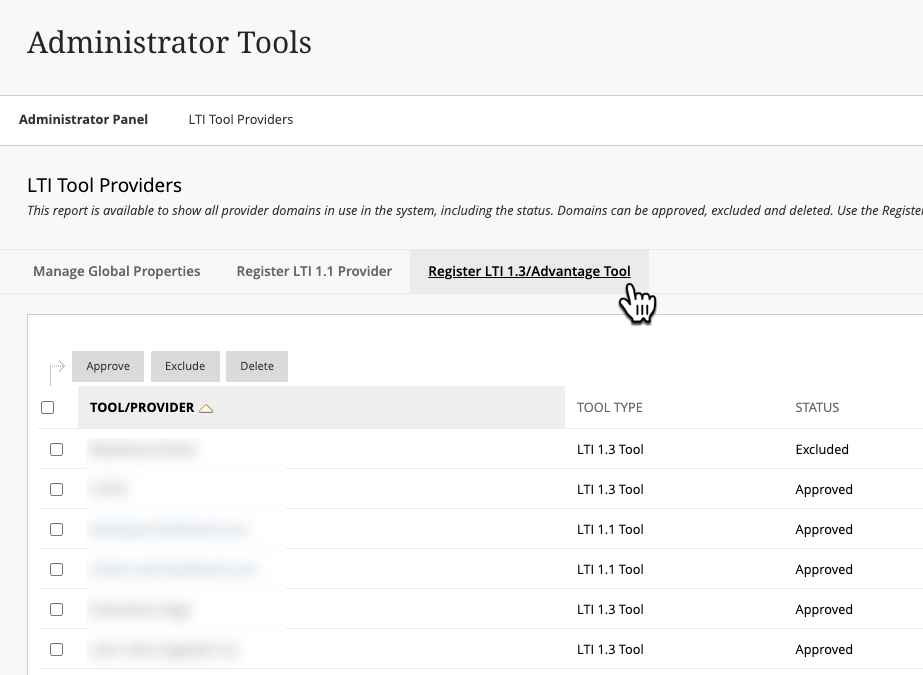
Navigate to Admin → LTI Tool Providers (under Integrations)
Click Register LTI 1.3/Advantage Tool
Enter the following Client ID:
🇪🇺 EU Hostingdbf25a94-5d49-495c-a1c5-e64923cdf3ec
🇦🇺 AU Hosting90a46a52-fd6b-4fe1-aa31-b5f7f5e18deaClick Submit
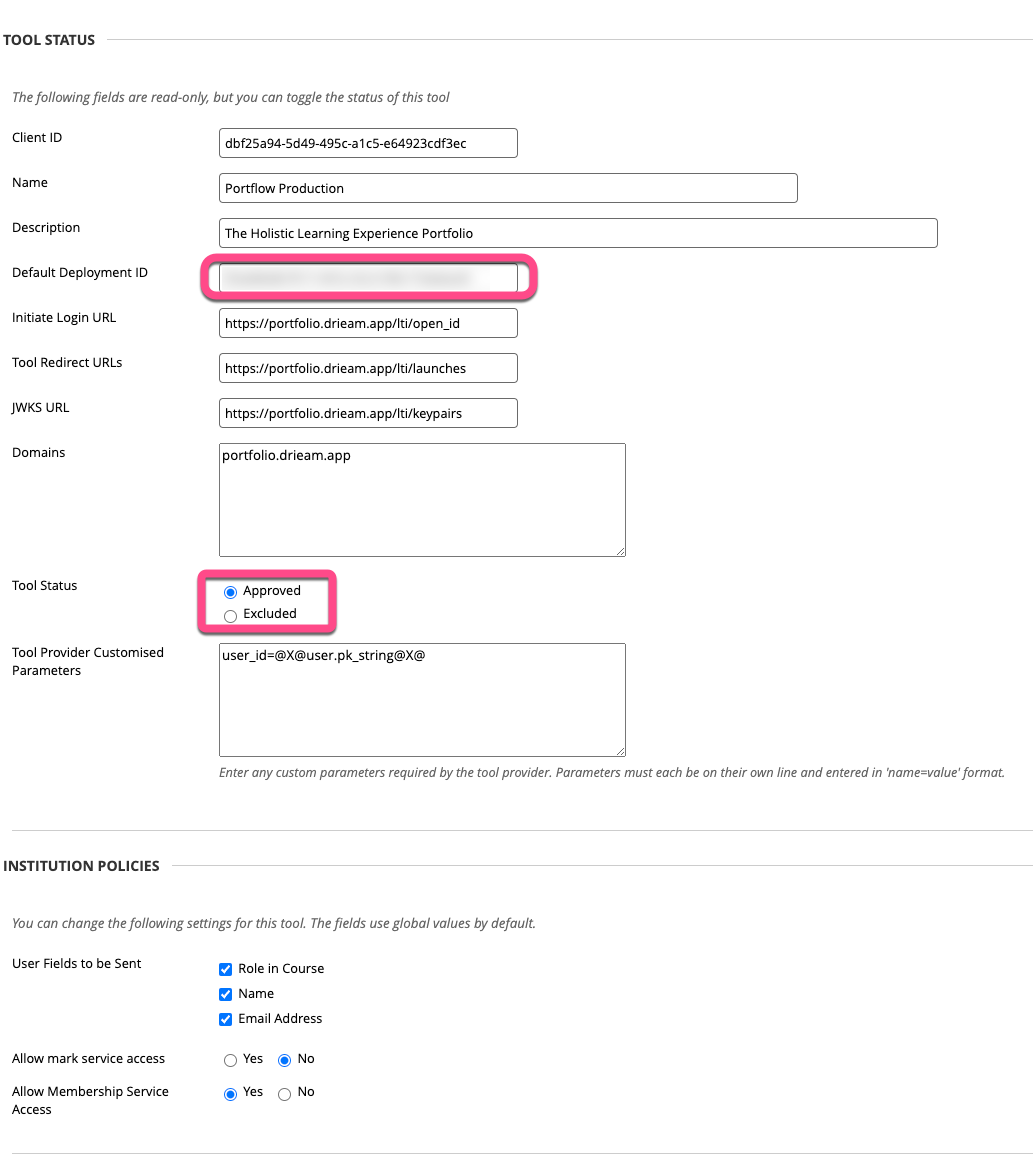
Set the Status to Approved
Copy the Default Deployment ID (send it over to Drieam)
A full overview of all details to be sent to Drieam can be found below step III.
Ensure all User Fields to be Sent are checked:
Role in Course
Name
Emaik Address
You can set the Allow mark service access to No
Ensure Allow Membership Service Access is set to Yes
Click Submit
II. Add Role and Service User
Navigate to Admin → System Roles (under Users)
Click Create Role
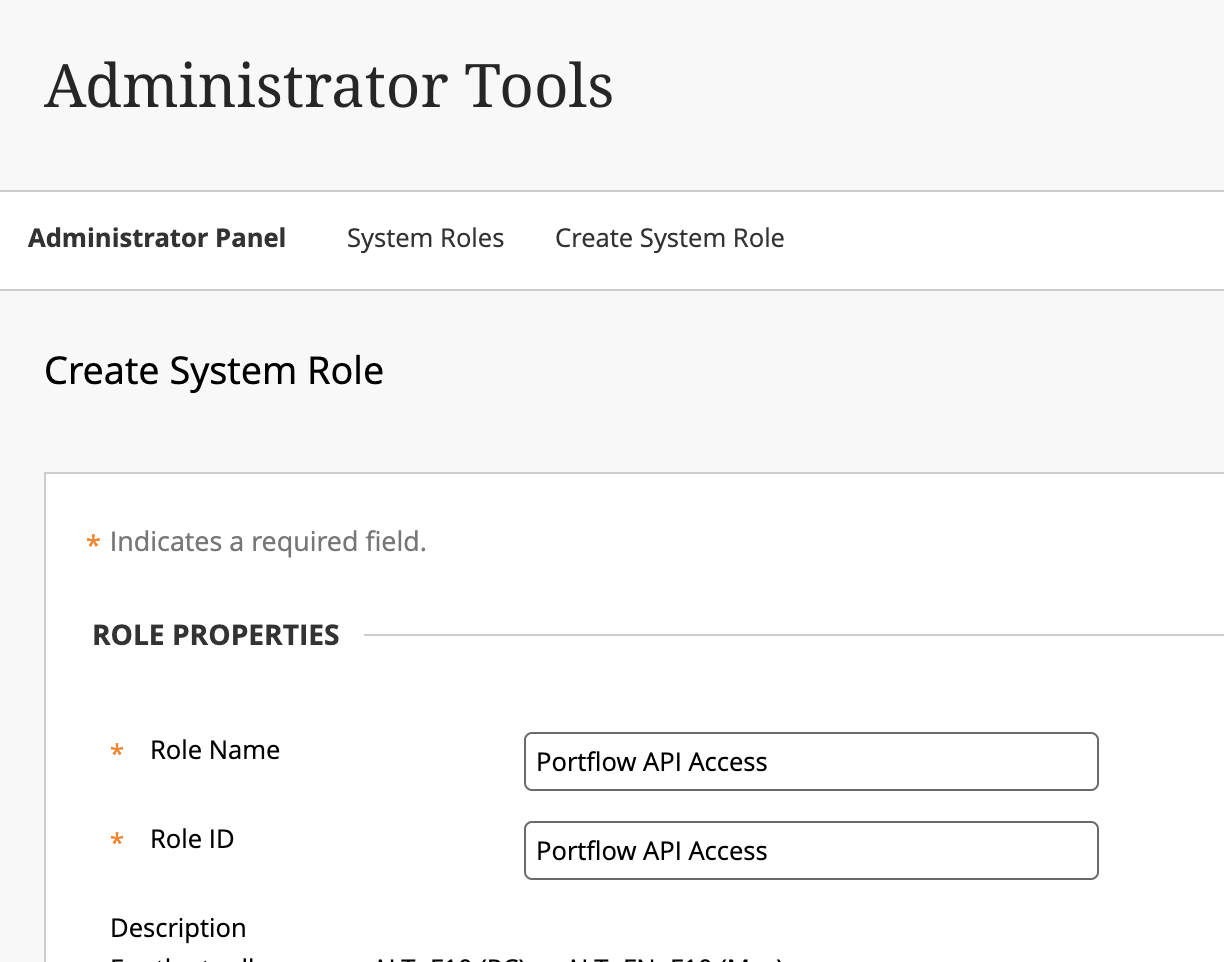
Add a Role name and Role ID, e.g. 'Portflow API Access'
Click Submit.
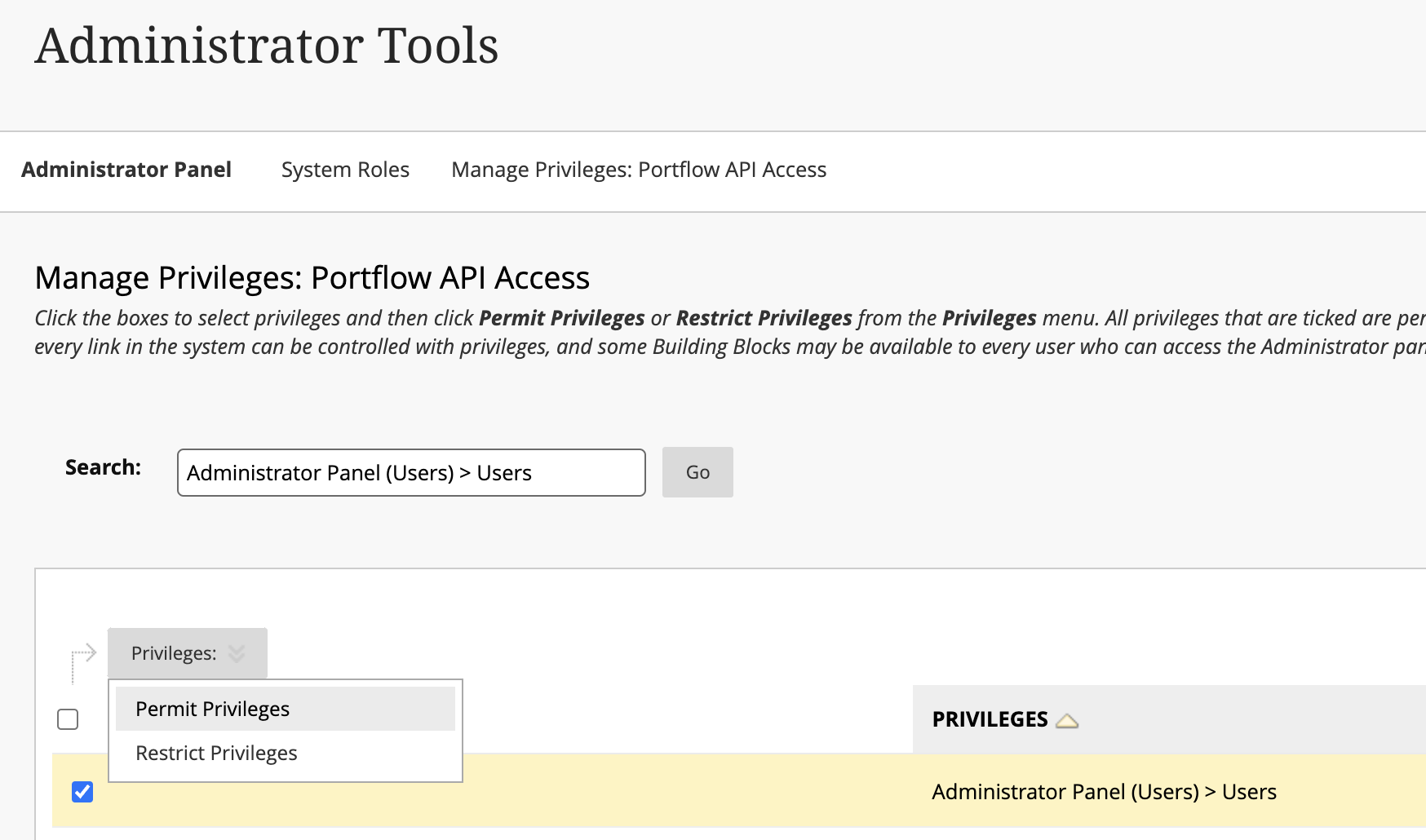
Search for and enable the Privileges:
Administrator Panel (Users) > UsersCourse/Organisation Control Panel (Grade Center) > Full ControlCourse/Organisation Control Panel (Grade Centre) > View Grade Centre Items and SettingsCourse/Organisation Control Panel (Tools) > Rubrics > View RubricCourse/Organisation Control Panel (Grade Centre) > Edit Assessment Results
All other privileges are not required (and can be removed).
Navigate to Admin → Users (under Users)
Create a new user with the just created role as the Primary System Role
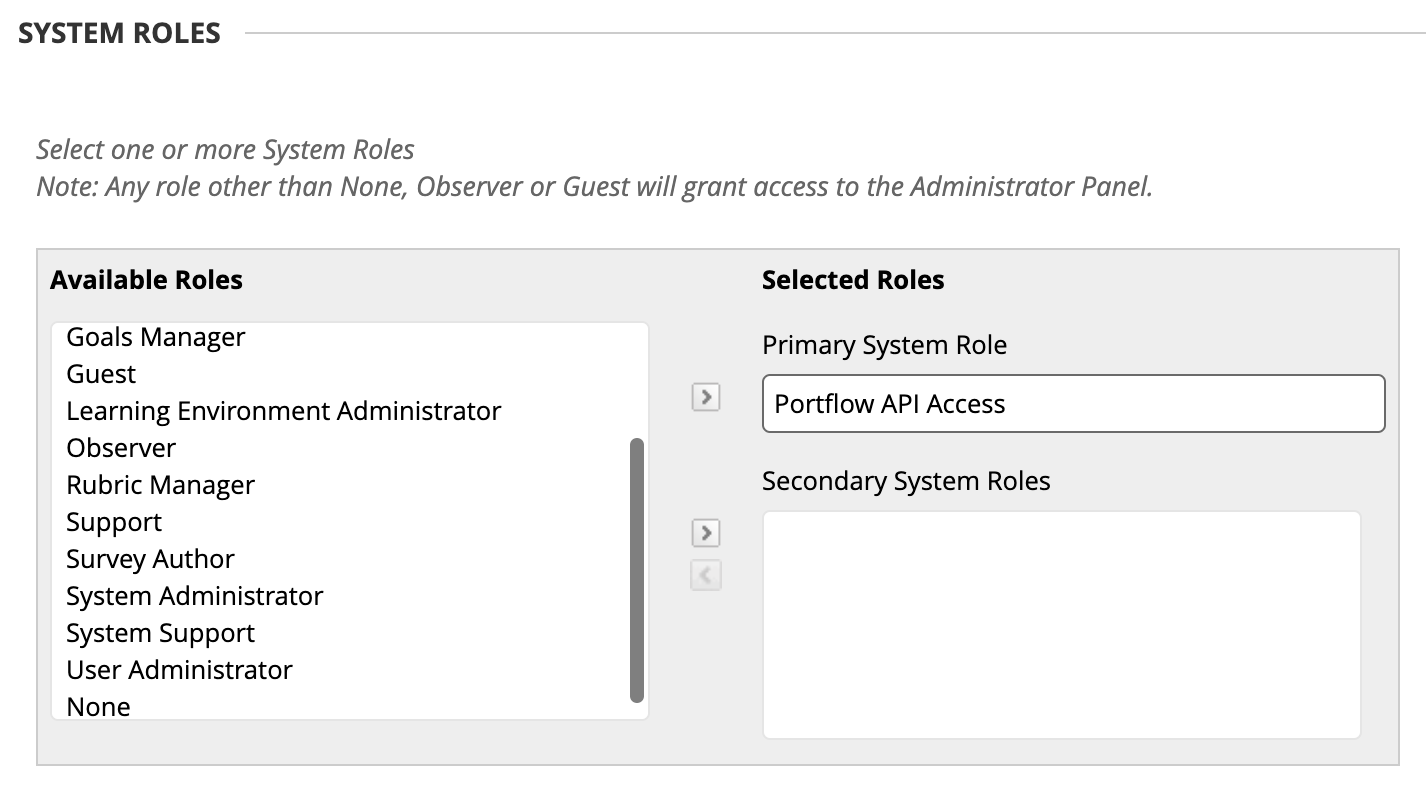
Click Submit
You SHOULD NOT delete the user. Removing the user will revoke Portflow's API access.
III. Add API Integration
Navigate to Admin → REST API Integrations (under Integrations)
Click Create Integration
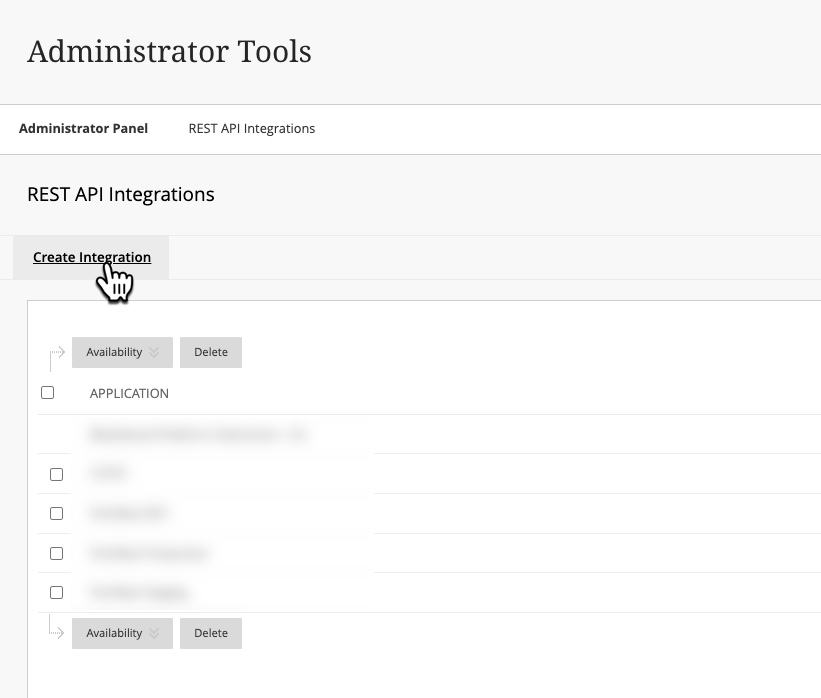
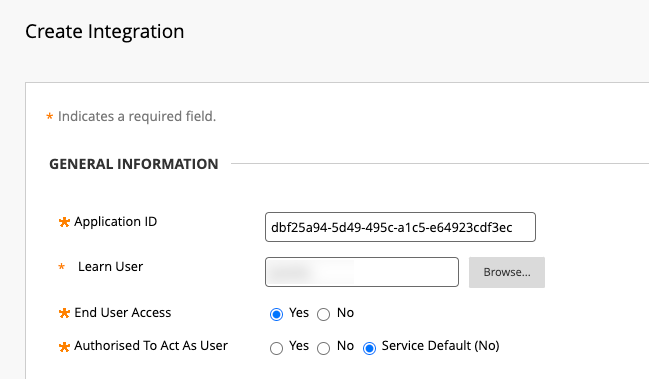
Enter the Application ID, same as the Client ID from step I.3 above
🇪🇺 EU Hostingdbf25a94-5d49-495c-a1c5-e64923cdf3ec
🇦🇺 AU Hosting90a46a52-fd6b-4fe1-aa31-b5f7f5e18deaSelect the created user from step II (with the assigned System role) for the Learn User
Set End User Access to Yes
Set Authorised To Act As User to No or Service Default (No)
IV. Authorise Service User
Log in as a System Administrator Blackboard user
Go to Portflow → Admin → User permissions → Super Admins
Add your newly created service user user as super admin
Log in (through login credentials or impersonation) as the service user
Go to Portflow → Admin → LMS
Click on the button to authorise Portflow to access the Blackboard API through this service user
Information to send to Drieam
Please forward the following information to support@portflow.app, for them to complete the installation:
Default Deployment ID (from step I.6)
Domain and URL of the Blackboard instance where Portflow is installed.
Type of installation (e.g. acceptance/testing/production)
Default language and optional secondary language(s) (see below)
🌐 Available languages in Portflow
The default language for Portflow has to be set by Drieam. This is the language that will be shown to users who have their Blackboard account set to any language other than the supported languages. Let Drieam know what your primary (default) language and secondary language(s) should be. This cannot be changed.
Portflow currently supports the following languages:
English
Dutch (Nederlands)
French (Français)
German (Deutsch)
Irish (Gaeilge)
Italian (Italianio)
Spanish (Español)
Note: users will not be able to search for/find System administrators (when sharing their portfolio). This is a limitation set by the Blackboard API.