Sections
Last updated: July 29, 2026
Summary
Sections are used to group and organise Collections that are related to each other (see 📄 Collections & Activities) in the Portfolio. They typically represent a period in time (e.g. semester), phase (e.g. major/minor) or other bundles of related Collections.
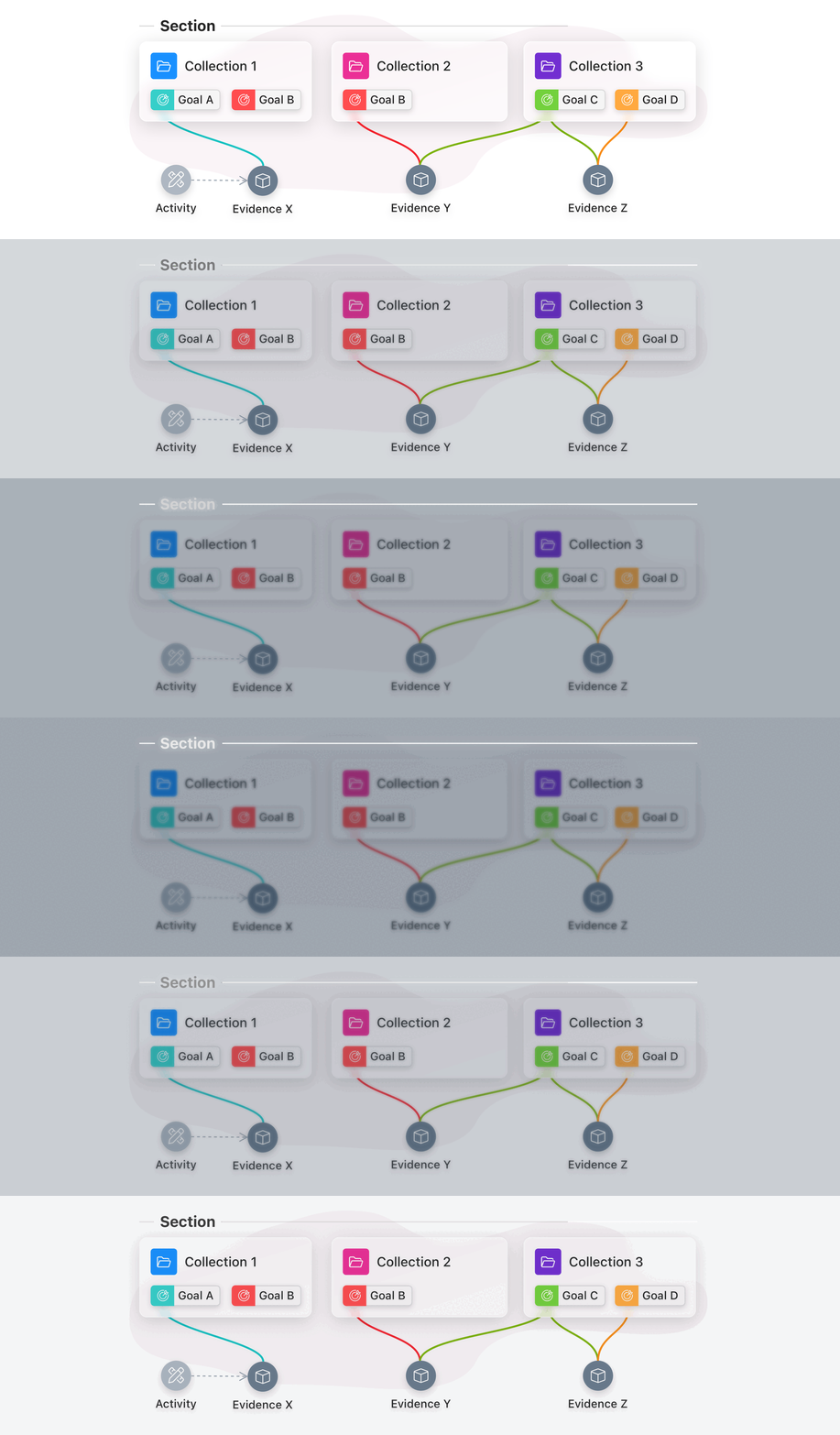
What are Sections?
Collections can be organised within Sections, which form a visual layer to group related Collections (see 📄 Collections & Activities). This allows the learner to divide Collections into meaningful groups, such as semesters, educational phases, projects, electives, etc.
How to create a Section?
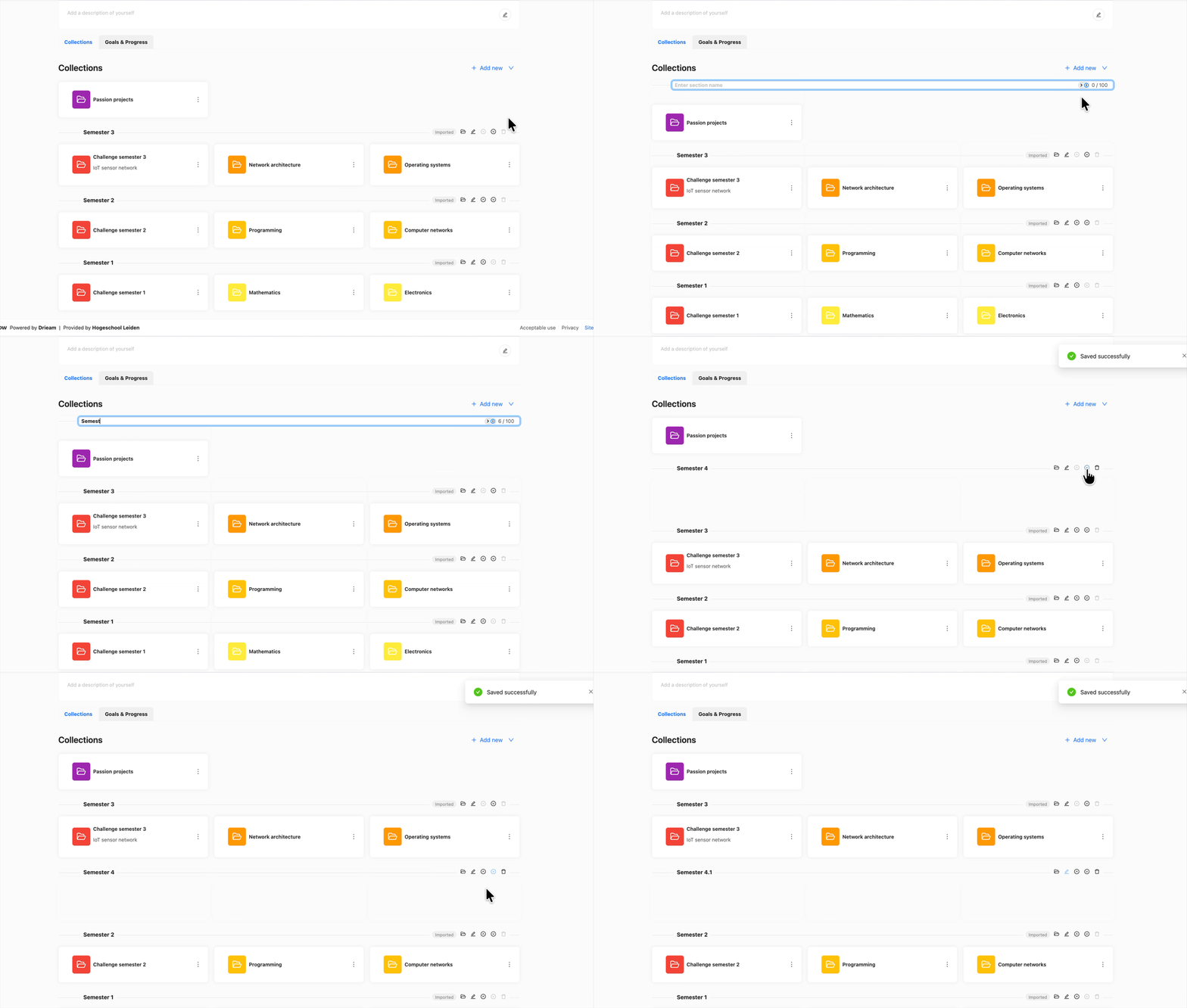
As a learner, you can create a new Section from the Portflow home page on the Collections tab.
Click + Add new
Select Section
Give the Section a Name
Press Enter to add the new Section
New Sections are always placed at the top of the current Portfolio. They can be positioned downward after creation.
How to modify Sections?
By hovering over a Section with the mouse or selecting the Section with Keyboard Navigation, you get the options for each Section to:
Create a Collection directly in this Section
Change the name of the Section
Change the order of Sections (i.e. moving the Section up or down)
Delete a Section
Note: When deleting a Section, the underlying related Collections will be moved to the generic Section on top.
Tip: Collections can be moved to another Section by drag-and-dropping them to a different Section or via the Action menu (︙) on the Collection card.