Create a Portfolio Assignment in the LMS (for Assessment)
Last updated: July 29, 2026
Summary
As a teacher, you can set up an assignment in the LMS where the student submits a Snapshot of their Portfolio (see 📄 Submit Portfolio in the LMSand 📄 Create a Snapshot (Freeze a Portfolio)).
How to create an Assignment for Portfolio assessment in Canvas?
Applicable for | 🐼 |
Not applicable for | 🫎 |
Note:
The method of submission depends on whether the feature option 'Assignment Enhancements - Student' is enabled or not. This can be enabled at the account or course level (Settings → Feature options). We recommend this setting to be enabled.

Go to the course in which you want to create the assignment for portfolio submission.
Click Assignments in the course menu
Click + Assignment
Give the assignment a name, instruction and optionally define the number of points and the assignment group.
Under Submission Type, choose Online.
With Assignment enhancements enabled: Under Online entry options, enable File upload.
With Assignment enhancements disabled: Under Online entry options, enable Website URL.
Fill in the rest of the information. Create or add a Rubric if desired.
Save the assignment with Save.
Publish the assignment.
How to create an Assignment for Portfolio assessment in Brightspace?
Applicable for | 🫎 |
Not applicable for | 🐼 |
Go to the course in which you want to create the assignment for portfolio submission.
Click Activities in the navigation bar.
Click New Assignment.
Expand Submission & Completion
Under Submission Type, select Text submission.
Fill in the rest of the information. Create a Rubric if required.
Click Save.
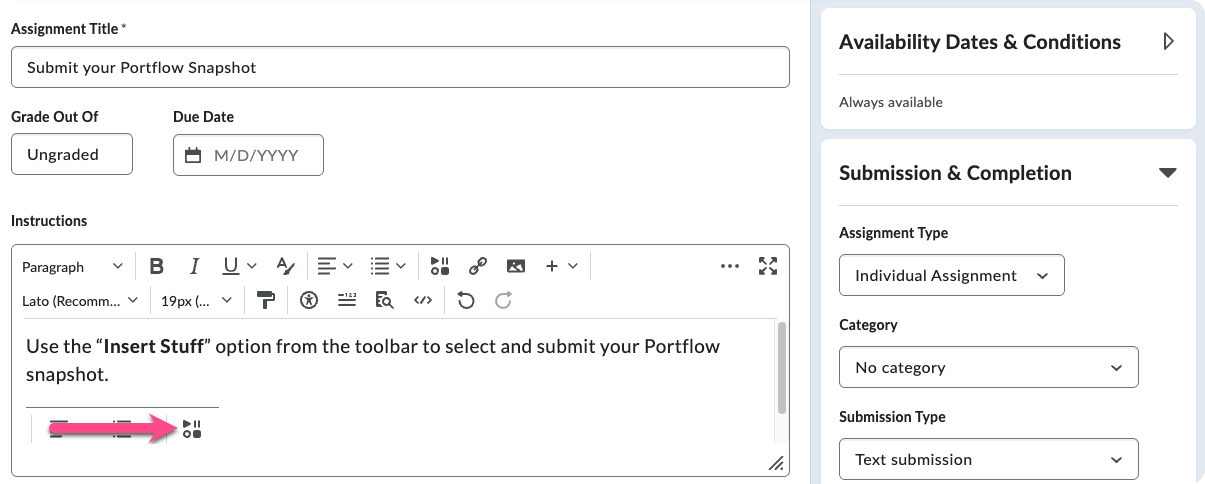
Tip: Add instructions for learners to use Insert Stuff to include their Portflow Snapshot to the submission.
How to create an Assignment for Portfolio assessment in Blackboard?
Applicable for | 🧑🏫 |
Not applicable for | 🐼 |
Go to the course in which you want to create the assignment for portfolio submission.
Add a new Blackboard assignment (e.g. Create → Assignment).
Check that under Assignment Settings, the Mark Category is set to ‘Assignment’
Optionally, configure the other assignment settings and add or create a rubric if required.
Click Save and make the assignment available to learners when desired.
Tip: Add instructions for learners to use the Content Market to include their Portflow Snapshot to the submission.
How to create an Assignment for Portfolio assessment in Moodle?
Applicable for | 🎓 |
Not applicable for | 🐼 |
Go to the course in which the assignment for the portfolio has to be created.
In Assignment settings, for Submission type, choose ‘Online text’
Fill in the rest of the information. Create a Rubric if desired.
Click Save.
Note: For Moodle, learners will have to create an Assessment link for their Snapshot which they can submit into the assignment text field.