Generate a Direct Assessment Link for Accreditation
Last updated: July 30, 2026
Summary
A learner can submit a Snapshot into the LMS for a teacher/coach to be assessed (see 📄 Submit Portfolio in the LMS).
As Accreditation Manager (see 📄 Super Admins, Power Users, and Departments), you can generate a direct link to this submitted Snapshot so that it can be viewed without access to the LMS. This link can then be used by e.g. a review board, accreditation committee, or inspection.
Applicable for | 🐼 |
Not applicable for | 🎓 |
What is an Accreditation Manager?
Accreditation Managers have the permission to create direct Assessment Links to a submitted Snapshot in the LMS for accreditation or QA purposes. These Power User permissions can be granted by a Super Admin to any Portflow user, see 📄 Super Admins, Power Users, and Departments.
How to generate a direct link for a submitted Snapshot?
As an Accreditation Manager or Super Admin, go to the review/grader module of the LMS assignment where the learner submitted their Portflow Snapshot. Navigate to the submission of the intended learner.
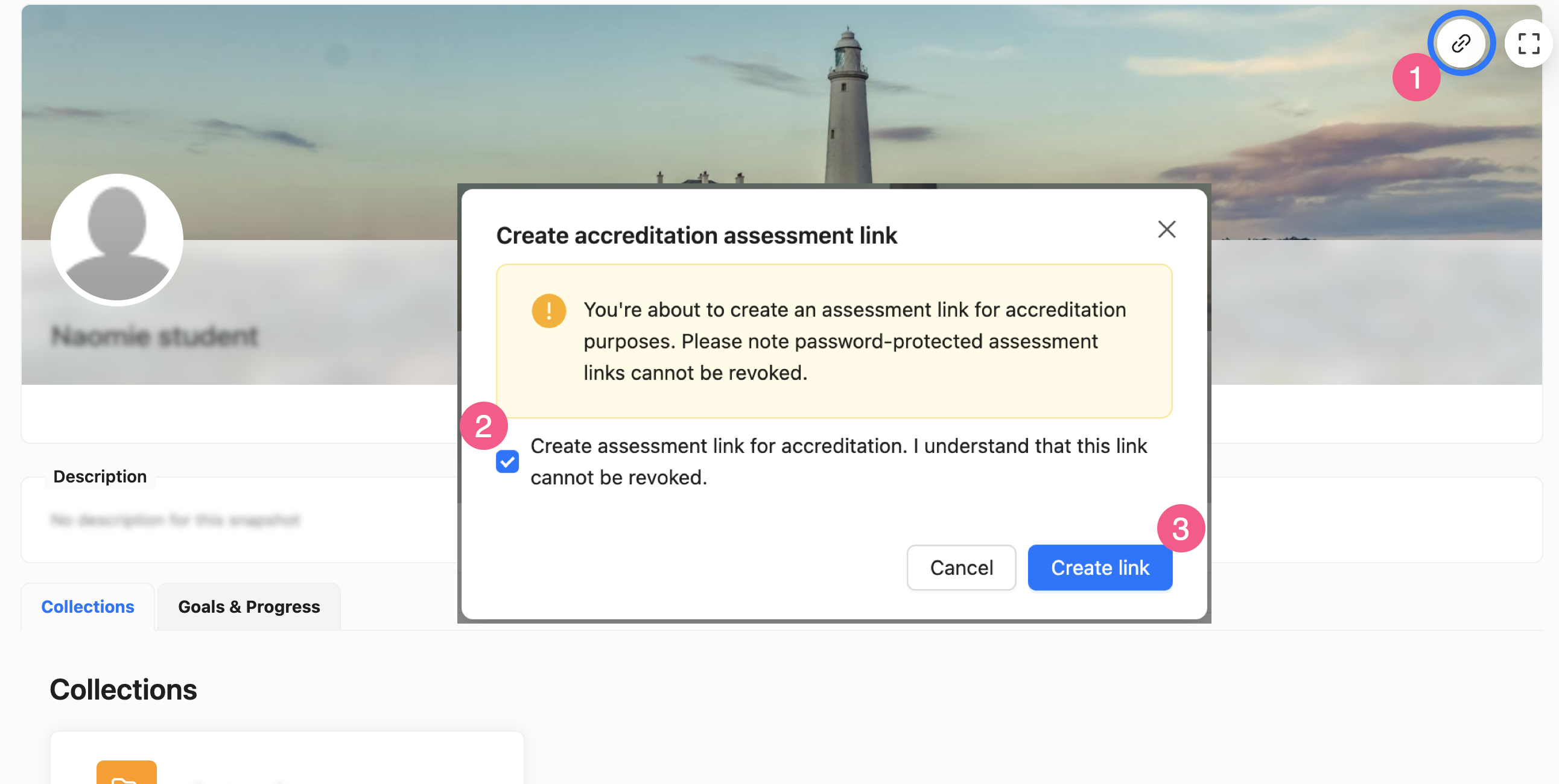
Click the link icon in the top of the Snapshot banner.
Confirm the link creation with the checkbox.
Click Create link.
You will now see a pop-up with the link and its password. These are both needed to view the Snapshot. Copy the data and share it securely with the appropriate people.
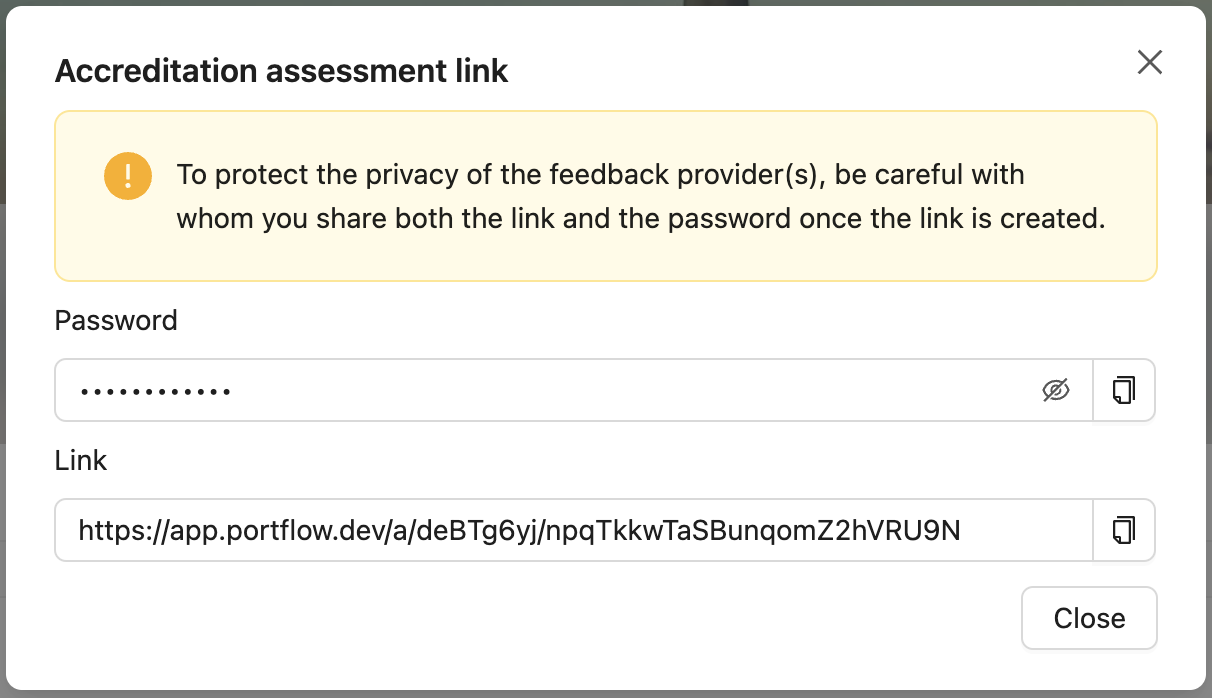
Tip: If the link or password are forgotten, you can use the same button to retrieve the link and password again.
Note: An Assessment Link (either created by the learner, or by the Accreditation Manager) cannot be retracted/revoked without administrator intervention.
How to access an Assessment Link?
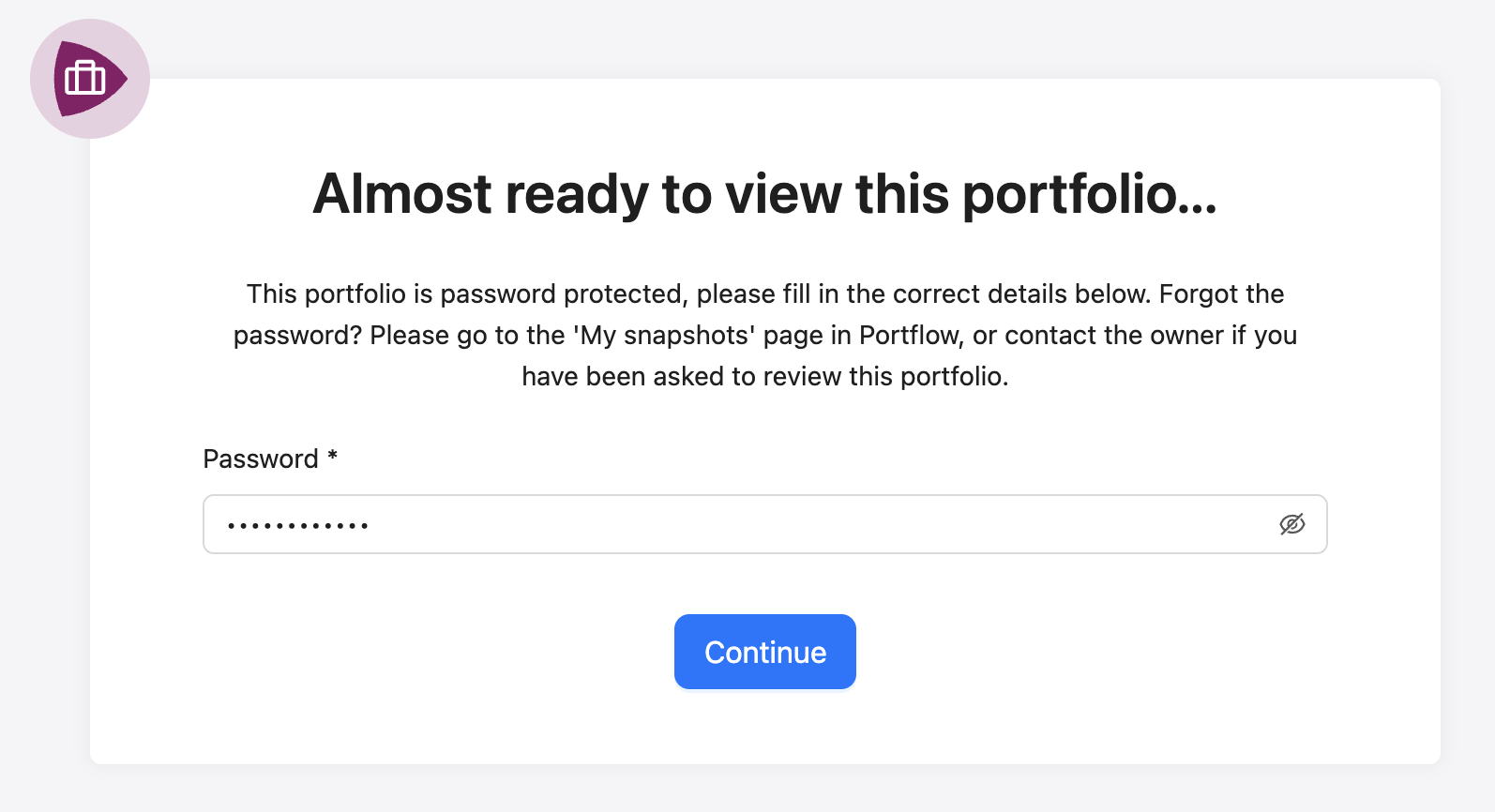
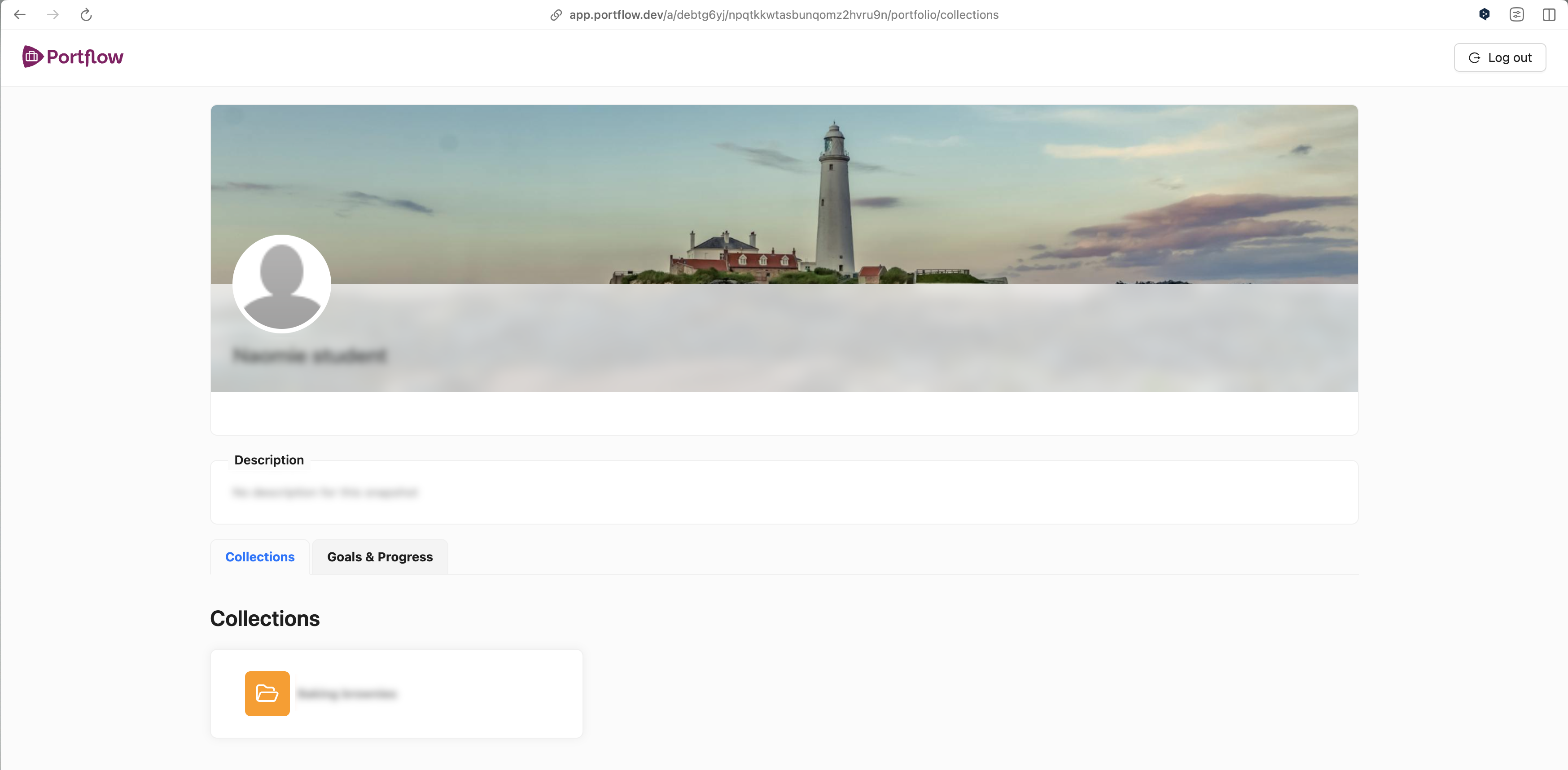
If you have been given an Assessment Link and password, you can paste the link into a browser's URL bar. Portflow will ask for the password. When you enter it, you will be able to browse through the Snapshot, just like it is available in the review/grading module of the LMS.