Log in to Portflow
Last updated: October 28, 2026
Summary
Staff (teachers, admins, etc) and learners (students) can log in to Portflow through the LMS. External users and alumni users can use the dedicated login portals for their respective geographical areas.
Learners & Staff
How do I log in to Portflow as Learner or Staff member?
Typically, Portflow is made available for learners (students) and staff members (teachers, instructors, academics, admins, etc.) through the main navigation of the LMS. This ensures universal access to Portflow, regardless of the context of a specific LMS course. Your institution might have chosen a different approach, in that case, please refer to their instructions.
Open Portflow in the LMS
Applicable for | 🐼 |
Not applicable for | - |
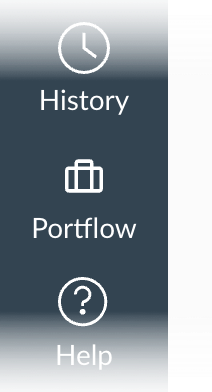
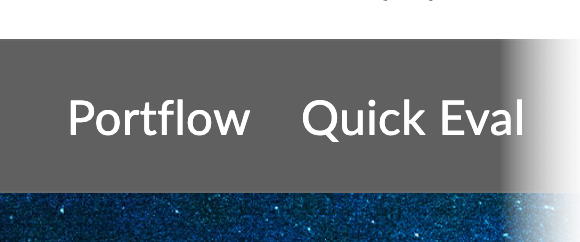
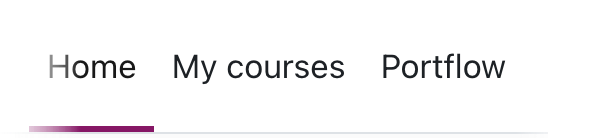
Open Canvas, Brightspace, Moodle, or Blackboard and click 'Portflow' in the navigation bar. You will now be automatically logged in and redirected to your Portfolio within your LMS (Learning Management System).
 |  |  |   |
Note:
You can only access Portflow if you are using the correct URL of your LMS environment. Usually, this will automatically be correct when accessing your LMS via your institution's student or staff portal. E.g. do not use
school.vendor.comif you have a vanity URLlearn.school.ac.ukavailable to you.
At your institution, the navigation button might have a slightly different icon or may be called differently (e.g. 'Portfolio').
For Canvas: test or beta environments are not supported, you'll need to launch/open Portflow from the production environment.
Open Portflow in a new tab
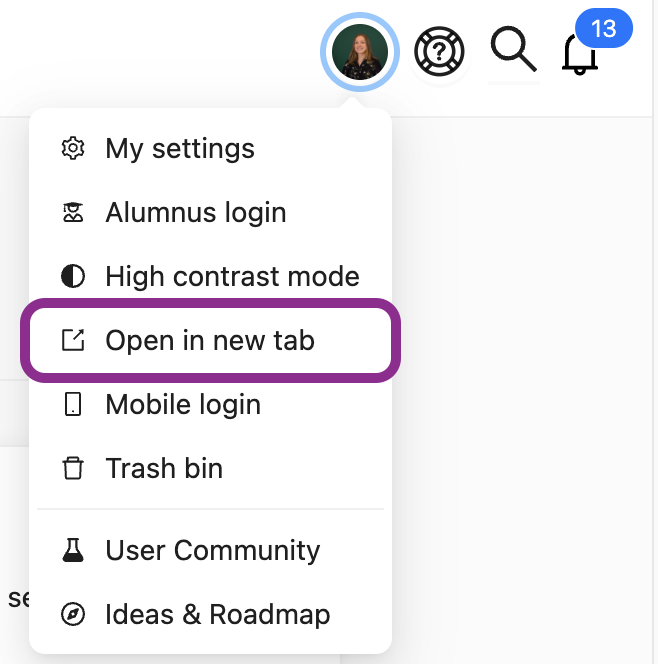
Once you have opened Portflow from your LMS, you can use the option to open Portflow in a new tab.
Benefits of opening Portflow in a new tab:
You can see Portflow in full screen
You are able to refresh and keep your position in the app
You are able to Ctrl+click / ⌘+click to open a link into a new tab
You can still use LMS functionalities such as inviting LMS users
External Users
How do I log in to Portflow as an External User?
As an external user, you can access and log in to Portflow via the dedicated Portal for Externals. When a learner has shared their Portfolio or Evidence with you, you'll receive an invitation link in your email that also gives you access.
If you enter your email address on the portal for externals, a 'magic link' is sent to you, which you can then use to log in securely. Read more about the External portal: 📄 Portal for Externals
Multifactor Authentication for External Users
If the institution has required it, you will need to confirm your identity using an MFA method. The first time you log into the portal, you will be asked to set up MFA using an authenticator app to generate one-time passwords. Scan the QR code with your chosen device and app to complete the setup process.
When you want to log in after this first time, you use the authenticator app to get the 6-digit code.
If your institution has not required it, but you would like to use MFA to log in to Portflow, you can set it up yourself once logged in. Click your avatar and then select MFA. Scan the QR code with your device and app of choice to set it up.
A Portflow Admin can configure whether MFA is required in 📄 Feature options.
What to do when you lost access to your MFA app?
When you have lost access to your MFA authenticator app as well as your back-up codes, please contact the institution (e.g. learner, contact person, or administrator) to have your MFA reset.
Alumni
How do I set up Alumni Access?
Once you are no longer an enrolled learner (e.g. when you graduated), your educational institution will often delete your institutional account, preventing you from accessing your LMS and therefore, your Portflow Portfolio. To make sure you don't lose access, you can set up an Alumni Access. Once you graduate or leave your school, you can use this login to access and keep using Portflow.
As a learner, you can set up Alumni Access while you are enrolled in Portflow via the user menu, under Alumnus login. You can then link your personal Google, Microsoft, LinkedIn, or GitHub account to keep access to Portflow after graduation.
Note: Your institution might not offer the option for Alumni Access. In this case, you will not see an option to set up your Alumnus Login.
A Portflow Admin can enable this in 📄 Feature options.
Add Alumni Access to your Portflow account
Open the user menu by clicking your avatar in the top right corner of Portflow.
Click Alumnus login
Activate the service of your preference (Google, Microsoft, LinkedIn, GitHub).
Acknowledge and Accept the data that is shared.
When successful, the toggle will be activated, and you can safely click Close to return to your Portfolio.
You will receive a confirmation email of successful setting up your alumnus login.
You can repeat the process to link multiple services.
How do I log in to Portflow as Alumni?
Alumni users access Portflow via the dedicated alumni login page.
🇪🇺 EU: app.portflow.app/login
🇦🇺 AUS: au.portflow.app/login
Note: Logging in as an alumnus in Portflow is only available if:
You have set up Alumni Access at the time you were a student and had an LMS account (see above).
Your institution has set the Alumnus Activation Date for your account, and that date has passed. This date is typically set (automatically) for when you leave the institution.
Access Portflow as an alumnus
Open the Portflow Alumni login page
🇪🇺 EU: app.portflow.app/login
🇦🇺 AUS: au.portflow.app/login
Select the login method you used to set up your Alumni Access (see above).
Tip: You can look for the confirmation email from linking an account back in your mailbox to find out which login method you used.
If you have used the same account for multiple Portflow accounts, you can select the institution you want to access your Portflow account from.
You have now logged into Portflow.
Note: As an Alumnus user, you can still edit your Portfolio, but you are limited in some areas, related to the LMS:
It is only possible to share your Portfolio with external users (through email). It is not possible any more to share with other LMS users.
You cannot import assignments from the LMS to add them as evidence.