Respond to a Progress Review
Last updated: July 30, 2026
Summary
If you are invited to participate in a Progress Review, you will receive a notification for this. With a Progress Review, a learner is given overarching insights of their progress on their Goals. This allows a learner to track their progress over time.
Applicable for | 🐼 |
Not applicable for | — |
How do I respond to a Progress Review?
You can only participate in a Progress Review if someone (or yourself) has invited you. You will receive a Notification in your Notification Centre (top right, bell icon), or you can view your invitations in ‘My access & requests’.
Once you enter review mode, you can use the purple pop-up at the bottom right to create your review. You will be asked to leave Feedback and insights for each Goal (and Sub-goal) (1). In addition, you can also provide general Feedback on their progress.
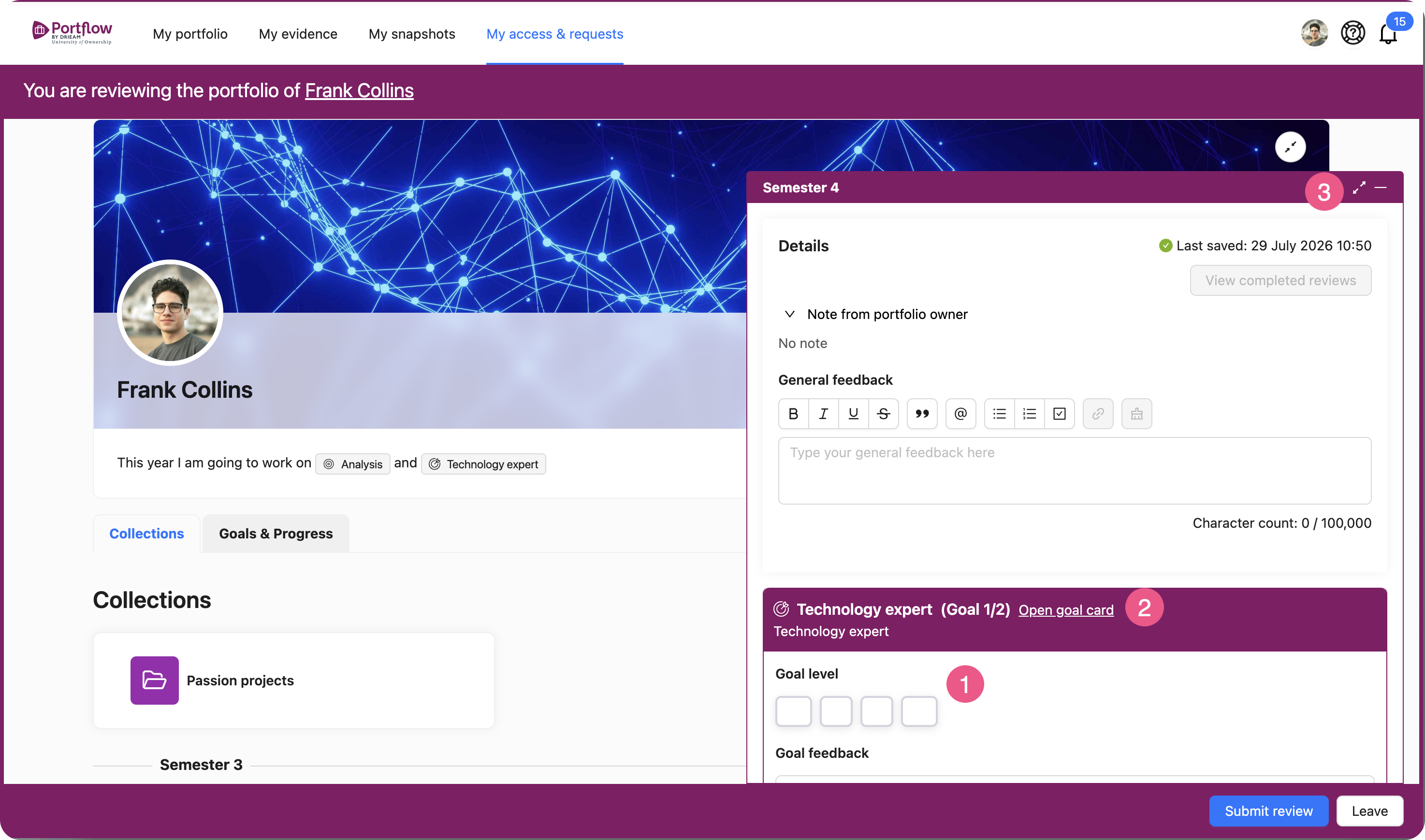
If the requester for the Progress Review has chosen a Review with Levels, you will also be asked to give each Goal (and Sub-goal) a score according to the rubric scale chosen by the learner.
Note: The main Goal and Sub-goals can be reviewed separately. These ratings have no relation. It is not mandatory to score each Goal (and Sub-goal) with a score and Feedback. You can retract a score you have already given by clicking on the level again.
Tip: You can click on the Goal icon (2) to see the full information card of this Goal.
Click on the ‘expand’ icon (3) to expand the pop-up. You will see the same information. When you hover over or have selected a level, the level description will display underneath the level selector to elaborate on what the level entails for this Goal.
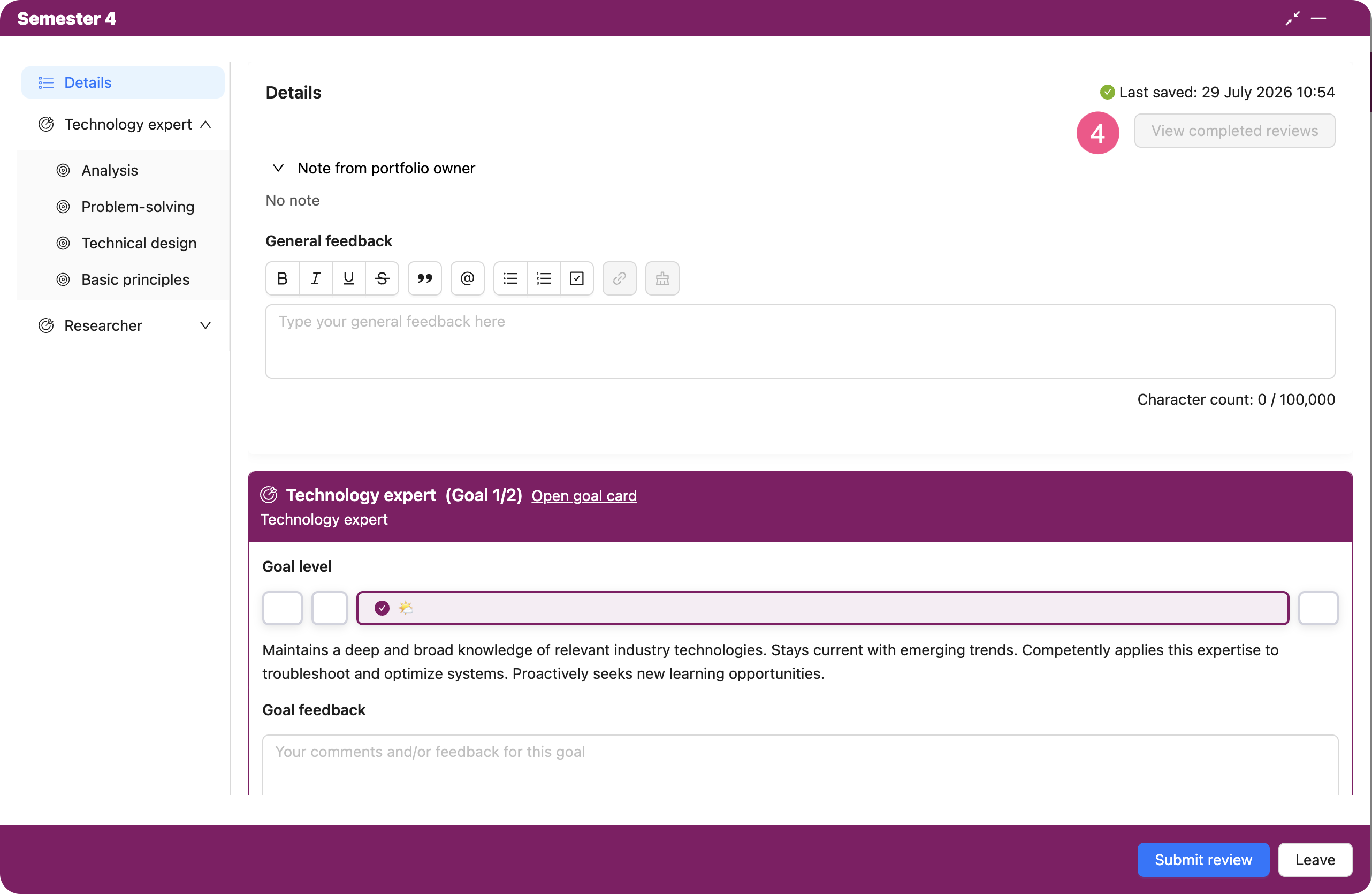
If you are curious to the Reviews of others, you can click on ‘Completed progress reviews’ (4).
How to submit a Progress Review?
Note: Your progress for each review is auto-saved, so you can leave review mode at any time without losing your input. After submitting, you cannot edit your scores or Feedback any longer.
Once you are done with the Review, click the 'Submit review' button. You will see a confirmation screen in case you want to return to review mode. If you are truly done, check your role (from which capacity you are submitting the Review) and confirm with 'Submit review'.
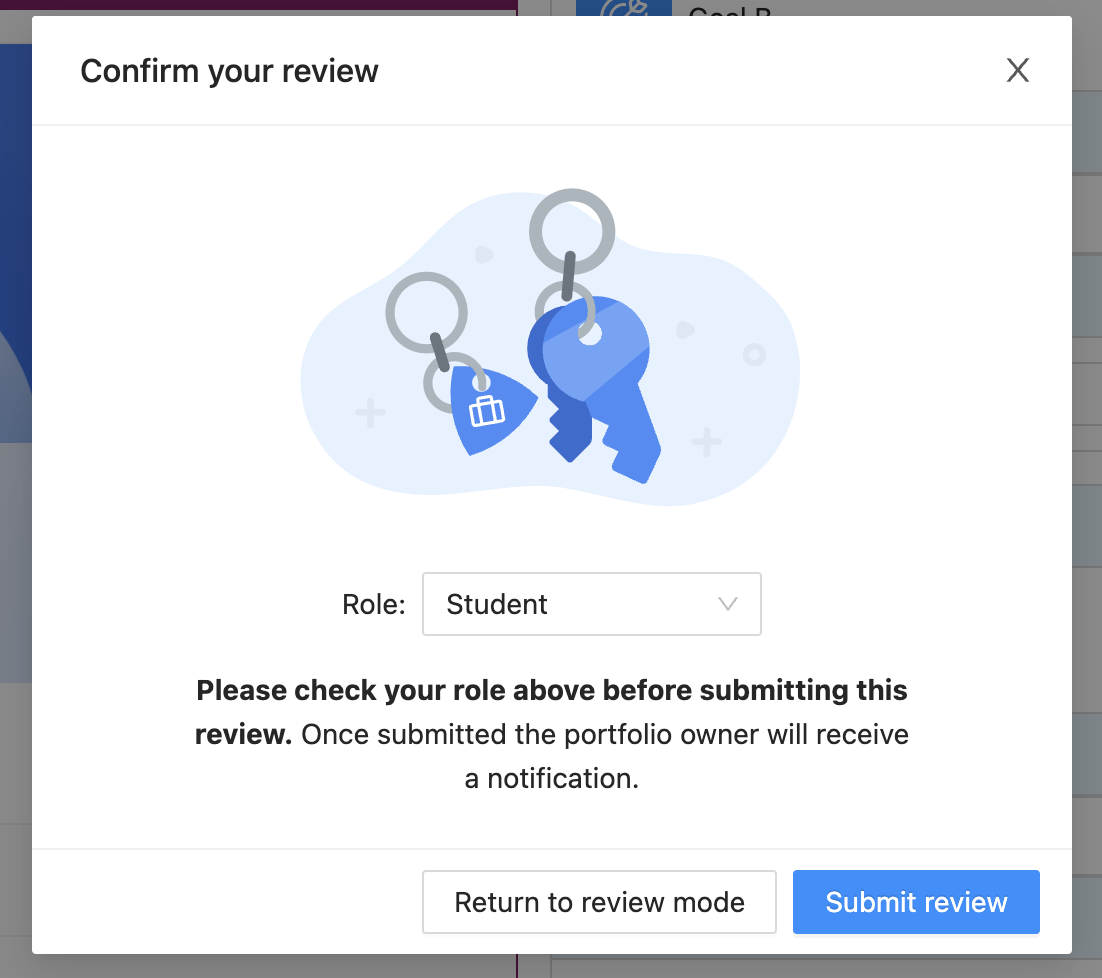
You will leave review mode and enter the normal view of the Portfolio you just reviewed. The owner will receive a Notification of your submitted Review shortly.