Mobile Portflow App
Last updated: July 29, 2026
Summary
Learners can use the native Mobile App for Portflow to capture Evidence, Sign-offs, and Feedback on the go, wherever they are, and add it to their Portfolio.
Note: To allow learners to use the Portflow app, the institution must enable the Portflow Mobile App in the Portflow settings (Feature Options).
Download the Mobile App
You can find the Portflow Mobile App in the store on your device, when you look for 'Portflow'.
iOS (Apple) | |
Android (Google) |
How do I log in to the Portflow mobile app?
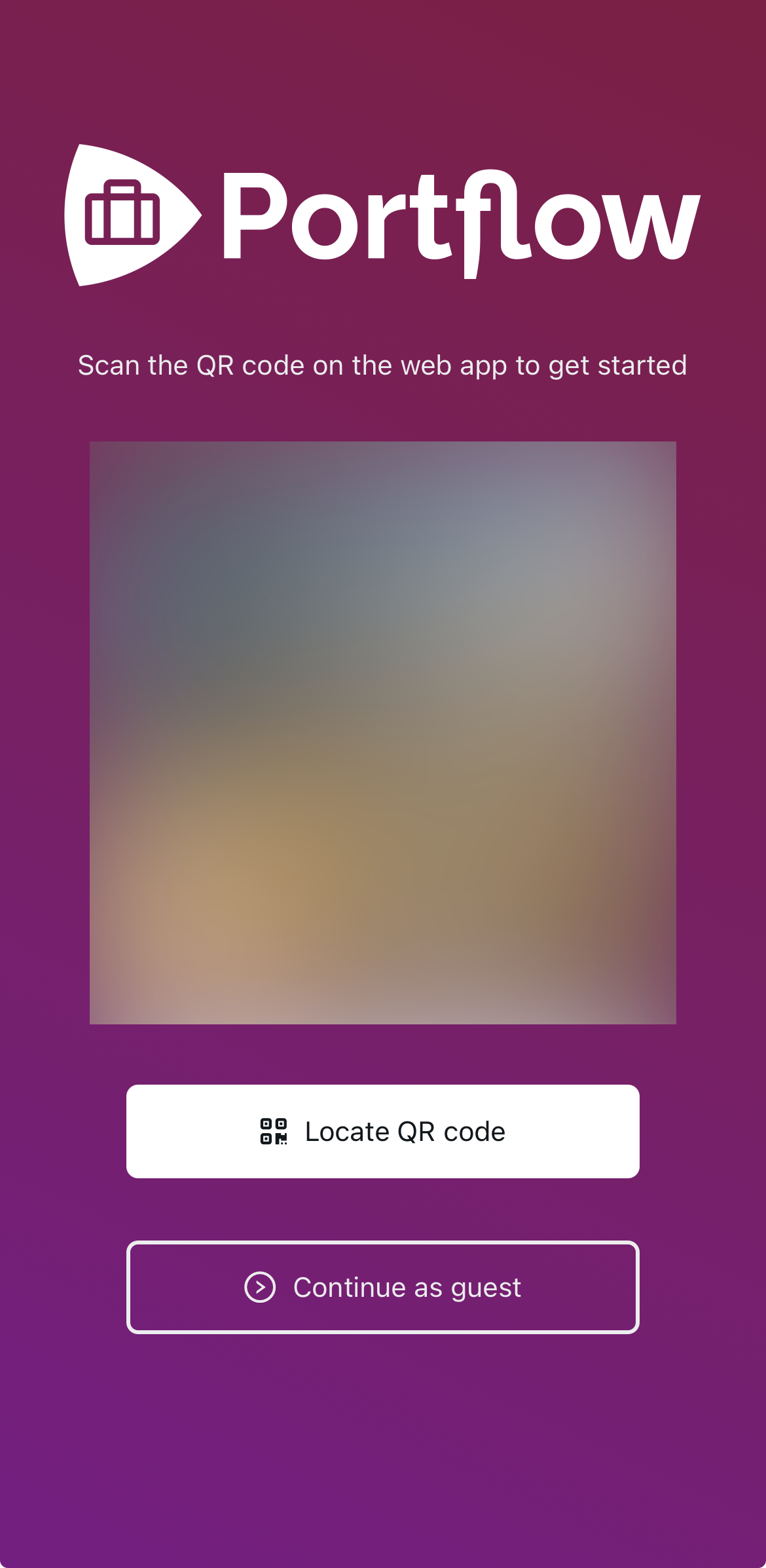
To log in in the Portflow mobile app, learners scan a QR-code that can be retrieved in the Portflow web app (via the LMS).
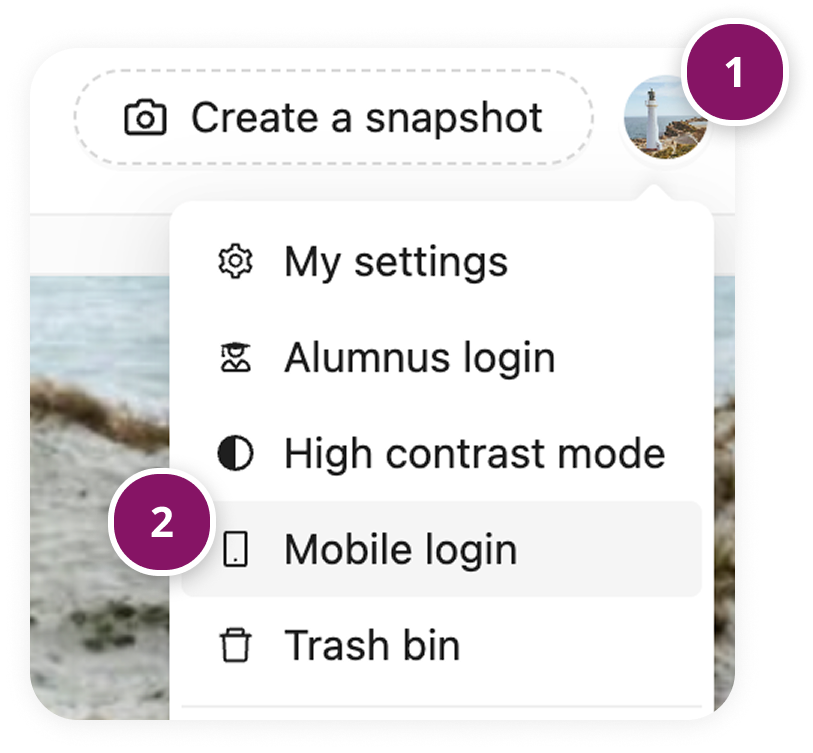
Go to the Portflow web app (via your LMS), open the User Menu (1) and click Mobile login (2).
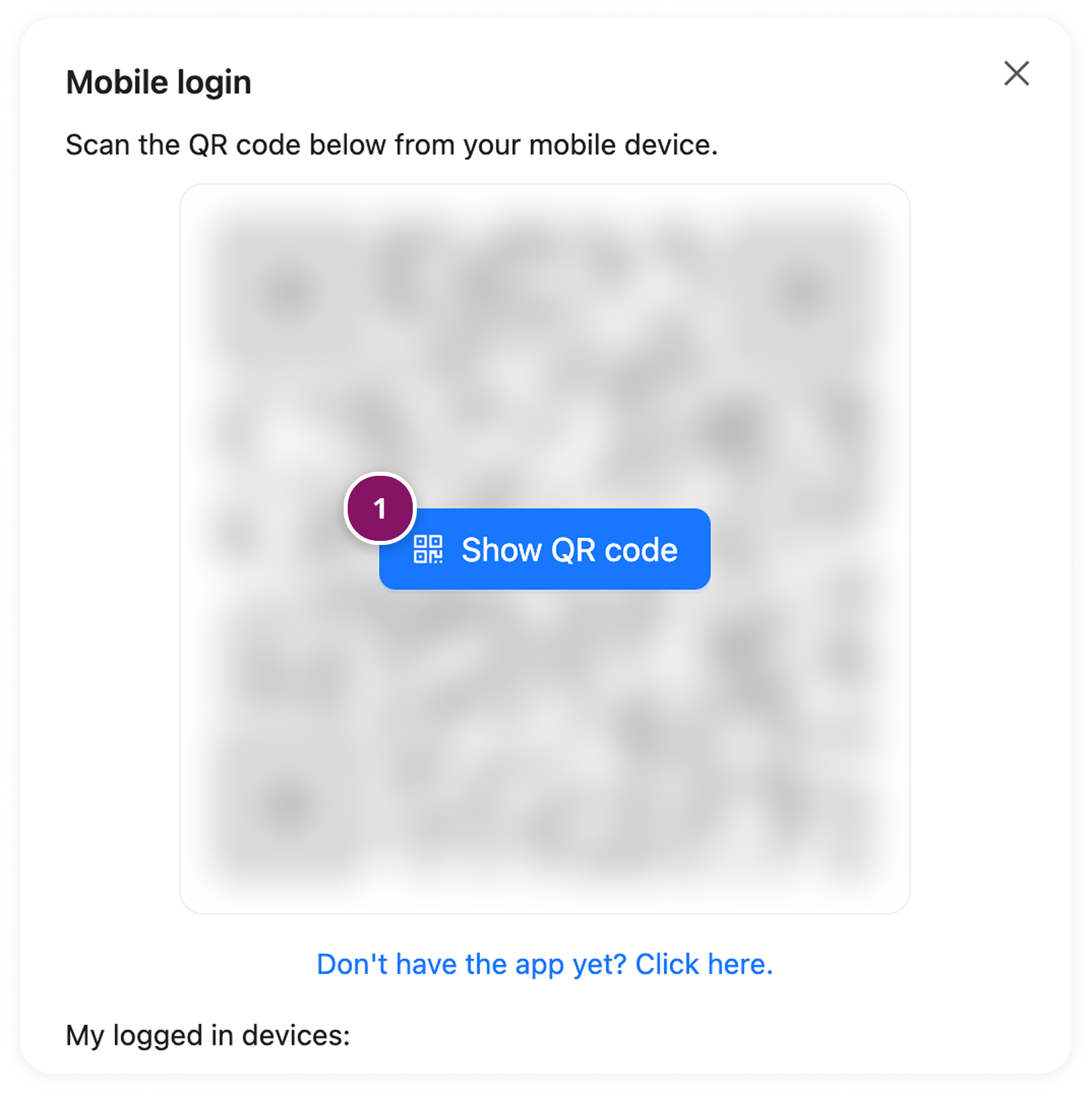
Click Show the QR code (1) and scan it with the Portflow app on your phone.
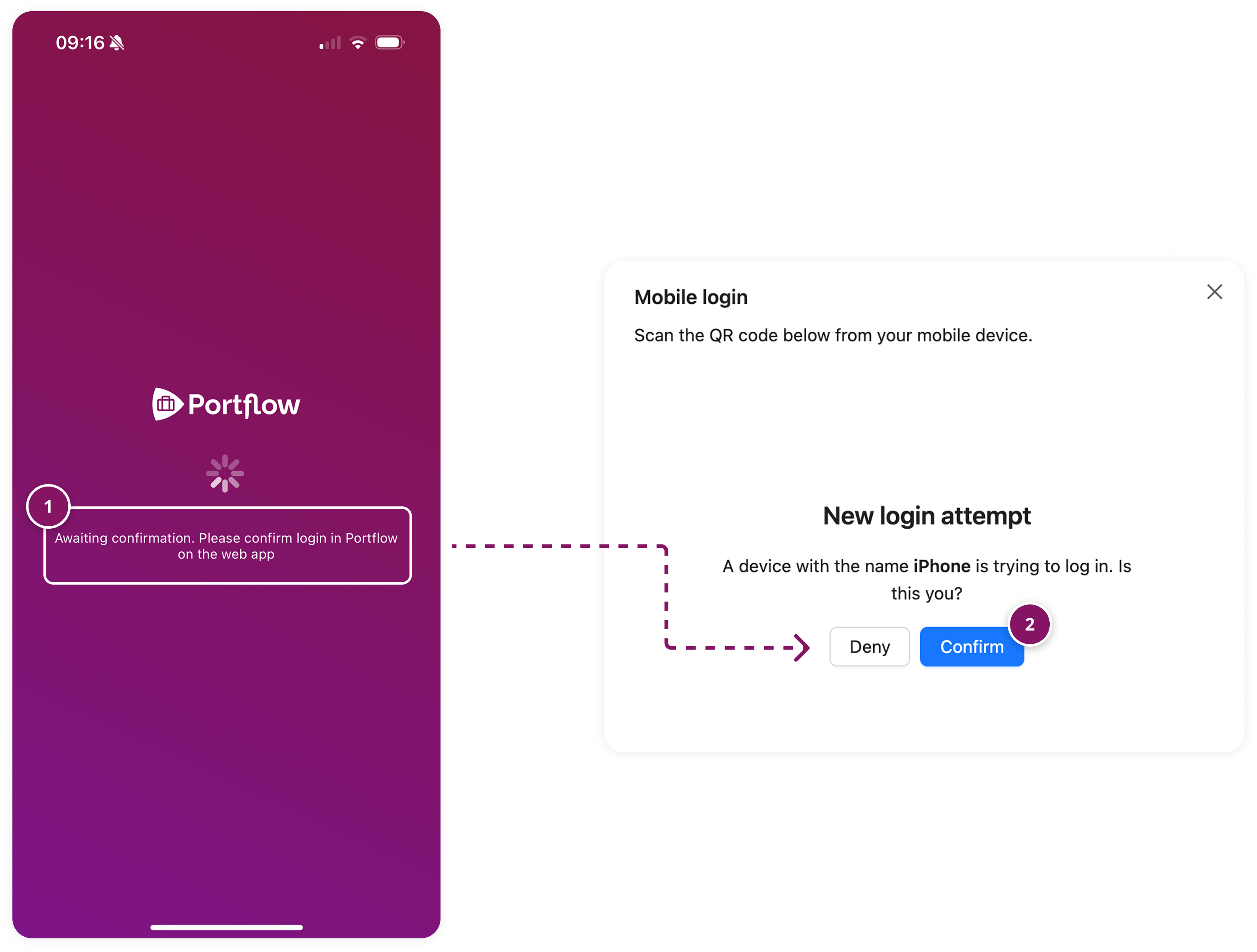
After the app has scanned the QR code, you will be asked for confirmation (1). Confirm your login attempt via the Portflow web app (2).
This way, we ensure you are indeed signing in to your Portflow account.
You are now logged in
Tip:
If you cannot currently log in, you can skip logging in and click Continue as Guest. This allows you to capture Evidence while not being signed in. Before uploading it to your Portfolio, you will need to log in.
How do I capture or create Evidence?
Evidence can be captured, uploaded or created from the Mobile App. The Mobile App supports various types of evidence, including file uploads, capturing/recording pictures, video, or audio, and writing texts.
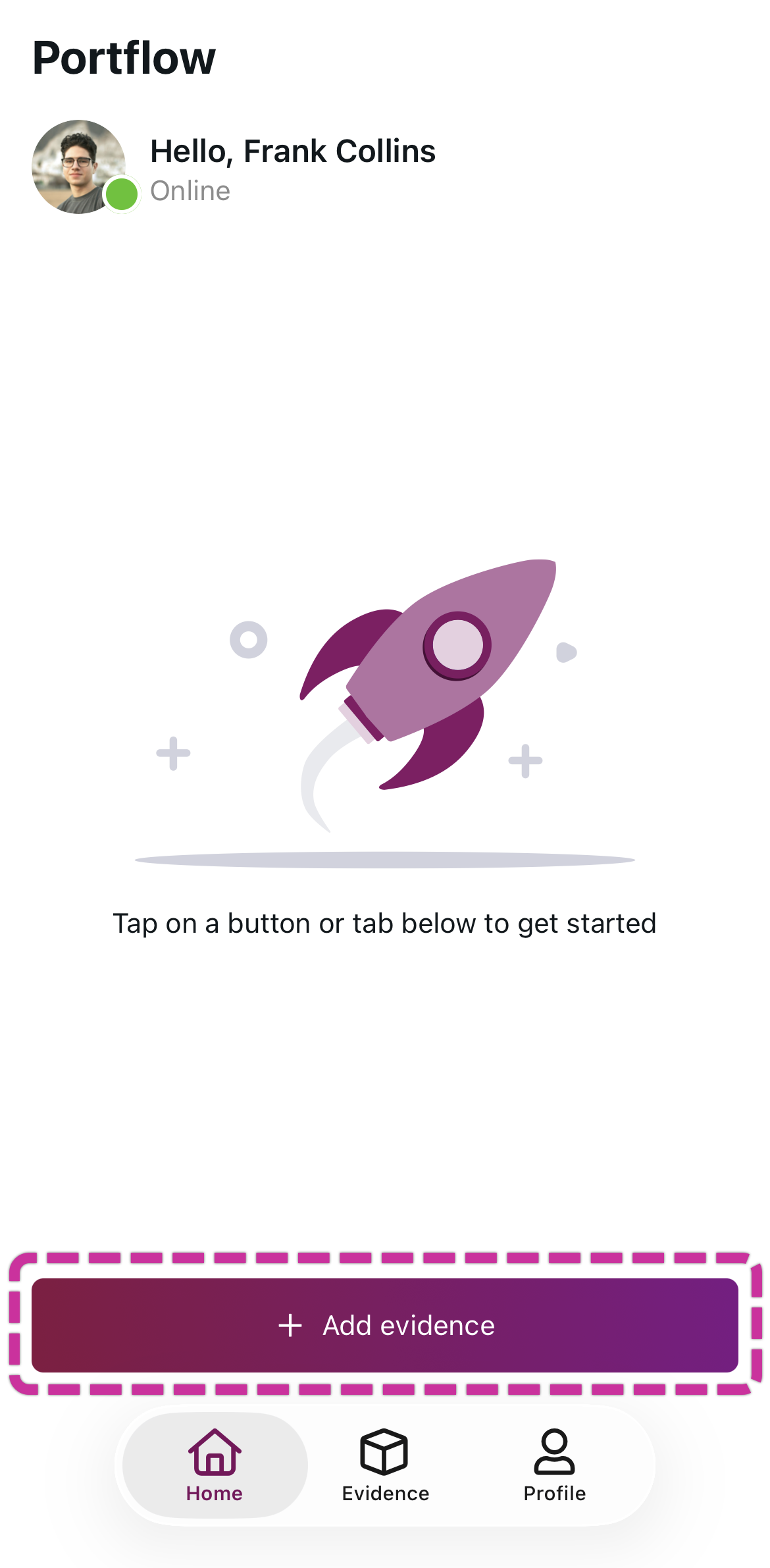
Tap the + Add evidence button (1).
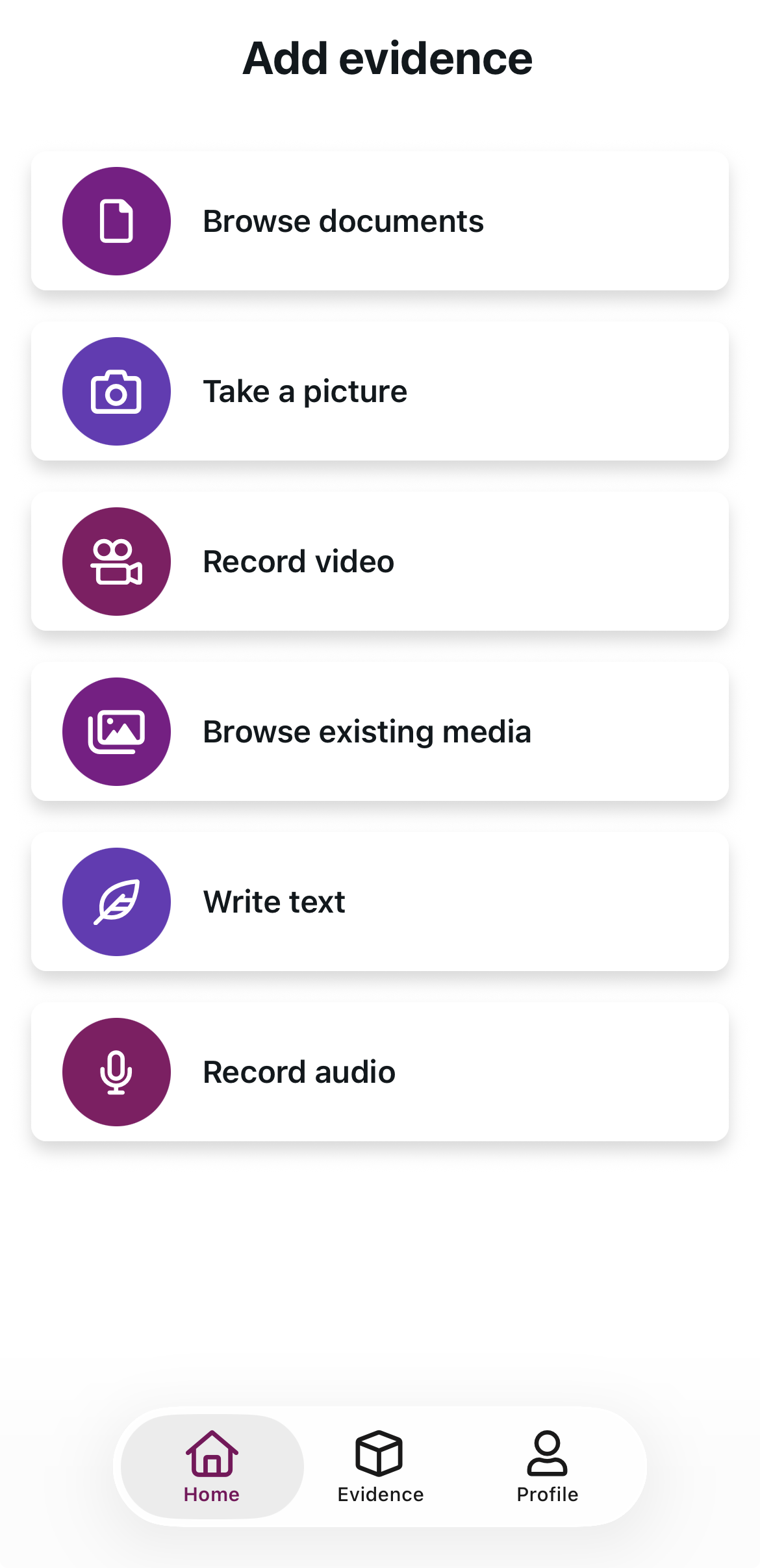
Select the type of Evidence you want to add.
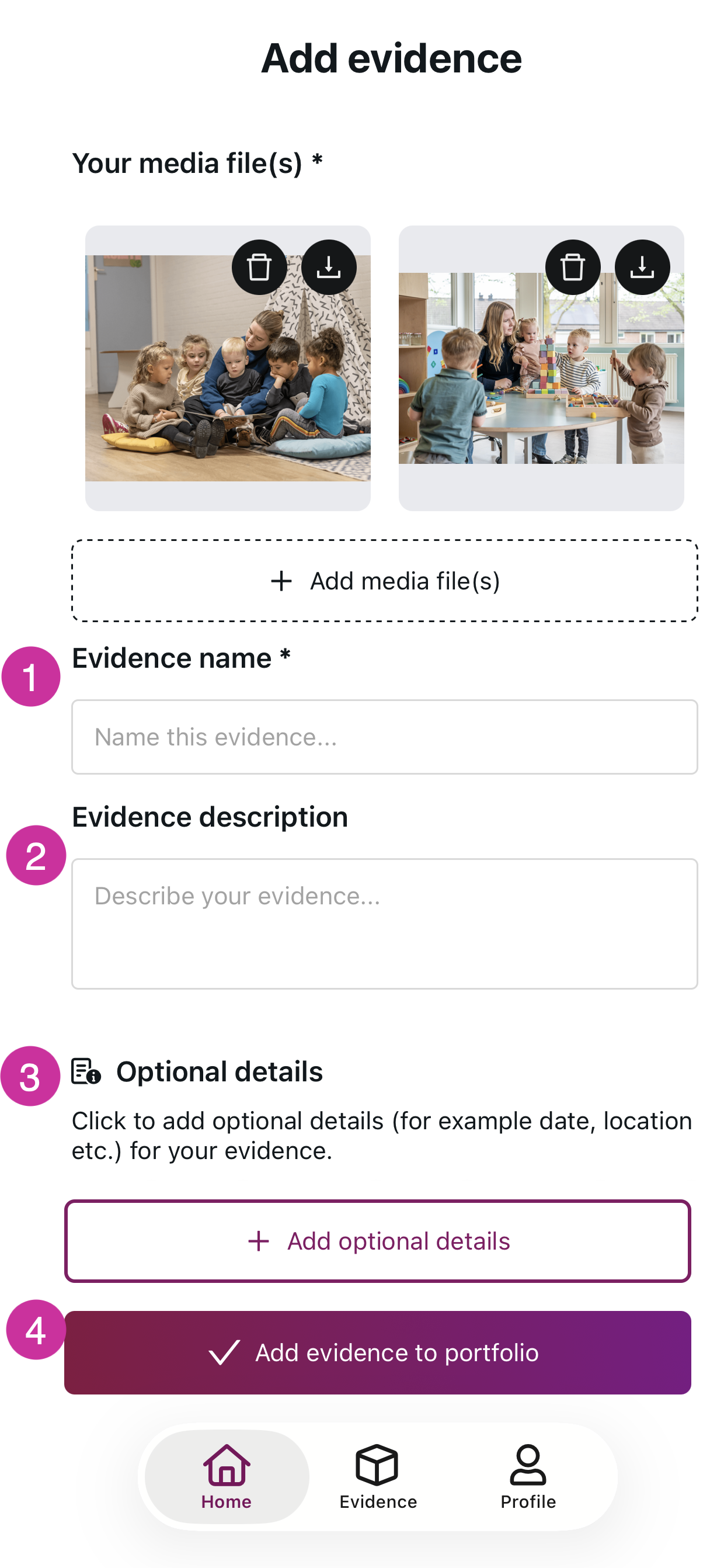
Fill in the details of your evidence: a name (required) (1), a description (2) and any additional details (3). Then tap the Add evidence to portfolio (4) button.
Tip:
You can add multiple images or files to the same piece of Evidence, just like you can in the web app.
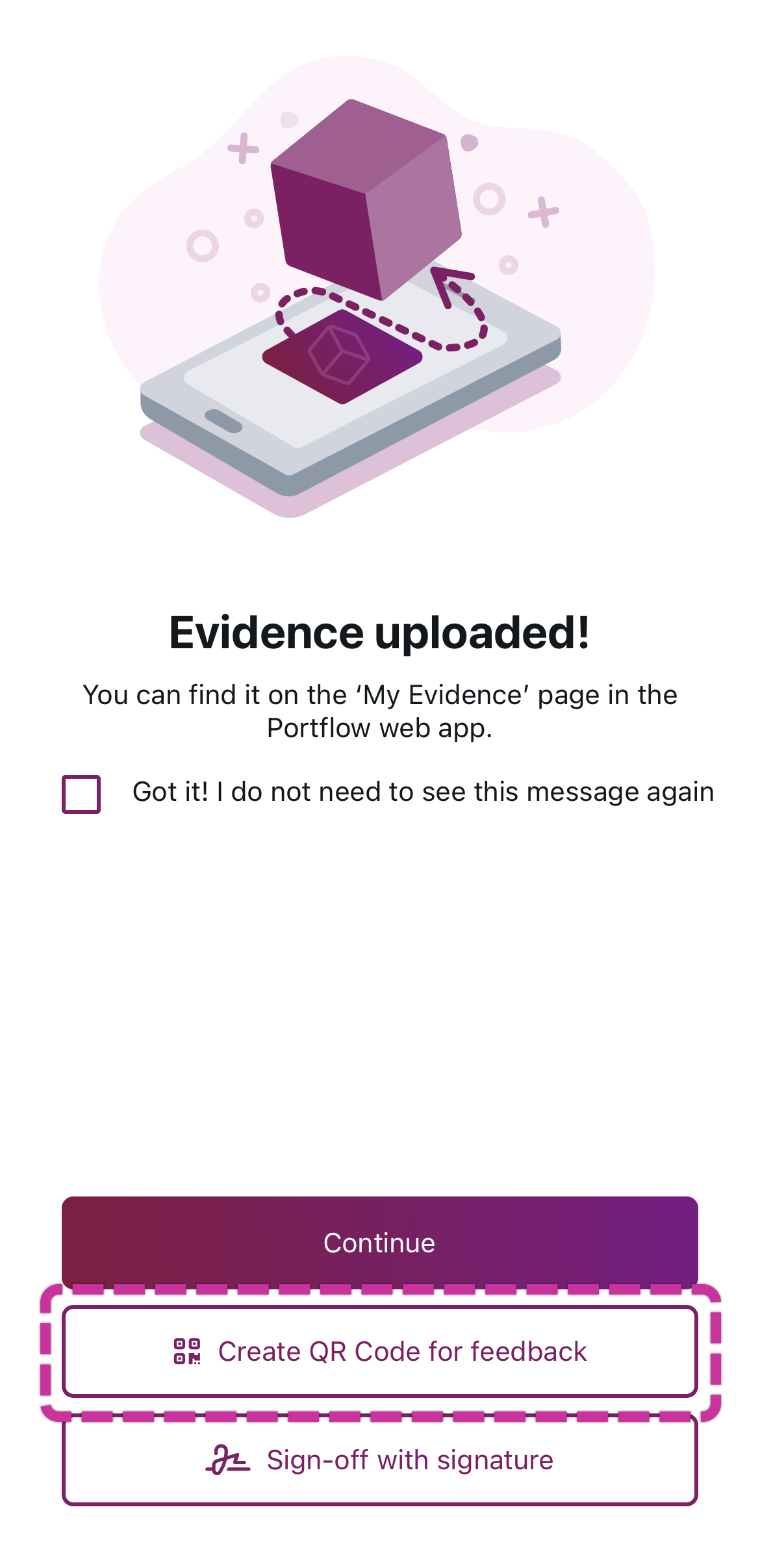
You will now see a confirmation that your evidence has been successfully uploaded to your Portfolio. You can also choose to directly request Feedback or Sign-off for this Evidence (see further down).
How do I request Ad-hoc Feedback (with QR code) from the Mobile App?
Open the Portflow Mobile App.
Upload or create Evidence, or go to recently uploaded Evidence.
Click on the button/icon of the QR code.
In a new Evidence, after uploading immediately choose to generate a QR code.
In recently uploaded Evidence, click the button 'Feedback QR Code' on to the relevant evidence
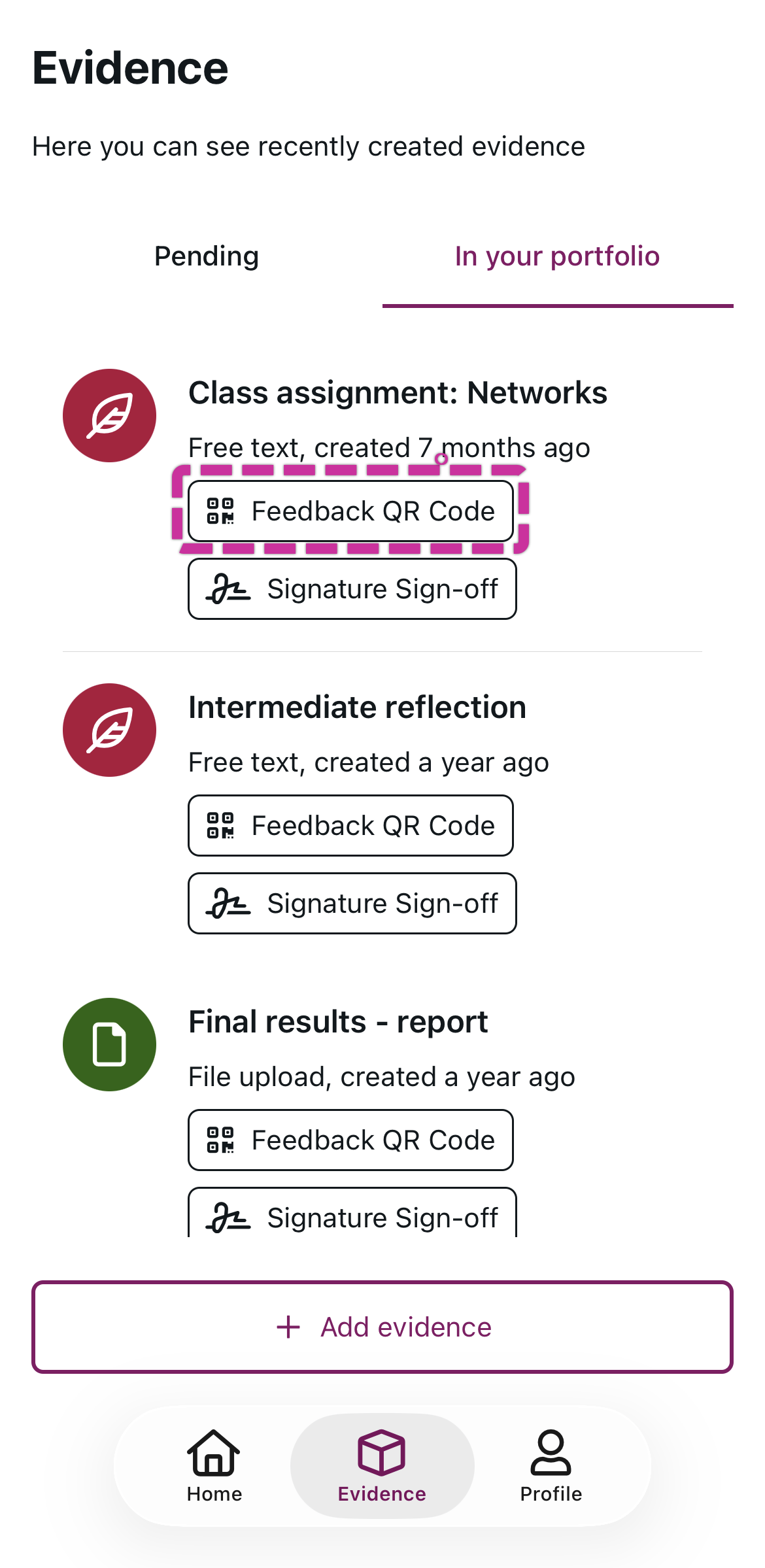
Confirm that you want to view the QR code: click Show QR Code. Only do this if you know that no unintended audience will be able to scan the QR code.

Take a screenshot (for later) or show (immediately) this QR code to the person from whom you want Feedback on the Evidence. The person scanning the QR code can now give you Feedback via a web form. Read more about giving Feedback via the QR code: 📄 Request and Provide Feedback
The QR code will expire in 48 hours to prevent unintended spamming of Feedback.
How do I request Signature Sign-Off?
If you need a Signature to have a particular action or learning activity signed off by someone who witnessed it (e.g. internship supervisor), you can do this immediately after creating your Evidence or from your overview of created Evidence in the Mobile App. The signatory will use your device to draw their Signature and provide their email address for optional validation.
Open the Portflow Mobile App
Add Evidence, or go to recently uploaded Evidence.
Press the button for the Sign-off.
For new Evidence, click the button for Sign-off in the bottom of the completion screen.
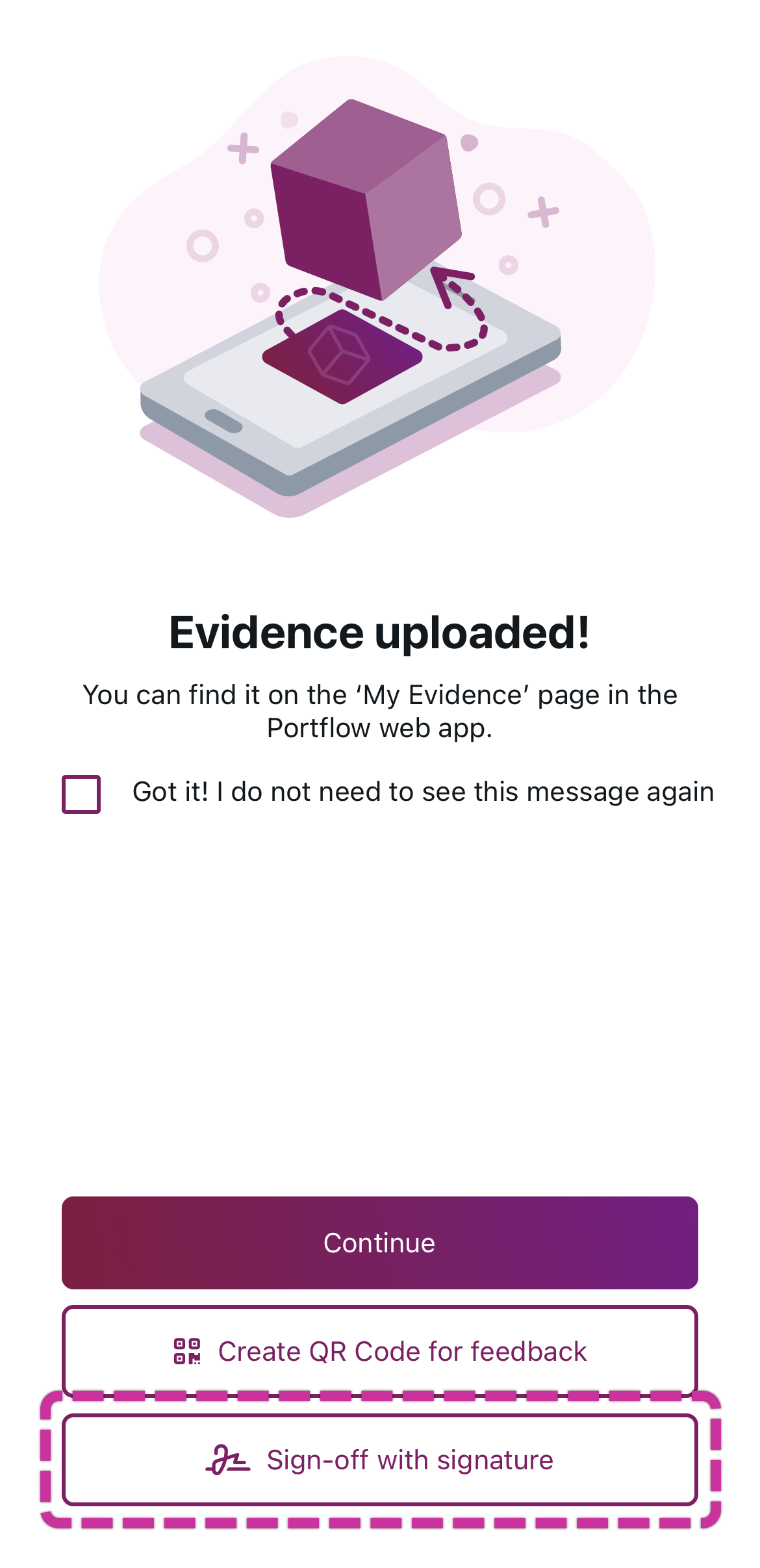
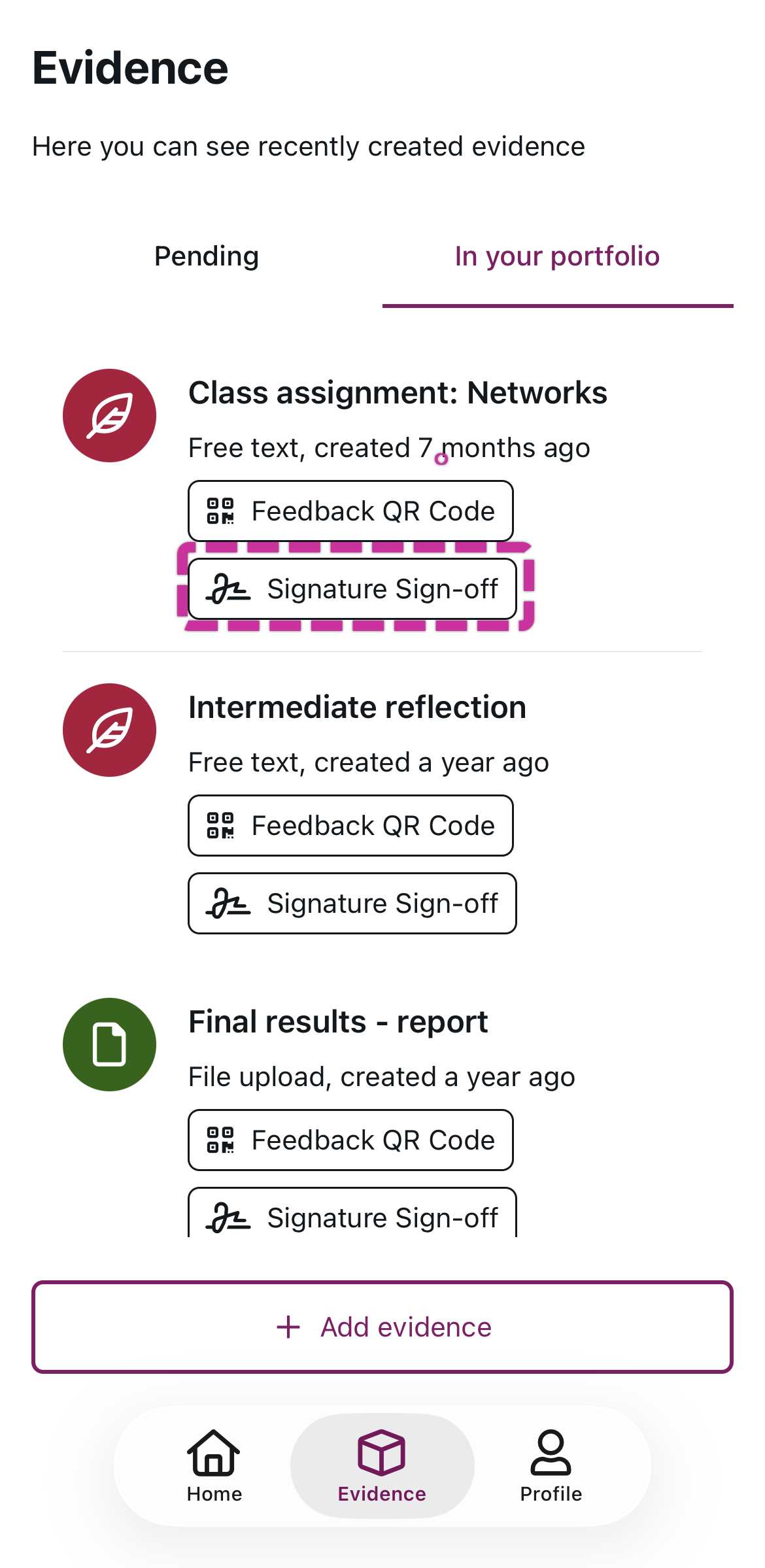
For a previously added Evidence, click the button for Sign-off below it.
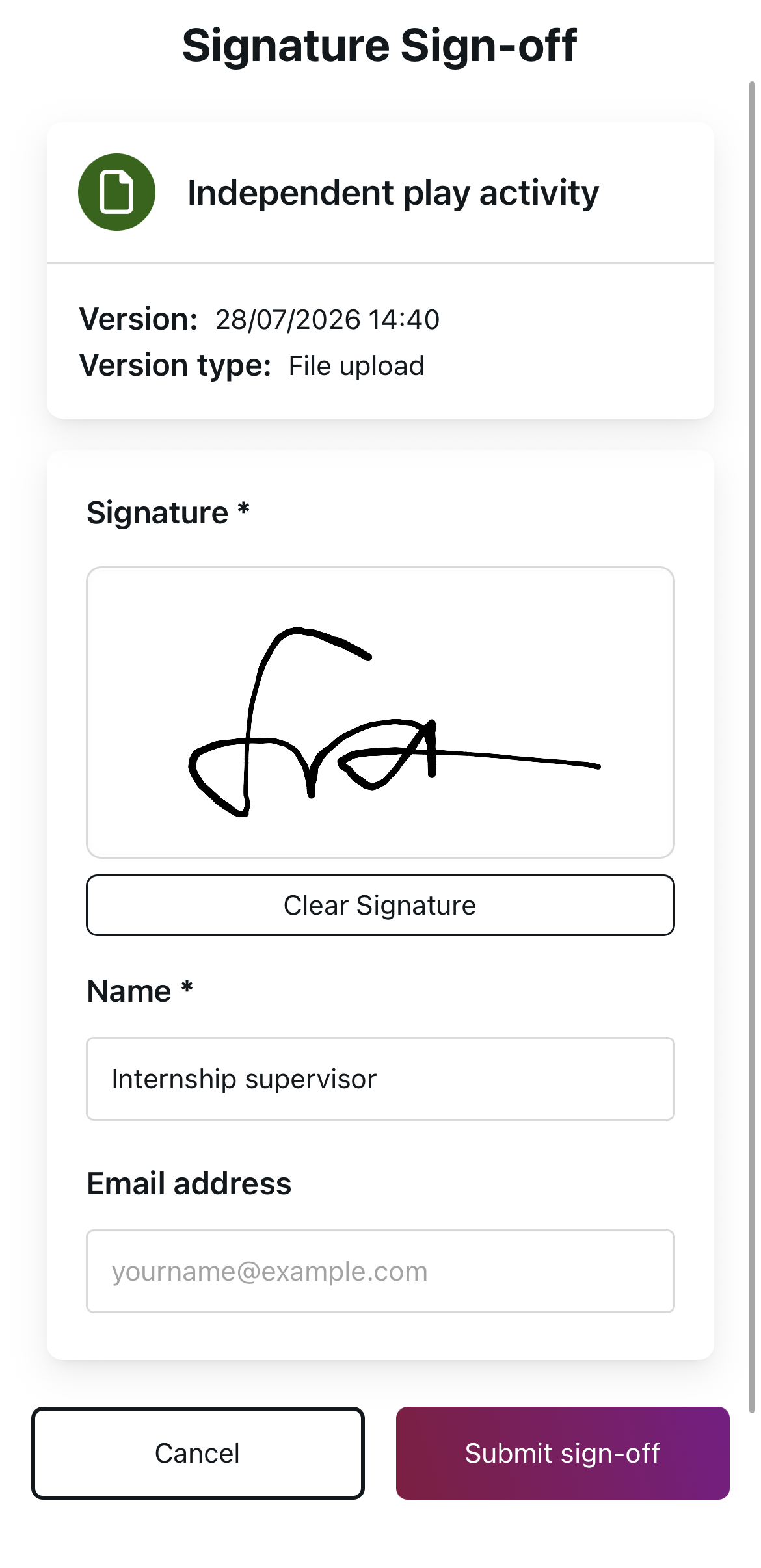
Hand your mobile phone to the person whose Signature you are requesting, and ask them to sign and fill in their name. The email address is optional and is used for verification purposes.
The Signature and name will now appear at the top of your Evidence in your portfolio.
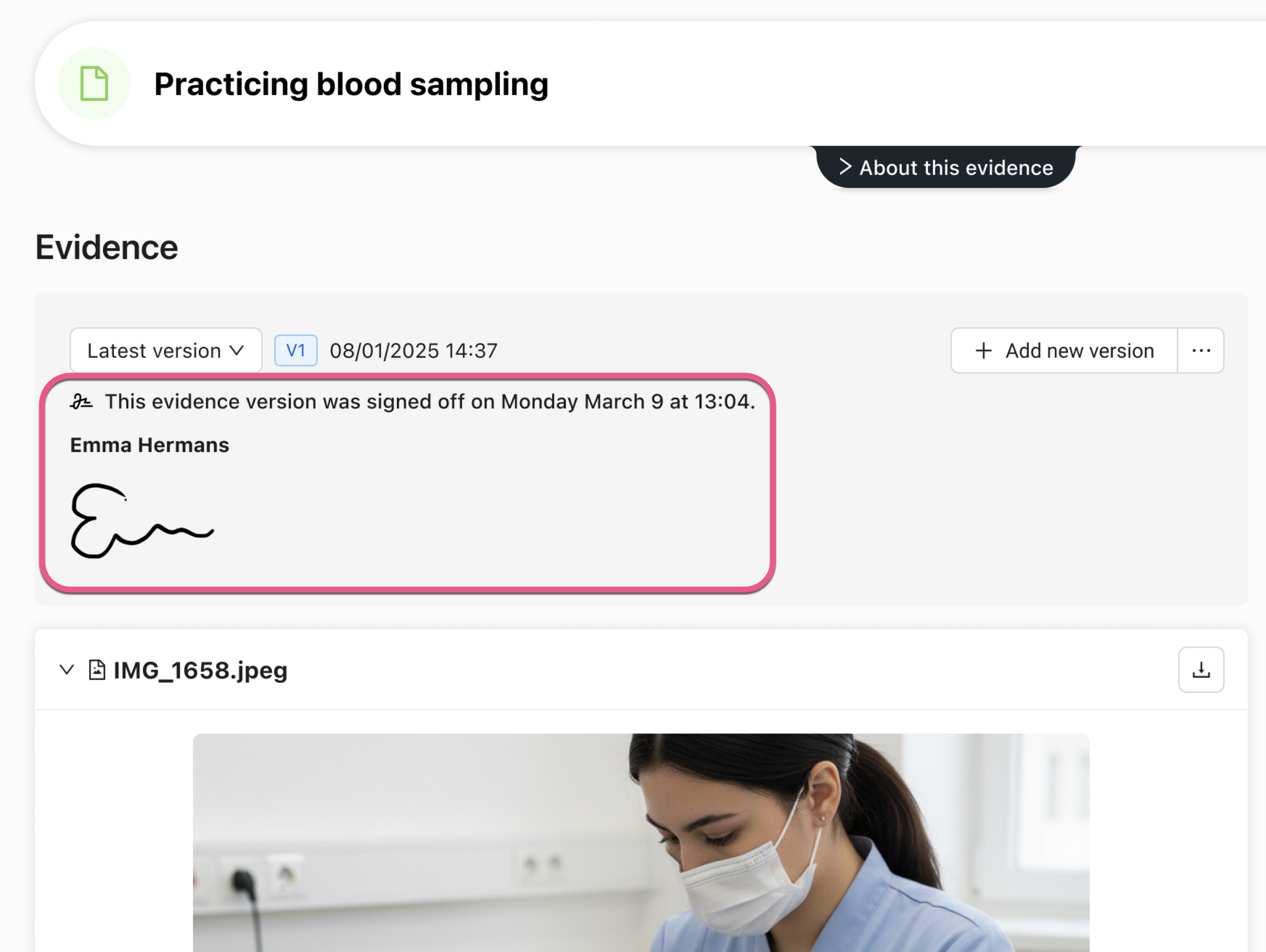
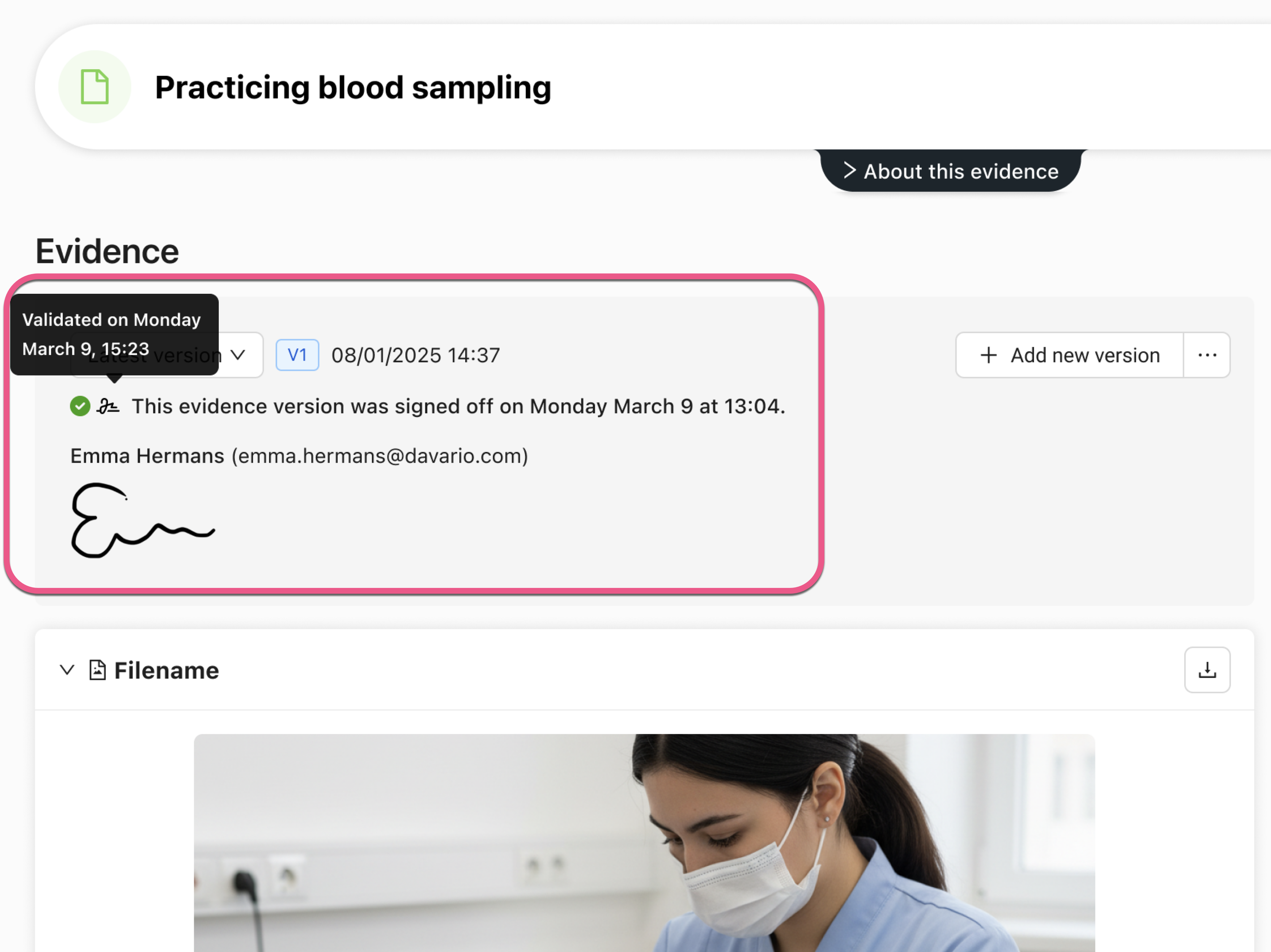
When you also ask the user to enter their email address, the Signature will be validated. The signatory will receive an email containing a link to confirm the signature. If this is an internal user, they will be asked to confirm this in Portflow. In that case, the user will also receive a notification in Portflow. Once the signature has been validated, this is also indicated in Portflow with a green tick.
How do I link Evidence to Goals and Collections?
While the Portflow Mobile App is focussed on capturing Evidence and Feedback, you can use the Web App (via your LMS) to further organise your Evidence created on your Mobile App in your Portfolio.
Go to the Portflow Web App (via your LMS).
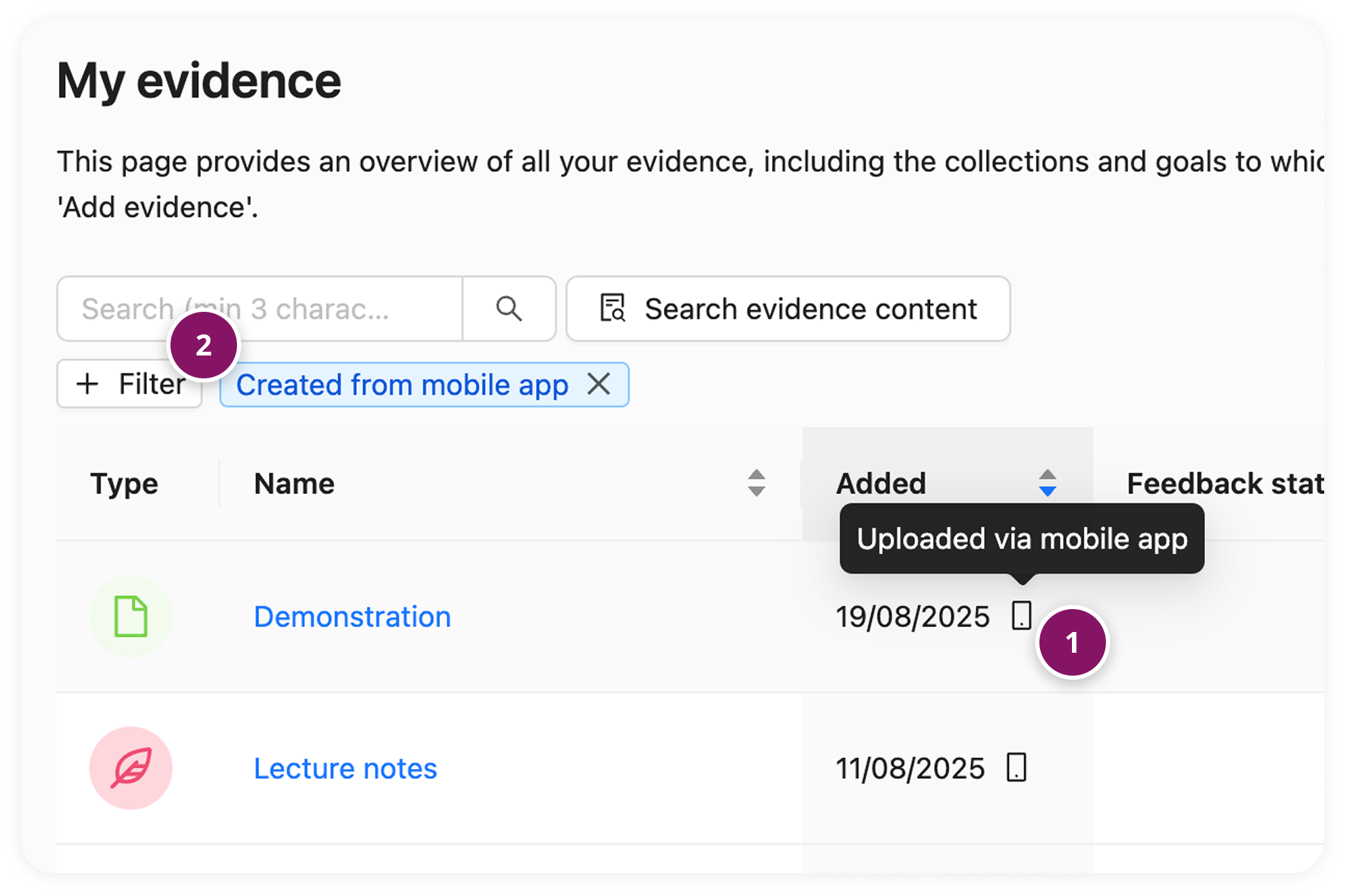
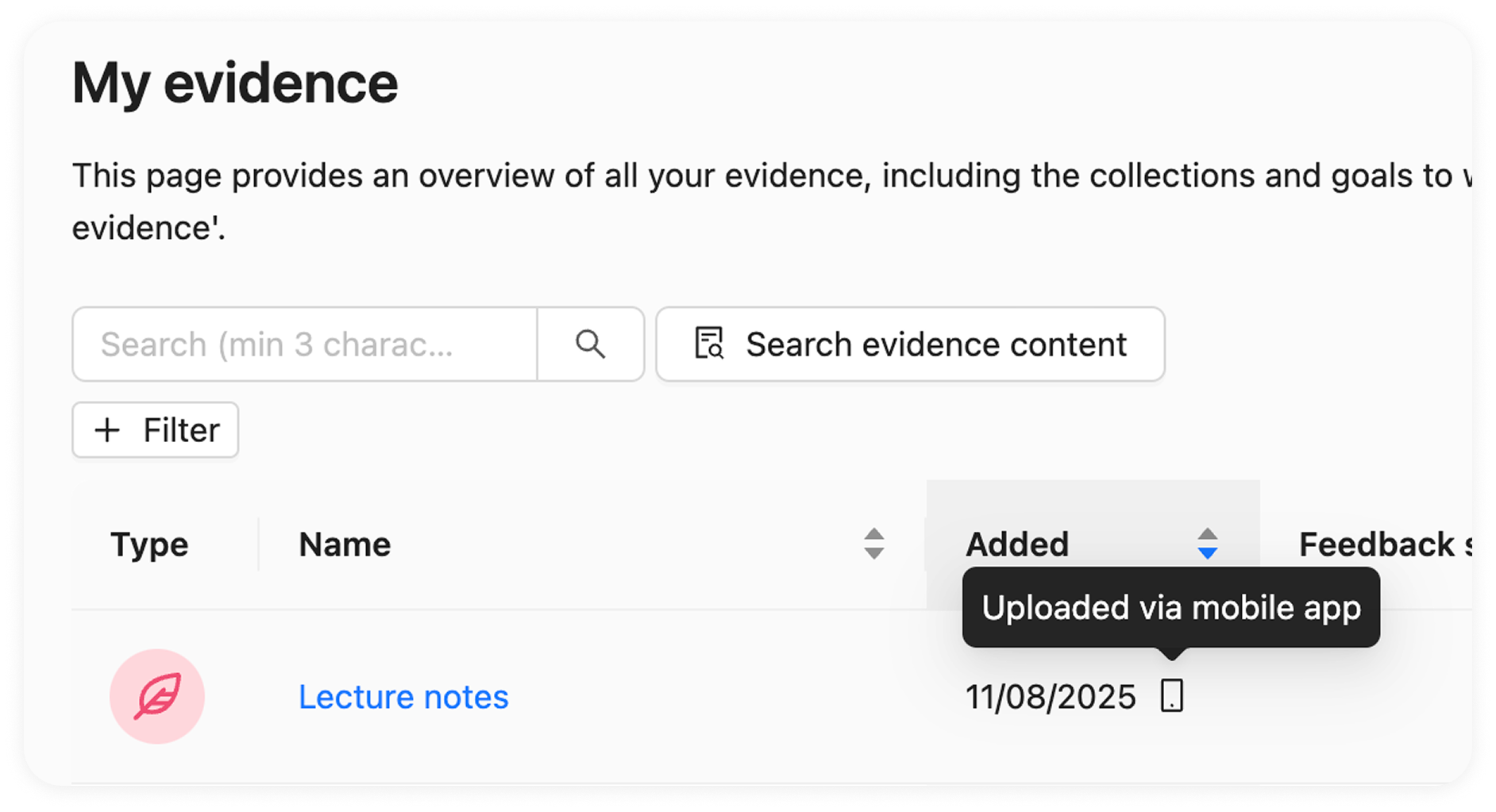
You can find the uploaded evidence on the ‘My evidence’ page. Evidence uploaded using the Mobile App has a mobile icon next to the date added, so you can easily recognise it (1). You can also filter by mobile evidence (2).
Open the action menu ︙ (1) next to the Evidence.

Link the evidence to Collections (2) and (Sub-) Goals (3)
FAQ
What types of Evidence can I create with the Portflow App?
You can take one or more photos or upload an existing photo, video, or document from your mobile device. You can also add text evidence, for example for notes or feedback discussions. In addition, it is possible to record audio.
What optional details can I add to my Evidence in the Portflow app?
You can add a date, location, and time spent to complete the evidence.
Where can I find in my Portfolio what Evidence I have created with the Portflow app?
You can find this Evidence on the ‘My evidence’ page in the Portflow web app (via your LMS). Evidence uploaded using the Mobile App has a mobile icon next to the date added, so you can easily recognise it. You can also filter on the property 'Created from mobile app' on that page.
Can I use the app offline?
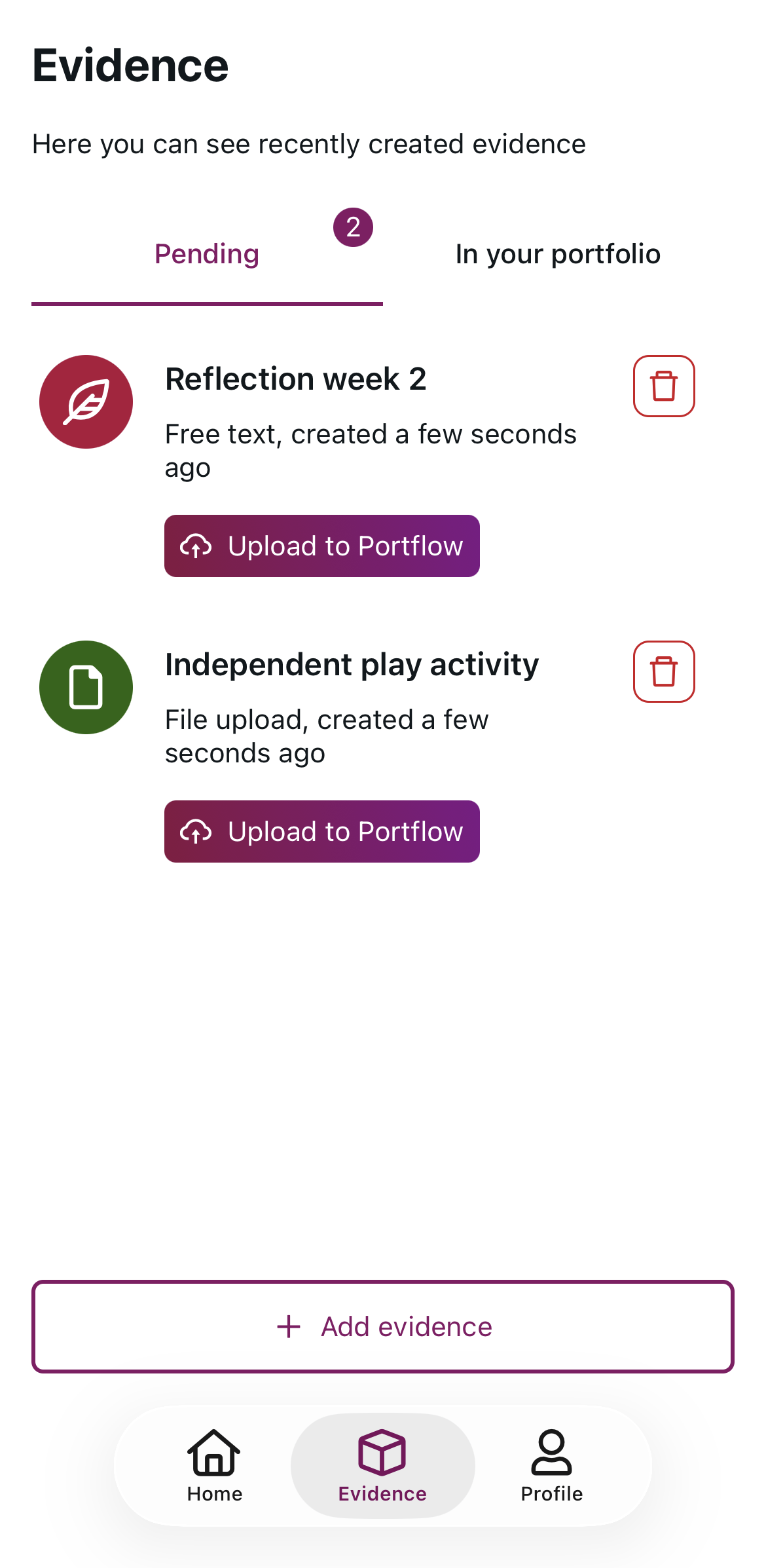
Yes, you can use the app to collect Evidence while offline. Via the ‘Evidence’ tab in the Portflow Mobile App, you can upload this Evidence from the pending list as soon as you have a reliable internet connection again.
Can I change the language of the Portflow app?
Portflow uses the language of your mobile phone, or it will default to English if the language on your phone is not supported.
iOS: To change the language of the Portflow app specifically, go to Settings → Apps → Portflow → Language to change the language of the Portflow app.
Android: You can only change the language of the Portflow app by changing the language of your mobile phone.