Coaching Dashboard
Last updated: July 30, 2026
Summary
The Coaching Dashboard gives coaches, teachers, and mentors an overview of their learners' activity and progress within Portflow. The Coaching Dashboard can only be accessed by staff members, not by learners.
Applicable for | 🐼 |
Not applicable for | — |
How to Access the Coaching Dashboard?
You can get to the Coaching Dashboard from the context of an LMS Course. Any user with a teacher-based or admin role in the LMS can access the Coaching Dashboard in Portflow that way. Learners cannot access the Coaching Dashboard.
Accessing the Coaching Dashboard in 🐼 Canvas
In Canvas, you can reach the Coaching Dashboard by clicking Portflow within the context of a course from the Course Menu:
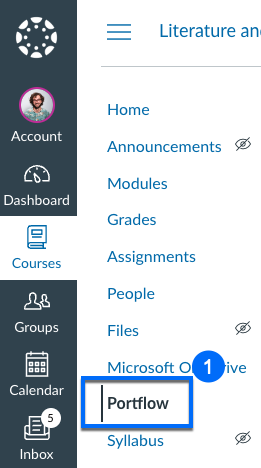
Note: as Course leader, you might need to add Portflow to the Course Navigation first.
Typically, this menu item is invisible for learners within the Course.
Accessing the Coaching Dashboard in 🫎 Brightspace
In Brightspace, you can reach the Coaching Dashboard by clicking Portflow within the context of a course from the Course Nav Bar:

When learners click this navigation item, they will end up in their regular Portflow environment. When users with a teacher-related role click this item, they will land on the Coaching Dashboard in Portflow.
Accessing the Coaching Dashboard in 🧑🏫 Blackboard
In Blackboard, you can reach the Coaching Dashboard by clicking View course & institution tools in the menu on the right hand (by Books & Tools) within the context of a course.
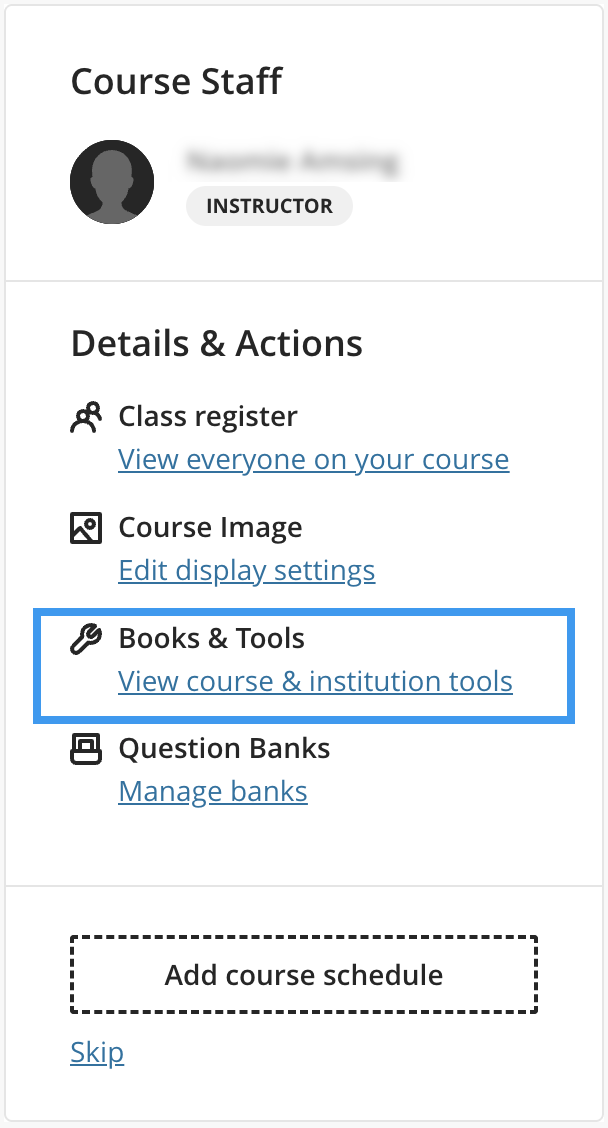
Accessing the Coaching Dashboard in 🎓 Moodle
In Moodle, you first have to add the Coaching Dashboard to a Course.
Add a new Activity, then choose Portflow as tool.
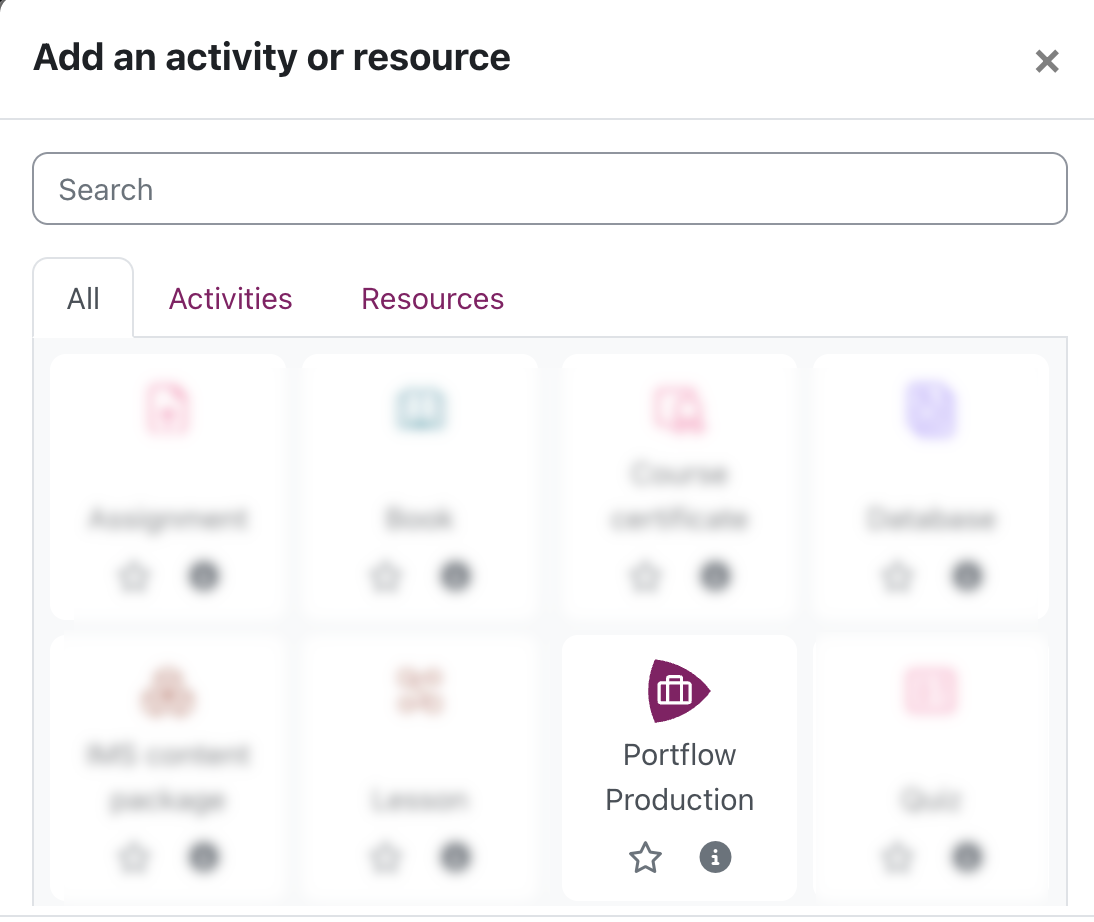
In the Activity Settings, make sure to hide the Activity on the Course page. This way, learners will not be able to see the activity.

When you have added the activity, you can access the Coaching Dashboard within the course by clicking the activity.

What can I see on the Coaching Dashboard?
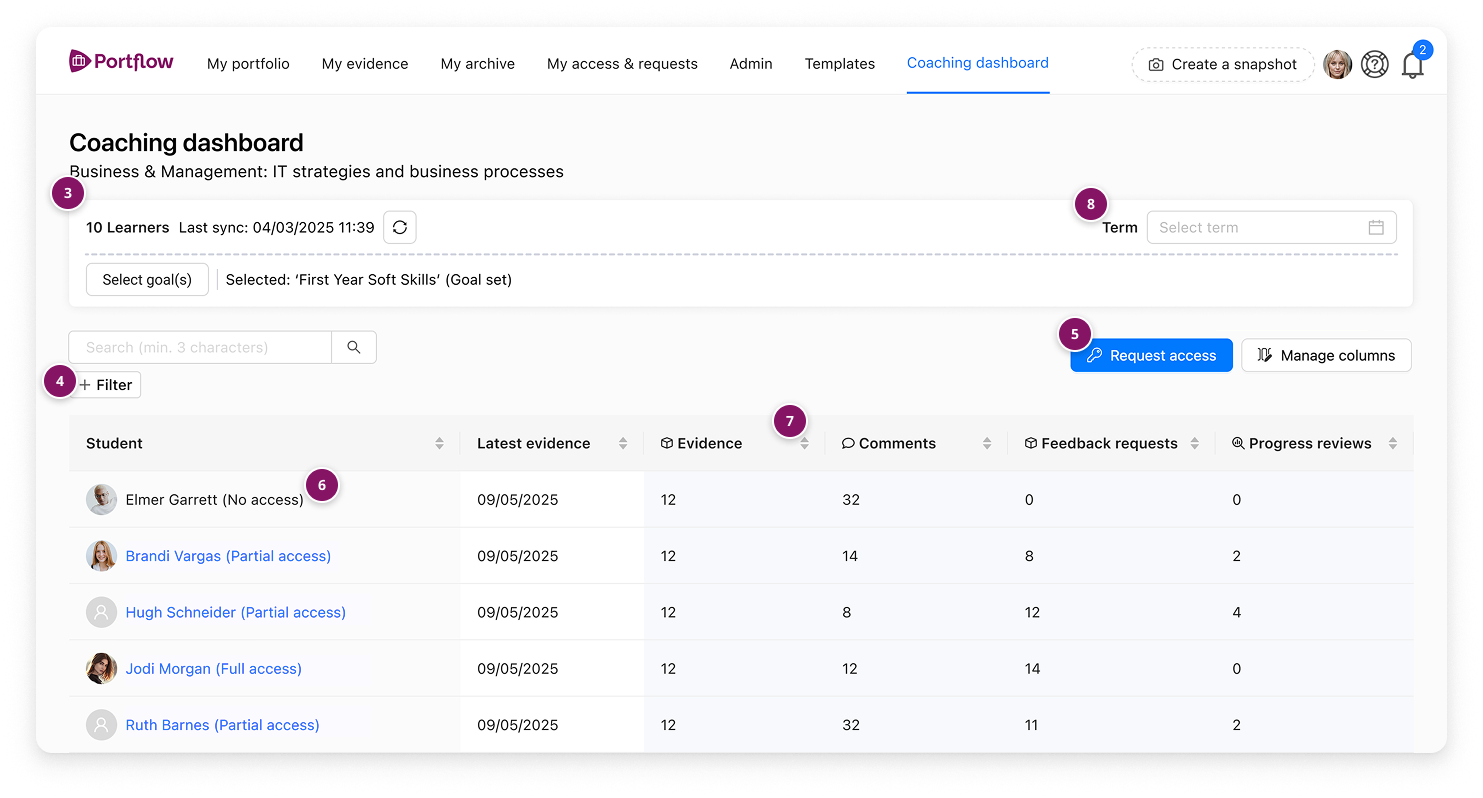
You will see the name of the course you are currently in (3) and the number of learners who are enrolled in that course.
Note: All active students (learners) are visible to all teachers, even if they are enrolled in another section and are not normally visible to you. An active student means they have an active enrolment in the course and have accepted the invitation.
You can filter the list of students based on the access they have granted you or by the sections in this LMS course (4)
If you currently do not have access to a learner's Portfolio, you can request access using the Request access button (5). Access requests can only be made to learners who are currently enrolled in this course. To request access to other students, go to the 'My access & requests' tab in Portflow (see 📄 Access shared Portfolios).
When you have access to a learner's portfolio, their name will appear in blue. Clicking the name will open their Portfolio. The level of access you have been granted is shown in parentheses after the learner's name (6).
If a learner's name appears in grey, it means they have not opened (launched) Portflow yet. If the label 'No access' appears in parentheses, the learner has opened Portflow but has not granted you access to their portfolio.
By default, the overview is sorted by the Latest Evidence date. You can click other column headers (7) to sort by that column.
If you want to review learner activity within a specific time period, you can use the Term button (8) and select a start and end date.
Activity overview
The Coaching Dashboard shows the total activity of your learners throughout Portflow in the 4 columns on the right. The difference in activity between the 2 days you set at 'Term' (8) is shown as green superscript (increase) or red superscript (decrease) in the Learner activity columns.
Evidence = Total number of all types of Evidence in their Portfolio, including Evidence that is not linked to any Collections.
Comments = Total number of Feedback Comments posted by the learner in Portfolios of other learners (engagement with peers).
Feedback requests = Total number of Feedback Requests sent by the learner, both answered and unanswered.
Progress reviews = Total number of Progress Reviews requested by the learner, with and without responses.
Progress on Goals
On the Coaching Dashboard, you also can view learners’ progress on Goals and Sub-Goals (9) that are part of a Template or Goal Set (9). You can search for a Template or Goal Set by name, or filter by the Department it is linked to. When you select a Template or Goal Set, the associated Goals and Sub-Goals will be displayed as additional columns to the left of the activity columns in the Coaching Dashboard.
For all learners who have imported these Goals, granted you access, and completed a Self-Review (Progress Review), a progress bar will appear. This progress bar reflects the most recent self-review score for that Goal or Sub-Goal. The bar is filled according to the percentage assigned to the selected level in the used Rubric Scale.
Note: The list of available Templates and Goal Sets is limited to those that contain at least one Goal and have been imported by a learner at least once.
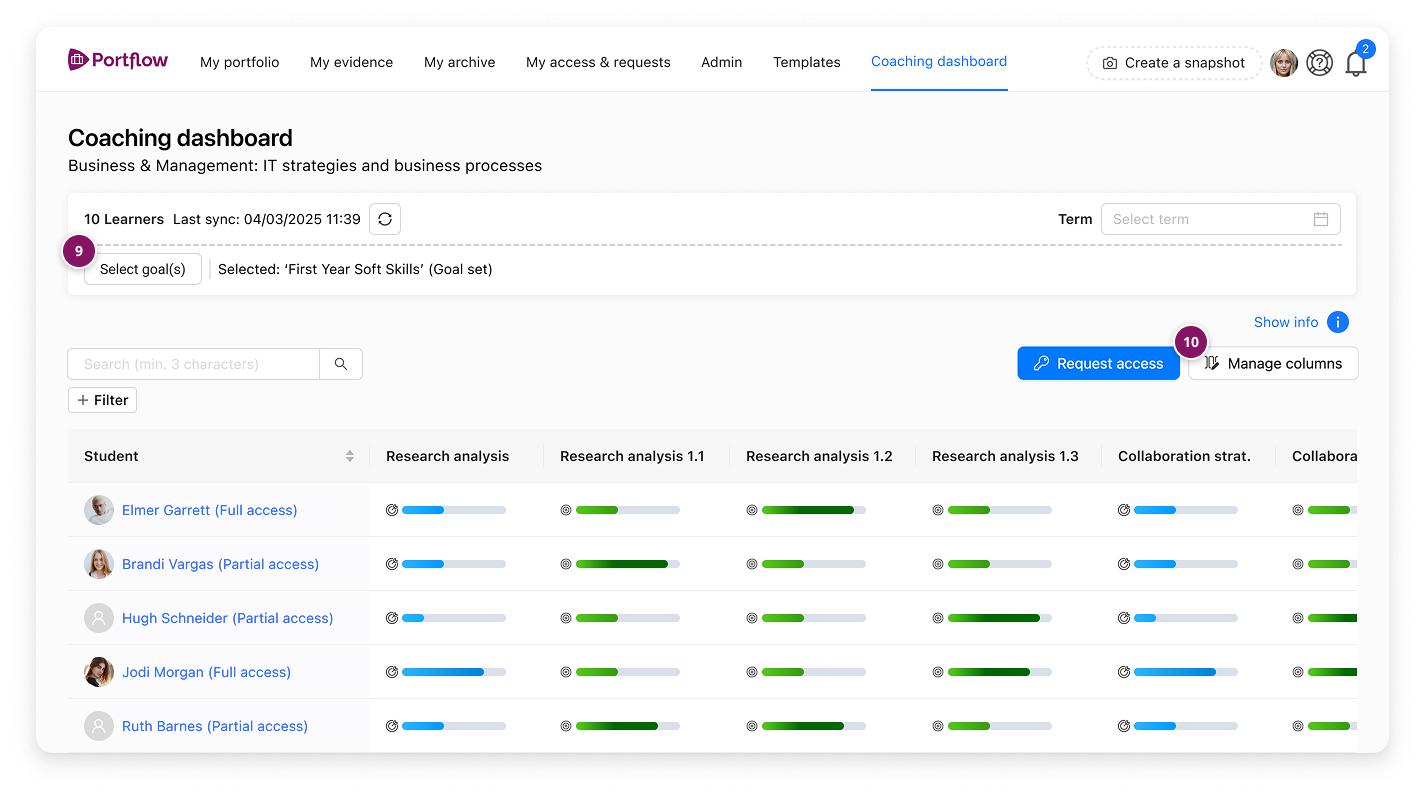
Tip: If you want to focus on a subset of Goals or Sub-Goals from a Template or Goal Set in the Coaching Dashboard, you can manage the available columns via the Manage columns button (10).