Approving Portflow in Microsoft Entra for OneDrive/SharePoint access
Last updated: July 29, 2026
Summary
Portflow integrates with Microsoft OneDrive and SharePoint to allow learners to import evidence from these online locations. To allow learners to import files from your institution's online Microsoft environment, some configuration might be required (depending on applied policies).
Portflow allows users to import files from OneDrive and SharePoint as evidence into their portfolio. This mitigates the need for users to download files to their computer and uploading them manually to Portflow.
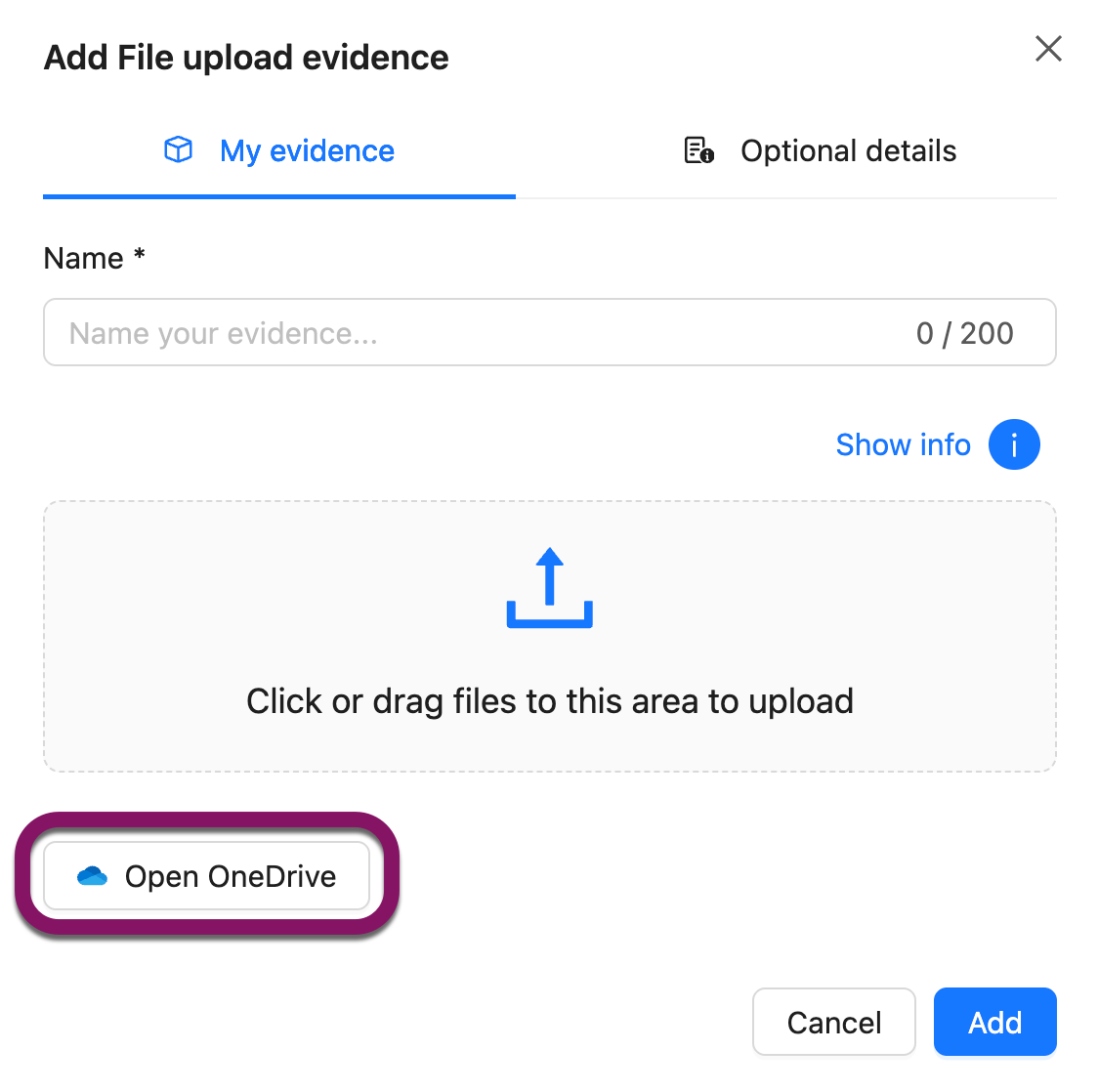
Depending on what account the user uses when using the button to import evidence from OneDrive, they'll be able to import files from their personal OneDrive account or from their institution's OneDrive/SharePoint environment.
Note: Portflow will only get temporary access to the file(s) selected by the user, during the session. This allows Portflow to 'download' the chosen file(s) to the user's portfolio once. No other data will be exchanged. More info on the data exchange can be found in 📄 Integrations (Microsoft, Google, LinkedIn, GitHub).
If the learner signs in to their institution's Microsoft account, the user might run into a message from Microsoft, indicating that Admin permissions are required. This happens when the institution's policies in Microsoft Entra are set to not automatically allow delegated access (access on the user's behalf) to new applications.
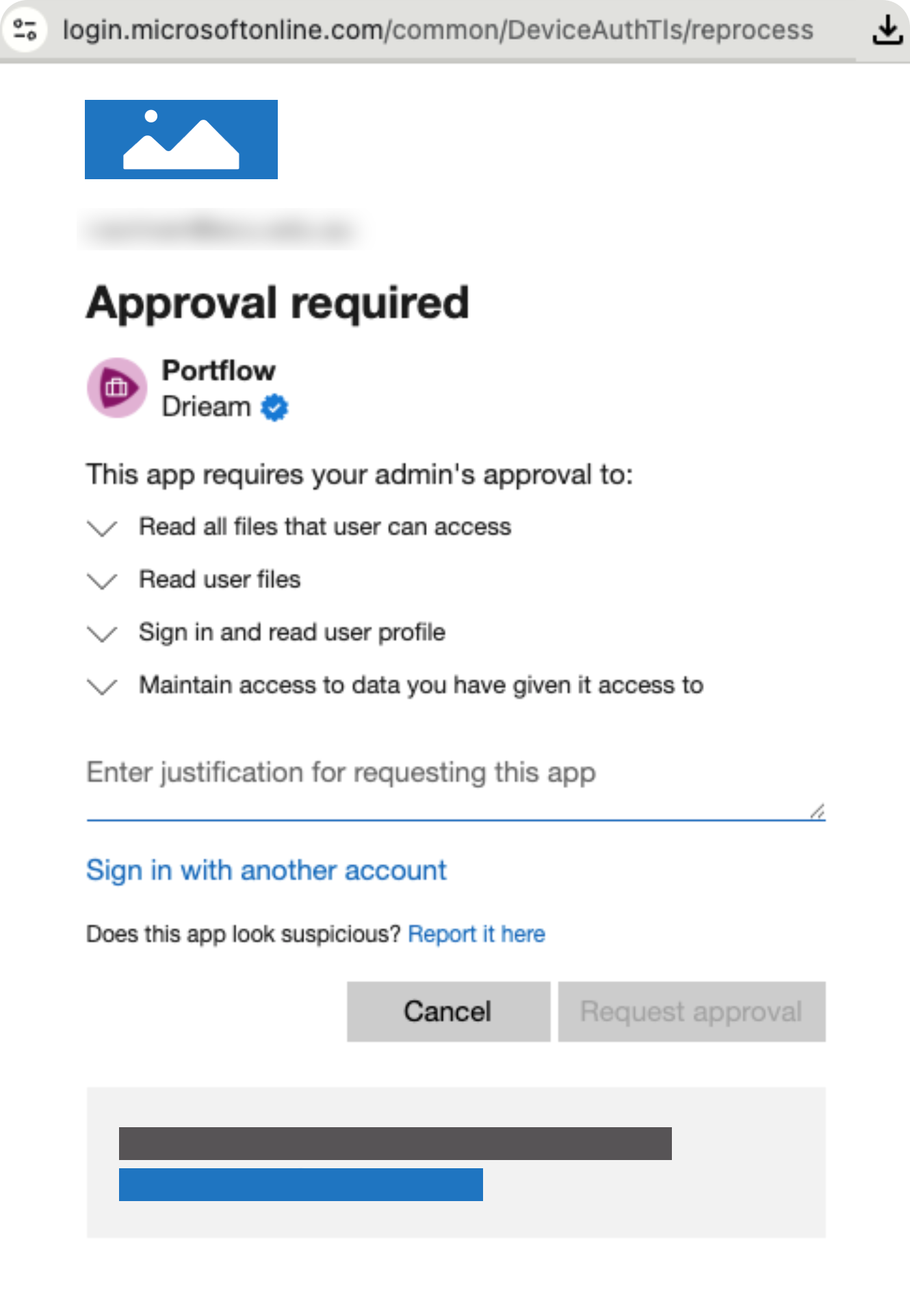
To approve Portflow to access files the user has access to on the user's behalf, the institution's Microsoft admin can follow these steps:
Sign in to the Microsoft Entra admin center as at least a Cloud Application Administrator.
Navigate to Entra ID → Enterprise apps → All applications.
Find and click Portflow.
Select Permissions under Security.
Click Grant admin consent for [Institution]
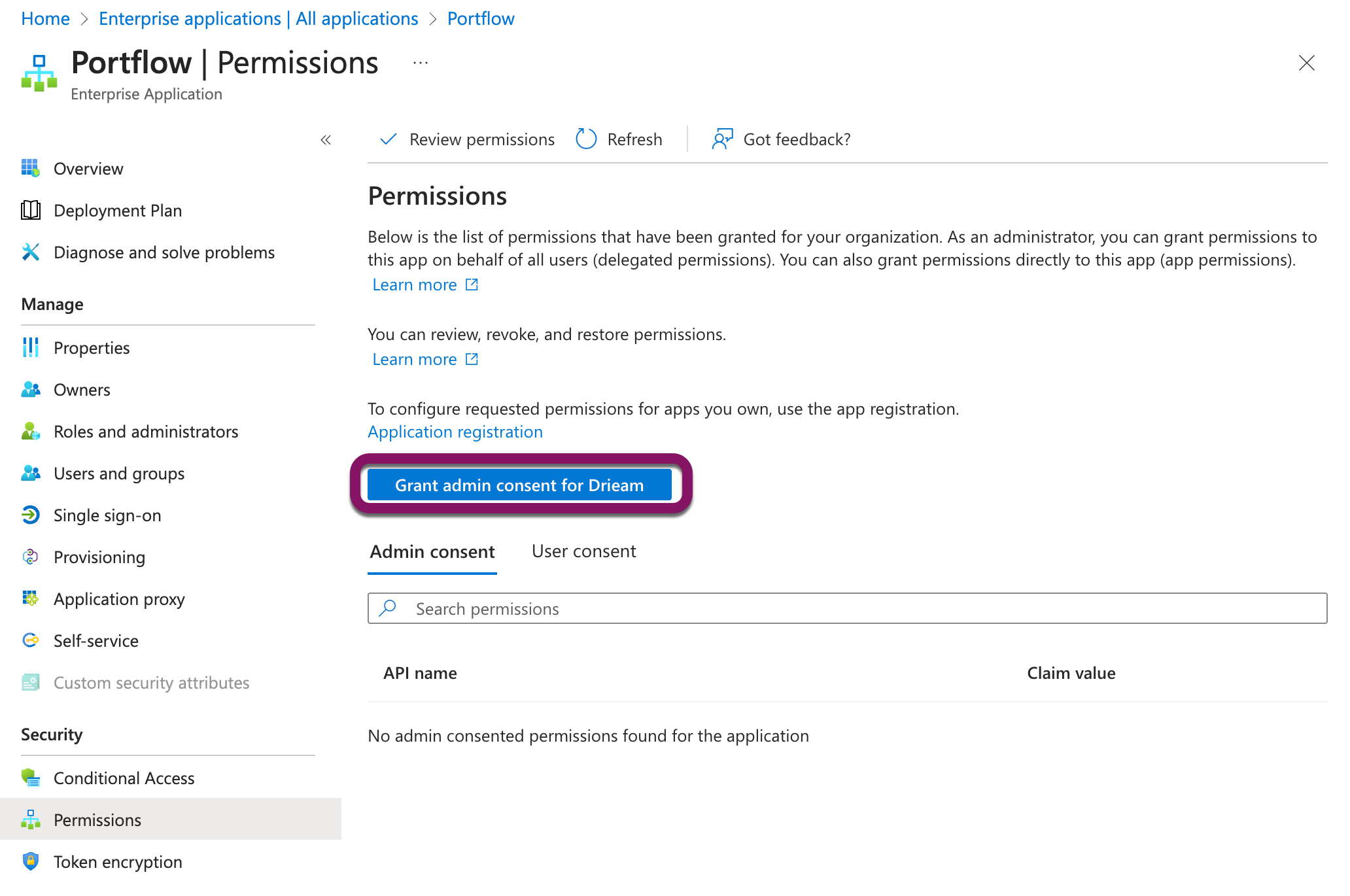
Review the permissions and click Accept.
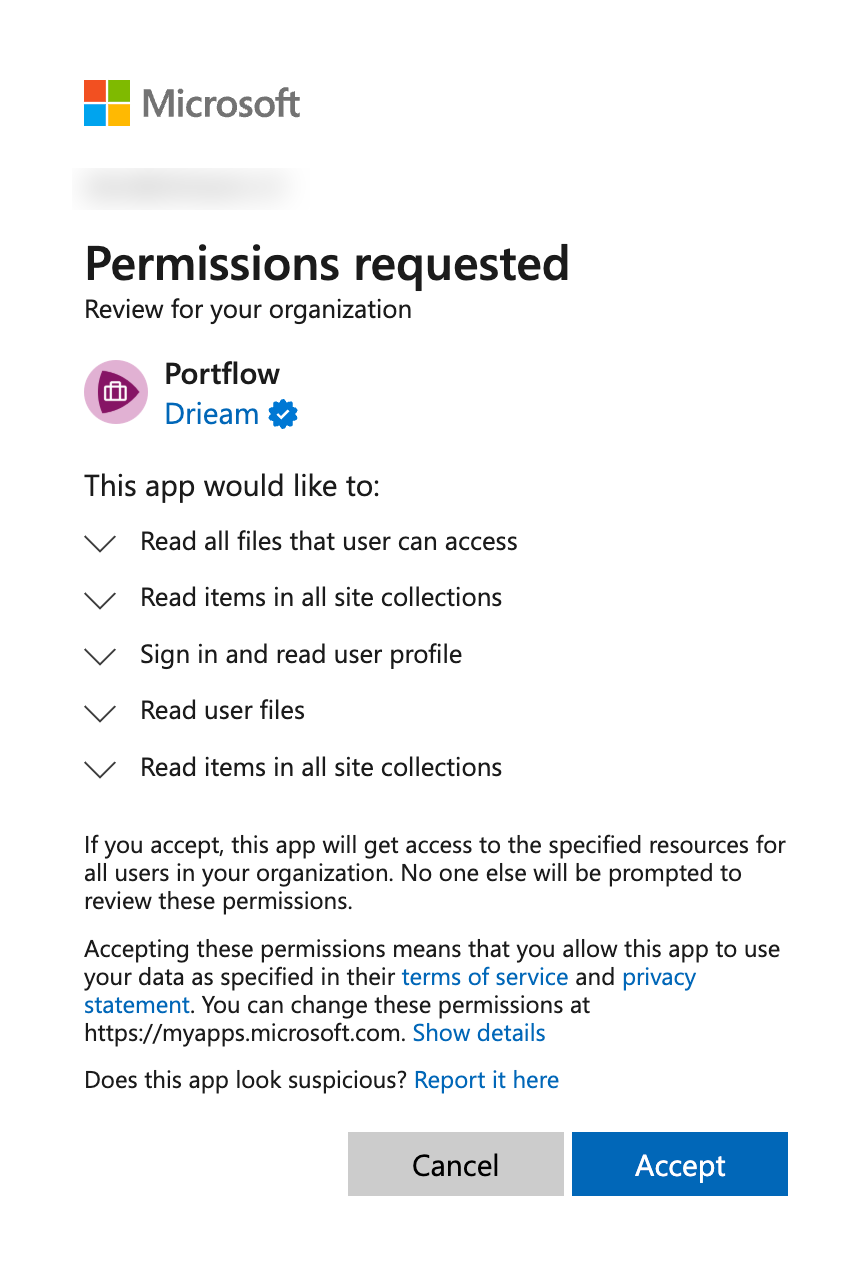
Once the admin has granted tenant-wide consent, users should no longer receive the 'Admin approval required' message and should be able to import files from their Institution's OneDrive and SharePoint folder(s).
Troubleshooting
In case the above steps did not work, there might be policies in place that prevent permissions to be propagated or otherwise. One of these policies that might need to be enabled to become aware and easily provide consent to user-requested applications can be found here:
Sign in to the Microsoft Entra admin center as at least a Cloud Application Administrator.
Navigate to Entra ID → Enterprise apps → Consent and permissions
Click Admin consent settings
Set 'Users can request admin consent to apps they are unable to consent to' to Yes
Now, users can request approval. Once requested, it is easy to approve in Enterprise Apps → Admin consent requests.